data sources

Info about any spatial or attribute data sources

IPUMS CPS Table

Creating Geographic Estimates with the IPUMS CPS Online Data Analysis System

Introduction

In this post I’ll demonstrate how to use the IPUMS CPS Online Data Analysis System to generate summary data from the US Census Bureau’s Current Population Survey (CPS). The tool employs the Survey Documentation and Analysis system (SDA) created at UC Berkeley.

The CPS is a monthly stratified sample survey of 60k households. It includes a wide array of statistics, some captured routinely each month, others at various intervals (such as voter registration and participation, captured every November in even-numbered years). The same households are interviewed over a four-month period, then rotated out for four months, then rotated back in for a final four months. Given its consistency, breadth, high response rate and accuracy (interviews are conducted in-person and over the phone), researchers use the CPS microdata (individual responses to surveys that have been de-identified) to study demographic and socio-economic trends among and between different population groups. It captures many of the same variables as the American Community Survey, but includes a fair number that are not.

I think the CPS is used less often by geographers, as the sample size is too small to produce reliable estimates below the state or metropolitan area levels. I find that students and researchers who are only familiar with working with summary data often don’t use it; generating your own estimates from microdata records can be time consuming.

The IPUMS project provides an online analyzer that lets you generate summary estimates from the CPS without having to handle the individual sample records. I’ve used it in undergraduate courses where students want to generate extracts of data at the regional or state level, and who are interested in variables not collected in the ACS, such as generational households for immigrants. The online analyzer doesn’t include the full CPS, but only the data that’s collected in March as part of the core CPS series, and the Annual Social & Economic Supplement (ASEC). It includes data from 1962 to the present.

To access any of the IPUMS tools, you must register and create an account, but it’s free and non-commercial. They provide an ample amount of documentation; I’ll give you the highlights for generating a basic geographic-based extract in this post.

Creating a Basic Geographic Summary Table

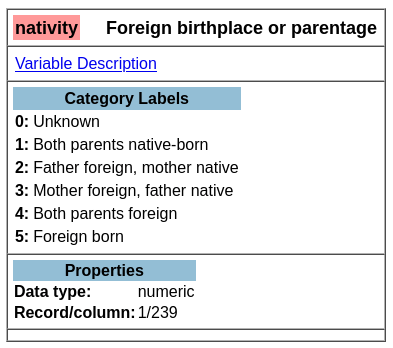
Once you launch the tool, the first thing you need to do is select some variables. You can use the drill-down folder menus at the bottom left, but I find it’s easier to hit the Codebook button and peruse the alphabetical list. Let’s say we want to generate state-level estimates for nativity for a recent year. If we go into the codebook and look-up nativity, we see it captures foreign birthplace or parentage. Also in the list is a variable called statefip, which are the two-digit codes that uniquely identify every state.

Codebook for Nativity – Foreign Birthplace or Parentage

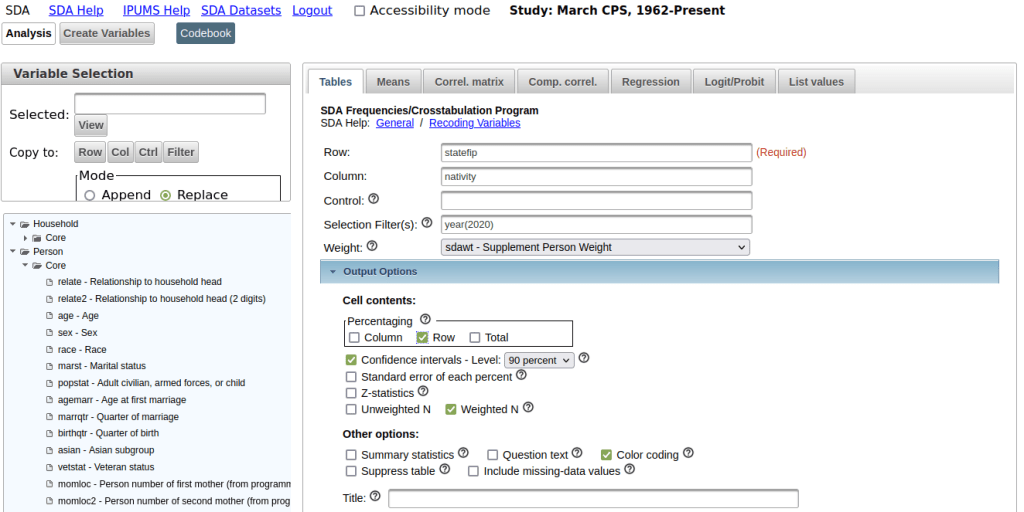
Back on the main page for the Analyzer in the tables tab, we provide the following inputs:

  1. Row represents our records or observations. We want a record for every state, so we enter the variable: statefip.
  2. Column represents our attributes or variables. In this example, it’s: nativity.
  3. Selection filter is used to specify that we want to generate estimates from a subset of all the responses. To generate estimates for the most recent year, we enter year as the variable and specify the filter value in parentheses: year(2020). If we didn’t specify a year, the program would use all the responses back to 1962 to generate the estimates.
  4. Weight is the value that’s used to weight the samples to generate the estimates. The supplemental person weight sdawt is what we’ll use, as nativity is measured for individual persons. There is a separate weight for household-level variables.
  5. Under the output option dropdown, we change the Percentaging option from column to row. Row calculates the percentage of the population in each nativity category within the state (row). The column option would provide the percentage of the population in each nativity category between the states. In this example, the row option makes more sense.
  6. For the confidence interval, check the box to display it, as this will help us gauge the precision of the estimate. The default level is 95%; I often change this to 90% as that’s what the American Community Survey uses.
  7. At the bottom of the screen, run the table to see the result.
CPS Online Analyzer – Generate Basic Extract for Nativity by State for a Single Year

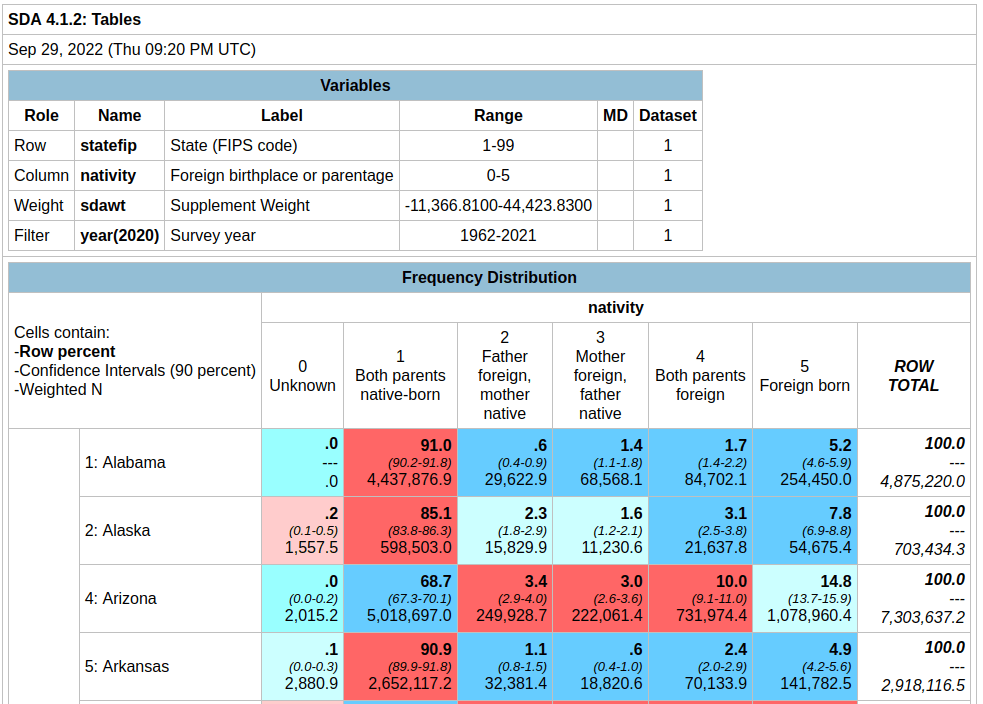
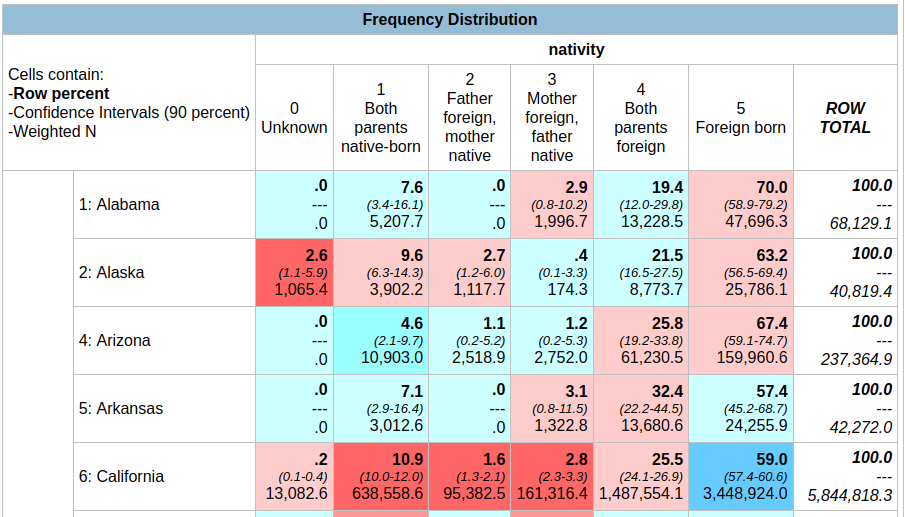
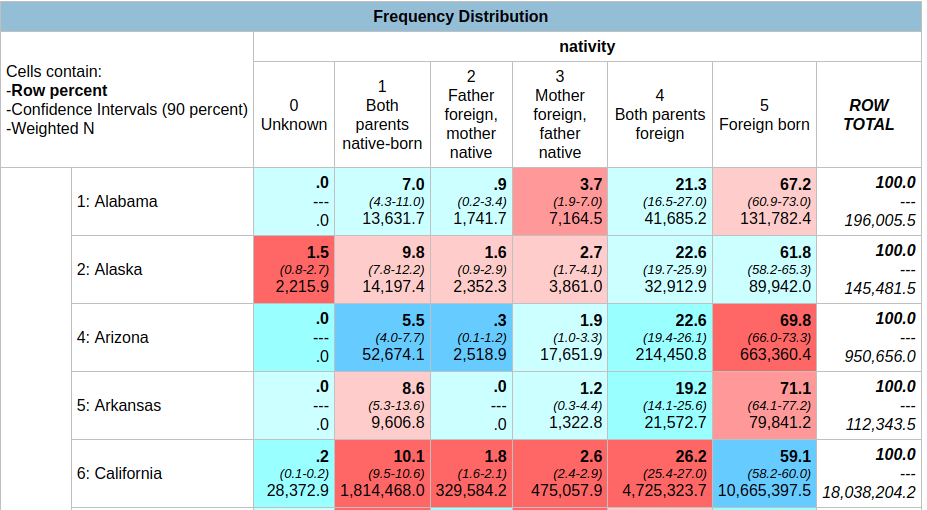
In the result, the summary of your parameters appears at the top, with the table underneath. At the top of the table, the Cells contain legend lists what appears in each of the cells in order. In this example, the row percent is first, in bold. For the first cell in Alabama: 91.0% of the total population have parents who were both born in the US, the confidence interval is 90.2% to 91.8% (and we’re 90% confident that the true value falls within this range), and the large number at the bottom is the estimated number of cases that fall in this category. Since we filtered our observations for one year, this represents the total population in that category for that year (if we check the totals in the last column against published census data, they are roughly equivalent to the total population of each state).

Output Table – Nativity by State in 2020

Glancing through the table, we see that Alabama and Alaska have more cases where both parents are born in the US (91.0% and 85.1%) relative to Arizona (68.7%). Arizona has a higher percentage of cases where both parents are foreign born, or the persons themselves are foreign-born. The color coding indicates the Z value (see bottom of the table for legend), which indicates how far a variable deviates from the mean, with dark red being higher than the expected mean and dark blue being lower than expected. Not surprisingly, states with fewer immigrants have higher than average values for both parents native born (Alabama, Alaska, Arkansas) while this value is lower than average for more diverse states (Arizona, California).

To capture the table, you could highlight / copy and paste the screen from the website into a spreadsheet. Or, if you return to the previous tab, at the bottom of the screen before running the table, you can choose the option to export to CSV.

Variations for Creating Detailed Crosstabs

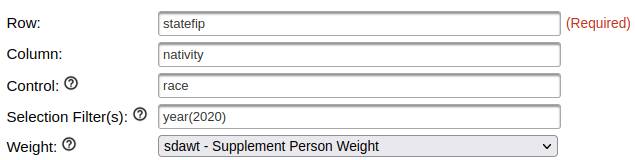
To generate a table to show nativity for all races:

Input Parameters – Generate Tables for Nativity by State for each Race

In the control box, type the variable race. The control box will generate separate tables in the results for each category in the control variable. In this case, one nativity table per racial group.

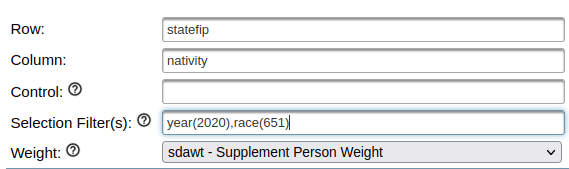
To generate a table for nativity specifically Asians:

Input Parameters – Generate Table for Nativity by State for Asians

Remove race from the control box, and add it in the filter box after the year. In parentheses, enter the race code for Asians; you can find this in the codebook for race: year(2020), race(651).

Now that we’re drilling down to smaller populations, the reliability of the estimates is declining. For example, in Arkansas the estimate for Asians for both parents foreign born is 32.4%, but the value could be as low as 22.2% or as high as 44.5%. The confidence interval for California is much narrower, as the Asian population is much larger there. How can we get a better estimate?

Output Table – Nativity by State for Asians in 2020

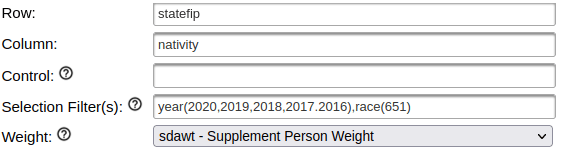
Generate a table for nativity for Asians over a five year period:

Input Parameters – Generate Table for Nativity by State for Asians for 5-year Period

Add more years in the year filter, separated by commas. In this version, our confidence intervals are much narrower; notice for Asians for both parents foreign born in Arkansas is now 19.2% with a range of 14.1% to 25.6%. By increasing the sample pool with more years of data, we’ve increased the precision of the estimate at the cost of accepting a broader time period. One big caveat here: the Weighted N represents the total number of estimated cases, but since we are looking at five years of data instead of one it no longer represents a total population value for a single year. If we wanted to get an average annual estimate for this 5-year time period (similar to what the ACS produces), we’d have to divide each of estimates by five for a rough approximation. You can download the table and do these calculations in a spreadsheet or stats program.

Output Table – Nativity by State for Asians between 2016-2020 (weighted N = estimate of total cases over 5 years, not an average annual value)

You can also add control variables to a crosstab. For example, if you added sex as a control variable, you would generate separate female and male tables for the nativity by state for the Asian population over a given time period,

Example of a Profile Table

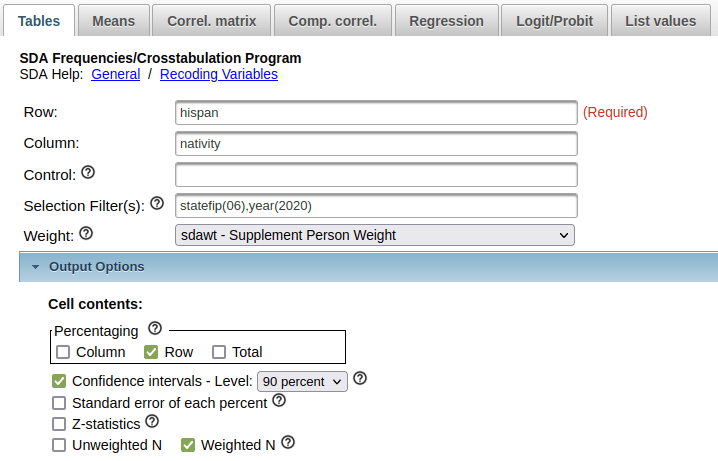
If we wanted to generate a profile for a given place as opposed to a comparison table, we can swap the variables we have in the rows and columns. For example, to see nativity for all Hispanic subgroups within California for a single year:

Input Parameters – Generate a Profile Table for California of Nativity by Hispanic Groups in 2020

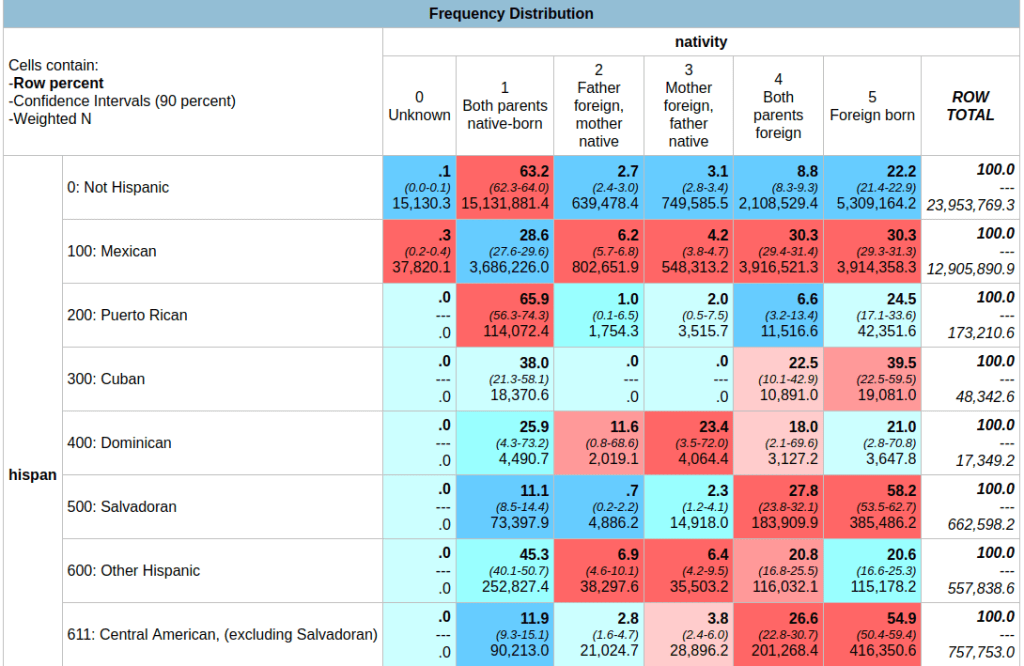
In this case, you could opt to calculate percentages by column instead of row, if you wanted to see percent totals across groups for the categories. You could show both in the same chart, but I find it’s difficult to read. In this last example, note the large confidence intervals and thus lower precision for smaller Hispanic groups in California (Cuban, Dominican) versus larger groups (Mexican, Salvadoran).

Output Table – Nativity by Hispanic Groups in California 2020 (confidence interval is much larger for smaller groups)

In short – this is handy tool if you want to generate some quick estimates and crosstabs from the CPS without having to download and weight microdata records yourself. You can create geographic data for regions, divisions, states, and metro areas. Just be mindful of confidence intervals as you drill down to smaller subgroups; you can aggregate by year, geography, or category / group to get better precision. What I’ve demonstrated is the tip of the iceberg; read the documentation and experiment with creating charts, statistical summaries, and more.

BEA Population Change Map

Population and Economic Time Series Data from the BEA

In this post, I’ll demonstrate how to access and download multiple decades of annual population data for US states, counties, and metropolitan areas in a single table. Last semester, I was helping a student in a GIS course find data on tuberculosis cases by state and metro area that stretched back several decades. In order to make meaningful comparisons, we needed to calculate rates, which meant finding an annual time series for total population. Using data directly from the Census Bureau is tough going, as they don’t focus on time series and you’d have to stitch together several decades of population estimates. Metropolitan areas add more complexity, as they are modified at least a few times each decade.

In searching for alternatives, I landed at the Bureau of Economic Analysis (BEA). As part of their charge is studying the economy over time, they gather data from the Census Bureau, Bureau of Labor Statistics, and others to build time series, and they update them as geography and industrial classification schemes change. They publish national, state, metropolitan area, and county-level GDP, employment, income, wage, and population tables that span multiple decades. Their economic profile table for metros and counties covers 1969 to present, while the state profile table goes back to 1958. Metropolitan areas are aggregates of counties. As metro boundaries change, the BEA normalizes the data, adjusting the series by taking older county-level data and molding it to fit the most recent metro definitions.

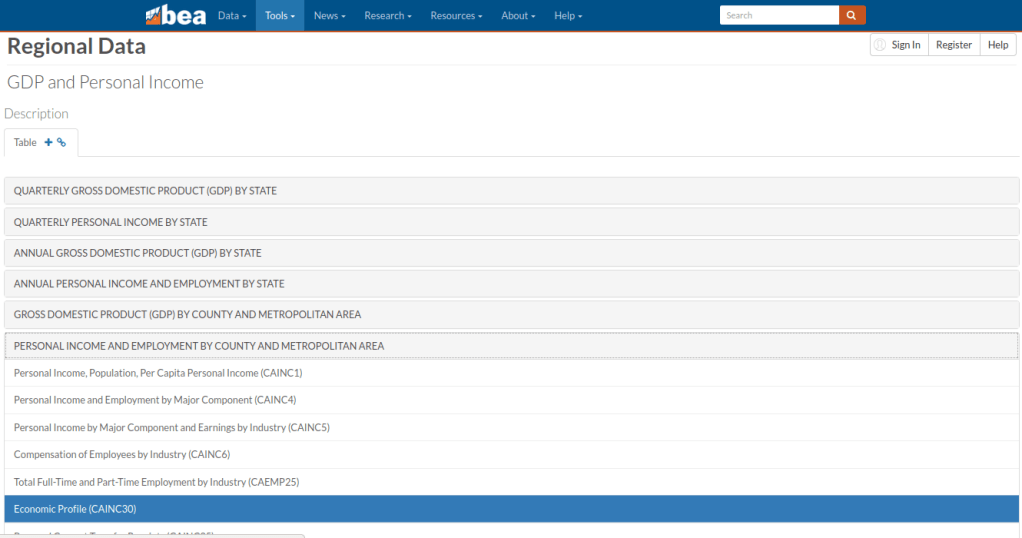
Finding the population data was a bit tricky, as it is embedded as one variable in the Economic Profile table (identified as CAINC30) that includes multiple indicators. Here’s the path to get it:

  • From the BEA website, choose Tools – Interactive Data.
  • From the options on the next page, choose Regional from the National, Industry, International or Regional data options. There’s also a link to a video that illustrates how to use the BEA interactive data tool.
  • From the Regional Data page, click “Begin using the data” (but note you can alternatively “Begin mapping the data” to make some basic web maps too, like the one in the header of this post).
  • On the next page are categories, and under each category are data tables for specific series. In this case, Personal Income and Employment by County and Metropolitan Area was what I wanted, and under that the Economic Profile CAINC30 table (states appear under a different heading, but there’s a comparable Economic Profile table for them, SAINC30).
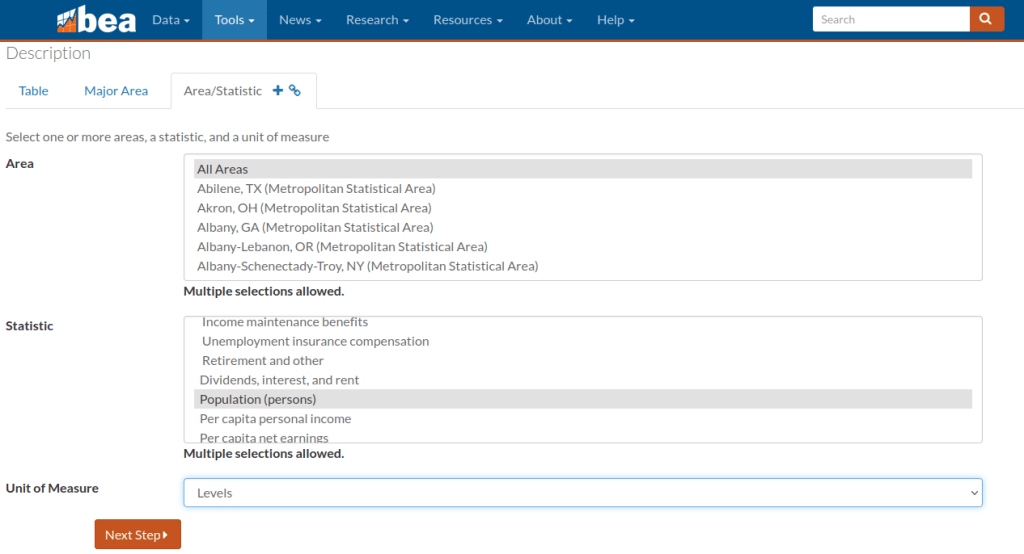
  • On the multi-screen table builder, you choose a type of geography (county or different metro area options), and on the next tab you can choose individual places, hold down CTRL and select several, or grab them all with the option at the top of the dropdown. Likewise for the Statistic, choose Population (persons), or grab a selection, or take all the stats. Under the Unit of Measure dropdown, Levels gives you the actual statistic, but you can also choose percent change, index values, and more. On the next tab, choose your years.
  • On the final page, if your selection is small enough you can preview the result and then download. In this case it’s too large, so you’re prompted to grab an Excel or CSV file to download.

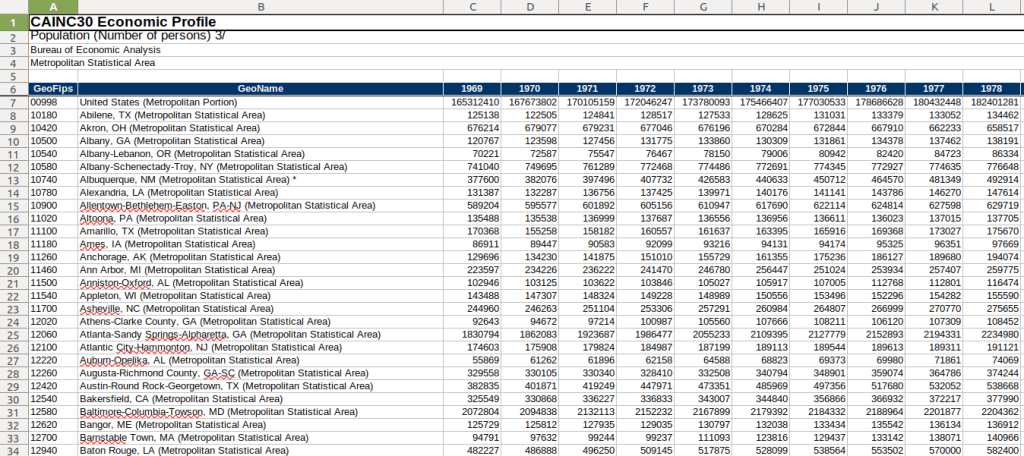
And there you have it! One table with 50+ years of annual population data, using current metro boundaries. The footnotes at the bottom of the file indicate that the latest years of population data are based on the most recent vintage estimates from the Census Bureau’s population estimates. Once the final intercensal estimates for the 2010s are released, the data for that decade will be replaced a final time, and the estimates from the 2020s will be updated annually as each new vintage is released until we pass the 2030 census. Their documentation is pretty thorough.

BEA 5-decade Time Series of Population Data by Metro Area

The Interactive Data table approach allows you to assemble your series step by step. If you wanted to skip all the clicking you can grab everything in one download (all years for all places for all stats in a given table). Of course, that means some filtering and cleaning post-download to isolate what you need. There’s also an API, and several other data series and access options to explore. The steps for creating the map that appears at the top of this post were similar to the steps for building the table.

UN ICSC Retail Price Index Map

UN Retail Price Index Time Series

We recently launched our fledgling geodata portal on GitHub for the open datasets we’ll create in our new lab. In the spring we carved out a space on the 11th floor of the Sciences Library at Brown which we’ve christened GeoData@SciLi, a GIS and data consultation and work space. We’ll be doing renovations on both the webspace and workspace over the summer.

Our inaugural dataset was created by Ethan McIntosh, a senior (now graduate) who began working with me this spring. The dataset is the United Nations International Civil Service Commission’s (UN ICSC) Retail Price Indices with Details (RPID). The index measures the cost of living based on several categories of goods and services in duty stations around the world. It’s used to adjust the salaries of the UN’s international staff relative to UN headquarters in New York City (index value of 100 = cost of living in New York). The data is updated six times a year, published in an Excel spreadsheet that contains a macro that allows you to look up the value of each duty station via a dropdown menu. The UN ICSC makes the data public by request; you register and are granted access to download the data in PDF and Excel format in files that are packaged in one month / year at a time.

We were working with a PhD student in economics who wanted to construct a time-series of this data. Ethan wrote a Python script to aggregate all of the files from 2004 to present into a single CSV; the actual values for each country / duty station were stored in hidden cells that the macro pulled from, and he was able to pull them from these cells. He parsed the data into logical divisions, and added the standard 3-letter ISO 3166 country code to each duty station so that each record now has a unique place identifier. His script generates three outputs: a basic CSV of the data in separate month / year files, a “long” (aka flat) time series file where each record represents a specific duty station and retail index category or weight for a given month and year, and a “wide” time series file where the category / weight has been pivoted to a column, so each record represents all values for a duty station for a given month / year. He’s written the program to process and incorporate additional files as they’re published.

While the primary intention was to study this data as a time series in a statistical analysis, it can also be used for geospatial analysis and mapping. Using the wide file, I created the map in the header of this post, which depicts the total retail index for February 2022 for each country, where the value represents the duty station within the country (usually the capital city). I grabbed some boundaries from Natural Earth and joined the data to it using the ISO code. I classified the data using natural breaks, but manually adjusted the top level category to include all countries with a value greater than or equal to the base value of 100.

There were only five duty stations that were more expensive than New York, with values between 102 and 124: Tokyo, Ashkhabad (Turkmenistan), Singapore, Beirut, and Hong Kong. Beijing and Geneva were equivalent in price at 100. The least expensive stations with values between 52 and 69 were: Caracas (Venezuela), Tripoli, Damascus, Ankara (Turkey), Bucharest (Romania), Mbabane (Eswatini – formerly Swaziland), and Sofia (Bulgaria). There appears to be regional clustering of like values, although I didn’t run any tests. The station in the US that’s measured relative to NYC is Washington DC (index value of 89).

The final datasets and code used to generate them are available on GitHub, and we’ll update it at least once, if not a couple times, a year. We are not providing the original month / year macro spreadsheets; if you want those you should register with the UN ICSC and access them there. If you’re using our data files, you should still register with them, as they would like to be aware of how their data is being used.

We will post additional projects, datasets, and code in individual repos as we create them, linked to from our main page. I’m working on creating a basic metadata profile for our lab, so we’ll provide structured metadata for each of our datasets in the near future.

Hurricanes 2021

GIS Data for US Coastal Storms and Floods

Over the course of this academic year I’ve helped many students find GIS data related to coastal storms and flooding in the US. There’s a ton of data available, particularly from NOAA, but there are so many projects and initiatives that it can be tough to find what you’re looking for. So I’ll share a few key resources here.

NOAA’s DigitalCoast is a good place to start; it’s a catalog of federal, state, and US territory projects and websites that provide both spatial and non-spatial datasets related to coastal storms and flooding. You can filter by place and data type; there are even a few global sources. Most of the projects I mention below are cataloged there.

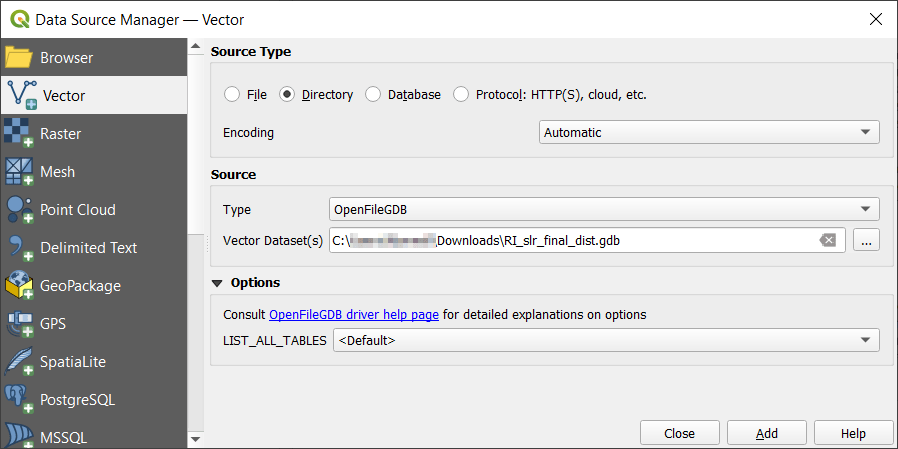
Given the size of many of these datasets, the ArcGIS File Geodatabase is often used for packaging and distribution. Once you’ve downloaded and unzipped one, it looks like a folder with lots of subfolders and files. If you’re an ArcGIS user, use the Catalog pane to browse your file system and add a connection to the database / folder to access its contents. If you’re a QGIS user, use the Data Manager and on the Vector tab change the source type from File to Directory. In the Source Type dropdown you can choose OpenFileGDB, and browse and select the database, which appears as a folder. Once you hit the Add button, you’ll be prompted to choose the features in the DB that you wish to add to the project.

Adding a File Geodatabase in QGIS

FEMA Flood Hazards and Disasters

The FEMA flood maps are usually the first thing that comes to mind when folks set out to find data on flooding, but good luck finding their GIS data. I’ve searched through their main program site for the National Flood Hazard Layer and followed every link, but can’t for the life of me find the connection to the page that has actual GIS data; there are map viewer tools, scanned paper maps, web mapping services, and everything else under the sun.

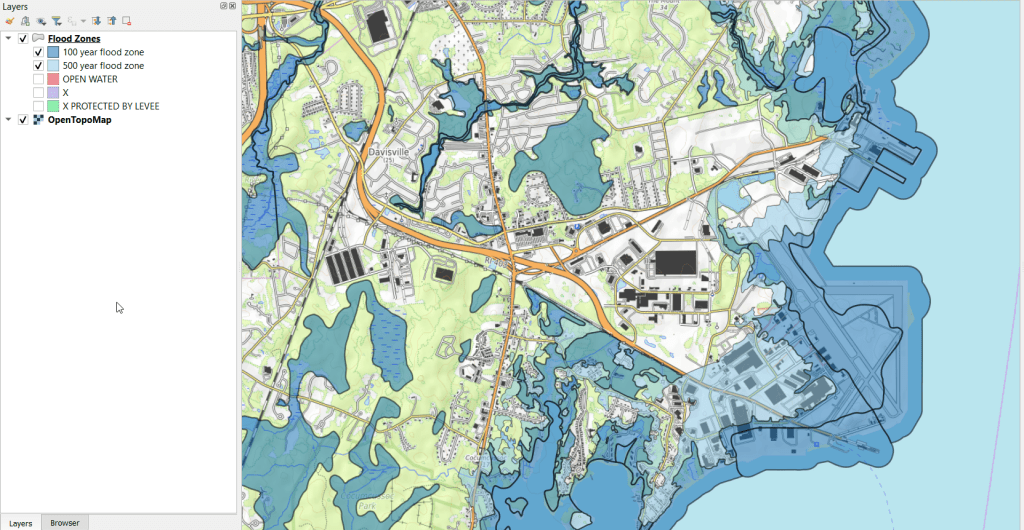
If you want FEMA flood data in a GIS format: GO HERE! You have to search by state, county, and jurisdiction, but after searching under Effective products at the bottom choose NFHL-Data State, and you’ll get the database for the whole state (or choose county if you prefer). The data is packaged in an ArcGIS File Geodatabase, and among the many layers there is a flood hazard area layer. Features are categorized into different types of flood zones, open water bodies, areas outside of flood zones, and areas outside flood zones protected by levees. The pic below illustrates 100 and 500 year zones overlaid on the OpenTopoMap.

FEMA Flood Maps. Light blue areas are 500 year zones, dark blue are 100 year
FEMA Flood Hazard Layer, 100 year zones in dark blue, 500 year in light blue

FEMA also has a GIS data feed for current and historical emergencies and disasters, that are available in a variety of formats both spatial and non-spatial. These are county-level layers that indicate where disaster areas were declared and what kind of funding or assistance is / was available.

NOAA Sea Level Rise

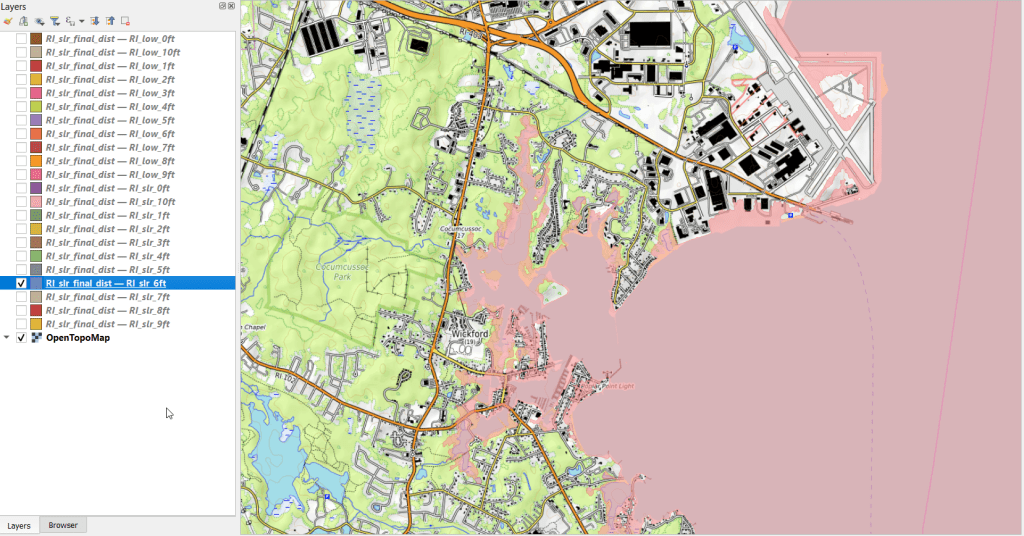
The FEMA maps assess both past events and current conditions to model the likelihood of flooding in a 100 or 500 year period for a major storm event. A different way of looking at flooding is to consider sea level rise due to climate change, where the impact of sea level rise is measured in different increments. Instead of the impact of a one-shot event, this illustrates potential long term change. NOAA’s Sea Level Rise (SLR) viewer allows you to easily visualize the impact of sea level rise in 1 foot increments, between 1 and 10 feet. You can download the data by US state or territory for coastal areas. There are separate downloads for sea level rise, rise depth, the confidence intervals for the models, as well as DEMs and flood frequency. The sea level rise data is package in an ArcGIS file geodatabase, with two sets of files (a low estimate and high estimate) in one foot increments. An example of 6 feet in sea level rise is shown below.

NOAA Sea Level Rise 6ft Layer
NOAA Sea Level Rise. Areas in pink illustrate sea level 6 feet higher than present

NOAA National Hurricane Center

Beyond showing the general impact of flooding or sea level rise, you can also look at the track of individual hurricanes and tropical storms. The National Hurricane Center’s GIS data page provides historical forecasts – the projected path and cone of storms, windspeeds, storm surges, etc. You choose your year, then can choose a storm, and then a particular day. You can use this data to see how the forecasts evolved as the storm moved. When we’re in hurricane season, you can also see what the circumstances are day by day for tracking new storms.

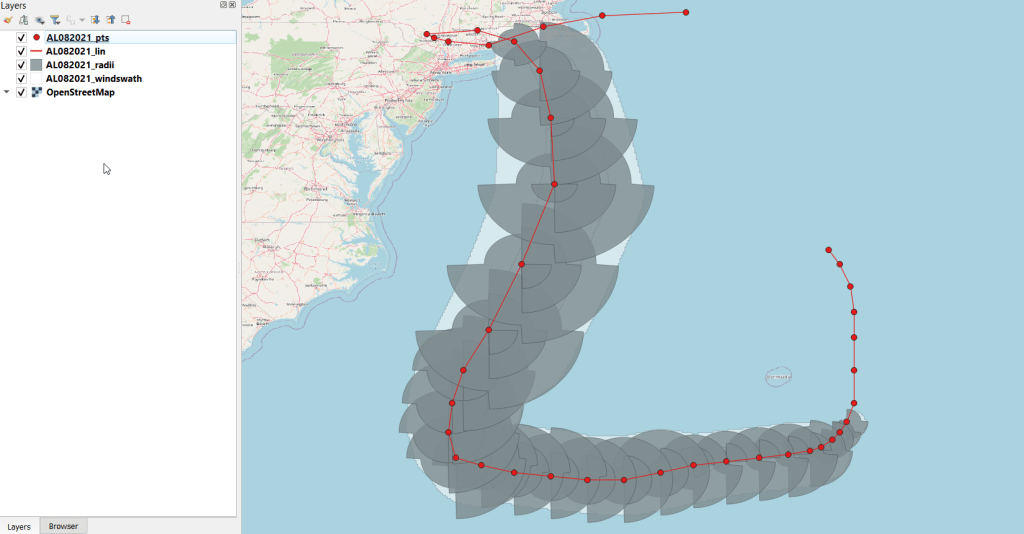
If you want to see what actually happened (as opposed to a forecast), you can dig through the data page and browse the different options. There’s the Tropical Cyclone Report (TCR) which provides “information on each tropical cyclone, including synoptic history, meteorological statistics, casualties and damages, and the post-analysis best track (six-hourly positions and intensities). Tropical cyclones include depressions, storms and hurricanes.” The default page shows you the Atlantic, but you can swap to Eastern or Central Pacific using the link at the top. Storms are listed alphabetically (and thus by date) and your format options are shapefile or KML. There’s a map at the bottom that depicts and labels all the storms for that season. You actually get four shapefiles in a download; a point file that contains a number of measurements, a line file for the storm track, a polygon file for the radius of the storm, and another polygon with the wind swath. The layers for 2021’s Tropical Storm Henri are illustrated below.

NOAA Tropical Cyclone Report Layers
Layers from NOAA”s NHC Tropical Cyclone Report, Tropical Storm Henri 2021

GIS data for the storms begins in 2010 with KMZ files (which you’ll need to convert in ArcGIS or QGIS to make them useful beyond display purposes), and shapefiles appear in 2015. Further back in time are just PDF reports and map scans.

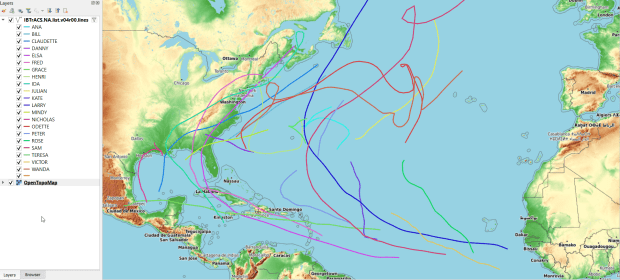
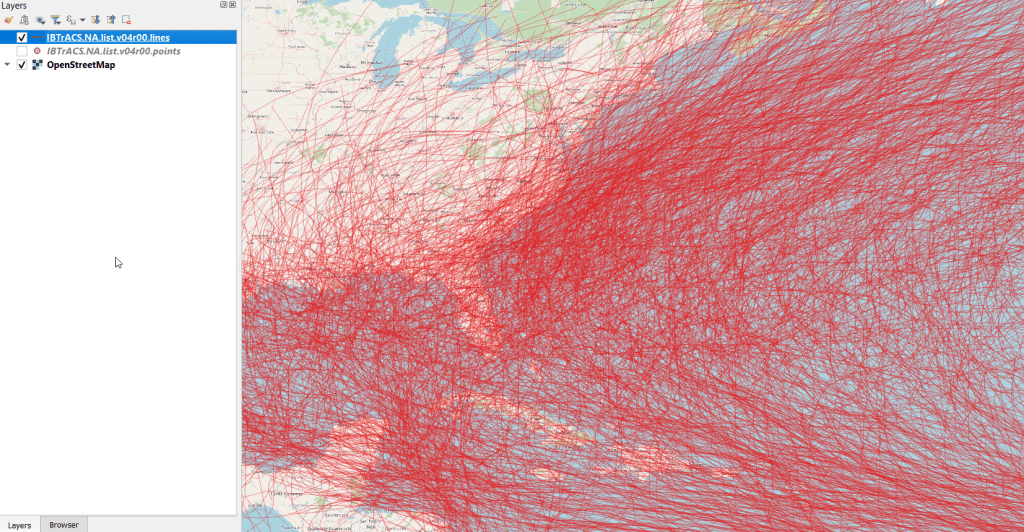
If you really want to go back and time and get all the tracks at once, there’s the HURDAT2 database; one for the Atlantic (1851 to present) and another for the Pacific (1949 to present). It’s a csv file that contains coordinates for the track of every storm, which you can process to create a geospatial file using a points to line tool. Or – you can grab a version where that’s already been created! The International Best Track Archive for Climate Stewardship (IBTrACS) keeps a running CSV and shapefile of all global storms. Scroll down and choose shapefile (CSV is another option). The download page is just a list of files – you can choose points or lines, storms by ocean (East Pacific, North Atlantic, North Indian, South Atlantic, South Indian, South Pacific, West Pacific), or grab everything in lists that are: active, everything (ALL), last 3 years, or since 1980. Below is an example of all storms in the North Atlantic – there are quite a lot (see below)! You get storm speed and direction, wind speed and direction, coordinates, and identifiers associated with the storm as points and lines. A subset of this data for the 2021 season is displayed in the feature image at the top of this post.

IBTrACS Historical Hurricane Tracks
Historical hurricane / storm tracks from 1851 to 2021 in the North Atlantic from IBTrACS

How About the Weather?

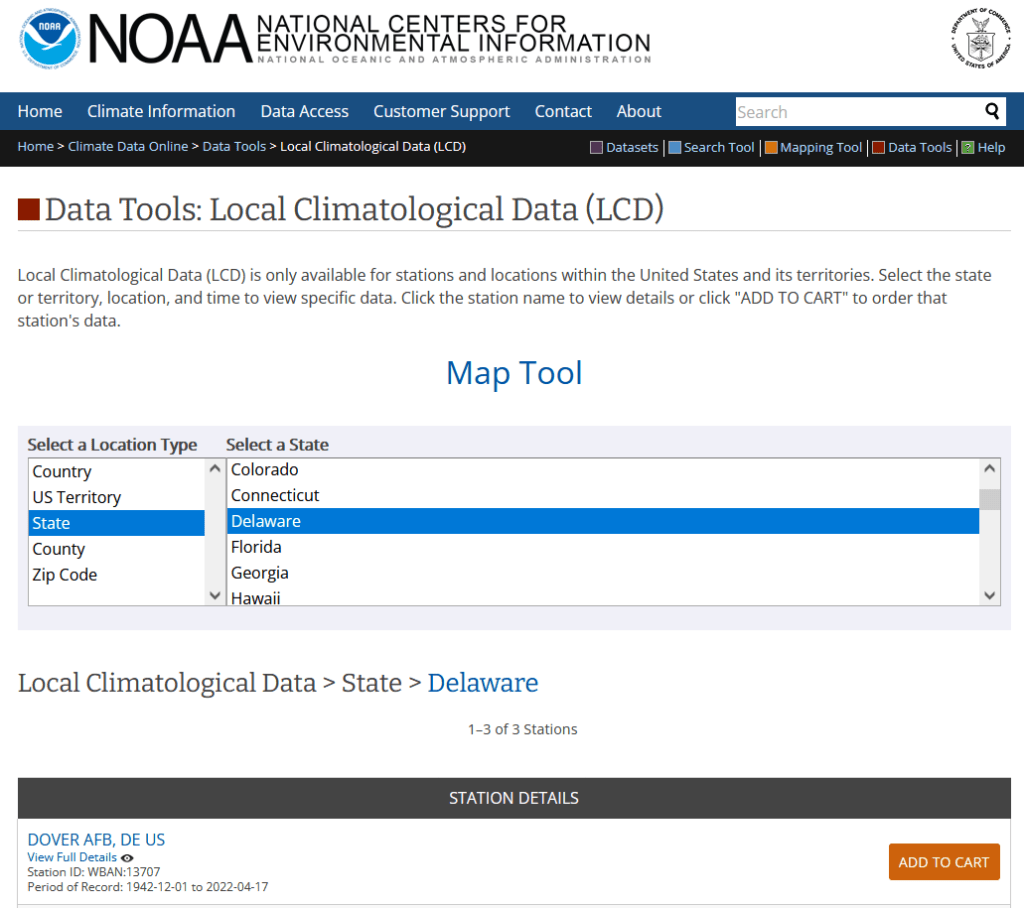
There are many places you can go for this and the best source depends on the use case. More often than not, I end up using the Local Climatological Database. Choose a geographic type, then a specific area, and you’ll see all the weather stations in this area. Add them to the cart, and then view the cart once you have all the stations you want. On the next screen choose an output format (CSV or TXT fixed width) and a date range. You submit an order and wait a bit for it to be compiled, and are notified by email when it’s ready for download. Mixed in this CSV are records that are monthly, daily, and hourly, so after downloading you’ll want to extract just the period you’re interested in. Data includes temperature, precipitation, dew point, wind speed and direction, humidity, barometric pressure, and cloud cover.

NOAA Local Climatological Data Map Tool
Map Tool search interface for NOAA Local Climatological Data

Some processing is required to make these files GIS ready. Each record represents an observation at a station at a given point in time, so if you plot these “as is” the likely idea is you’re making an illustrated time series of some sort, as you’ll have tons of observations plotted on a few spots (where the stations are). If this isn’t desirable, then you’ll filter records to create extracts for just a given point in time, maybe separate features for each time period. For monthly summaries you can pivot time to columns, to create a column for each month and indicator. This would be impractical for daily or hourly summaries, unless you’re focusing on a single month for the former or day / week for the latter (otherwise you’ll have a bazillion columns).

Annoyingly, the CSV option doesn’t include any of the station information in the download (like the standard WBAN ID, name, longitude, latitude, and elevation) except for one unique identifier. I know that this information was all included in the past, and am not sure why it was dropped. The TXT version includes the station info, but fixed-width files are a pain to work with. If you are working with a small number of stations, you can pull the station info individually by previewing the station on the download screen (click on the station title or little eye symbol). The five digit WBAN number is included as the last 5 digits of the identifier in the CSV, so you can identify and relate each one. If you don’t want to mess with copying and pasting, you can generate a second extract for all the stations for just a single day and download that in the TXT format, and then parse just the station columns and associate them with your main table.

There are multiple ways that you can create extracts for this data beyond the example I just provided, available from the main data tools page. For a more refined search you can select the summary period (yearly, monthly, daily, hourly) and targeted variables in advance. There are also FTP options for bulk downloads.

One thing that surprises folks who are new to working with this data, is that there aren’t many weather stations. For the LCD, my home state of Delaware only has three, one in each county. The entire City of New York only has three as well, at each of the airports and one in Central Park. If you’re not interested in points and want areas, then you would need to gather a significant number of stations and do interpolation. Or – use data that’s already modeled. I mentioned PRISM at Oregon State in a previous post, as a nice source for national US rasters of temperature and precipitation that you can generate for dailies, monthlies, and normals.

Census ACS 2020 and Pop Estimates 2021

Last week, the Census Bureau released the latest 5-year estimates for the American Community Survey for 2016-2020. This latest dataset uses the new 2020 census geography, which means if you’re focused on using the latest data, you can finally move away from the 2010-based geography which had been used for the ACS from 2010 to 2019 (with some caveats: 2020 ZCTAs won’t be utilized until the 2021 ACS, and 2020 PUMAs until 2022). As always, mappers have a choice between the TIGER Line files that depict the precise boundaries, or the generalized cartographic boundary files with smoothed lines and large sections of coastal water bodies removed to depict land areas. The 2016-2020 ACS data is available via data.census.gov and the ACS API.

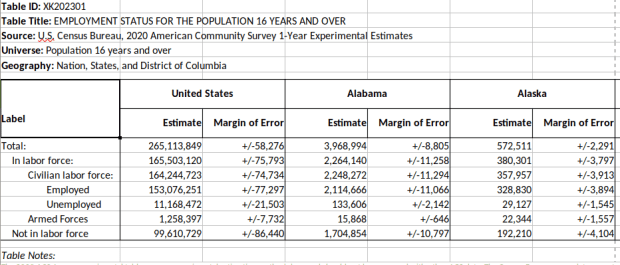
This release is over 3 months late (compared to normal), and there was some speculation as to whether it would be released at all. The pandemic (chief among several other disruptive events) hampered 2020 decennial census and ACS operations. The 1-year 2020 ACS numbers were released over 2 months later than usual, in late November 2021, and were labeled as an experimental release. Instead of the usual 1,500 plus tables in 40 subject areas for all geographic areas with over 65,000 people, only 54 tables were released for the 50 states plus DC. This release is only available from the experimental tables page and is not being published via data.census.gov.

What happened? The details were published in a working paper, but in summary fewer addresses were sampled and the normal mail out and follow-up procedures were disrupted (pg 8). The overall sample size fell from 3.5 to 2.9 million addresses due to reduced mailing between April and June 2020 (pg 18), and total interviews fell from 2 million to 1.4 million with most of the reductions occurring in spring and summer (pg 18). The overall housing unit response rate for 2020 was 71%, down from 86% in 2019 and 92% in 2018 (pg 20). The response rate for the group quarters population fell from 91% in 2019 to 47% in 2020 (pg 21). Responses were differential, varying by time period (with the lowest rates during the peak pandemic months) and geography. Of the 818 counties that meet the 65k threshold, response rates in some were below 50% (pg 21). The data contained a large degree of non-response bias, where people who did respond to the survey had significantly different social, economic and housing characteristics from those who didn’t. As a consequence of all of this, margins of error for the data increased by 20 to 30% over normal (pg 18).

Thus, 2020 will represent a hole in the ACS estimates series. The Bureau made adjustments to weighting mechanisms to produce the experimental 1-year estimates, but is generally advising policy makers and researchers who normally use this series to choose alternatives: either the 1-year 2019 ACS, or the 5-year 2016-2020 ACS. The Bureau was able to make adjustments to produce satisfactory 5-year estimates to reduce non-response bias, and the 5-year pool of samples is balanced somewhat by having at least 4 years of good data.

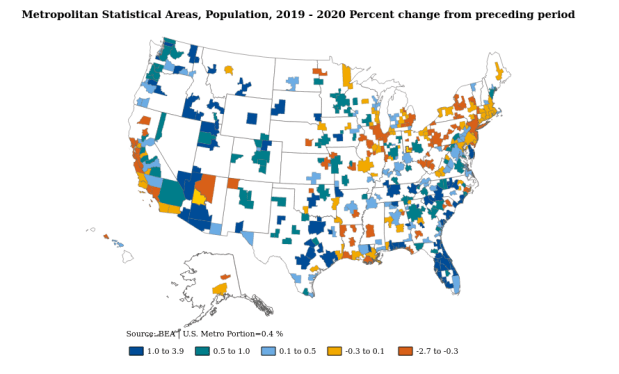
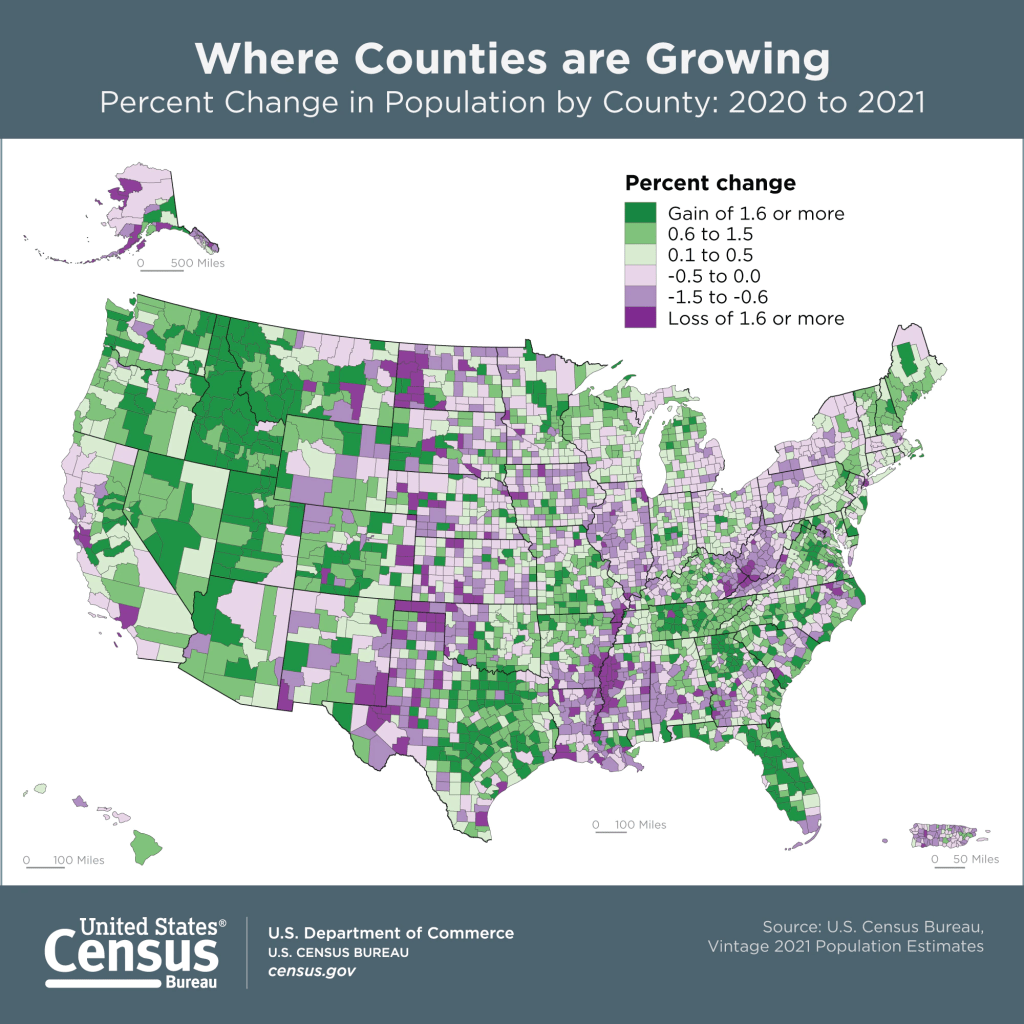
The Population Estimates Program has also released its latest series of vintage 2021 estimates for counties and metropolitan areas. This dataset gives us a pretty sharp view of how the pandemic affected the nation’s population. Approximately 73% of all counties experienced natural decrease in 2021 (between July 1st 2020 and 2021), where the number of deaths outnumbered births. In contrast, 56% of counties had natural decrease in 2020 and 46% in 2019. Declining birth rates and increasing death rates are long term trends, but COVID-19 magnified them, given the large number of excess deaths on one hand and families postponing child birth due to the virus on the other hand. Net foreign migration continued its years-long decline, but net domestic migration increased in a number of places, reflecting pandemic moves. Medium to small counties benefited most, as did large counties in the Sunbelt and Mountain West. The biggest losers in overall population were counties in California (Los Angeles, San Francisco, and Alameda), Cook County (Chicago), and the counties that constitute the boroughs of NYC.

Census Bureau 2021 Population Estimates Map
Philadelphia Redlining Map

Redlining Maps for GIS

I received several questions during the spring semester about redlining maps; where to find them, and how many were made. Known officially as Residential Security Maps, they were created by the Home Owners Loan Corporation in the 1930s to grade the level of security or risk for making home loans in residential portions of urban areas throughout the US. This New Deal program was intended to help people refinance mortgages and prevent foreclosures, while increasing buying opportunities to expand home ownership.

Areas were evaluated by lenders, developers, and appraisers and graded from A to D to indicate their desirability or risk level. Grade A was best (green), B still desirable (blue), C definitely declining (yellow), and D hazardous (red). The yellow and red areas were primarily populated by minorities, immigrants, and low income groups, and current research suggests that this program had a long reaching negative impact by enforcing and cementing segregation, disinvestment, and poverty in these areas.

The definitive digital source for these maps is the Mapping Inequality : Redlining in New Deal America project created at the University of Richmond’s Digital Scholarship Lab. They provide a solid history and summary of these maps and a good bibliography. The main portal is an interactive map of the US that allows you to zoom in and preview maps in different cities. You can click on individually zoned areas and get the original assessor or evaluator’s notes (when available). If you switch to the Downloads page you get a list of maps sorted alphabetically by state and city that you can download as: a jpeg of the original scanned map, a georeferenced image that can be added to GIS software as a raster, and a GIS vector polygon file (shapefile or geojson). In many cases there is also a scanned copy of the evaluators description and notes. You also have the option for downloading a unified vector file for the entire US as a shapefile or geojson. All of the data is provided under a Creative Commons Attribution Sharealike License.

Providence Redlining Map
Redlining Map of Providence, RI with graded areas, from the Mapping Inequality Project

There are a few other sources to choose from, but none of them are as complete. I originally thought of the National Archives which I thought would be the likely holder of the original paper maps, but only a fraction have been digitized. The PolicyMap database has most (but not all) of the maps available as a feature you can overlay in their platform. If you’re doing a basic web search this Slate article is among the first resources you’ll encounter, but most of the links are broken (which says something about the ephemeral nature of these kinds of digital projects).

How many maps were made? Amy Hillier’s work was among the earlier studies that examined these maps, and her case study of Philadelphia includes a detailed summary of the history of the HOLC program with references to primary source material. According to her research, 239 of these maps were made and she provides a list of each of the cities in the appendix. I was trying to discover how many maps were available in Rhode Island and found this list wasn’t complete; it only included Providence, while the Mapping Inequality project has maps for Providence, Pawtucket & Central Falls, and Woonsocket. I counted 202 maps based on unique names on Mapping Inequality, but some several individual maps include multiple cities.

She mentions that a population of 40,000 people was used as a cut-off for deciding which places to map, but noted that there were exceptions; Washington DC was omitted entirely, while there are several maps for urban counties in New Jersey as opposed to cities. In some case cities that were below the 40k threshold that were located beside larger ones were included. I checked the 1930 census against the three cities in Rhode Island that had maps, and indeed they were the only RI cities at that time that had more than 40k people (Central Falls had less than 40k but was included with Pawtucket as they’re adjacent). So this seemed to provide reasonable assurance that these were the only ones in existence for RI.

Finding the population data for the cities was another surprise. I had assumed this data was available in the NHGIS, but it wasn’t. The NHGIS includes data for places (Census Places) back to the 1970 census, which was the beginning of the period where a formal, bounded census place geography existed. Prior to this time, the Census Bureau published population count data for cities using other means, and the NHGIS is still working to include this information. It does exist (as you can find it in Wikipedia articles for most major cities) but is buried in old PDF reports on the Census Bureau’s website.

If you’re interested in learning more about the redlining maps beyond the documentation provided by Mapping Inequality, these articles provide detailed overviews of the HOLC and the residential security maps program, as well as their implications to the present day. You’ll need to access them through a library database:

Hillier, A.E. (2005). “Residential Security Maps and Neighborhood Appraisals: The Home Owners’ Loan Corporation and the Case of Philadelphia.” Social Science History, 29(2): 207-233.

Greer, J. (2012). “The Home Owners’ Loan Corporation and the Development of the Residential Security Maps“. Journal of Urban History, 39(2): 275-296.