population

Percentage of Children in Households Without the Internet

Kids with No Internet at Home: Data Processing for US Census Mapping

In this post I’ll demonstrate some essential data processing steps prior to joining census American Community Survey (ACS) tables downloaded from data.census.gov to TIGER shapefiles, in order to create thematic maps. I thought this would be helpful for students in my university who are now doing GIS-related courses from home, due to COVID-19. I’ll illustrate the following with Excel and QGIS: choosing an appropriate boundary file for making your map, manipulating geographic id codes (GEOIDs) to insure you can match data file to shapefile, prepping your spreadsheet to insure that the join will work, and calculating new summaries and percent totals with ACS formulas. Much of this info is drawn from the chapters in my book that cover census geography (chapter 3), ACS data (chapter 6), and GIS (chapter 10). I’m assuming that you already have some basic spreadsheet, GIS, and US census knowledge.

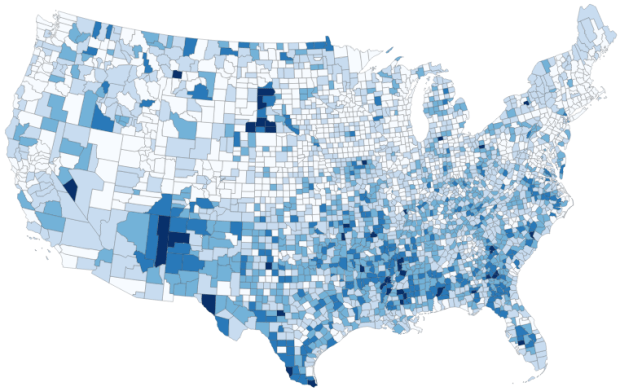
For readers who are not interested in the technical details, you still may be interested in the map we’ll create in this example: how many children under 18 lack access to a computer with internet access at home? With COVID-19 there’s a sudden expectation that all school children will take classes remotely from home. There are 73.3 million children living in households in the US, and approximately 9.3 million (12.7%) either have no computer at home, or have a computer but no internet access. The remaining children have a computer with either broadband or dial-up at home. Click on the map below to explore the county distribution of the under 18 population who lack internet access at home, or follow this link: https://arcg.is/0TrGTy.
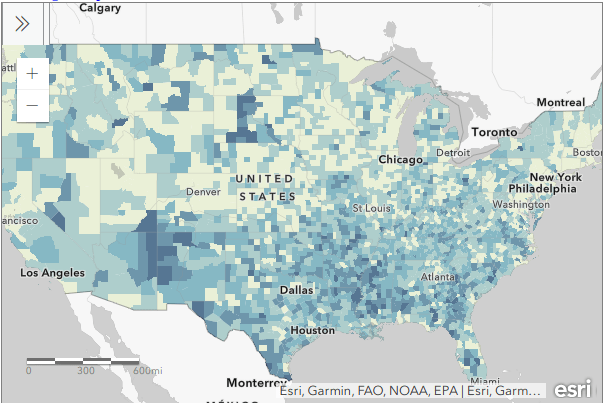
arcgis_webmap

Click on the Map to View Full Screen and Interact

Preliminaries

First, we need to get some ACS data. Read this earlier post to learn how to use data.census.gov (or for a shortcut download the files we’re using here). I downloaded ACS table B28005 Age by Presence of a Computer and Types of Internet Subscription in Household at the county-level. This is one of the detailed tables from the latest 5-year ACS from 2014-2018. Since many counties in the US have less than 65,000 people, we need to use the 5-year series (as opposed to the 1-year) to get data for all of them. The universe for this table is the population living in households; it does not include people living in group quarters (dormitories, barracks, penitentiaries, etc.).

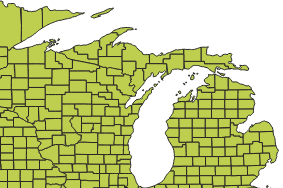
Second, we need a boundary file of counties. You could go to the TIGER Line Shapefiles, which provides precise boundaries of every geographic area. Since we’re using this data to make a thematic map, I suggest using the Cartographic Boundary Files (CBF) instead, which are generalized versions of TIGER. Coastal water has been removed and boundaries have been smoothed to make the file smaller and less detailed. We don’t need all the detail if we’re making a national-scale map of the US that’s going on a small screen or an 8 1/2 by 11 piece of paper. I’m using the medium (5m) generalized county file for 2018. Download the files, put them together in a new folder on your computer, and unzip them.
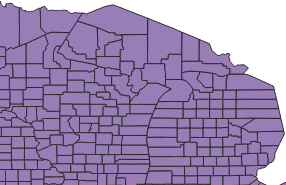
TIGER Line shapefile
TIGER Line shapefile

CBF shapefile

CBF shapefile

GEOIDs

Downloads from data.census.gov include three csv files per table that contain: the actual data (data_with_overlays), metadata (list of variable ids and names), and a description of the table (table_title). There are some caveats when opening csv files with Excel, but they don’t apply to this example (see addendum to this post for details). Open your csv file in Excel, and save it as an Excel workbook (don’t keep it in a csv format).

The first column contains the GEOID, which is a code that uniquely identifies each piece of geography in the US. In my file, 0500000US28151 is the first record. The part before ‘US’ indicates the summary level of the data, i.e. what the geography is and where it falls in the census hierarchy. The 050 indicates this is a county. The part after the ‘US’ is the specific identifier for the geography, known as an ANSI / FIPS code: 28 is the state code for Mississippi, and 151 is the county code for Washington County, MS. You will need to use this code when joining this data to your shapefile, assuming that the shapefile has the same code. Will it?

That depends. There are two conventions for storing these codes; the full code 0500000US28151 can be used, or just the ANSI / FIPS portion, 28151. If your shapefile uses just the latter (find out by adding the shapefile in GIS and opening its attribute table), you won’t have anything to base the join on. The regular 2018 TIGER file uses just the ANSI / FIPS, but the 2018 CBF has both the full GEOID and the ANSI FIPS. So in this case we’re fine, but for the sake of argument if you needed to create the shorter code it’s easy to do using Excel’s RIGHT formula:
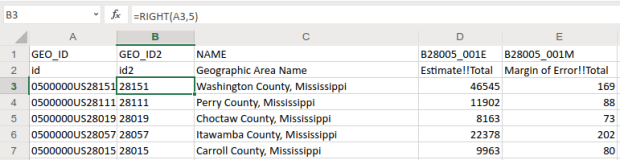
Excel formula: RIGHT

The formulas RIGHT, LEFT, and MID are used to return sub-strings of text

The formulas reads X characters from the right side of the value in the cell you reference and returns the result. You just have to count the number of characters up to the “S’ in the “US”. Copy and paste the formula all the way down the column. Then, select the entire column, right click and chose copy, select it again, right click and choose Paste Special and Values (in Excel, the little clipboard image with numbers on top of it). This overwrites all the formulas in the column with the actual result of the formula. You need to do this, as GIS can’t interpret your formulas. Put some labels in the two header spaces, like GEO_ID2 and id2.

Excel: Paste Special

Copy a column, and use Paste Special – Values on top of that column to overwrite formulas with values

Subsets and Headers

It’s common that you’ll download census tables that have more variables than you need for your intended purpose. In this example we’re interested in children (people under 18) living in households. We’re not going to use the other estimates for the population 18 to 64 and 65 and over. Delete all the columns you don’t need (if you ever needed them, you’ve got them saved in your csv as a backup).

Notice there are two header rows: one has a variable ID and the other has a label. In ACS tables the variables always come in pairs, where the first is the estimate and the second is the margin of error (MOE). For example, in Washington County, Mississippi there are 46,545 people living in households +/- 169. Columns are arranged and named to reflect how values nest: Estimate!!Total is the total number of people in households, Estimate!!Total!!Under 18 years is the number people under 18 living in households, which is a subset of the total estimate.

The rub here is that we’re not allowed to have two header rows when we join this table to our shapefile – we can only have one. We can’t keep the labels because they’re too long – once joined, the labels will be truncated to 10 characters and will be indistinguishable from each other. We’ll have to delete that row, leaving us with the cryptic variable IDs. We can choose to keep those IDs – remember we have a separate metadata csv file where we can look up the labels – or we can rename them. The latter is feasible if we don’t have too many. If you do rename them, you have to keep them short, no more than 10 characters or they’ll be truncated. You can’t use spaces (underscores are ok), any punctuation, and can’t begin variables names with a number. In this example I’m going to keep the variable IDs.

Two odd gotchas: first, find the District of Columbia in your worksheet and look at the MOE for total persons in households (variable 001M). There is a footnote for this value, five asterisks *****. Replace it with a zero. Keep an eye out for footnotes, as they wreak havoc. If you ever notice that a numeric column gets saved as text in GIS, it’s probably because there’s a footnote somewhere. Second, change the label for the county name from NAME to GEO_NAME (our shapefile already has a column called NAME, and it will cause problems if we have duplicates). If you save your workbook now, it’s ready to go if you want to map the data in it. But in this example we have some more work to do.

Create New ACS Values

We want to map the percentage of children that do not have access to either a computer or the internet at home. In this table these estimates are distinct for children with a computer and no internet (variable 006), and without a computer (variable 007). We’ll need to aggregate these two. For most thematic maps it doesn’t make sense to map whole counts or estimates; naturally places that have more people are going to have more computers. We need to normalize the data by calculating a percent total. We could do this work in the GIS package, but I think it’s easier to use the spreadsheet.

To calculate a new estimate for children with no internet access at home, we simply add the two values together (006_E and 007_E). To calculate a new margin of error, we take the square root of the sum of the squares for the MOEs that we’re combining (006_M and 007_M). We also use the ROUND formula so our result is a whole number. Pretty straightforward:
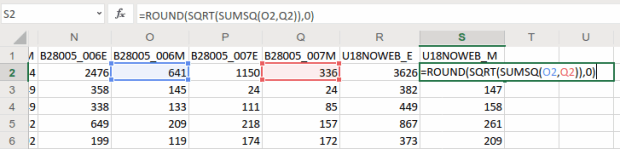
Excel Sum of Squares

When summing ACS estimates, take the square root of the sum of the squares for each MOE to calculate a MOE for the new estimate.

To calculate a percent total, divide our new estimate by the number of people under 18 in households (002_E). The formula for calculating a MOE for a percent total is tougher: square the percent total and the MOE for the under 18 population (002_M), multiply them, subtract that result from the MOE for the under 18 population with no internet, take the square root of that result and divide it by the under 18 population (002_E):
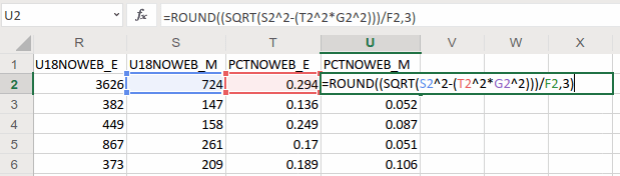
MOE for percentage

The formula for calculating the MOE for a proportion includes: the percentage, MOE for the subset population (numerator), and the estimate and MOE for the total population (denominator)

In Washington County, MS there are 3,626 +/- 724 children that have no internet access at home. This represents 29.4% +/- 5.9% of all children in the county who live in a household. It’s always a good idea to check your math: visit the ACS Calculator at Cornell’s Program for Applied Demographics and punch in some values to insure that your spreadsheet formulas are correct.

You should scan the results for errors. In this example, there is just one division by zero error for Kalawao County in Hawaii. In this case, replace the formula with 0 for both percentage values. In some cases it’s also possible that the MOE proportion formula will fail for certain values. Not a problem in our example, but if it does the solution is to modify the formula for the failed cases to calculate a ratio instead. Replace the percentage in the formula with the ratio (the total population divided by the subset population) AND change the minus sign under the square root to a plus sign.

Some of these MOE’s look quite high relative to the estimate. If you’d like to quantify this, you can calculate a coefficient of variation for the estimate (not the percentage). This formula is straightforward: divide the MOE by 1.645, divide that result by the estimate, and multiply by 100:

Calculate coefficient of variation

A CV can be used to gauge the reliability of an estimate

Generally speaking, a CV value between 0-15 indicates that as estimate is highly reliable, 12-34 is of medium reliability, and 35 and above is low reliability.

That’s it!. Make sure to copy the columns that have the formulas we created, and do a paste-special values over top of them to replace the formulas with the actual values. Some of the CV values have errors because of division by zero. Select the CV column and do a find and replace, to find #DIV/0! and replace it with nothing. Then save and close the workbook.

For more guidance on working with ACS formulas, take a look at this Census Bureau guidebook, or review Chapter 6 in my book.

Add Data to QGIS and Join

In QGIS, we select the Data Source Manager buttonQGIS Data Source Manager, and in the vector menu add the CBF shapefile. All census shapefiles are in the basic NAD83 system by default, which is not great for making a thematic map.  Go to the Vector Menu – Data Management Tools – Reproject Layer. Hit the little globe beside Target CRS. In the search box type ‘US National’, select the US National Atlas Equal Area option in the results, and hit OK. Lastly, we press the little ellipses button beside the Reprojected box, Save to File, and save the file in a good spot. Hit Run to create the file.

In the layers menu, we remove the original counties file, then select the new one (listed as Reprojected), right click, Set CRS, Set Project CRS From Layer. That resets our window to match the map projection of this layer. Now we have a projected counties layer that looks better for a thematic map. If we right click the layer and open its attribute table, we can see that there are two columns we could use for joining: AFFGEOID is the full census code, and GEOID is the shorter ANSI / FIPS.

Hit the Data Source Manager button again, stay under the vector menu, and browse to add the Excel spreadsheet. If our workbook had multiple sheets we’d be prompted to choose which one. Close the menu and we’ll see the table in the layers panel. Open it up to insure it looks ok.

To do a join, select the counties layer, right click, and choose properties. Go to the Joins tab. Hit the green plus symbol at the bottom. Choose the spreadsheet as the join layer, GEO_ID as the join field in the spreadsheet, and AFFGEOID as the target field in the counties file. Go down and check Custom Field Name, and delete what’s in the box. Hit OK, and OK again in the Join properties. Open the attribute table for the shapefile, scroll over and we should see the fields from the spreadsheet at the end (if you don’t, check and verify that you chose the correct IDs in the join menu).
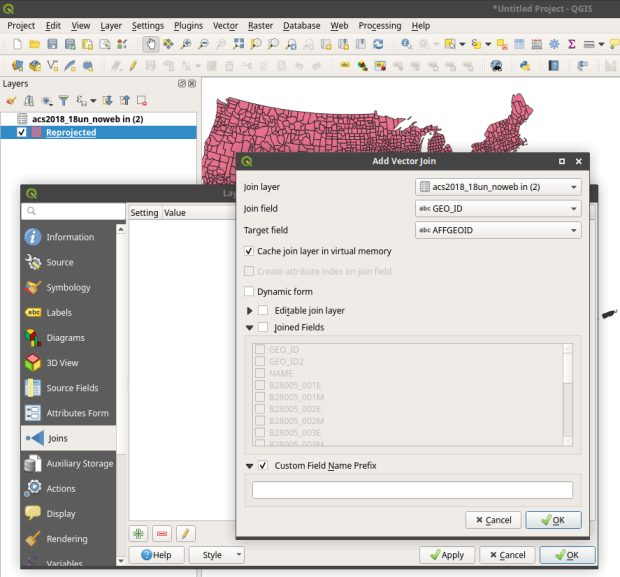
QGIS Join Menu

QGIS Map

We’re ready to map. Right click the counties and go to the properties. Go to the Symbology tab and flip the dropdown from Single symbol to Graduated. This lets us choose a Column (percentage of children in households with no internet access) and create a thematic map. I’ve chosen Natural Breaks as the Mode and changed the colors to blues. You can artfully manipulate the legend to show the percentages as whole numbers by typing *100 in the Column box beside the column name, and adding a % at the end of the Legend format string. I also prefer to alter the default settings for boundary thickness: click the Change button beside Symbol, select Simple fill, and reduce the width of the boundaries from .26 to .06, and hit OK.
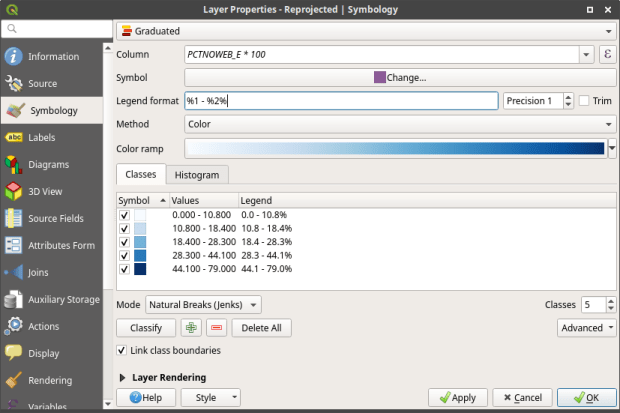
QGIS Symbology Menu

There we have a map! If you right click on the counties in the layers panel and check the Show Feature Count box, you’ll see how many counties fall in each category. Of course, to make a nice finished map with title, legend, and inset maps for AK, HI, and PR, you’d go into the Print Layout Manager. To incorporate information about uncertainty, you can add the county layer to your map a second time, and style it differently – maybe apply crosshatching for all counties that have a CV over 34. Don’t forget to save your project.
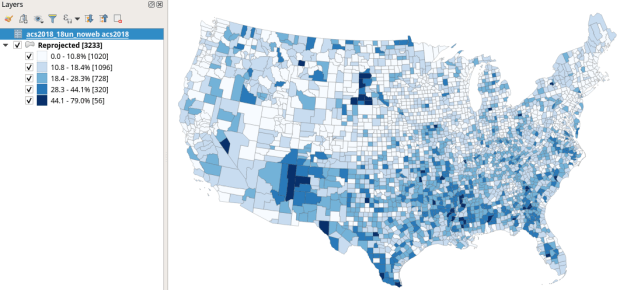
QGIS Map

Percentage of Children in Households without Internet Access by County 2014-2018

How About that Web Map?

I used my free ArcGIS Online account to create the web map at the top of the page. I followed all the steps I outlined here, and at the end exported the shapefile that had my data table joined to it out as a new shapefile; in doing so the data became fused to the new shapefile. I uploaded the shapefile to ArcGIS online, chose a base map, and re-applied the styling and classification for the county layer. The free account includes a legend editor and expression builder that allowed me to show my percentages as fractions of 100 and to modify the text of the entries. The free account does not allow you to do joins, so you have to do this prep work in desktop GIS. ArcGIS Online is pretty easy to learn if you’re already familiar with GIS. For a brief run through check out the tutorial Ryan and I wrote as part of my lab’s tutorial series.

Addendum – Excel and CSVs

While csv files can be opened in Excel with one click, csv files are NOT Excel files. Excel interprets the csv data (plain text values separated by commas, with records separated by line breaks) and parses it into rows and columns for us. Excel also makes assumptions about whether values represents text or numbers. In the case of ID codes like GEOIDs or ZIP Codes, Excel guesses wrong and stores these codes as numbers. If the IDs have leading zeros, the zeros are dropped and the codes become incorrect. If they’re incorrect, when you join them to a shapefile the join will fail. Since data.census.gov uses the longer GEOID this doesn’t happen, as the letters ‘US’ are embedded in the code, which forces Excel to recognize it as text. But if you ever deal with files that use the shorter ANSI / FIPS you’ll run into trouble.

Instead of clicking on csvs to open them in Excel: launch Excel to a blank workbook, go to the data ribbon and choose import text files, select your csv file from your folder system, indicate that it’s a delimited text file, and select your ID column and specify that it’s text. This will import the csv and save it correctly in Excel.
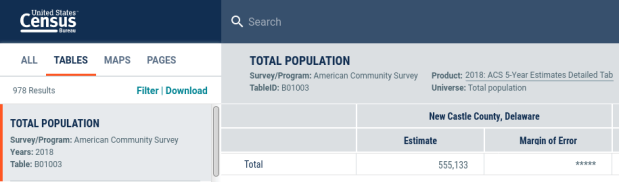
datacensusgov

data.census.gov is down? Here are some work-arounds

NOTE – the website has returned to normal, but I’m leaving this post up in case the problem ever reoccurs.

So data.census.gov is not working today. I went there repeatedly and got an empty white screen each time, regardless of which web browser I tried. My wife spotted a post on an urban planning listserv where someone wrote that they contacted the Census Bureau. The Bureau was aware of the problem, but due of staff shortages related to COVID-19 it could take a week to fix!

Fortunately there are work-arounds. The post provided links to some suggestions at the State Data Center Clearing House. The first suggestion is to use the Chrome Browser, clear your cache, and try going directly to the advanced search link at https://data.census.gov/cedsci/advanced. This didn’t work for me, so I looked at the second suggestion, which is to create deep links to specific tables and search results. This worked, but if you’re not intimately familiar with census geography and table identifiers this could be tough going.

The good news is that if you can just get to one table, that gets you in the backdoor, bypassing the initial search screens that aren’t loading. From there you can use the filter in the table search results to find what you want. For example, go here:

https://data.census.gov/cedsci/table?g=0100000US&tid=ACSDP5Y2018.DP05

This brings you to the 5-year 2018 Data Profile table for Demographic and Housing for the United States. From there you can click the Filter button in the upper left-hand corner above the table name.

Filter Results Link

In the filter screen, scroll down to the bottom and hit the Clear All button to remove the filter for the US. Then go through the Advanced Filter options on the left and choose your Survey, Year, Geography, and Topic (see this earlier post for hints on this strategy). When you’re done, hit the green down arrows that Hides the filter menu (upper right-hand corner) and returns you to the results screen, where the new table results represent the filters you just applied. Browse around and download away! (Customize Table button, then Download)Filter Menu

There are alternatives to data.census.gov as well: the MCDC for getting decennial and ACS profiles (menu on right side of the screen) the Census Reporter for just the latest ACS data, and the NHGIS for accessing all census data tables past to present.

Census Book

Exploring the US Census Book Published!

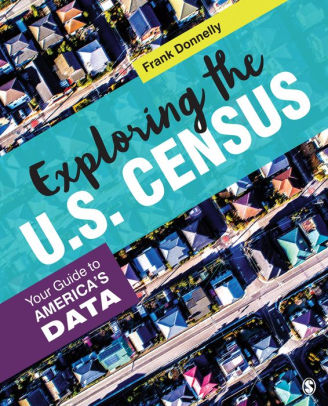
My book, Exploring the US Census: Your Guide to America’s Data, has been published! You can purchase it directly from SAGE Publishing or from Barnes and Nobles, Amazon, or your bookstore of choice (it’s currently listed for pre-order on Amazon but its availability there is imminent). It’s $45 for the paperback, $36 for the ebook. Data for the exercises and supplemental material is available on the publisher’s website, and I’ve created a landing page for the book on this site.

Exploring the US Census is the definitive researcher’s guide to working with census data. I place the census within the context of: US society, the open data movement, and the big data universe, provide a crash course on using the new data.census.gov, and introduce the fundamental concepts of census geography and subject categories (aka universes). One chapter is devoted to each of the primary datasets: decennial census (with details about the 2020 census that’s just over the horizon), American Community Survey, Population Estimates Program, and business data from the Business Patterns, Economic Census, and BLS. Subsequent chapters demonstrate how to: integrate census data into writing and research, map census data in GIS, create derivative measures, and work with historic data and microdata with a focus on the Current Population Survey.

I wrote the book as a hybrid between a techie guidebook and an academic text. I provide hands-on exercises so that you learn by doing (techie) while supplying sufficient context so you can understand and evaluate why you’re doing it (academic). I demonstrate how to find and download data from several different sources, and how to work with the data using free and open source software: spreadsheets (LibreOffice Calc), SQL databases (DB Browser for SQLite), and GIS (QGIS). I point out the major caveats and pitfalls of working with the census, along with many helpful tools and resources.

The US census data ecosystem provides us with excellent statistics for describing, studying, and understanding our communities and our nation. It is a free and public domain resource that’s a vital piece of the country’s social, political, and economic infrastructure and a foundational element of American democracy. This book is your indispensable road map for navigating the census. Have a good trip!

See the series – census book tag for posts about the content of the book, additional material that expands on that content (but didn’t make it between the covers), and the writing process.

A-Train Classic

Neighborhood Research and the Census for Undergrads

Each semester I visit several undergraduate classes in public affairs and journalism, to introduce students to census data. They’re researching or reporting on particular issues and trends in neighborhoods in New York City, and they are looking for statistics to either support their work or generate ideas for a story. I usually showcase the NYC Population Factfinder as a starting point, mention the Census Reporter for areas outside the city , and provide background info on the decennial census, American Community Survey, and census geography and subjects. This year I included two new examples toward the beginning of the lecture to spark their interest.

I recently helped reporter Susannah Jacob navigate census data for an article she wrote on hyper-gentrification in the West Village for the New York Review of Books. A perfect example, as it’s what the students are expected to do for their assignment! Like any good journalist (and human geographer), Susannah pounded the pavement of the neighborhood, interviewing residents and small businesses and observing and documenting the urban landscape and how it was changing. But she also wanted to see what the data could tell her, and whether it would corroborate or refute what she was seeing and hearing.

NYRB Article on the West Village

Source: Jacob & Roye, New York Review of Books, Oct 2019. https://www.nybooks.com/daily/2019/10/09/what-happened-to-the-west-village/

We used the NYC Population Factfinder to assemble census tracts to approximate the neighborhood, and I did a little legwork to pull data from the County / ZIP Code Business Patterns so we could see how the business landscape was changing. The most surprising stat we discovered was that the number of 1-unit detached homes had doubled. This wouldn’t be odd in many rapidly growing places in the US, but it’s unusual for an old, built-out urban neighborhood. A 1-unit detached home is a free-standing single family structure that doesn’t share walls with other buildings. Most homes in Manhattan are either attached (row houses / town houses) or units in multi-unit buildings (apartments / condos / co-ops). How could this be? Uber-wealthy people are buying up adjoining row homes, knocking down the walls, and turning them into urban mansions. Seems extraordinary, but apparently is part of a trend.

We certainly ran up against the limitations of ACS data. The estimates for tracts have large margins of error, and when comparing two short time frames it’s difficult to detect actual change, as differences in estimates are clouded by sampling noise. Even after aggregating several tracts, many of the estimates for change weren’t reliable enough to report. When they were (as in the housing example) you could only say that there has been a relative increase without becoming wedded to a precise number. In this case, from 214 (+/- 127) detached units in 2006-2010 to 627 (+/-227) in 2013-2017, an increase of 386 (+/- 260). Not great estimates, but you can say it’s an increase as the low end for change is still positive at 126 units. Considering the time frame and character of the neighborhood, that’s still noteworthy (bearing in mind we’re working with a 90% confidence interval). In cases where the differences overlap and could represent either an increase or decrease there are few claims you can make, and it’s best to walk away (or look at larger area). I always discuss the margin of error with students and caution them about treating these numbers as counts.

While census data is invaluable for describing and studying individual places, it’s inherent geographic nature also allows us to study places in relation to each other, and to illustrate geographic patterns. For my second example, I zoom out and show them this map of racial-ethnic distribution in the United States:

Map of US Racial and Ethnic Diversity

Source: William H. Frey analysis of US Census population estimates, 2018. https://www.brookings.edu/research/americas-racial-diversity-in-six-maps/

This is one of a series of six maps by demographer William Frey at the Brookings Institute that highlights the geographic diversity of the United States. In this map, each county is shaded for a particular race / ethnicity if the population of that group in that county is greater than that group’s share of the national population. For example, Hispanics / Latinos represent 18.3% of the total US population, so counties where they represent more than this percentage are shaded.

For the purpose of the class, it helps make the census ‘pop’ and gets the students to think about the statistics as geospatial datasets that they can see and relate to, and that can form the basis for interesting research.

Some footnotes – if you like Frey’s maps, I highly recommend his book Diversity Explosion: How New Racial Demographics are Remaking America. It explores the evolving demographic and geographic landscape of the US with clear, accessible writing and more of these great maps (in color).

I used the pic at the top of this post as the background for my intro slide. It’s a screenshot of a city from A-Train, a 1992 city-building train simulator that was ported from Japan to the world by Artdink and Maxis, following the success of something called SimCity. It wasn’t nearly as successful, but I always liked the graphics which have now attained a retro-gaming vibe.

ZBP Data in a Notebook

Examples of using the Census Bureau’s API with Python

At the end of my book I briefly illustrate how the Census Bureau’s API works using Python. I’ll expand on that in this post; we’ll pull data from the Population Estimates Program, transform it, and create a chart using Python with Pandas in a Notebook. I’ll conclude with an additional example using the ZIP Code Business Patterns.

The Census Bureau has dedicated API pages for each dataset (decennial, acs, pop estimates, and more), and you need to familiarize yourself with the geographies and variables that are available for each. The API is a basic REST API, where you insert parameters into a base url and retrieve data based on the link you submit. Python has several modules you can use for interacting with APIs – the requests module is a popular choice.

The following pop estimates example is on github (but if github flops see the nbviewer example instead).

The top of the script contains basic stuff – import the modules you need, read in your key, and define the variables that you want to pull. You don’t have to use an API key, but if you don’t you’re limited to pulling in 500 records a day. Requesting a key is simple and free. A best practice is to store your key (a big integer) in a file that you read in, so you’re not exposing it in the script. Most of the census APIs require that you pass in a year and a dataset (dsource). Larger datasets may be divided into subsets (dname); for example the population estimates is divided into estimates, components of change, and characteristics (age, sex, race, etc.). Save the columns and geographies that you want to get in a comma-separated string. You have to consult the documentation and variable lists that are available for each dataset to build these, and the geography requires ANSI / FIPS codes.

%matplotlib inline
import requests,pandas as pd

with open('census_key.txt') as key:
    api_key=key.read().strip()

year='2018'
dsource='pep'
dname='components'
cols='GEONAME,NATURALINC,DOMESTICMIG,INTERNATIONALMIG'
state='42'
county='017,029,045,091,101'

Next, you can create the url. I’ve been doing this in two parts. The first part:

base_url = f'https://api.census.gov/data/{year}/{dsource}/{dname}'

Includes the base https://api.census.gov/data/ followed by parameters that you fill in. The year, data source, and dataset name are the standard pieces. The output looks like this:

'https://api.census.gov/data/2018/pep/components'

Then you take that base_url and add additional parameters that are going to vary within the script, in this case the columns and the geography, which all appear in the ‘get’ portion of the url. The ‘for’ and ‘in’ options allow you to select the type of geography within another geography, in this case counties within states, and you pass in the appropriate ANSI FIPS codes from the string you’ve created. The key appears at the end of the url, but if you opt not to use it you can omit that part. Once the link is fully constructed you use the requests module to fetch the data using that url. You can print the result out as text (assuming it’s not too long).

data_url = f'{base_url}?get={cols}&for=county:{county}&in=state:{state}&key={api_key}'
response=requests.get(data_url)
print(response.text)

The result looks like a nested list, but is actually a string that’s structured in a non-standard JSON format:

[["GEONAME","NATURALINC","DOMESTICMIG","INTERNATIONALMIG","state","county"],
["Bucks County, Pennsylvania","-178","-605","862","42","017"],
["Chester County, Pennsylvania","1829","-887","1374","42","029"],
["Delaware County, Pennsylvania","1374","-2513","1579","42","045"],
["Montgomery County, Pennsylvania","1230","-1987","2315","42","091"],
["Philadelphia County, Pennsylvania","8617","-11796","8904","42","101"]]

To do anything with it, convert it to JSON with response.json(). Then you can convert it into a list, dictionary, or in this example a Pandas dataframe. Here, I build the dataframe with everything from row one forward [1:]; row zero contains the column headers[0]. I rename some of the columns, build a unique ID by concatenating the state and county FIPS codes and set that as the new index, and drop the individual county and state FIPS columns. By default every object that’s returned is a string, so I convert the numeric columns to integers:

data=response.json()
df=pd.DataFrame(data[1:], columns=data[0]).\
    rename(columns={"NATURALINC": "Natural Increase", "DOMESTICMIG": "Net Domestic Mig", "INTERNATIONALMIG":"Net Foreign Mig"})
df['fips']=df.state+df.county
df.set_index('fips',inplace=True)
df.drop(columns=['state','county'],inplace=True)
df=df.astype(dtype={'Natural Increase':'int64','Net Domestic Mig':'int64','Net Foreign Mig':'int64'},inplace=True)
df

Then I can see the result:

pep dataframe

Once the data is in good shape, you can begin to analyze and visualize it. Here’s the components of population change for Philadelphia and the surrounding suburban counties in Pennsylvania from 2017 to 2018 – natural increase is the difference between births and deaths, and there’s net migration within the US (domestic) and between the US and other countries (foreign):

labels=df['GEONAME'].str.split(' ',expand=True)[0]
ax=df.plot.bar(rot=0, title='Components of Population Change 2017-18')
ax.set_xticklabels(labels)
ax.set_xlabel('')

Components of Population Change Plot

Each request is going to vary based on your specific needs and the construction of the particular dataset. Here’s another example where I pull data on business establishments, employees, and wages (in $1,000s of dollars) from the ZIP Code Business Patterns (ZBP). This dataset is smaller, so it doesn’t have a dataset name, just a data source. To get all the ZIP Codes in Delaware I use the asterisk * wildcard. Because ZIP Codes do not nest within states I can’t use the ‘in’ option, it’s simply not available. A state code is stored in a special field called ST, and I can use it as a general limiter with equals in the query:

year='2016'
dsource='zbp'
cols='ESTAB,EMP,PAYQTR1,PAYANN'
state='10'

base_url = f'https://api.census.gov/data/{year}/{dsource}'

data_url = f'{base_url}?get={cols}&for=zipcode:*&ST={state}&key={api_key}'
response=requests.get(data_url)
print(response.text)
[["ESTAB","EMP","PAYQTR1","PAYANN","ST","zipcode"],
["982","26841","448380","1629024","10","19713"],
["22","628","3828","15848","10","19716"],
["8","15","371","2030","10","19732"],
["7","0","0","0","10","19718"],
["738","9824","83844","353310","10","19709"]...
data=response.json()
zbp_data=pd.DataFrame(data[1:], columns=data[0]).set_index('zipcode')
zbp_data.drop(columns=['ST'],inplace=True)
for field in cols.split(','):
    zbp_data=zbp_data.astype(dtype={field:'int64'},inplace=True)
zbp_data.head()

ZBP Data for Delaware

One of the issues with the ZBP is that many variables are not disclosed due to privacy regulations; instead of returning nulls a zero is returned, but in this dataset they are not true zeros. Once you retrieve the data and set the types you can replace zeros with NaNs, which are numpy / Panda nulls – although there’s a quirk in that dataframe columns declared as integers cannot contain null values. Instead you can use a float, or a workaround that’s been implemented for new Pandas versions (for my specific use case this data will be inserted into a database, so I’ll use SQL to accomplish the zero to null conversion). ZBP data is also injected with noise to protect privacy, and you can retrieve special columns that contain noise flags.

The API is convenient for automating the data acquisition process, and allows you to cherry pick the variables you want. To avoid accessing the API over and over again as you build your scripts (which is prohibitive when requesting lots of data) you can pickle the data right after you retrieve it – a pickle is a python data object that efficiently stores data locally, and pandas has special functions for creating and accessing them. Once you pull your data and pickle it, you can comment out (or in a notebook, don’t rerun) the requests block, and subsequently pull the data from the pickle as you tweak your code (see caveat in the postscript – perhaps best to use json instead of pickle).

#Write to a pickle
zbp_data.to_pickle('insert path here.pickle')
#Read from a pickle to dataframe
zbp_new=pd.read_pickle('insert path here.pickle')

Take a look at the Census Data API User Guide to learn more. The guide focuses just on the REST API, and is not specific to a scripting language. Of course, you also need to familiarize yourself with the datasets and how they’re created and organized, and with census geography (which is why I wrote this book).

Postscript

Since I’ve finished this post I’ve created a notebook that pulls ZBP data from the API (alt nbviewer here) and have some additional thoughts I’d like to share:

  1. I decided to dump the data I retrieved from the API to a json file and then pull data from it instead of using a pickle. Pickles come with serious security issues. If you don’t intend to share your code with anyone pickles are fine, otherwise consider an alternative.
  2. My method for parsing the retrieved data into a dataframe worked fine because the census API uses non-standard JSON; essentially the string that’s returned resembles a nested Python list. If this was true JSON, we may need to employ a different method to account for the fact that the number of elements per record may vary.
  3. Wildcards are not always available to build urls for certain data; for example to download the number of establishments classified by industry I wasn’t able to grab everything for one state using the method I illustrated in this post. Instead I had to loop through a list of ZIP and NAICS codes to retrieve what I wanted one at a time.
  4. In the case of retrieving establishments classified by industry there were many cases when there was no data for a particular ZIP Code (i.e. no farms and mines in midtown Manhattan). Since I needed records that showed zero establishments, I had to insert them myself if the API returned no result. Even if you didn’t need records with zeros, it’s important to consider the potential impact of getting nothing back from the API on your subsequent code.
  5. Given my experience thus far these APIs were pretty reliable, in that I haven’t had issues with time outs and partially returned data. If this was not the case and you had lots of data to retrieve, you would need to build in some try – except statements to handle exceptions, save data as you go along, and pick up where you left off if something breaks. Read about this geocoding script I wrote a few years back for examples.
FRED Chart - Pesronal Savings Rate

Finding Economic Data with FRED

I attended ALA’s annual conference in DC last month, where I met FRED. Not a person, but a database. I can’t believe I hadn’t met FRED before – it is an amazingly valuable resource for national, time-series economic data.

FRED was created by the Economic Research unit of the Federal Reserve Bank of St. Louis. It was designed to aggregate economic data from many government sources into a centralized database, with straightforward interface for creating charts and tables. At present, it contains 567,000 US and international time series datasets from 87 sources.

Categories of data include banking and finance (interest and exchange rates, lending, monetary data), labor markets (basic demographics, employment and unemployment, job openings, taxes, real estate), national accounts (national income, debt, trade), production and business (business cycles, production, retail trade, sector-level information about industries),  prices (commodities, consumer price indexes) and a lot more. Sources include the Federal Reserve, the Bureau of Labor Statistics, the Census Bureau, the Bureau of Economic Analysis, the Treasury Department, and a mix of other government and corporate sources from the US and around the world.

On their home page at https://fred.stlouisfed.org/ you can search for indicators or choose one of several options for browsing. The default dashboard shows you some of the most popular series and newest releases at a glance. Click on Civilian Unemployment Rate, and you retrieve a chart with monthly stats that stretch from the late 1940s to the present. Most of FRED’s plots highlight periods of recession since these have a clear impact on economic trends. You can modify the chart’s date range, change the frequency (monthly, quarterly, annually – varies by indicator), download the chart or the underlying data in a number of formats, and share a link to it. There are also a number of advanced customization features, such as adding other series to the chart. Directly below the chart are notes that provide a clear definition of the indicator and its source (in this case, the Bureau of Labor Statistics) and links to related tables and resources.

FRED - Chart of Civilian Unemployment Rate

The unemployment rate is certainly something that you’d expect to see, but once you browse around a bit you’ll be surprised by the mix of statistics and the level of detail. I happened to stumble across a monthly Condo Price Index for the New York City Metro Area.

Relative to other sources or portals, FRED is great for viewing and retrieving national (US and other countries) economic and fiscal data and charts gathered from many sources. It’s well suited for time-series data; there are lots of indexes and you can opt for seasonally adjusted or unadjusted values. Many of the series include data for large regions of the US, states, metro areas, and counties. The simplest way to find sub-national data is to do a search, and once you do you can apply filters for concepts, frequencies, geographies, and sources. FRED is not the place to go if you need data for small geographies below the county level. If you opt to create a FRED account (purely optional) you’ll be able to save and track indicators that you’re interested in and build your own dashboards.

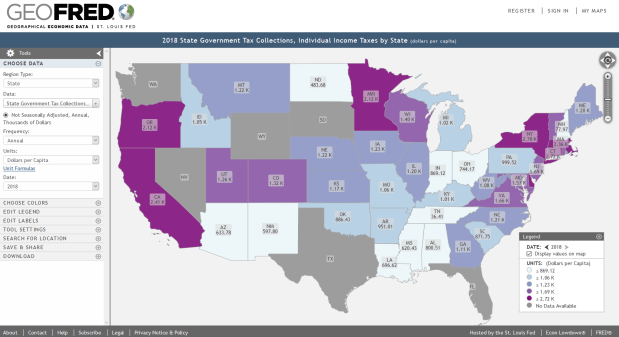
If you’re interested in maps, visit FRED’s brother GeoFRED at https://geofred.stlouisfed.org/.  The homepage has a series of sample thematic maps for US counties and states and globally for countries. Choose any map, and once it opens you can change the geography and indicator to something else. You can modify the frequency, units, and time periods for many of the indicators, and you have basic options for customizing the map (colors, labels, legend, etc.) The maps are interactive, so you can zoom in and out and click on a place to see its data value. Most of the county-level data comes from the Census Bureau, but as you move up to states or metro areas the number of indicators and sources increase. For example, the map below shows individual income taxes collected per capita by state in 2018.

GeoFRED - State Income Tax

There’s a basic search function for finding specific indicators. Just like the charts, maps can be downloaded as static images, shared and embedded in websites, and you can download the data behind the map (it’s simpler to download the same indicator for multiple geographies using GeoFRED compared to FRED).

Take a few minutes and check it out. For insights and analyses of data published via FRED, visit FRED’s blog at https://fredblog.stlouisfed.org/.