osm

Folium Map Zoomed In

Folium Maps with Geopandas and Random Color Schemes

In this post I’ll demonstrate one method for assigning random colors to features on a Folium map, with specific consideration for plotting features from a geopandas geodataframe. I’m picking up where I left off in my previous post, where we plotted routes from a file of origins and destinations using the OpenRouteService. I wrote a regular Python script where I made a simple plot of the points and lines using geopanda’s plot, but in a Jupyter Notebook version I went a step further and used Folium to plot the features on the OpenStreetMap.

Folium is a Python port of Leaflet, a popular javascript library for making basic interactive web maps. I’m not going to cover the basics in this post, so for starters you can view Folium’s documentation: there’s a basic getting started tutorial, and a more detailed user guide. Geopanda’s documentation includes Folium examples that illustrate how you can work with the two packages in tandem.

One important concept to grasp, is that many of the basic examples assume you are working with latitude and longitude coordinates that are either hard-coded as variables, stored in lists, or stored in dedicated columns in a dataframe as attributes. But if you are working with actual geometry stored in a geodataframe, to display features you need to use the folium.GeoJson function instead. For example, this tutorial illustrates how to render points stored in a dedicated geometry column, and not as coordinates stored as numeric attributes in separate columns.

In my example, I have the following geodataframe, where each record is a route with linear geometry, with a sequential integer as the index value:
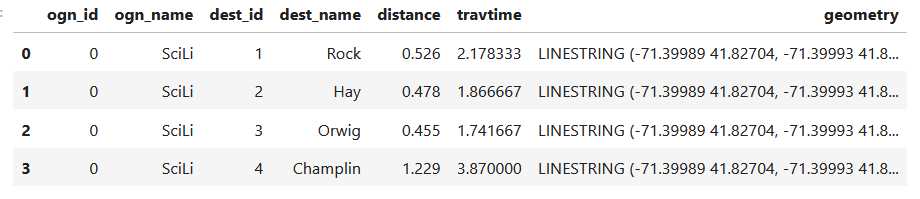
All I wanted to do was assign random colors to each line to depict them differently on the map – and I could not find a straightforward way to do that! In odd contrast, making a choropleth map (i.e. values shaded by quantity) seems easy. I found a couple posts on stack exchange, here and here, that demonstrated how to create and assign colors by randomly creating hexadecimal color strings. Another post illustrated how to assign specific non-random colors, and this thorough blog post walked through assigning colors to categorical data (where each category gets a distinct color).

I pooled aspects of the last two solutions together to come up with the following:

# Get colors for lines
gdfcount=len(gdf) # number of routes
colors=['red','green','blue','gray','purple','brown']
clist=[] # list of colors, one per route
c=0
for i in range(gdfcount):
    clist.append(colors[c])
    c=c+1
    if c>len(colors)-1:
        c=0 # if we run out of colors, start over
color_series = pd.Series(clist,name='color') # create series in order to...
gdf_c=pd.merge(gdf, color_series, left_index=True,right_index=True) # join to routes on seq index #
gdf_c

I get the number of features in my geodataframe, and create a list with a set number of colors. I iterate through my colors list, generating a new list with one color for each record in my frame. If I cycle through all the colors, I reset a counter and cycle through again from the beginning. When finished, I turn the list into a pandas series, which generates a sequential integer index paired with the color. Then I merge the series with my geodataframe (called gdf) using the sequential index, so the color is now part of each record:
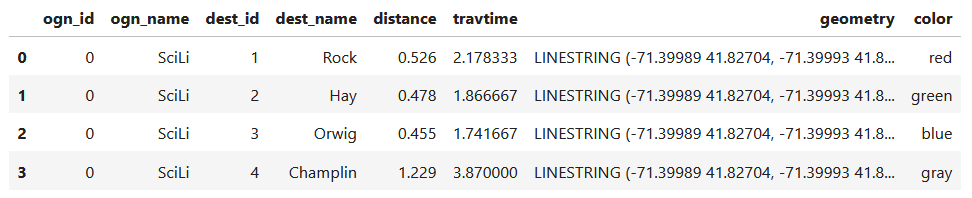
Then I can create the map. When creating a Folium map you need to provide a location on which the map will be centered. I used Geopanda’s total_bounds method to get the bounding box of my features, which returns a list of coordinates: min X, min Y, max X, max Y. I sum the appropriate coordinates for X and Y and divide each by two, which gives me the coordinate pair for the center of the bounding box.

bnds=gdf.total_bounds 
clong=(bnds[0]+bnds[2])/2
clat=(bnds[1]+bnds[3])/2

Next, I generate the map using those coordinates (the name of the map object in the example is “m”). I create a popup menu first, specifying which fields from the geodataframe to display when you click on a line. Then I add the actual geodataframe to the map, applying a style_function parameter to apply the colors and popup to each feature. The lambda business is necessary here, apparently when you’re applying styles that differ for each feature you have to iterate over the features. I guess this is the norm when you’re styling a GeoJSON file (but is at odds with how you would normally operate in a dataframe or GIS environment).

m = folium.Map(location=[clat,clong], tiles="OpenStreetMap")
popup = folium.GeoJsonPopup(
    fields=["ogn_name", "dest_name","distance","travtime"],
    localize=True,
    labels=True)
folium.GeoJson(gdf_c,style_function=lambda x: {'color':x['properties']['color']},popup=popup).add_to(m)

Once the lines are added to the map, we can continue to add additional features. I use folium.GeoJson twice more to plot my origin and destination points. It took me quite a bit of searching around to get the syntax right, so I could change the icon and color. This tutorial helped me identify the possibilities, but again the basic iteration examples don’t work if you’re using GeoJSON or geometry in a geodataframe. If you’re assigning several different colors you have to apply lambda, as in this example in the Folium docs. In my case I just wanted to change the default icon and color and apply them uniformly to all symbols, so I didn’t need to iterate. Once you’ve added everything to the map, you can finally display it!

folium.GeoJson(ogdf,marker=folium.Marker(icon=folium.Icon(icon='home',color='black'))).add_to(m)
folium.GeoJson(dgdf,marker=folium.Marker(icon=folium.Icon(icon='star',color='lightgray'))).add_to(m)
m.fit_bounds(m.get_bounds()) # zoom to bounding box
m

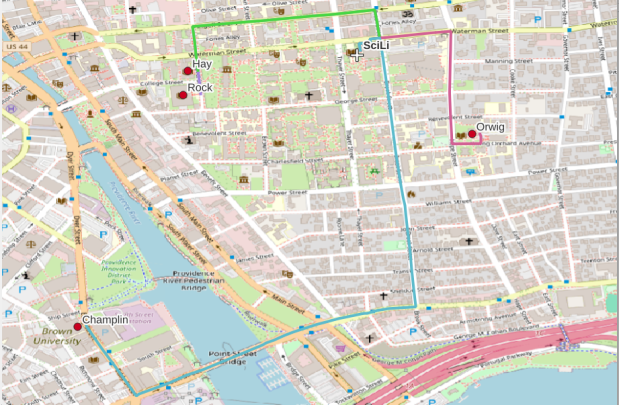
A static screenshot of the result follows, as I can’t embed Folium maps into my WordPress site. Everything works perfectly when using the notebook locally, but GitHub won’t display the map either, even if the Notebook is saved as a trusted source. If you open the notebook in the nbviewer, it renders just fine (scroll to the bottom of the notebook to see the map and interact).

Undoubtedly there are other options for achieving this same result. I saw examples where people had embedded all the styles they needed within a dedicated dataframe column as code and applied them, or wrote a function for applying the styles. I have rarely worked with javascript or coded my own web maps, so I expect there may be aspects of doings things in that world that were ported over to Folium that aren’t intuitive to me. But not being able to readily apply a random color scheme is bizarre, and is a big shortcoming of the module.

I’d certainly benefit from a more formal introduction to Folium / Leaflet, as scattered blog posts and stack exchange solutions can only take you so far. But here’s hoping that this post has added some useful scraps to your knowledge!

Route from SciLi to Libraries on OSM

Plotting Routes with OpenRouteService and Python

I made my first foray into network routing recently, and drafted a python script and notebook that plots routes using the OpenRouteService (ORS) API. ORS is based on underlying data from the OpenStreetMap (OSM), and was created by the Heidelberg Institute for Geoinformation Technology, at Heidelberg University in Germany. They publish several routing APIs that include directions, isochrones, distance matricies, geocoding, and route optimization. You can access them via a basic REST API, but they also have a dedicated Python wrapper and an R package which makes things a bit easier. For non-programmers, there is a plugin for QGIS.

Regardless of which tool you use, you need to register for an API key first. The standard plan is free for small projects; for example you can make 2,000 direction requests per day with a limit of 40 per minute. If you’re affiliated with higher ed, government, or a non-profit and are doing non-commercial research, you can upgrade to a collaborative plan that ups the limits. It’s also possible to install OSR locally on your own server for large jobs.

I opted for Python and used the openrouteservice Python module, in conjunction with other geospatial modules including geopandas and shapely. In my script / notebook I read in two CSV files, one with origins and the other with destinations. At minimum both files must contain a header row, and attributes for unique identifier, place label, longitude, and latitude in the WGS 84 spatial reference system. The script plots a route between each origin and every destination, and outputs three shapefiles that include the origin points, destination points, and routes. Each line in the route file includes the ID and names of each origin and destination, as well as distance and travel time. The script and notebook are identical, except that the script plots the end result (points and lines) using geopanda’s plot function, while the Jupyter Notebook plots the results on a Folium map (Folium is a Python implementation of the popular Leaflet JS langauge).

Visit the GitHub repo to access the scripts; a basic explanation with code snippets follows.

After importing the modules, you define several variables that determine the output, including a general label for naming the output file (routename), and several parameters for the API including the mode of travel (driving, walking, cycling, etc), distance units (meters, kilometers, miles), and route preference (fastest or shortest). Next, you provide the positions or “column” locations of attributes in the origin and destination CSV files for the id, name, longitude, and latitude. Lastly, you specify the location of those input files and the file that contains your API key. The location and names of output files are generated automatically based on the input; all will contain today’s date stamp, and the route file name includes route mode and preference. I always use the os module’s path function to ensure the scripts are cross-platform.

import openrouteservice, os, csv, pandas as pd, geopandas as gpd
from shapely.geometry import shape
from openrouteservice.directions import directions
from openrouteservice import convert
from datetime import date
from time import sleep

# VARIABLES
# general description, used in output file
routename='scili_to_libs'
# transit modes: [“driving-car”, “driving-hgv”, “foot-walking”, “foot-hiking”, “cycling-regular”, “cycling-road”,”cycling-mountain”, “cycling-electric”,]
tmode='driving-car'
# distance units: [“m”, “km”, “mi”]
dunits='mi'
# route preference: [“fastest, “shortest”, “recommended”]
rpref='fastest'

# Column positions in csv files that contain: unique ID, name, longitude, latitude
# Origin file
ogn_id=0
ogn_name=1
ogn_long=2
ogn_lat=3
# Destination file
d_id=0
d_name=1
d_long=2
d_lat=3

# INPUTS and OUTPUTS
today=str(date.today()).replace('-','_')

keyfile='ors_key.txt'
origin_file=os.path.join('input','origins.csv') #CSV must have header row
dest_file=os.path.join('input','destinations.csv') #CSV must have header row
route_file=routename+'_'+tmode+'_'+rpref+'_'+today+'.shp'
out_file=os.path.join('output',route_file)
out_origin=os.path.join('output',os.path.basename(origin_file).split('.')[0]+'_'+today+'.shp')
out_dest=os.path.join('output',os.path.basename(dest_file).split('.')[0]+'_'+today+'.shp')

I define some general functions for reading the origin and destination files into nested lists, and for taking those lists and generating shapefiles out of them (by converting them to geopanda’s geodataframes). We read the origin and destination data in, grab the API key, set up a list to hold the routes, and create a header for the eventual output.

# For reading origin and dest files
def file_reader(infile,outlist):
    with open(infile,'r') as f:
        reader = csv.reader(f)    
        for row in reader:
            rec = [i.strip() for i in row]
            outlist.append(rec)
            
# For converting origins and destinations to geodataframes            
def coords_to_gdf(data_list,long,lat,export):
    """Provide: list of places that includes a header row,
    positions in list that have longitude and latitude, and
    path for output file.
    """
    df = pd.DataFrame(data_list[1:], columns=data_list[0])
    longcol=data_list[0][long]
    latcol=data_list[0][lat]
    gdf = gpd.GeoDataFrame(df, geometry=gpd.points_from_xy(df[longcol], df[latcol]), crs='EPSG:4326')
    gdf.to_file(export,index=True)
    print('Wrote shapefile',export,'\n')
    return(gdf)
      
origins=[]
dest=[]
file_reader(origin_file,origins)
file_reader(dest_file,dest)

# Read api key in from file
with open(keyfile) as key:
    api_key=key.read().strip()

route_count=0
route_list=[]
# Column header for route output file:
header=['ogn_id','ogn_name','dest_id','dest_name','distance','travtime','route']

Here are some nested lists from my sample origin and destination CSV files:

[['origin_id', 'name', 'long', 'lat'], ['0', 'SciLi', '-71.4', '41.8269']]
[['dest_id', 'name', 'long', 'lat'],
 ['1', 'Rock', '-71.405089', '41.825725'],
 ['2', 'Hay', '-71.404947', '41.826433'],
 ['3', 'Orwig', '-71.396609', '41.824581'],
 ['4', 'Champlin', '-71.408194', '41.818912']]

Then the API call begins. For every record in the origin list, we iterate through each record in the destination list (in both cases starting at index 1, skipping the header row) and calculate a route. We create a tuple with each pair of origin and destination coordinates (coords), which we supply to the OSR directions API. We pass in the parameters supplied earlier, and specify instructions as False (instructions are the actual turn by turn directions returned as text).

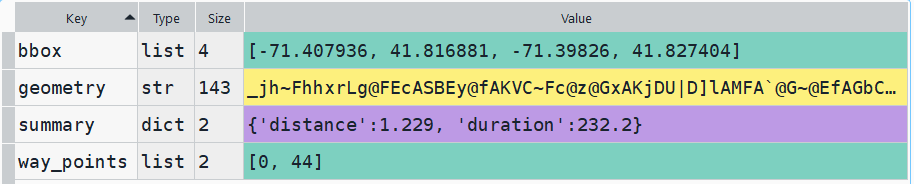
The result is returned as a JSON object, which we can manipulate like a nested Python dictionary. At the first level in the dictionary, we have three keys and values: a bounding box for the route area with a list value, metadata with a dictionary value, and routes with a list value. Dive into route, and the list contains a single dictionary, and inside that dictionary – more dictionaries that contain the values we want!

1st level, dictionary with three keys, the routes key has a single list value
2nd level, the routes list has a single element, another dictionary
3rd level, inside the dictionary in that list element, four keys with route data

The next step is we extract the values that we need from this container by specifying their location. For example, the distance value is inside the first list of routes, inside summary and inside distance. Travel time is in a similar spot, and we take an extra step of dividing by 60 to get minutes instead of seconds. The geometry is trickier as its encoded in some binary line format. We use OSR’s decoding function to turn it into plain text, and shapely to convert it into WKT text; we’ll need WKT in order to get the geometry into a geodataframe, and eventually output as a shapefile. Once we have the bits we need, we string them together as a list for that origin / destination pair, and append this to our route list.

# API CALL
for ogn in origins[1:]:
    for d in dest[1:]:
        try:
            coords=((ogn[ogn_long],ogn[ogn_lat]),(d[d_long],d[d_lat]))
            client = openrouteservice.Client(key=api_key) 
            # Take the returned object, save into nested dicts:
            results = directions(client, coords, 
                                profile=tmode,instructions=False, preference=rpref,units=dunits)
            dist = results['routes'][0]['summary']['distance']
            travtime=results['routes'][0]['summary']['duration']/60 # Get minutes
            encoded_geom = results['routes'][0]['geometry']
            decoded_geom = convert.decode_polyline(encoded_geom) #convert from binary to txt
            wkt_geom=shape(decoded_geom).wkt #convert from json polyline to wkt
            route=[ogn[ogn_id],ogn[ogn_name],d[d_id],d[d_name],dist,travtime,wkt_geom]
            route_list.append(route)
            route_count=route_count+1
            if route_count%40==0: # API limit is 40 requests per minute
                print('Pausing 1 minute, processed',route_count,'records...')
                sleep(60)
        except Exception as e:
            print(str(e))
            
api_key=''
print('Plotted',route_count,'routes...' )

Here is some sample output for the final origin / destination pair, which contains the IDs and labels for the origin and destination, distance in miles, time in minutes, and a string of coordinates that represents the route:

['0', 'SciLi', '4', 'Champlin', 1.229, 3.8699999999999997,
 'LINESTRING (-71.39989 41.82704, -71.39993 41.82724, -71.39959 41.82727, -71.39961 41.82737, -71.39932 41.8274, -71.39926 41.82704, -71.39924000000001 41.82692, -71.39906000000001 41.82564, -71.39901999999999 41.82534, -71.39896 41.82489, -71.39885 41.82403, -71.39870000000001 41.82308, -71.39863 41.82269, -71.39861999999999 41.82265, -71.39858 41.82248, -71.39855 41.82216, -71.39851 41.8218, -71.39843 41.82114, -71.39838 41.82056, -71.39832 41.82, -71.39825999999999 41.8195, -71.39906000000001 41.81945, -71.39941 41.81939, -71.39964999999999 41.81932, -71.39969000000001 41.81931, -71.39978000000001 41.81931, -71.40055 41.81915, -71.40098999999999 41.81903, -71.40115 41.81899, -71.40186 41.81876, -71.40212 41.81866, -71.40243 41.81852, -71.40266 41.81844, -71.40276 41.81838, -71.40452000000001 41.81765, -71.405 41.81749, -71.40551000000001 41.81726, -71.40639 41.81694, -71.40647 41.81688, -71.40664 41.81712, -71.40705 41.81769, -71.40725 41.81796, -71.40748000000001 41.81827, -71.40792 41.81891, -71.40794 41.81895)']

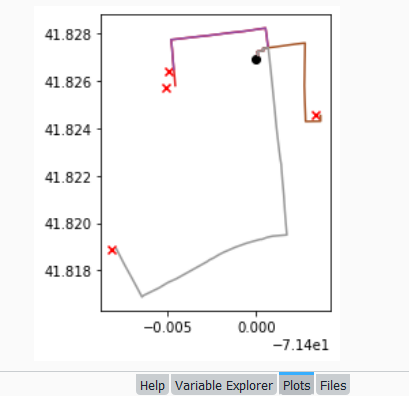
Finally, we can write the output. We convert the nested route list to a pandas dataframe and use the header row for column names, and convert that dataframe to a geodataframe, building the geometry from the WKT string, and write that out. In contrast, the origins and destinations have simple coordinates (not in WKT), and we create XY geometry from those coordinates. Writing the geodataframe out to a shapefile is straightforward, but for debugging purposes it’s helpful to see the result without having to launch GIS. We can use geopandas’s plot function to draw the resulting geometry. I’m using the Spyder IDE, which displays plots in a dedicated window (in my example the coordinate labels for the X axis look strange, as the distances I’m plotting are small).

# Create shapefiles for routes
df = pd.DataFrame(route_list, columns=header)
gdf = gpd.GeoDataFrame(df, geometry=gpd.GeoSeries.from_wkt(df["route"]),crs = 'EPSG:4326')
gdf.drop(['route'],axis=1,inplace=True) # drop the wkt text
gdf.to_file(out_file,index=True)
print('Wrote route shapefile to:',out_file,'\n')

# Create shapefiles for origins and destinations
ogdf=coords_to_gdf(origins,ogn_long,ogn_lat,out_origin)
dgdf=coords_to_gdf(dest,d_long,d_lat,out_dest)

# Plot
base=gdf.plot(column="dest_id", kind='geo',cmap="Set1")
ogdf.plot(ax=base, marker='o',color='black')
dgdf.plot(ax=base, marker='x', color='red');

In a notebook environment we can employ something like Folium more readily, which gives us a basemap and some basic interactivity for zooming around and clicking on features to see attributes. Implementing this was a more complex than I thought it would be, and took me longer to figure out compared to the routing process. I’ll return to those details in a subsequent post…

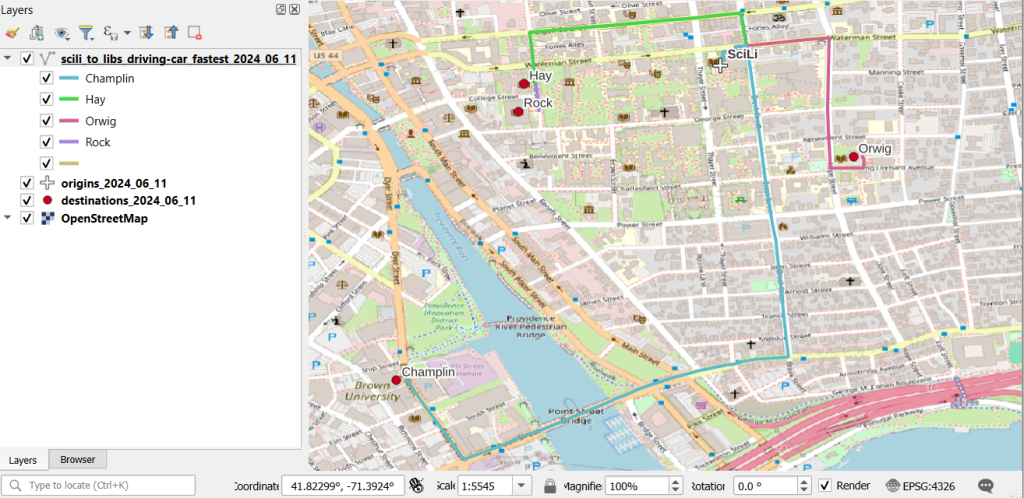
In my sample data (output rendered below in QGIS) I was plotting fastest driving distance from the Brown University Sciences Library to the other libraries in our system. Compared to Google or Apple Maps the result made sense, although the origin coordinates I used for the SciLi had an impact on the outcome (assumed you left from the loading dock behind the building as opposed to the front door as Google did, which produces different routes in this area of one-way streets). My real application was plotting distances of hundreds of miles across South America, which went well and was useful for generating different outcomes using fastest or shortest route.

Take a look at the full script in GitHub, or if programming is not your thing check out the QGIS plugin instead (activate in the Plugins menu, search for OSR). Remember to get your API key first.

OSM Web Feature Service

OpenStreetMap Data with ArcGIS Pro and QGIS

A couple years ago I wrote a post that demonstrated how to use the QuickOSM plugin for QGIS to easily extract features from the OpenStreetMap (OSM). The OSM is a great source for free and open GIS data, especially for types of features that are not captured in government sources, and for parts of the world that don’t possess a free or robust GIS data infrastructure. I’ve been using ArcGIS Pro more extensively in my new job and was wondering how I could do the same thing: query features from the OSM based on keys and values (denoting feature type) and geographic area and extract them as a vector layer. I’m looking for straightforward solutions that I could use for answering questions from students (so no command line tricks or database stuff). In this post I’ll cover three approaches for achieving this in ArcGIS Pro, with references to QGIS.

File Approach

The most straightforward method would be to export data directly from the main OSM page by zooming into an area and hitting the Export button. This is a pretty blunt approach, as you have to be zoomed in pretty close and you grab every possible feature in the view. The “native” file format of OSM is the osm / pbf format; .osm is an XML file while .pbf is a compressed binary version of the osm. QGIS is able to handle these files directly; you just add them as a vector layer. ArcGIS Pro cannot. You have to download and install a special Data Interoperability extension, which is an esoteric thing that’s not part of the standard package and requires a special license from your site license coordinator.

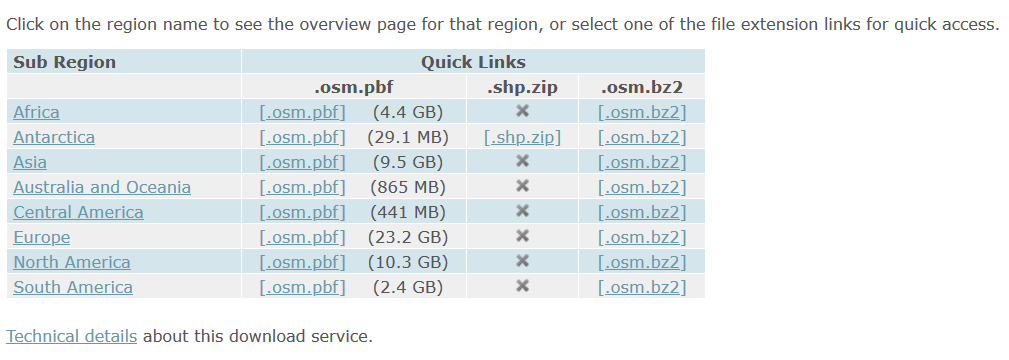
A better and more targeted approach is to download pre-created extracts that are provided by a number of organizations listed in the OSM wiki. I started with Geofabrik in Germany, as it was a source I recognized. They package OSM data by geographic area and feature type. On their main page they list files that contain all features for each of the continents. These are enormous files, and as such they are only provided in the osm pbf format as shapefiles can’t effectively handle data that size. Even if you downloaded the osm pbf files and added them to QGIS, the software will struggle to render something that big.

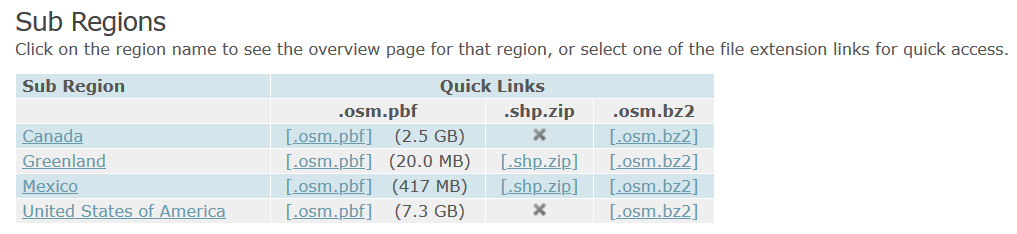
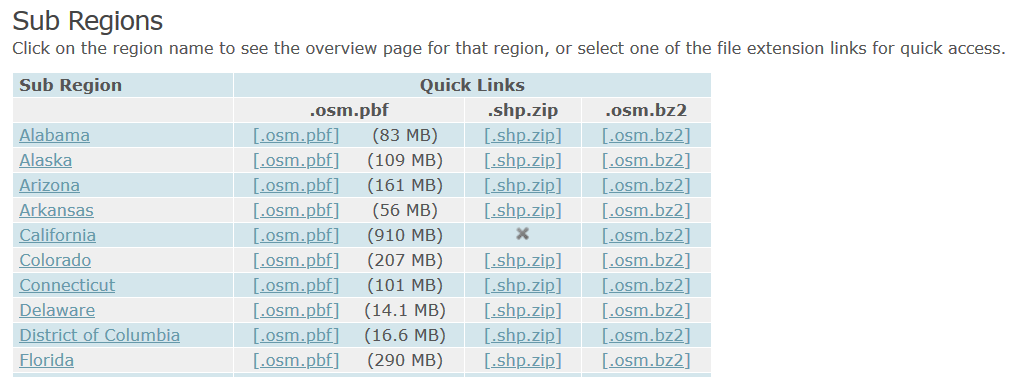
But all is not lost; Geofabrik and many other providers package data in a shapefile format for smaller areas, provided that the size and number of features is not too great. For instance, on Geofabrik’s download page if you click on North America you’re presented with country extracts for that continent (see images below). You can get shapefiles for Greenland and Mexico, but not Canada or the US as the files are still too big. Click on US, and you’re presented with files for each of the states. No luck for California (too big), but the rest of states are small enough that you can get shapefiles for all of them.

Geofabrik OSM data: download continents
Default Geofrabrik OSM download page for continents. Click on a continent name…
Geofabrik OSM data downloads: countries in North America
…to access files for countries. Click on a country name…
Geofabrik OSM data downloads: states of the US
…to access files for states / provinces / admin divisions

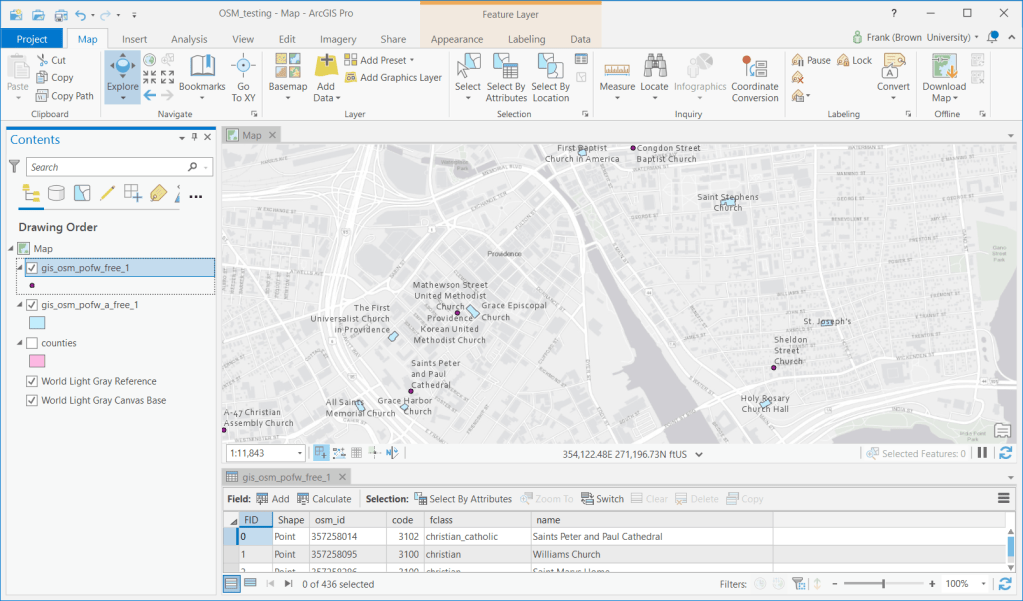
I downloaded and unzipped the file for Rhode Island. It contains a number of individual shapefiles classified by type of feature: buildings, land use, natural, places, places of worship (pofw), points of interest (pois), railways, roads, traffic, transport, water, and waterways. Many of the files appear twice: files with an “a” suffix represent polygons (areas) while files without that suffix are points or lines. Some OSM features are stored as polygons when such detail is available, while others are represented as points.

For example, if I add the two places of workship files to a map, for some features you have the outline of the actual building, while for most you simply have a point. After adding the layers to the map, you’ll probably want to use Select by Attribute to select the features you want based on OSM tags with keys and values, and Select by Location in conjunction with a separate boundary file to pull data out for a smaller area. The Geofabrik OSM attribute table is limited to basic attributes: an OSM ID, feature code and class, and name. It’s also likely that you’ll want to unify the point and polygon features of the same type into one layer, as they’re usually mutually exclusive. Use the Centroid (Polygon) tool in the toolbox to turn the polygons into points, and the Merge tool to meld the two point layers together. In QGIS the comparable tools under the Vector menu are Centroids and Merge Vector Layers. WGS 84 is the default CRS for the layers.

ArcGIS Pro with OSM Places of Worship from Geofabrik
OSM Places of Worship. Some features are stored as points while others are polygons

Geofabrik is just one option. There are several others and they take different approaches for structuring their extracts. For example, BBBike.org organizes their layers by city for over 200 cities around the world, and they provide a number of additional formats beyond OSM PBF and shapefiles, such as Garmin GPS, GeoJSON, and CSV. They divide the data into fewer files, and if they don’t compile data for the area you’re interested in you can use a web-based tool to create a custom extract.

Plugin Approach

It would be nice to use a plugin, as that would allow you to specify a custom geographic area and retrieve just the specific features you want. QuickOSM works quite nicely for QGIS. Fortunately there is a good ArcGIS Pro solution called OSMquery. It works for both Pro and Desktop, tested for Pro 2.2 and Desktop 10.6. I’m using Pro 2.7 and the basic tool worked fine. It’s well documented, with good instructions for installation and use.

The plugin is written in Python and you add it as a tool to your ArcToolbox. Download the repo from the OSMquery GitHub as a ZIP file (click the green code button and choose Download ZIP). Save it in or near your ArcGIS project folders, and unzip it. In Pro, go into a project and open a Catalog Pane in the View ribbon. Right click on Toolbox to add a new one, and browse to the folder you unzipped to add the tool. There are two scripts in the box, a basic and an advanced version. The basic tool functioned without trouble for me. The advanced tool threw an error, probably some Python dependency issue (I didn’t investigate as the basic tool met my needs).

In the basic tool you choose the key and value for the features you want to extract; the dropdown menu is automatically populated with these options. For the geographic extent you can enter a place name, or you can use the extent of the current map window or of a layer in the project, or you can manually type in bounding box coordinates. Another nice option is you can transform the CRS of the extracted features from WGS 84 to another system, so it matches the CRS of layers in your existing project. Run the tool, and the features are extracted. If the features exist as both points and polygons, you get two separate files for each. If you choose, you can merge them together as described in the previous section; this is a bit tougher as the plugin approach yields a much wider selection of fields in the attribute table, and not all of the point and polygon attributes align. With the Merge tool in Pro you can select which attributes you want to hold on to, and common ones will be merged. QGIS is a bit messier in this regard, but in my earlier post I outlined a work-around using a spatial database.

OSMquery tool in ArcGIS Pro
The basic OSMquery tool in an ArcGIS Pro toolbox

Web Feature Service

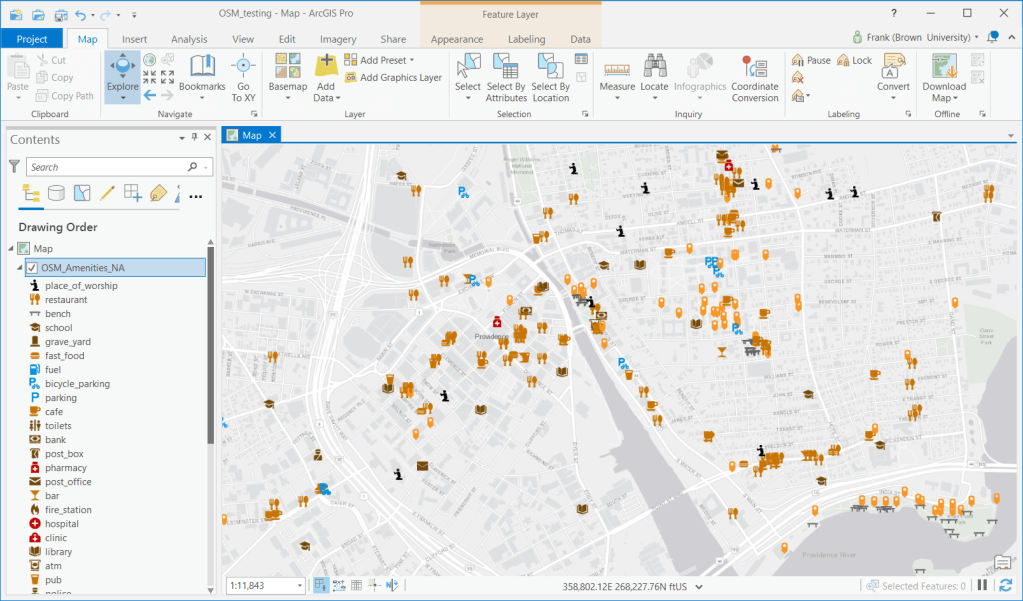
This initially seemed to be the most promising route, but it turned out to be a dud. Like QGIS, Pro allows you to add OSM as a tiled base map. But ESRI also offers OSM as a web feature service: by hitting Add Data on the Map ribbon and searching the Living Atlas for “OpenStreetMap” you can select from a number of OSM web feature services, organized by continent and feature type. Once you add them to a map, you can select and click on individual features to see their name and feature type. The big problem is that you are not allowed to extract features from these layers, which leaves you with an enormous and heterogeneous mix of features for an entire continent. You can interact with the features, selecting by attribute and location in reference to other spatial layers, but that’s about it.

OSM web feature service in ArcGIS Pro

In Summary

I would recommend taking the step of downloading the OSMquery plugin for ArcGIS Pro if you want to take a highly targeted approach to OSM feature extraction (for QGIS users, enable the QuickOSM plugin). This approach is also best if you can’t download a pre-existing extract for your area because it’s too large or has too many features, and if you want to access the fullest possible range of attribute values. Otherwise, you can simply download one of the pre-created extracts, and use your software to winnow it down to what you need (or if you do need everything, the file approach makes more sense). Since the file-based option includes fewer attributes, converting polygon features to points and merging them with the other point features is a bit simpler.

Stamen Watercolor Map Tiles

Adding Basemaps to QGIS With Web Mapping Services

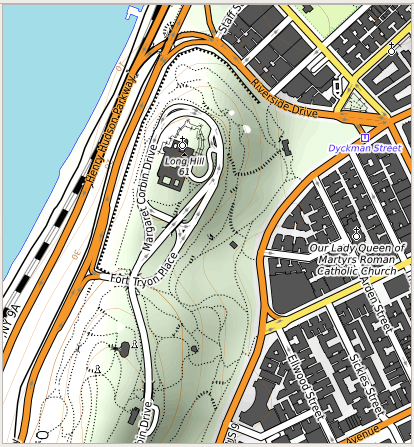
For this final post of 2020, I was looking back through recent projects for something interesting yet brief; I’ve been writing some encyclopedia-length posts lately and wanted to keep this one on the lighter side. In that vein, I’ve decided to share a short list of free web mapping services that I use as basemaps in QGIS (they’ll work in ArcGIS too). This has been on my mind as I’ve recently stumbled upon the OpenTopoMap, which is an alternate stylized version of the OpenStreetMap that looks pretty sharp.

See this earlier post for details, but in short, to connect to these services in QGIS:

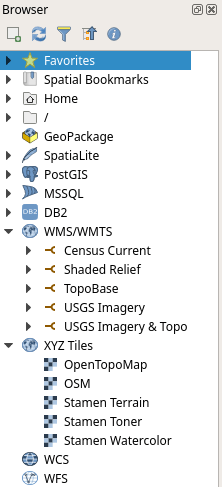
QGIS Browser Panel
  1. Select the appropriate web map service type in the browser panel (usually WMS / WMTS or XYZ Tiles), right click, and add new connection.
  2. Give it a meaningful name, paste the appropriate URL into the URL box, click OK.
  3. In the browser panel drill down to see the service, and for WMS / WMTS layers you can drill down further to see specific layers you can add.
  4. Select the layer and drag it into the window, or select, right click, and add the layer to the project.
  5. If the resolution looks off, right click on a blank area of the toolbar and check the Tile Scale Panel. Use this to adjust the zoom for the web map. If the scale bar is greyed out you’ll need to set the map window to the same CRS as the map service: select the layer in the panel, right click, and choose set CRS – set project CRS from layer.
  6. Some web layers may render slowly if you’re zoomed out to the full extent, or even not at all if they contain many features or are super detailed. Conversely, some layers may not render if you’re zoomed too far in, as tiles may not be available at that resolution. Experiment!

If you’re an ArcGIS user see these concise instructions for adding various tile layers. This isn’t something that I’ve ever done, as ArcGIS already has a number of accessible basemaps that you can add.

In the list below, links for the service name take you to either the website version of the service, or to a list of additional layers that you can connect to. The URLs that follow are the actual connections to the service that you’ll use within your GIS package. If you use OSM, OTP, or Stamen in your maps, make sure to cite them (they use Creative Commons Licenses – follow links to their websites for details). The government sources are public domain, but you should still cite them anyway. Happy mapping, and happy holidays!

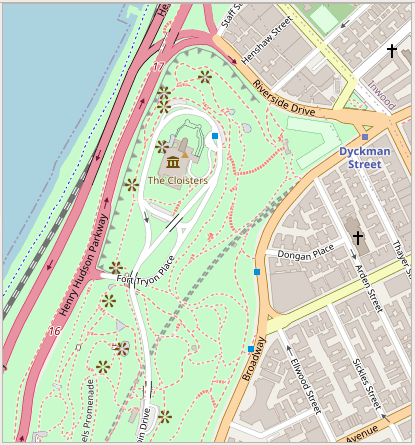
OpenStreetMap XYZ Tile (global)

http://tile.openstreetmap.org/{z}/{x}/{y}.png

OpenTopoMap XYZ Tile (global)

https://tile.opentopomap.org/{z}/{x}/{y}.png

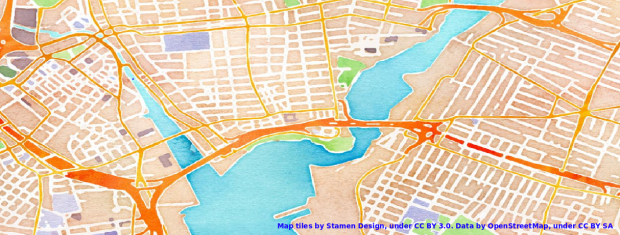
Stamen XYZ Tile (global) see their website for examples; the image topping this post is from watercolor

http://tile.stamen.com/terrain/{z}/{x}/{y}.png
http://tile.stamen.com/toner/{z}/{x}/{y}.png
http://tile.stamen.com/watercolor/{z}/{x}/{y}.jpg

USGS National Map WMTS (global, but fine detail is US only)

Imagery:
https://basemap.nationalmap.gov/arcgis/rest/services/USGSImageryOnly/MapServer/WMTS/1.0.0/WMTSCapabilities.xml

Imagery & Topo:
https://basemap.nationalmap.gov/arcgis/rest/services/USGSImageryTopo/MapServer/WMTS/1.0.0/WMTSCapabilities.xml

Shaded Relief: 
https://basemap.nationalmap.gov/arcgis/rest/services/USGSShadedReliefOnly/MapServer/WMTS/1.0.0/WMTSCapabilities.xml

Topographic:
https://basemap.nationalmap.gov/arcgis/rest/services/USGSTopo/MapServer/WMTS/1.0.0/WMTSCapabilities.xml

US Census Bureau TIGERweb WMS (US only) see their website for older vintages

Current TIGER features:
https://tigerweb.geo.census.gov/arcgis/services/TIGERweb/tigerWMS_Current/MapServer/WMSServer 

Current physical features:
https://tigerweb.geo.census.gov/arcgis/services/TIGERweb/tigerWMS_PhysicalFeatures/MapServer/WMSServer

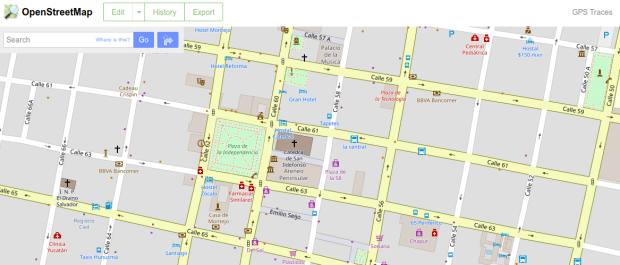
OSM Merida

Extracting OpenStreetMap Data in QGIS 3

The OpenStreetMap (OSM) can be a good source of geospatial data for all sorts of features, particularly for countries where the government doesn’t provide publicly accessible GIS data, and for features that most governments don’t publish data for. In this post I’ll demonstrate how to download a specific feature set for a relatively small area using QGIS 3.x. Instead of simply adding OSM as a web service base map we’ll extract features from OSM to create vector layers.

In the past I followed some straightforward instructions for doing this in QGIS 2.x, but of course with the movement to 3.x the core OSM plugin I previously used is no longer included, and no updated version was released. It’s a miracle that anyone can figure out what’s going on between one version of QGIS and the next. Fortunately, there’s another plugin called QuickOSM that’s quite good, and works fine with 3.x.

Use QuickOSM to Extract Features

Let’s say that we want to create a layer of churches for the city Merida in Mexico. First we launch QGIS, go to the Plugins menu, and choose Manage and Install plugins. Select plugins that are not installed, do a search for QuickOSM, select it, and install it. This adds a couple buttons to the plugins toolbar and a new sub-menu under the Vector menu called Quick OSM.

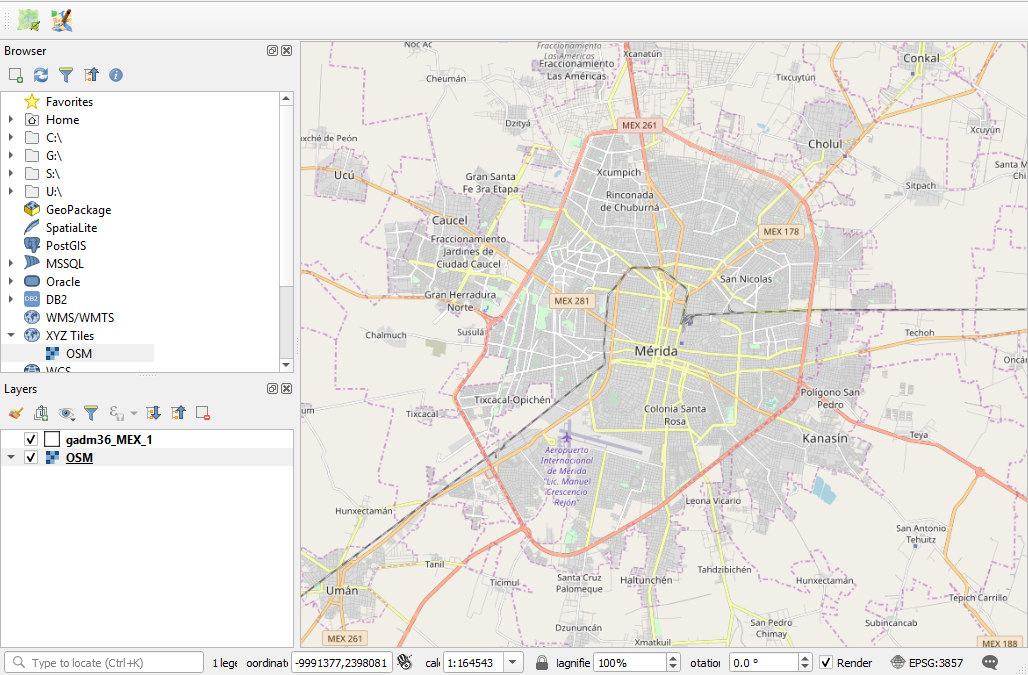
Next, we add a layer to serve as a frame of reference. We’re going to use the extent of the QGIS window to grab OSM features that fall within that area. We could download some vector files from GADM or Natural Earth; GADM provides several layers of administrative divisions which can be useful for locating and delineating our area. Or we can add a web service like OSM and simply zoom in to our area of interest. Adjust the zoom so that the entire city of Merida fits within the window.

Merida in QGIS

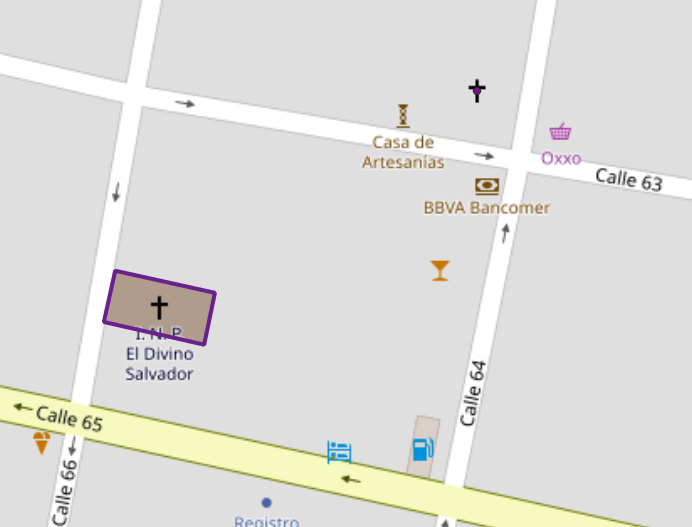
OSM XYZ Tiles in QGIS – Zoomed into Merida

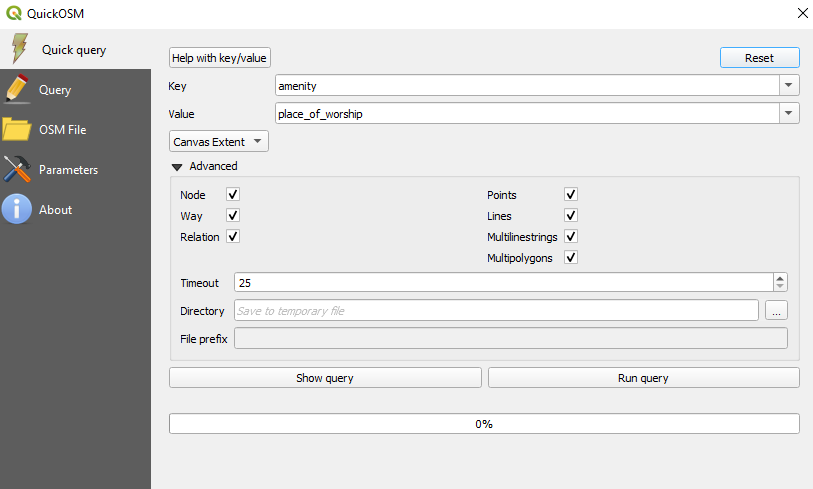
Now we can launch the Quick OSM tool. The default tab is Quick query, which allows us to select features directly from an OSM server (you need to be connected to the internet to do this). OSM data is stored in an XML format, so to extract the data we want we’ll need to specify the correct elements and tags. Ample documentation for all the map features is available. In our example, churches are referred to as places of worship and are classified as an amenity. So we choose amenity as the key and place_of_worship as the value. The drop down box allows us to search for features in or around a place, but as discussed in my previous post place names can be ambiguous. Choose the option for canvas extent, and that will capture any churches in our map window. Hit the advanced drop down arrow, and you have the option to select specific types of geometry (keep them all). Hit the run query button to execute.

Quick OSM Interface

Quick OSM Interface

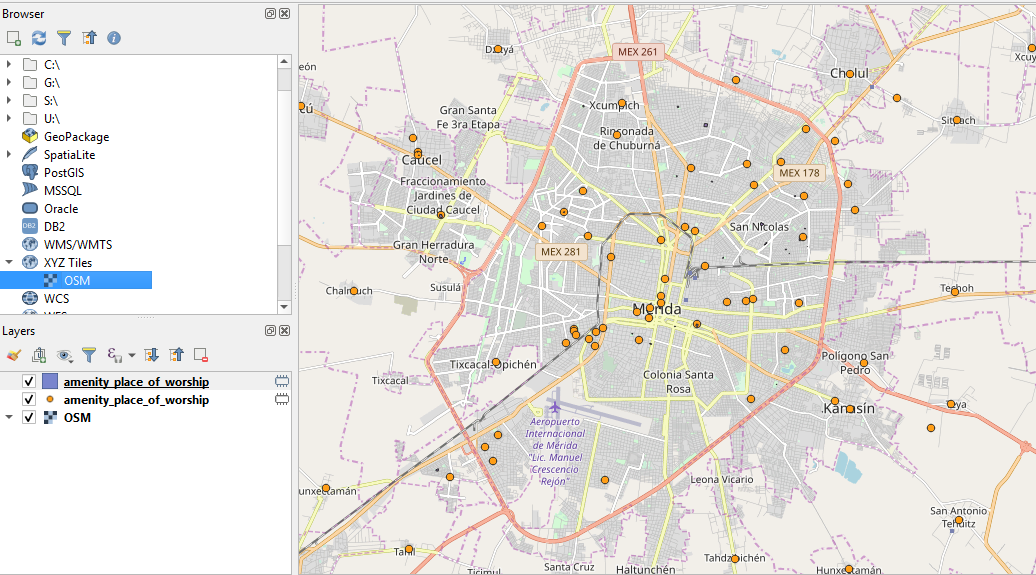
We’ll see there are two results: one for places of worship that are points, and another for polygons. If you right click on one of these layers and open the attribute table, you’ll see a number of tags that have been extracted and saved as columns, such as the name, religion, and denomination. The Quick query tools pulls a series of pre-selected attributes that are appropriate for the type of feature.

Places of Worship

The data is saved temporarily in memory, so to keep it you need to save each as a shapefile or geopackage (right click, Export, Save Features As). But before we do that – why do have two separate layers to begin with? In some cases the OSM has the full shape of the building saved as a polygon, while in other cases the church is saved as a point feature, with a cross or other religious symbol appropriate for the type of worship space. It simply depends on the level of detail that was available when the feature was added.

Polygon versus Point

Church as polygon (lower left-hand corner) and as point (upper right-hand corner)

If we needed a single unified layer we would need to merge the two, but this process can be a pain. Using the vector menu you can convert the polygons to points using the centroid tool, and then use the merge tool to combine the two point layers. This is problematic as the number of fields in each file is different, and because the centroid tool changes the data type of the polygon’s id number to a type that doesn’t match the points. I think the easiest solution is to load both layers into a Spatialite database and create a unified layer in the DB.

Use SpatiaLite to Create a Single Point Layer

To do that, right click on the SpatiaLite option in the Browser Panel, choose Create Database, and name it (merida_churches). Then select the church point file, right click, export, save features as. Choose SpatiaLite as the format, for the file select the database we just created, and for layer name call it church_points. The default CRS (used by OSM) is WGS 84. Hit OK. Then repeat the steps for the polygons, creating a layer called church_polygons in that same database.

Once the features are database layers, we can write a SQL script (see below) where you create one table that has columns that you want to capture from both tables. You load the data from each of the tables into the unified one, and as you are loading the polygons you convert their geometry to points. The brackets around the names like [addr:full] allows you to overcome the illegal character designation in the original files (you shouldn’t use colons in db column names). I like to manually insert a date so to remember when I downloaded the feature set.

BEGIN;

CREATE TABLE all_churches (
full_id TEXT NOT NULL PRIMARY KEY,
osm_id INTEGER NOT NULL,
osm_type TEXT,
name TEXT,
religion TEXT,
denomination TEXT,
addr_housenumber TEXT,
addr_street TEXT,
addr_city TEXT,
addr_full TEXT,
download_date TEXT);

SELECT AddGeometryColumn('all_churches','geom',4326,'POINT','XY');

INSERT INTO all_churches
SELECT full_id, osm_id, osm_type, name, religion, denomination,
[addr:housenumber], [addr:street], [addr:city], [addr:full],
'02/11/2019', ST_CENTROID(geometry)
FROM church_polygons;

INSERT INTO all_churches
SELECT full_id, osm_id, osm_type, name, religion, denomination,
[addr:housenumber], [addr:street], [addr:city], [addr:full],
'02/11/2019', geometry
FROM church_points;

SELECT CreateSpatialIndex('all_churches', 'geom');

COMMIT;

Unfortunately the QGIS DB Browser does not allow you to run SQL transactions / scripts. You can paste the entire script into the window, highlight the first statement (CREATE TABLE), execute it, then highlight the next one (SELECT AddGeometryColumn), execute it, etc. Alternatively if you use the Spatialite CLI or GUI, you can save your script in a file, load it, and execute it in one go.

QGIS DB Browser

When finished we hit the refresh button and can see the new all_churches layer in the DB. We can preview the table and geometry and add it to the QGIS map window. If you prefer to work with a shapefile or geopackage you can always export it out of the db.

Other Options

The QuickOSM tool has a few other handy features. Under the Quick query tool is a plain old Query tool, which shows you the actual query being passed to the server. If you’re familiar with the map features and XML structure of OSM you can modify this query directly. Under the Query tool is the OSM File tool. Instead of grabbing features from the server, you can download an OSM pbf file (Geofabrik provides data for each country) and use this tool to load data from that file. It loads all features from the file for the geometries you choose, so the process can take awhile. You’ll want to load the data into a temporary file instead of saving in memory, to avoid a crash.

Sedona Hike

XYZ Tiles and WMS Layers in QGIS 3

I did a lot of hiking around Sedona, Arizona a few weeks ago, and wanted to map my GPS way points and tracks in QGIS over some WMS (web mapping service) base map layers. I recently switched to QGIS 3 since I need to use that in my book (by the time it comes out 2.18 will be old news), and had to spend time starting from scratch since the plugin I always used was no longer available (ahhh the pitfalls of relying on 3rd party plugins – see my last post on SQLite). I thought I’d share what I learned here.

I was using the OpenLayers plugin in QGIS 2.x as an easy resource to add base maps to my projects. You could pull in layers from OSM, Google, Bing, and others. It turns out that plugin is no longer available for QGIS 3.x. So I searched around and found some suggestions for a different plugin called QuickMapServices which was a great replacement. But alas, that worked in QGIS 3.0 but is not compatible (as of now) for QGIS 3.2.

So I’m back to adding WMS layers manually. There is a new feature in QGIS for adding XYZ Tiles; this is a little better than WMS because the base map can be rendered a bit quicker. I found a tip in the Stack Exchange that you can add an OSM tiles layer with this url:

http://tile.openstreetmap.org/{z}/{x}/{y}.png 

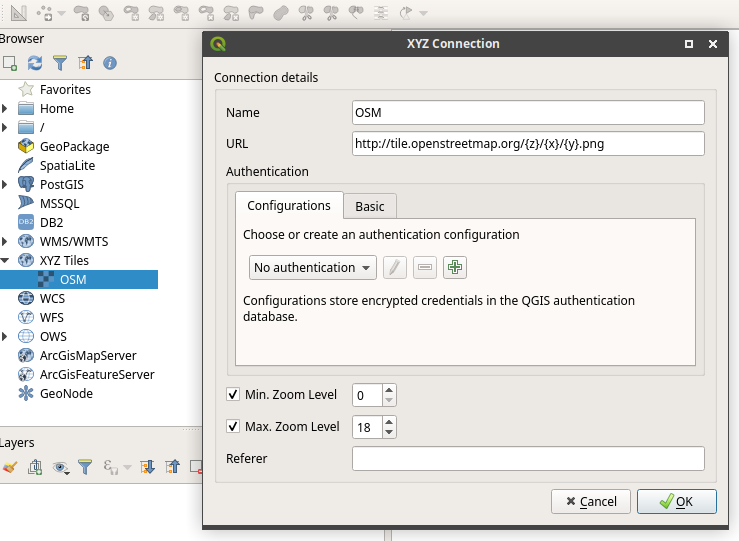
Select XYZ Tiles in the Browser, right click, New connection, give it a name, add the URL. You can modify the X Y Z coordinates where the map centers and zooms by default. Once you’ve created the connection, you can simply drag the OSM layer into the map window to render it.

Adding the OSM XYZ Tiles in QGIS

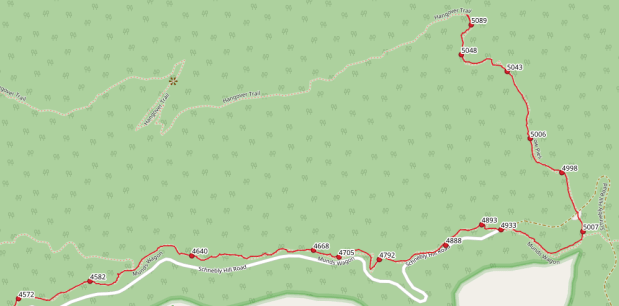
One problem that always creeps up: when you add other layers and adjust the zoom, sometimes the rendering of the base map looks poor, i.e. the features and labels look blurry or blocky. When you’re pulling data from a web map layer, as you zoom in it swaps out the tiles for more detailed ones appropriate for that scale. But when you’re zooming in QGIS things can get out of synch, as your map window zoom may not be enough to trigger the switch in the map tiles, or those map tiles are just not meant to be rendered at that scale. If you right click on a blank area of the toolbar, you can activate the Tile Scale panel and can use the slider to adjust the window zoom in synch with the tiles, so you can operate at the scales that are appropriate for the tiles. The way points and track for our hike alongside Schnebly Hill Road are shown below, and the labels for the points represent our elevation in feet.

OSM Tile Layer with Tile Scale Panel

If the slider is grayed out, select the OSM layer in the Layers menu, right click, and select Set CRS  – Set Project CRS From Layer. Web mapping services typically use EPSG 3857 Pseudo Mercator as the coordinate reference system / map projection by default. If your other vectors layers aren’t in that system, you can have the base map draw to their system or vice versa by selecting the layer, right clicking, and choosing Set CRS. But for the tile scale to work properly EPSG 3857 must be the project CRS.

Lastly, I’ve always liked the USGS WMS layers, which are never included in the plugins that I’ve seen. The USGS provides layers for: imagery, imagery with topographic features, shaded relief, and the USGS topographic map layer:

https://basemap.nationalmap.gov/arcgis/rest/services

USGS Link for WMS Layer for Topographic Maps

You can click on one of the services, and at the top (in small print) are urls for their services in WMS and WMTS. The last one is a web mapping tile service, which is a bit faster than WMS. Click on the WMTS link, and copy the url from the address in the browser. Then in QGIS select WMS / WMTS layers, right click, add a new connection, give it a name and paste the url. This is url for the topographic map:

https://basemap.nationalmap.gov/arcgis/rest/services/USGSTopo/MapServer/WMTS/1.0.0/WMTSCapabilities.xml

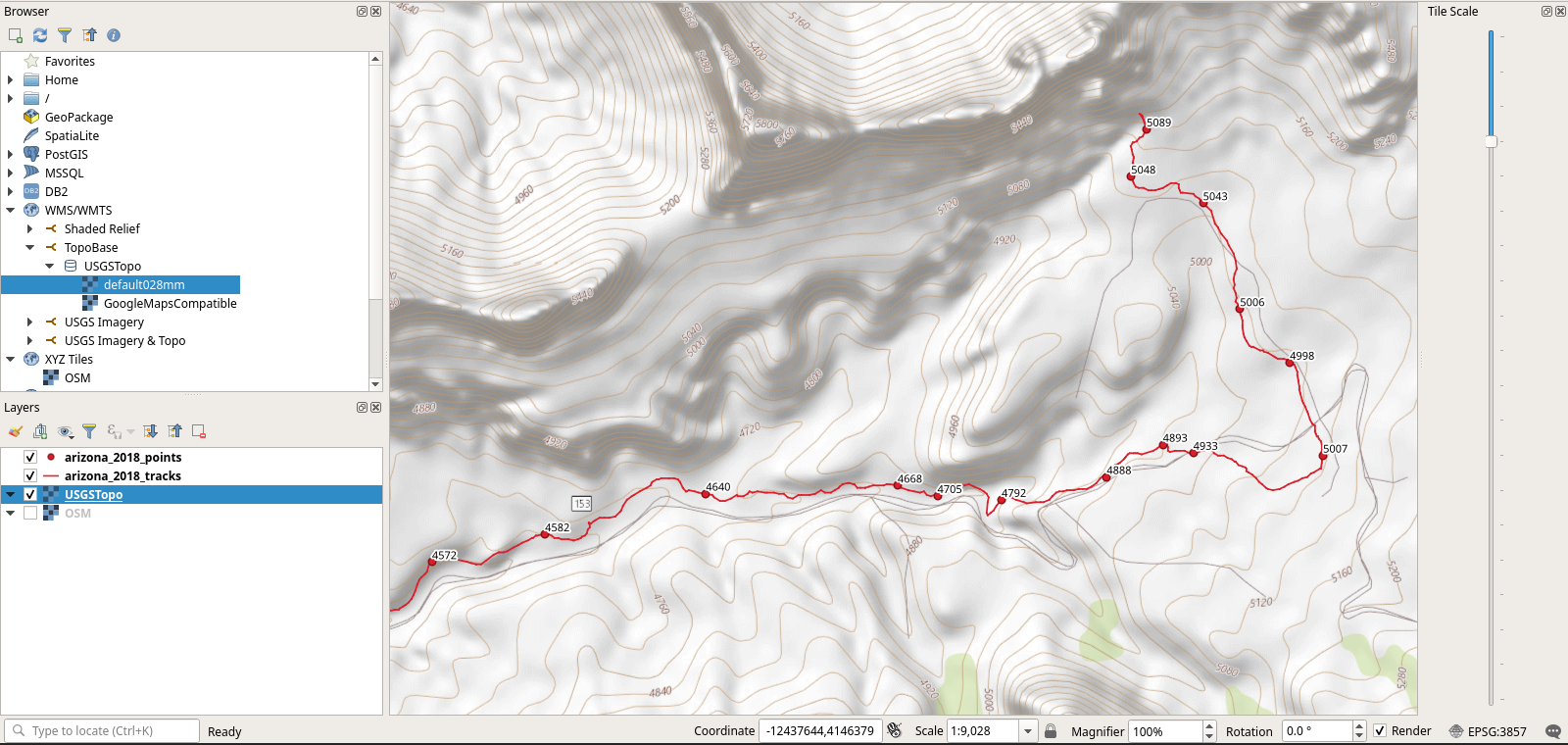
Once again, you can drag the layer into the map window to render it, and you can use the Tile Scale panel to adjust the zoom. Here’s our hike with the topo map as the base:

USGS Topographic Map in QGIS