excel

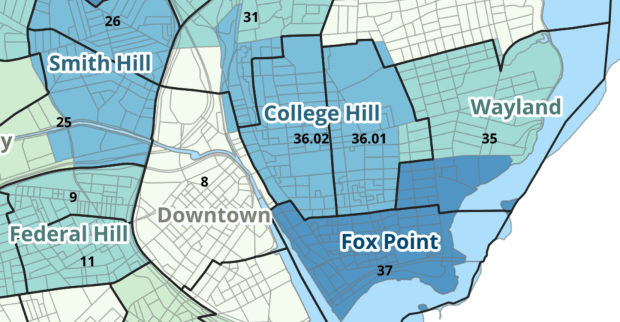
Providence Census Geography Map

Crosswalking Census Data to Neighborhood Geographies

Last semester we completed a project to create a crosswalk between census geographies and local geographies in Providence, RI. Crosswalks are used for relating two disparate sets of geography, so that you can compile data that’s published for one set of geography in another. Many cities have locally-defined jurisdictions like wards or community districts, as well as informally defined areas like neighborhoods. When you’re working with US Census data, you use small statistical areas that the Bureau defines and publishes data for; blocks, block groups, census tracts, and perhaps ZCTAs and PUMAs. A crosswalk allows you to apportion data that’s published for census areas, to create estimates for local areas (there are also crosswalks that are used for relating census geography that changes over time, such as the IPUMS crosswalks).

How the Crosswalk Works

For example, in the Providence Census Geography Crosswalk we have two crosswalks that allow you to take census tract data, and convert it to either neighborhoods or wards. I’ll refer to the neighborhoods in this post. In the crosswalk table, there is one record for each portion of a tract that overlaps a neighborhood. For each record, there are attribute columns that indicate the count and the percentage of a tract’s population, housing units, land area, and total area that fall within a given neighborhood. If a tract appears just once in the table, that means it is located entirely within one neighborhood. In the image below, we see that tract 1.01 appears in the table once, and its population percentage is 1. That means that it falls entirely within the Washington Park neighborhood, and 100% of its population is in that neighborhood. In contrast, tract 1.02 appears in the table twice, which means it’s split between two neighborhoods. Its pct_pop column indicates that 31.5% of its population is in South Elmwood, while 68.5% is in Washington Park. The population count represents the number of people from that tract that are in that neighborhood.

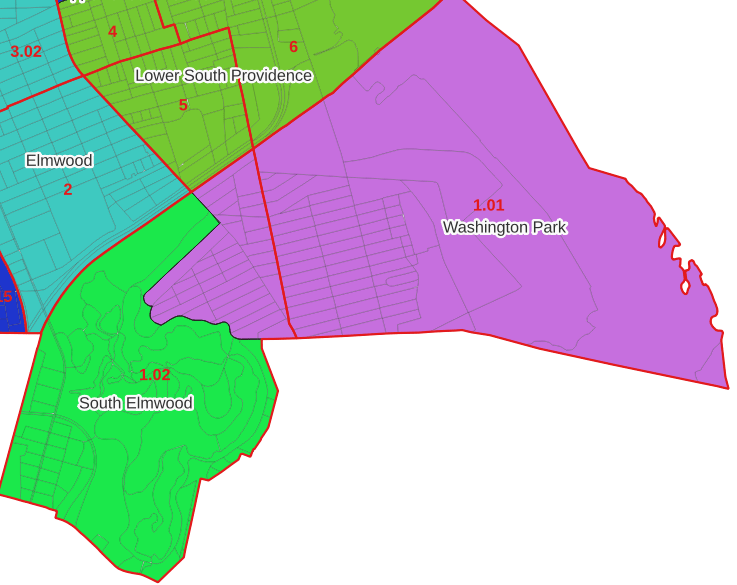
Looking at the map below, we can see that census tract 1.01 falls entirely within Washington Park, and tract 1.02 is split between Washington Park and South Elmwood. To generate estimates for Washington Park, we would sum data for tract 1.01 and the portion of tract 1.02 that falls within it. Estimates for South Elmwood would be based solely on the portion of tract 1.02 that falls within it. With the crosswalk, “portion” can be defined as the percentage of the tract’s population, housing units, land area, or total area that falls within a neighborhood.
The primary purpose of the crosswalk is to generate census data estimates for neighborhoods. You apportion tract data to neighborhoods using an allocation factor (population, housing units, or area) and aggregate the result. For example, if we have a census tract table from the 2020 census with the population that’s 65 years and older, we can use the crosswalk to generate neighborhood-level estimates of the 65+ population. To do that, we would:

  1. Join the data table to the crosswalk using the tract’s unique ID; the crosswalk has both the long and short form of the GEOIDs used by the Census Bureau. So for each crosswalk record, we would associate the 65+ population for the entire tract with it.
  2. Multiply the 65+ population by one of the allocation columns – the percent population in this example. This would give us an estimate of the 65+ population that live in that tract / neighborhood piece.
  3. Group or aggregate this product by the neighborhood name, to obtain a neighborhood-level table of the 65+ population.
  4. Round decimals to whole numbers.

To do the calculations in a spreadsheet, you would import the appropriate crosswalk sheet into the workbook that contains the census data that you want to apportion, so that they appear as separate sheets in the same workbook. In the crosswalk worksheet, use the VLOOKUP formula and reference the GEOID to “join” the census tract data to the crosswalk. The formula requires: cell containing the ID value you wish to look up, the range of cells in a worksheet that you will search through, the number of the column that contains the value you wish to retrieve (column A is 1, Z is 26, etc.), and the parameter “FALSE” to get an exact match. It is assumed that the look up value in the target table (the matching ID) appears in the first column (A).
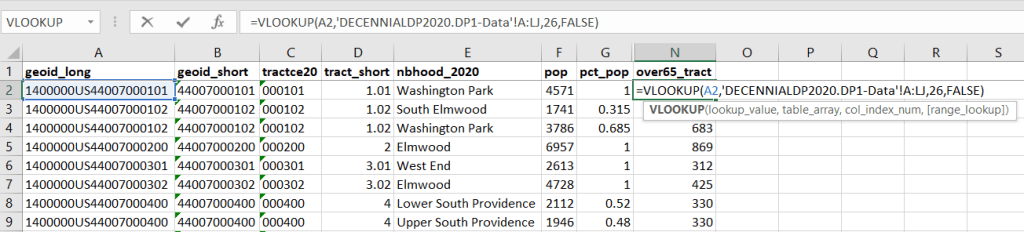
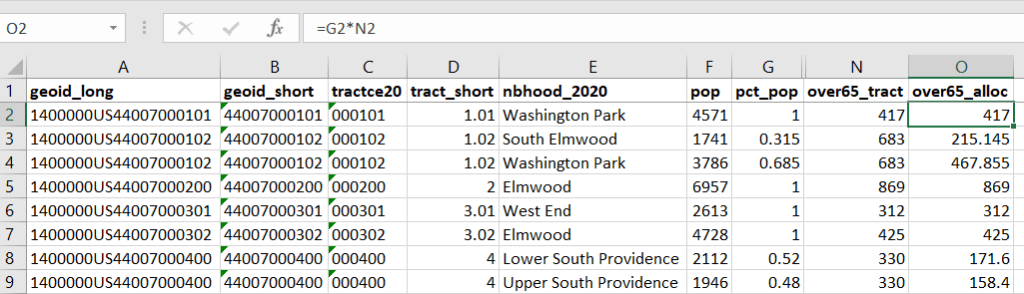
The tract data is now repeated for each tract / neighborhood segment. Next, use formulas to multiply the allocation percentage (pct_pop in this example) by the census data value (over 65 pop for the entire tract) to create an allocated estimate for each tract / neighborhood piece.
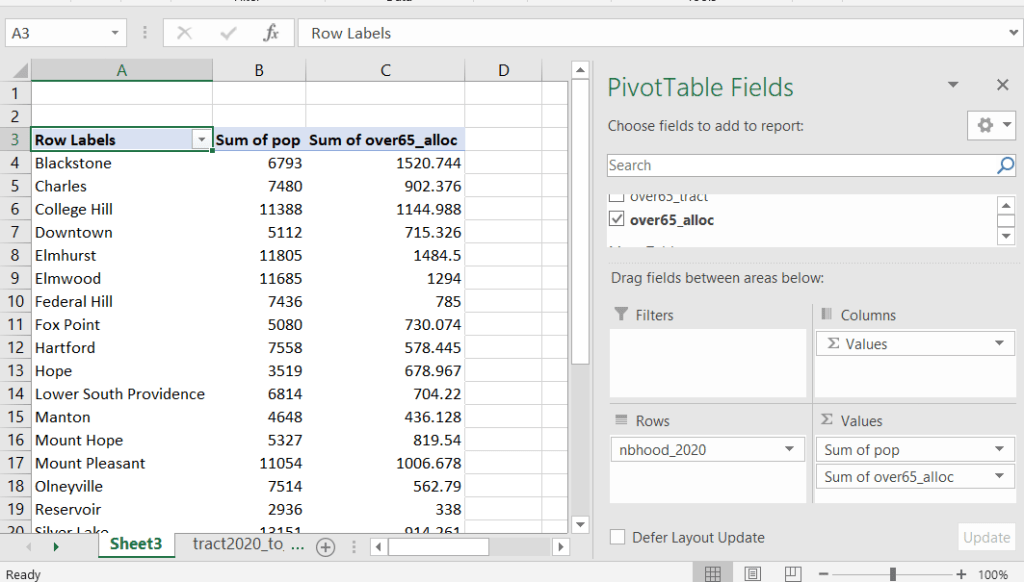
Then you can generate a pivot table (on the Insert ribbon in Excel) where you group and sum that allocated result by neighborhood (neighborhoods as rows, census data as summed values in columns). Final step is to round the estimates.
This process is okay for small projects where you have a few estimates you want to quickly tabulate, but it doesn’t scale well. I’d use a relational database instead; import the crosswalk and census data table into SQLite, where you can easily do a left join, calculated field, and then a group by statement. Or, use the joining / calculating / aggregating equivalents in Python or R.

I used the percentage of population as the allocation factor in this example. If the census data you’re apportioning pertains to housing units, you could use the housing units percentage instead. In any case, there is an implicit assumption that the data you are apportioning has the same distribution as the allocation factor. In reality this may not be true; the distribution of children, seniors, homeowners, people in poverty etc. may vary from the total population’s distribution. It’s important to bear in mind that you’re creating an estimate. If you are apportioning American Community Survey data this process gets more complicated, as the ACS statistics are fuzzy estimates. You’d also need to apportion the margin of error (MOE) and create a new MOE for the neighborhood-level estimates.

The Providence crosswalk has some additional sheets that allow you to go from tracts, ZCTAs, or blocks to neighborhoods or wards. The tract crosswalk is by far the most useful. The ZCTA crosswalk was an exercise in futility; I created it to demonstrate the complete lack of correlation between ZCTAs and the other geographies, and recommend against using it (we also produced a series of maps to visually demonstrate the relationship between all the geographies). There is a limited amount of data published at the block level, but I included it in the crosswalk for another reason…

Creating the Crosswalk

I used census blocks to create the crosswalk. They are the smallest unit of census geography, and nest within all other census geographies. I used GIS to assign each block to a neighborhood or ward based on the geography the block fell within, and then aggregated the blocks into distinct tract / ward and tract / neighborhood combinations. Then I calculated the allocation factors, the percentage of the tract’s total attributes that fell in a particular neighborhood or ward. This operation was straightforward for the wards; the city constructed them using 2020 census blocks, so the blocks nested or fit perfectly within the wards.

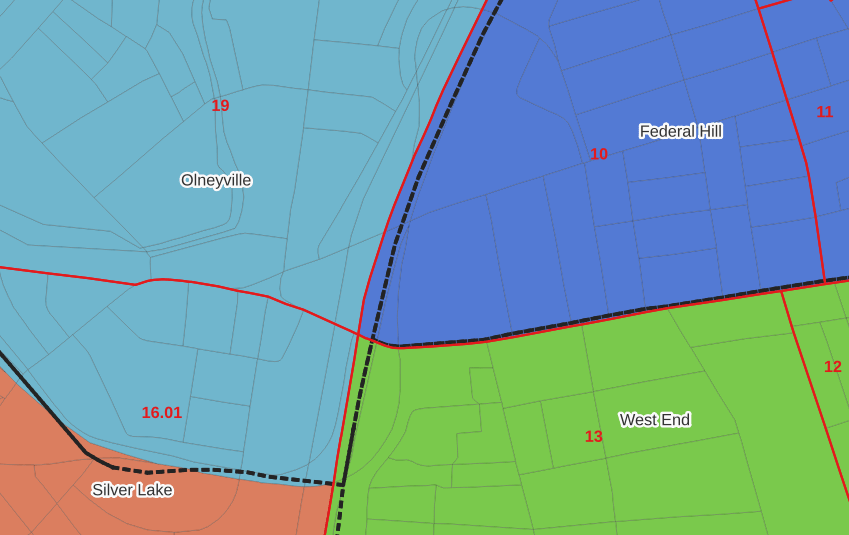
The neighborhoods were more complicated, as these were older boundaries that didn’t correspond to the 2020 blocks, and there were many instances where blocks were split between neighborhoods. My approach was to create a new set of neighborhood boundaries based on the 2020 blocks, and then use those new boundaries to create the crosswalk. I began with a spatial join, assigning each block a neighborhood ID based on where the center of the block fell. Then, I manually inspected the borders between each neighborhood, to determine whether I should manually re-assign a block. In almost all instances, blocks I reassigned were unpopulated and consisted of slivers that contained large highways, or blocks of greenspace or water. I struck a balance between remaining as faithful to the original boundaries as possible, while avoiding the separation of unpopulated blocks from a tract IF the rest of the blocks in that tract fell entirely within one neighborhood. In two cases where I had to assign a populated block, I used satellite imagery to determine that the population of the block lived entirely on one side of a neighborhood boundary, and made the assignment accordingly.

In the example below, 2020 tract boundaries are shown in red, 2020 block boundaries are light grey, original neighborhood boundaries are shown with dotted black lines, and reconstituted neighborhoods using 2020 blocks are shown in different colors. The boundaries of Federal Hill and the West End are shifted west, to incorporate thin unpopulated blocks that contain expressways. These empty blocks are part of tracts (10 and 13) that fall entirely within these neighborhoods; so splitting them off to adjacent Olneyville and Silver Lake didn’t make sense (as there would be no population or homes to apportion). Reassigning them doesn’t change the fact that the true boundary between these neighborhoods is still the expressway. We also see an example between Olneyville and Silver Lake where the old neighborhood boundary was just poorly aligned, and in this case blocks are assigned based on where the center of the block fell.
Creating the crosswalk from the ground up with blocks was the best approach for accounting how population is distributed within larger areas. It was primarily an aggregation-based approach, where I could sum blocks that fell within geographies. This approach allowed me to generate allocation factors for population and housing units, since this data was published with the blocks and could be carried along.

Conversely, in GIS 101 you would learn how to calculate the percentage of an area that falls within another area. You could use that approach to create a tract-level crosswalk based on area, i.e. if a tract’s area is split 50/50 between two neighborhoods, we’ll apportion its population 50/50. While this top down approach is simpler to implement, it’s far less ideal because you often can’t assume that population and area are equally distributed. Reconsider the example we began with: 31.5% of tract 1.02’s population is in South Elmwood, while 68.5% is in Washington Park. In contrast, 75.3% of tract 1.02’s land area is in South Elmwood, versus only 24.7% in Washington Park! If we apportioned our census data by area instead of population, we’d get a dramatically different, and less accurate, result. Roger Williams Park is primarily located in the portion of tract 1.02 that falls within Elmwood; it covers a lot of land but includes zero people.

Why can’t we just simply aggregate block-level census data to neighborhoods and skip the whole apportionment step? The answer is that there isn’t much data published at the block level. There’s a small set of tables that capture basic demographic variables as part of the decennial census, and that’s it. There was a sharp reduction in the number of block-level tables in the 2020 census due to new privacy regulations, and the ACS isn’t published at the block-level at all. While you can use the block-level table in the crosswalk to join and aggregate block data, in most cases you’ll need to work with tract-data and apportion it.

I used spatial SQL to create the crosswalks in Spatialite and QGIS , and if you’re interested in seeing all the gory details you can look at the code and spatial database in source folder of the project’s GitHub repo. I always prefer SQL for spatial join and aggregation operations, as I can write a single block of code instead of running 4 or 5 different of desktop GIS tools in a sequence. I’ll be updating the project this semester to include additional geographies (block groups – the level between blocks and tracts), and perhaps an introductory tutorial for using it (there are some basic docs at present).

SQL View

SQL Views to Excel and Back with Pandas

I had lists of businesses that I queried from a large table and saved in individual views in SQLite, where each view contained related businesses based on their industrial classification code (NAICS). There were about 8,000 records in total. Another team needed to review these records and verify whether we needed to keep them in the study or not. The simplest approach was to segment the businesses based on activity, grab a subset of the necessary columns from the main table into a SQL view, and export them to individual Google Sheets so that everyone could access and edit the files. When they were finished, I had to re-aggregate the sheets and get them back into the database, to use a filter for records to keep. I wrote two python / pandas scripts for doing this, which I’ll walk through here.

Since I had already written and saved SQL views in the database (see sample image in the post’s header), I wanted to simply access those using pandas, rather than having to write the queries all over again in pandas. My solution is below. At the top I establish variables that specify file names and paths using the os module. I have an Excel file that will serve as my template; it contains one metadata README sheet that will be the same each year. Next, I create a list of the views, plus a list of new columns that I want to add to each sheet that the team will use for verifying the records. Since this is a process I will need to run each year, I provide the year as a variable and insert it into the output files and the view names rather than hard coding it. For example, ‘convenience_stores’ is formatted to ‘v_2023_convenience_stores’ to retrieve the current view from the database.

The work happens in the loop. I iterate through the list of views, and build a query string where I insert the view name. I use pandas.read_sql to execute a SELECT statement, and the result is saved in a dataframe; the result is essentially the result of the view when its executed. Then I iterate through a list of new columns that the reviewers will use, inserting them one by one. They will appear at the front of the worksheet, in the reverse order in which they appear in the list. I use pandas.ExcelWriter and the append mode so I can insert multiple sheets into the workbook template. And that’s it!

import sqlite3, os, pandas as pd

# CHANGE THE YEAR VARIABLE to reflect year we are processing
year='2022' # must be a string - quote!
outfolder='yr{}'.format(year)
vsuffix='v_{}_'.format(year)
outfile='business_lists_{}.xlsx'.format(year)

outpath=os.path.join('business_output',outfolder,outfile)
con = sqlite3.connect('project_db.sqlite') 

# views within the database that contain business lists
views=['convenience_stores','department_stores','drinking_places',
       'food_manufacturing', 'gas_stations', 'grocery_stores',
       'liquor_stores','pharmacies','restaurants',
       'specialty_food_stores', 'variety_stores','wholesale_clubs']

# blank columns to insert in each sheet to hold verification
newcols=['notes','maps_verified','recategorize','remove']

for v in views:
    vname=vsuffix+v # creates the actual name of the view in the db
    query='SELECT * FROM {}'.format(vname)
    df=pd.read_sql(query, con)
    for n in newcols:
        df.insert(0,n,'')
    with pd.ExcelWriter(outpath, mode='a') as writer:  
        df.to_excel(writer, sheet_name=v, index=False)
    print('Wrote',v,'to output')

print('Done')
con.close()

The final step is to upload the Excel workbook into Google Sheets, and then manually apply some formatting. I looked at some options for writing to Google Sheets directly and skipping Excel as an intermediary, but decided that it looked like more trouble than it was worth. You can’t trust that Google isn’t going to suddenly change something without notice, so this intermediary approach seemed safer.

Once the records have been verified, I needed to combine these sheets into one file and get them back into the database again, where I can use the results to filter the original business table and pull the records we want to keep. My solution for this part is below.

First, I download the finished Google spreadsheet as an Excel file, and provide that as input. Again, I set up input and output paths at the top. I use pandas.read_excel to read the sheets into a dictionary, where the key is the name of the sheet and the value is a dataframe that contains everything in that sheet. I loop through the dictionary, skip the metadata README sheet, and create a list of the dataframes where I add the name of the sheet as a dedicated column. Next, I compare the column names and number of columns in the first dataframe / sheet to each of the others to ensure they are the same in terms or order, name, and number. Lastly, I concatenate all the sheets into one and write them out to a CSV file.

import os, csv, pandas as pd

# CHANGE THE YEAR VARIABLE to reflect year we are processing
year='2022' # must be a string - quote!
folder='yr{}'.format(year)
infile='business_lists_{}.xlsx'.format(year)
outfile='checked_biz_{}.csv'.format(year)

inpath=os.path.join(folder,infile)
outpath=os.path.join(folder,outfile)

# Read sheets to dict, key sheet name and value df
# read all vals as strings to preserve ID codes
sheets_dict = pd.read_excel(inpath, sheet_name=None, dtype=str)

all_sheets_dfs = [] # a list of dataframes, one df per worksheet
for name, sheet in sheets_dict.items():
    if name !='README': # don't include the readme sheet
        sheet['biz_category'] = name # add the sheet name to the data
        all_sheets_dfs.append(sheet)

# This block checks number of columns and names of all sheets against the first one
f=all_sheets_dfs[0]
for i,s in enumerate(all_sheets_dfs):
    check_cols = (s.columns == f.columns).all() and s.shape[1] == f.shape[1]
    if check_cols is False:  
        print('Warning: difference in column names or number between first worksheet and number:',i)
    else:
        pass

# Block creates single dataframe of all records and writes to CSV
biz_df = pd.concat(all_sheets_dfs)
biz_df.reset_index(inplace=True, drop=True)
biz_df.to_csv(outpath, index=True, index_label='pid')

print('Done, record count:',len(biz_df))

With that, I can launch the database (using the DB Browser for SQLite), import that CSV to a table, and proceed to join it back to my original table and filter. Alternatively, I could have written the concatenated dataframe directly into the database, but in a pinch this works fine. It’s been a hectic semester and as soon as I get something working I polish it off and move on to the next thing…

Map of Avg Temperature by County Mar 2024

Historic County Climate Data for the US

I recently had a question about finding historic climate data in the United States at the county-level. In this post I’ll show you how to access it, and how to parse fixed-width text files in Excel. Weather data is captured and reported by point-based weather stations, and then is often interpolated and modeled over gridded surfaces (rasters). The National Centers for Environmental Information at NOAA have used their models to create zonal statistics for counties, which they publish via the Climate at a Glance County Mapping program (I described what zonal statistics are in an earlier post).

The basic application lets you map the continental US or an individual state (includes AK but not HI). You choose a parameter (Avg / Min / Max temperature, precipitation, cooling / heating days, drought indexes), year (1895 to present), month, and time scale (1 month to 5 years). This creates a map that you can modify to depict that value, or to display ranks or anomalies. You can download the map as an image, or the underlying data as CSV or JSON.

A separate app allows you to create a time series profile for a particular county, with a table, chart, and data that you can download.

These apps are great for the basics, but bulk downloading the underlying data for all counties and years is a bit trickier. You crash land in a file directory and have to choose from an array of zipped files. Fortunately there is good documentation. In that folder, these are the county-level files for precipitation, min temp, max temp, and avg temp:

  • climdiv-pcpncy-vx.y.z-YYYYMMDD
  • climdiv-tmaxcy-vx.y.z-YYYYMMDD
  • climdiv-tmincy-vx.y.z-YYYYMMDD
  • climdiv-tmpccy-vx.y.z-YYYYMMDD

Where v is for “version”, the xyz is a version number, and the final portion is the date. The archive is updated monthly. The other files in the directory are for climate divisions, states and regions, and data that pertains to the drought indexes. There are also files that have climate normals for each of these areas. If you’re interested in these, you can go up to the parent-level directory and view the relevant documentation.

The county files are fixed-width text files, which means you have to parse them to separate the values. If you treat them as delimited files (using spaces), then all of the fields at the beginning of the file will be lumped together, which is not useful. Spreadsheets and stats packages have tools for importing delimited text, or you could script something in Python or R. Modern versions of Excel will allow you to parse fixed-width data by supplying a list of endpoints for each column; older versions of Excel and other spreadsheets have you “eyeball” the columns and manually insert breaks in an import screen.

If you’re using a modern version of Excel: open a blank workbook and on the Data ribbon click the From Text/CSV button. Browse and select the county text file you’ve downloaded. In the import screen change the Delimiter drop down to Fixed Width.

In the box underneath, begin with zero and type the end points for each position (with the exception of the final endpoint, 95) as a comma separated list. You’ll find these in the README file, but I’ve also tacked on the most salient bits to the end of this post. For your convenience:

0,5,7,11,18,25,32,39,46,53,60,67,74,81,88

If you click on the preview grid, it will parse the columns.

In this example, I’m not parsing the state and county code separately, but am keeping them together to create a single unique identifier. Once everything is parsed, hit the Transform Data button. For column 1, hit the small 123 button, and change the option to Text, and choose Replace data.

This will preserve the leading zero in the state/county code. It’s important to do this, so the codes in this table with match the codes in other county data table or spatial data files that you may wish to join this table to. Do the same for the element code in column 2. The remaining Year and Month columns can be left alone, as they’re already appropriately saved as integers and decimals respectively.

Hit the Close and Load button in the upper left hand corner, and Excel will parse and load the data. It formats the columns and applies a filter option. To get rid of the styling and filter dropdowns, I’d copy the entire table, and do a Paste-Special-Values in a new worksheet. Then replace the generic column labels with these:

CNTYCODE,ELEMENT,YEAR,JAN,FEB,MAR,APR,MAY,JUNE,JULY,AUG,SEPT,OCT,NOV,DEC

Save the file, and now you have something to work with. Each record represents the monthly temperature or precipitation for a particular county for a particular year. To create a unique record ID, you can concatenate the state/county code, element code, and year values. For GIS applications, you would need to pivot the data to a wide form, so that the year becomes a column to give you month-year as a column, and each row represents each county with no repeats. With over 120 years of monthly data, that would give you over 1500 columns – so filter out what you don’t need. The state / county code can be used to join the table to the Census Bureau’s Cartographic Boundary Files, using the CBF’s GEOID field.

When would you use this data? If you’re creating data profiles or are running a statistical analysis and are using counties as your geographic unit, and temperature or precipitation is one variable among many that you need. Or, you’re making a series of county-level maps, and this is one of your variables. This dataset is clearly pretty convenient for doing time series analyses, as compiling data for a times series is usually time consuming. The counties in this dataset represent present day boundaries, so normalizing geography over time isn’t necessary.

When not to use it? Counties vary in size and can encompass a great deal of internal variety in terms of elevation, land use and land cover, and proximity to / presence of water bodies, all of which impact the climate. So the weather in one part of a county could be quite different from another part. To capture these internal differences, it would be better to use gridded data, such as the 4×4 km rasters that PRISM produces for daily, monthly, annual, and normal summaries.

Gridded climate data and zonal stats derived from grids are estimates based on models; if you wanted or needed the actual measurements as they were recorded, you would need to go back and get point-based weather station data, from the Local Climatological Database for instance. There are a limited number of stations, and not one for every county. The closest station to a given place could be used to represent or approximate the weather for that place.

Codebook for county data files (extracted from README):

Element Record
Name Position Element Description
STATE-CODE 1-2 as indicated in State Code Table as described in FILE 1. Range of values is 01-48.
DIVISION-NUMBER 3-5 COUNTY FIPS - Range of values 001-999.
ELEMENT CODE 6-7 
01 = Precipitation
02 = Average Temperature
25 = Heating Degree Days
26 = Cooling Degree Days
27 = Maximum Temperature
28 = Minimum Temperature
YEAR 8-11 This is the year of record. Range is 1895 to current year processed. 
Monthly Divisional Temperature format (f7.2) Range of values -50.00 to 140.00 degrees Fahrenheit. Decimals retain a position in the 7-character field.  Missing values in the latest year are indicated by -99.99.

Monthly Divisional Precipitation format (f7.2) Range of values 00.00 to 99.99.  Decimal point retains a position in the 7-character field. Missing values in the latest year are indicated by -9.99.

JAN-VALUE 12-18

FEB-VALUE 19-25

MAR-VALUE 26-32

APR-VALUE 33-39

MAY-VALUE 40-46

JUNE-VALUE 47-53

JULY-VALUE 54-60

AUG-VALUE 61-67

SEPT-VALUE 68-74

OCT-VALUE 75-81

NOV-VALUE 82-88

DEC-VALUE 89-95

Comparing ACS Estimates Over Time: Are They Really Different?

I often get questions about comparing American Community Survey (ACS) estimates from the US Census Bureau over time. This process is more complicated than you’d think, as the ACS wasn’t designed as a time series dataset. The Census Bureau does publish comparative profile tables that compare two period estimates (in data.census.gov), but for a limited number of geographies (states, counties, metro areas).

For me, this question often takes the form of comparing change at the census tract-level for mapping and GIS projects. In this post, we’ll look at the primary considerations for comparing estimates over time, and I will walk through an example with spreadsheet formulas for calculating: change and percent change (estimates and margins of error), coefficients of variation, and tests for statistical difference. We’ll conclude with examples of mapping this data.

Primary considerations

  1. The ACS is published in 1-year and 5-year period estimates. 1-year estimates are only available for areas that have at least 65,000 people, which means if you’re looking at small geographies (census tracts, ZCTAs) or rural areas that have small populations (most counties, county subdivisions, places) you will need to use the 5-year series. When comparing 5-year estimates, you should only compare non-overlapping time periods. For example, you would not compare the 2021 ACS (2017-2021) with the 2020 ACS (2016-2020) as these estimates have four years of sample data in common. In contrast, 2021 and 2016 (2012-2016) could be compared as they do not overlap…
  2. …but, census geography changes over time. All statistical areas (block groups, tracts, ZCTAs, PUMAs, census designated-places, etc.) are updated every ten years with each decennial census. Areas can be re-numbered, aggregated, subdivided, or modified as populations change. This complicates comparisons; 2021 data uses geography created in 2020, while 2016 data uses geography from 2010. The only non-overlapping ACS periods with identical geographic areas would be 2014 (2010-2014) and 2019 (2015-2019). The only other alternative would be to use normalized census data, which involves additional work. While most legal areas (states, counties) can change at any time, they are generally more stable and you can make comparisons over a longer-period with modest adjustments.
  3. All ACS estimates are fuzzy, representing a midpoint within a possible range of values (indicated with a margin of error) at a 90% confidence level. Because of sampling variability, any difference that you see between one time period and the next could be noise and not actual change. If you’re working with small geographies or small population groups, you’ll encounter large margins of error and it will be difficult to measure actual change. In addition, it’s often difficult to detect change in any area that isn’t experiencing either substantive growth or decline.

ACS Formulas

Let’s look at an example where we’ll use formulas to: calculate change over time, measure the reliability of a difference estimate, and determine whether two estimates are significantly different. I downloaded table B25064 Median Gross Rent (dollars) from the 5-year 2014 (2010-2014) and 2019 (2015-2019) ACS for all census tracts in Providence County, RI, and stitched them together into one spreadsheet. In this post I’ve replaced the cell references with an abbreviated label that indicates what should be referenced (i.e. Est1_MOE is the margin of error for the first estimate). You can download a copy of the spreadsheet with these examples.

  1. To calculate the change / difference for an estimate, subtract one from the other.
  2. To calculate the margin of error for this difference, take the square root of the sum of the squares for each estimate’s margin of error (MOE):
=ROUND(SQRT((Est1_MOE^2)+(Est2_MOE^2)),0)
Spreadsheet with ACS formula to compute margin of error for change / difference
  1. To calculate percent change, divide the difference by the earliest estimate (Est1), and multiply by 100.
  2. To calculate the margin of error for the percent change, use the ACS formula for computing a ratio:
=ROUND(((SQRT(Est2_MOE^2+((Est2/Est1)^2*Est1_MOE^2)))/Est1)100,1)

Divide the 2nd estimate by the 1st and square it, multiply that by the square of the 1st estimate’s MOE, add that to the square of the 2nd estimate’s MOE. Take the square root of that result, then divide by the 1st estimate and multiply by 100. Note that this is formula for percent change is different from the one used for calculating a percent total (the latter uses the formula for a proportion; switch the plus symbol under the square root to a minus for percent totals).

Spreadsheet with ACS formula to compute margin of error for percent change / difference
  1. To characterize the overall accuracy of the new difference estimate, calculate its coefficient of variation (CV):
=ROUND(ABS((Est_MOE/1.645)/Est)*100,0)

Divide the MOE for the difference by 1.645, which is the Z-value for a 90% confidence interval. Divide that by the difference itself, and multiply by 100. Since we can have positive or negative change, we take the absolute value of the result.

Spreadsheet with ACS formula to compute coefficient of variation
  1. To convert the CV into the generally recognized reliability categories:
=IF(CV<=12,"high",IF(CV>=35,"low","medium"))

If the CV value is between 0 to 12, then it’s considered to be highly reliable, else if the CV value is greater than or equal to 35 it’s considered to be of low reliability, else it is considered to be of medium reliability (between 13 and 34). Note: this is a conservative range; search around and you’ll find more liberal examples that use 0-15, 16-40, 41+.

  1. To measure whether two estimates are significantly different from each other, use the statistical difference formula:
=ROUND(ABS((Est2-Est1)/(SQRT((Est1_MOE/1.645)^2+(Est2_MOE/1.645)^2))),3)

Divide the MOE for both the 1st and 2nd estimate by 1.645 (Z value for 90% confidence), take the sum of their squares, and then square root. Subtract the 1st estimate from the 2nd, and then divide. Again in this case, since we could have a positive or negative value we take the absolute value.

Spreadsheet with ACS formula to compute significant difference
  1. To create a boolean significant or not value:
=IF(SigDif>1.645,1,0)

If the significant difference value is greater than 1.645, then the two estimates are significantly different from each other (TRUE 1), implying that some actual change occurred. Otherwise, the estimates are not significantly different (FALSE 0), which means any difference is likely the result of variability in the sample, or any true difference is hidden by this variability.

ALWAYS CHECK YOUR WORK! It’s easy to put parentheses in the wrong place or transpose a cell reference. Take one or two examples and plug them into Cornell PAD’s ACS Calculator, or into Fairfax County VA’s ACS Tools (spreadsheets with formulas – bottom of page). The Census Bureau also provides a spreadsheet that lets you test multiple values for significant difference. Caveat: for the Cornell calculator use the ratio option instead of change when testing. For some reason its change formula never matches my results, but the Fairfax spreadsheets do. I’ve also checked my formulas against the Census Bureau’s ACS Handbooks, and they clearly say to use the ratio formula for percent change.

Interpreting Results

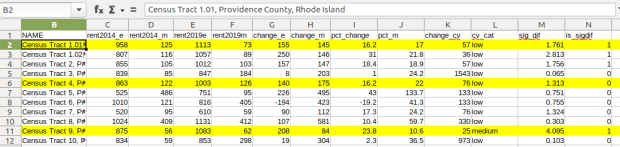
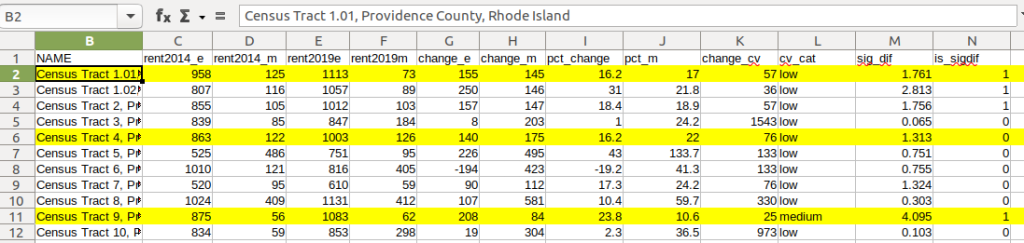
Let’s take a look at a few of the records to understand the results. In Census Tract 1.01, median gross rent increased from $958 (+/- 125) in 2014 to $1113 (+/- 73) in 2019, a change of $155 (+/- 145) and a percent change of 16.2% (+/- 17%). The CV for the change estimate was 57, indicating that this estimate has low reliability; the margin of error is almost equal to the estimate, and the change could have been as little as $10 or as great as $300! The rent estimates for 2014 and 2019 are statistically different but not by much (1.761, higher than 1.645). The margins of error for the two estimates do overlap slightly (with $1,083 being the highest possible value in 2014 and $1,040 the lowest possible value in 2019).

Spreadsheet comparing values for different census tracts

In Census Tract 4, rent increased from $863 (+/- 122) to $1003 (+/- 126), a change of $140 (+/- 175) and percent change of 16.2% (+/- 22%). The CV for the change estimate was 76, indicating very low reliability; indeed the MOE exceeds the value of the estimate. With a score of 1.313 the two estimates for 2014 / 2019 are not significantly different from each other, so any difference here is clouded by sample noise.

In Census Tract 9, rent increased from $875 (+/- 56) to $1083 (+/- 62), a change of $208 (+/- 84) or 23.8% (+/- 10.6%). Compared to the previous examples, these MOEs are much lower than the estimates, and the CV value for the difference is 25, indicating medium reliability. With a score of 4.095, these two estimates are significantly different from each other, indicating substantive change in rent in this tract. The highest possible value in 2014 was $931, and the lowest possible value in 2019 was $1021, so there is no overlap in the value ranges over time.

Mapping Significant Difference and CVs

I grabbed the Census Cartographic Boundary File for tracts for Rhode Island in 2019, and selected out just the tracts for Providence County. I made a copy of my worksheet where I saved the data as text and values in a separate sheet (removing the formulas and encoding the actual outputs), and joined this sheet to the shapefile using the AFFGEOID. The City of Providence and surrounding cities and suburban areas appear in the southeast corner of the county.

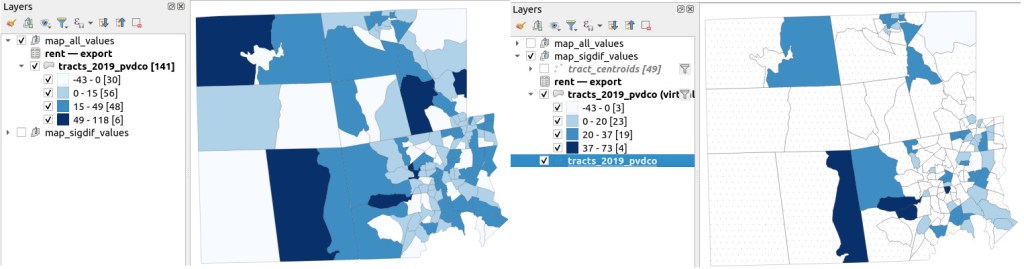
The map on the left displays simple percent change over time. In the map on the right, I applied a filter to select just tracts where change was significantly different (the non-significant tracts are symbolized with hash marks). In the screenshots, the count of the number of tracts in each class appears in brackets; I used natural breaks, then modified to place all negative values in the same class. Of the 141 tracts, only 49 had statistically different values. The first map is a gross misrepresentation, as change for most of the tracts can’t be distinguished from sampling variability.

Map of difference on left, significant difference on right
Percent Change in Median Gross Rent 2010-14 to 2015-19: Change on Left, Change Where Both Rent Estimates were Significantly Different on Right

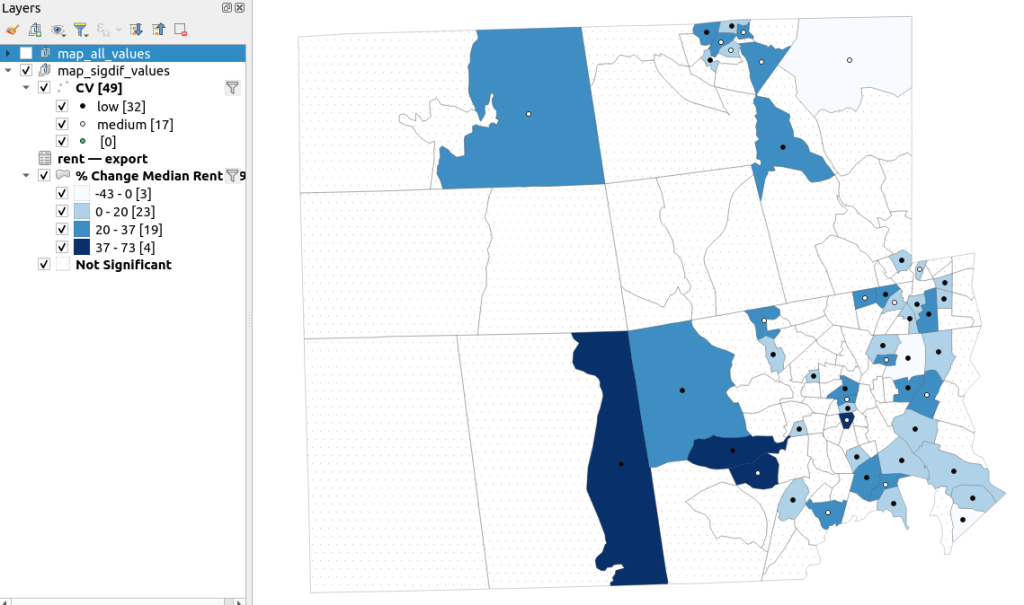
A refined version of the map on the right appears below. In this one, I converted the tracts from polygons to points in a new layer, applied a filter to select significantly different tracts, and symbolized the points by their CV category. Of the 49 statistically different tracts, the actual estimate of change was of low reliability for 32 and medium reliability for the rest. So even if the difference is significant, the precision of most of these estimates is poor.

Providence County, Significant Difference in Median Rent Map
Percent Change in Median Gross Rent 2010-14 to 2015-19 with CV Values, for Tracts with Significantly Different Estimates, Providence County RI

Conclusion

Comparing change over time for ACS estimates is complex, time consuming, and yields many dubious results. What can you do? The size of the MOE relative to the estimate tends to decline as you look at either larger or more populous areas, or larger and fewer subcategories (i.e. 4 income brackets instead of 8). You could also look at two period estimates that are further apart, making it more likely that you’ll see changes; say 2005-2009 compared to 2016-2020. But – you’ll have to cope with normalizing the data. Places that are rapidly changing will exhibit more difference than places that aren’t. If you are studying basic demographics (age / sex / race / tenure) and not socio-economic indicators, use the decennial census instead, as that’s a count and not a sample survey. Ultimately, it’s important to address these issues, and be honest. There’s a lot of bad research where people ignore these considerations, and thus make faulty claims.

For more information, visit the Census Bureau’s page on Comparing ACS Data. Chapter 6 of my book Exploring the US Census covers the American Community Survey and has additional examples of these formulas. As luck would have it, it’s freely accessible as a preview chapter from my publisher, SAGE.

Final caveat: dollar values in the ACS are based on the release year of the period estimate, so 2010-2014 rent is in 2014 dollars, and 2015-2019 is in 2019 dollars. When comparing dollar values over time you should adjust for inflation; I skipped that here to keep the examples a bit simpler. Inflation in the 2010s was rather modest compared to the 2020s, but still could push tracts that had small changes in rent to none when accounted for.

STATA records

Creating STATA Variable Lists in Excel and Do Files With Python

In this post I demonstrate how export a list of variables from a STATA dta file to an Excel spreadsheet, and how to create a STATA do file by using Python to read in a list of variables from a spreadsheet; the do file will generate an extract of attributes and observations from a larger dta file. Gallup Analytics microdata serves as the example.

Gallup Analytics Microdata

Many academic libraries subscribe to an online database called Gallup Analytics, which lets users explore and download summary statistics from a number of on-going polls and surveys conducted by the Gallup Organization, such as the US Daily Tracker poll, World Poll, and SPSS polling series. As part of the package, subscribing institutions also receive microdata files for some of the surveys, in STATA and SPSS formats. These files contain the anonymized, individual responses to the surveys. The microdata is valuable to social science researchers who use the responses to conduct statistical analyses.

STATA
Microdata in STATA

Naturally, the microdata is copyrighted and licensed for non-commercial research purposes to members of the university or institution who are covered by the license agreement, and cannot be shared outside the institution. Another stipulation is that the files cannot be shared in their entirety, even for members of the licensed institution; researchers must request individual extracts of variables and observations to answer a specific research question. This poses a challenge for the data librarian, who somehow has to communicate to the researcher what’s available in the files and mediate the request. Option 1 is to share the codebooks (which are also copyrighted and can’t be publicly distributed) with the researcher and haggle back and forth via email to iron out the details of the request. Option 2 is to have a stand-alone computer set up in the library, where a researcher can come and generate their own extract from files stored on a secure, internal network. In both cases, the manual creation of the extract and the researcher’s lack of familiarity with the contents of the data makes for a tedious process.

My solution was to create spreadsheets that list all of the variables in each dataset, and have the researcher check the ones they want. I created a resource guide that advertises and describes the datasets, and provides secure links to the Gallup codebooks and these spreadsheets, which are stored on a Google Drive and are protected via university authentication. The researcher can then fill out a Google form (also linked to from that page), where they describe the nature of the request, select the specific dataset of interest, specify filters on observations (rows), and upload the spreadsheet of requested variables (columns). Then, I can read the spreadsheet variables into Python and generate a STATA do file (STATA scripts stored in plain text format), to create the desired extract which I can share with the researcher.

Create List of STATA Variables in Excel Spreadsheet

First, I created a standard set of STATA do files to output lists of all variables to a spreadsheet for the different data files. An example for the US Daily Tracker poll from pre-2018 is below. I was completely unfamiliar with STATA, but the online docs and forums taught me what I needed to pull this together.

Some commands are the same across all the do files. I use describe and then translate to create a simple text file that saves a summary from the screen that counts rows and columns. Describe gives a description of the data stored in memory, while replace is used to swap out existing variables with a new subset. Then, generate select_vars gives me codebook information about the dataset (select_vars is a variable name I created), which I sort using the name column. The export excel command is followed by the specific summary fields I wish to output; the position of the variable, data type, variable label, and the variable name itself.

* Create variable list for Gallup US Tracker Survey 2008-2017

local y = YEAR in 1

describe,short
summarize YEAR
translate @Results gallup_tracker_`y'_summary.txt, replace

describe, replace
generate select_vars = ""
sort name

export excel position name type varlab select_vars using gallup_tracker_`y'_vars.xlsx, firstrow(variables) replace

The variation for this particular US Daily Tracker dataset is that the files are packaged as one file per year. I load the first file for 2008, and the do file saves the YEAR attribute as a local variable, which allows me to include the year in the summary and excel output file names. I had to run this do file for each subsequent year up to 2017. This is not a big deal as I’ll never have to repeat the process on the old files, as new data will be released in separate, new files. Other datasets imposed different requirements; the GPSS survey is packaged in eleven separate files for different surveys, and the updates are cumulative (each file contains older data plus any updates – Gallup sends us updated files a few times each year). For the GPSS, I prompt the user for input to specify the survey file name, and overwrite the previous Excel file.

With the do file in hand, you open STATA and the data file you want to process, change the working directory from the default user folder to a better location for storing the output, open the do file, and it runs and creates the variable list spreadsheet.

Excel spreadsheet of variables generated from STATA
List of variables in Excel generated from STATA file. Users check the variables they want in an extract in the select_vars column

Create a STATA Do File with Python and Excel

Once a researcher submits their Google form and their selected variable spreadsheet (placing an X in a dedicated column to indicate that they want to include a variable), I run the Python script below. I use the openpyxl module to read the Excel file. I have to modify the paths, spreadsheet file name, and an integer for the particular survey each time I run it. I use the os module to navigate up and down through folders to store outputs in specific places. If the researcher specifies in the Google form that they want to filter observations, for example records for specific states or age ranges, I have to add those manually but I commented out a few examples that I can copy and modify. One caveat is that you must filter using the coded variable and not its label (i.e. if a month value is coded as 2 and its label is February, I must reference the code and not the label). Reading in the requested columns is straightforward; the script identifies cells in the selection column (E) that have an X, then grabs the variable name from the adjacent column.

# -*- coding: utf-8 -*-
"""
Pull selected gallup variables from spreadsheet to create STATA Do File
Frank Donnelly / GIS and Data Librarian / Brown University
"""

import openpyxl as xl, os
from datetime import date

thedate=date.today().strftime("%m%d%Y")
surveys={1:'gallup_covid',2:'gallup_gpss',3:'gallup_tracker',4:'gallup_world'}

rpath=os.path.join('requests','test') # MODIFY BASED ON INPUT
select_file=os.path.join(rpath,'gallup_tracker_2017_vars_TEST.xlsx') #MODIFY BASED ON INPUT
survey_file=surveys[3] #MODIFY BASED ON INPUT

dofile=os.path.join(rpath,'{}_vars_{}.do'.format(survey_file,thedate))
dtafile=os.path.join(os.path.abspath(os.getcwd()),rpath,'{}_extract_{}.dta'.format(survey_file,thedate))


#MODIFY to filter by observations - DO NOT ERASE EXAMPLES - copy, then modify
obsfilter=None
# obsfilter=None
# obsfilter='keep if inlist(STATE_NAME,"CT","MA","ME","NH","RI","VT")'
# obsfilter='keep if inrange(WP1220,18,64)'
# obsfilter='keep if SC7==2 & MONTH > 6'
# obsfilter='keep if FIPS_CODE=="44007" | FIPS_CODE=="25025"'

workbook = xl.load_workbook(select_file)
ws = workbook['Sheet1']

# May need to modify ws col and cell values based on user input
vlist=[]
for cell in ws['E']:
    if cell.value in ('x','X'): 
        vlist.append((ws.cell(row=cell.row, column=2).value))
outfile = open(dofile, "w")
outfile.writelines('keep ')
outfile.writelines(" ".join(vlist)+"\n")
if obsfilter==None:
    pass
else:
    outfile.writelines(obsfilter+"\n")
outfile.writelines('save '+dtafile+"\n")
outfile.close()
print('Created',dofile) 

The plain text do file begins with the command keep followed by the columns, and if requested, an additional keep statement to filter by records. The final save command will direct the output to a specific location.

keep CENREG D17A D23 D24 D5 FIPS_CODE HISPANIC INT_DATE MONTH MOTHERLODE_ID PE_WEIGHT RACE SC7 STATE_NAME WP10202 WP10208 WP10209 WP10215 WP10216 WP10229 WP10230 WP1220 WP1223 YEAR ZIPGALLUPREGION ZIPSTATE
save S:\gallup\processing\scripts\reques\test\gallup_tracker_extract_02202022.dta

All that remains is to open the requested data file in STATA, open the do file, and an extract is created. Visit my GitHub for the do files, Python script, and sample output. The original source data and the variable spreadsheets are NOT included due to licensing issues; if you have the original data files you can generate what I’ve described here. Sorry, I can’t share the Gallup data with you (so please don’t ask). You’ll need to contact your own university or institution to determine if you have access.

USPS mailbox

The Trouble with ZIP Codes: Solutions for Data Analysis and Mapping

Since the COVID-19 pandemic began, I’ve received several questions about finding census data and boundary files for ZIP Codes (aka US postal codes), as many states are publishing ZIP Code-level data for cases and deaths. ZIP Codes are commonly used for summarizing address data, as it’s easy to do and most Americans are familiar with them. However, there are a number of challenges associated with using ZIP Codes as a unit of analysis that most people are unaware of (until they start using them). In this post I’ll summarize these challenges and provide some solutions.

The short story is: you can get boundary files and census data from the decennial census and 5-year American Community Survey (ACS) for ZIP Code Tabulation Areas (ZCTAs, pronounced zicktas) which are approximations of ZIP Codes that have delivery areas. Use any census data provider to get ZCTA data: data.census.gov, Census Reporter, Missouri Census Data Center, NHGIS, or proprietary library databases like PolicyMap or the Social Explorer. The longer story: if you’re trying to associate ZIP Code-level data with census ZCTA boundary files or demographic data, there are caveats. I’ll cover the following issues in detail:

  1. ZIP Codes are actually not areas with defined boundaries, and there are no official USPS ZIP Code maps. Areas must be derived using address files. The Census Bureau has done this in creating ZIP Code Tabulation Areas (ZCTAs).
  2. The Census Bureau publishes population data by ZCTA and boundary files for them. But ZCTAs are not strictly analogous with ZIP Codes; there isn’t a ZCTA for every ZIP Code, and if you try to associate ZIP data with them some of your records won’t match. You need to crosswalk your ZIP Code data to the ZCTA-level to prevent this.
  3. ZCTAs do not nest or fit within any other census geographies, and the postal city name associated with a ZIP Code does not correlate with actual legal or municipal areas. This can make selecting and downloading ZIP Code data for a given area difficult.
  4. ZIP Codes were designed for delivering mail, not for studying populations. They vary tremendously in size, shape, and population.
  5. Analyzing data at either the ZIP Code or ZCTA level over time is difficult to impossible.
  6. ZIP Code and ZCTA numbers must be saved as text in data files, and not as numbers. Otherwise codes that have leading zeros get truncated, and the code becomes incorrect.

ZIP Codes versus ZCTAs and Boundaries

Contrary to popular belief, ZIP Codes are not areas and the US Postal Service does not delineate boundaries for them. They are simply numbers assigned to ranges of addresses along street segments, and the codes are associated with a specific post office. When we see ZIP Code boundaries (on Google Maps for example), these have been derived by creating areas where most addresses share the same ZIP Code.

The US Census Bureau creates areal approximations for ZIP Codes called ZIP Code Tabulation Areas or ZCTAs. The Bureau assigns census blocks to a ZIP number based on the ZIP that’s used by a majority of the addresses within each block, and aggregates blocks that share the same ZIP to form a ZCTA. After this initial assignment, they make some modifications to aggregate or eliminate orphaned blocks that share the same ZIP number but are not contiguous. ZCTAs are delineated once every ten years in conjunction with the decennial census, and data from the decennial census and the 5-year American Community Survey (ACS) are published at the ZCTA-level. You can download ZCTA boundaries from the TIGER / Line Shapefiles page, and there is also a generalized cartographic boundary file for them.

Crosswalking ZIP Code Data to ZCTAs

There isn’t a ZCTA for every ZIP Code. Some ZIP Codes represent large clusters of Post Office boxes or are assigned to large organizations that process lots of mail. As census blocks are aggregated into ZCTAs based on the predominate ZIP Code for addresses within the block, these non-areal ZIPs fall out of the equation and we’re left with ZCTAs that approximate ZIP Codes for delivery areas.

As a result, if you’re trying to match either your own summarized address data or sources that use ZIP Codes as the summary level (such as the Census Bureau’s Business Patterns and Economic Census datasets), some ZIP Codes will not have a matching ZCTA and will fall out of your dataset.

To prevent this from happening, you can aggregate your ZIP Code data to ZCTAs prior to joining it to boundary files or other datasets. The UDS Mapper project publishes a ZIP Code to ZCTA Crosswalk file that lists every ZIP Code and the ZCTA it is associated with. For the ZIP Codes that don’t have a corresponding area (the PO Box clusters and large organizations), these essentially represent points that fall within ZCTA polygons. Join your ZIP-level data to the ZIP Code ID in the crosswalk file, and then group or summarize the data using the ZCTA number in the crosswalk. Then you can match this ZCTA-summarized data to boundaries or census demographic data at the ZCTA-level.

ZIP Code to ZCTA Crosswalk

UDS ZIP Code to ZCTA Crosswalk. ZIP Code 99501 is an areal ZIP Code with a corresponding ZCTA number, 99501. ZIP Code 99520 is a post office or large volume customer that falls inside ZCTA 99501, and thus is assigned to that ZCTA.

Identifying ZIPs and ZCTAs within Other Areas

ZCTAs are built from census blocks and nest within the United States; they do not fit within any other geographies like cities and towns, counties, or even states. The boundaries of a ZCTA will often cross these other boundaries, so for example a ZCTA may fall within two or three different counties. This makes it challenging to select and download census data for all ZCTAs in a given area.

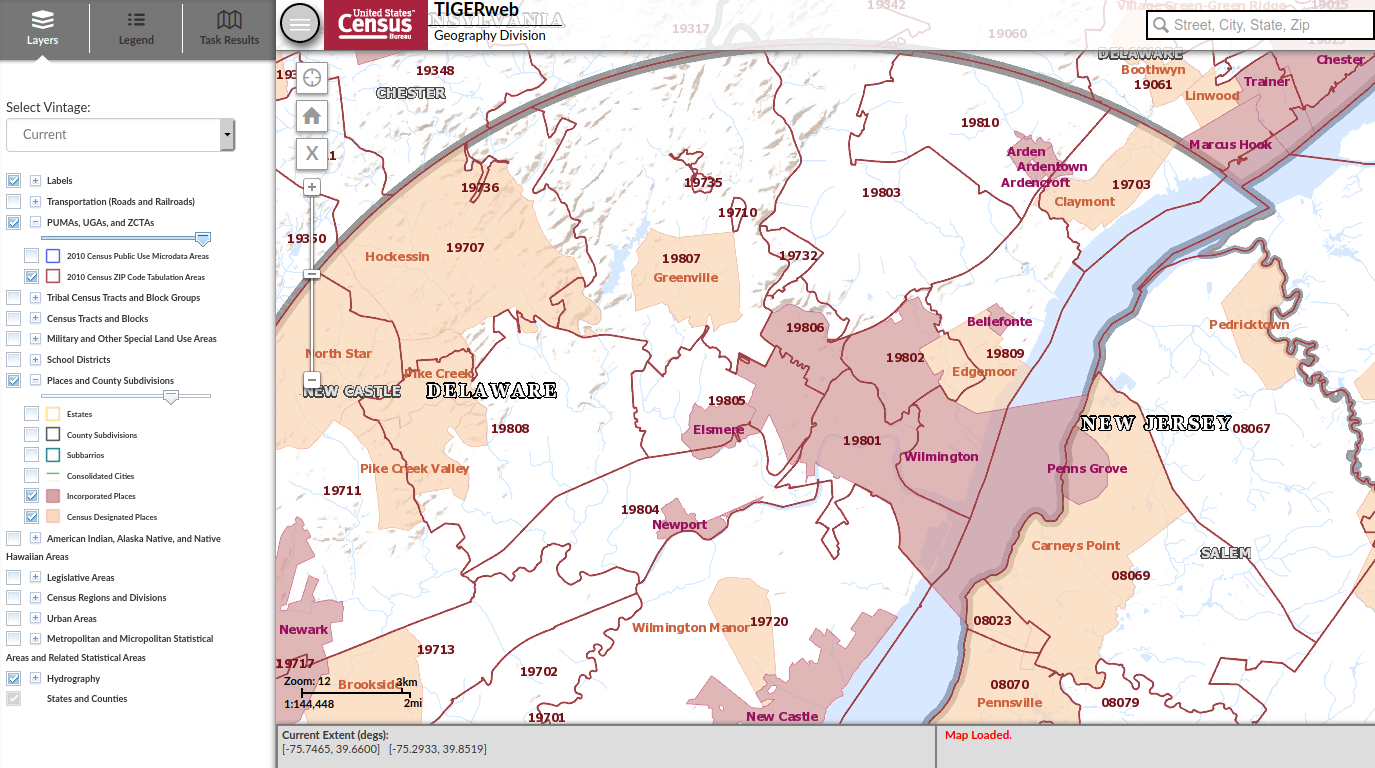
You can get lists of ZIP Codes for places, for example by using the MCDC’s ZIP Code Lookup. The problem is, the postal city that appears in addresses and is affiliated with a ZIP Code does not correspond with cities as actual legal entities, so you can’t count on the name to select all ZIPs within a specific place. For example, my hometown of Claymont, Delaware has its own ZIP Code, even though Claymont is not an incorporated city with formal, legal boundaries. Most of the ZIP Codes around Claymont are affiliated with Wilmington as a place, even though they largely cover suburbs outside the City of Wilmington; the four ZIP Codes that do cover the city cross the city boundary and include outside areas. In short, if you select all the ZIP Codes that have Wilmington, DE as their place name, they actually cover an area that’s much larger than the City of Wilmington. The Census Bureau does not associate ZCTAs with place names.

ZCTAs and Places in northern Delaware

Lack of correspondence between postal city names and actual city boundaries. Most ZCTAs with the prefix 198 are assigned to Wilmington as a place name, even though many are partially or fully outside the city.

So how can you determine which ZIP Codes fall within a certain area? Or how they do (or don’t) intersect with other areas? You can overlay and eyeball the areas in TIGERweb to get a quick idea. For something more detailed, here are three options:

  1. The Missouri Census Data Center’s Geocorr application lets you calculate overlap between a source geography and a target geography using either total population or land area for any census geographies. So in a given state, if you select ZCTAs as a source, and counties as the target, you’ll get a list that displays every ZCTA that falls wholly or partially within each county. An allocation factor indicates the percentage of the ZCTA (population or land) that’s inside and outside a county, and you can make decisions as to whether to include a given ZCTA in your study area or not. If a ZCTA falls wholly inside one county, there will be only one record with an allocation factor of 1. If it intersects more than one county, there will be a record with an allocation factor for each county.
  2. The US Department of Housing and Urban Development (HUD) publishes a series of ZIP Code crosswalk files that associates ZIP Codes with census tracts, counties, CBSAs (metropolitan areas), and congressional districts. They create these files by geocoding all addresses and calculating the ratio of residential, business, and other addresses that fall within each of these areas and that share the same ZIP Code. The files are updated quarterly. You can use them to select, assign, or apportion ZIP Codes to a given area. There’s a journal article that describes this resource in detail.
  3. Some websites allow you to select all ZCTAs that fall within a given geography when downloading data, essentially by selecting all ZCTAs that are fully or partially within the area. The Census Reporter allows you to do this: search for a profile for an area, click on a table of interest, and then subdivide the areas by smaller areas. You can even look at a map to see what’s been selected. data.census.gov currently does not provide this option; you have to select ZCTAs one by one (or if you’re using the census API, you’ll need to create a list of ZCTAs to retrieve).

MCDC Geocorr

Sample output from MCDC Geocorr. ZCTAs 08251 and 08260 fall completely within Cape May County, NJ. ZCTA 08270’s population is split between Cape May (92.4%) and Atlantic (7.6%) counties. The ZCTA names are actually postal place names; these ZCTAs cover areas that are larger than these places.

Do You Really Need to Use ZIP Codes?

ZIP Codes were an excellent mid-20th century solution for efficiently processing and delivering mail that continues to be useful for that purpose. They are less ideal for studying populations or other forms of human activity. They vary tremendously in size, shape, and population which makes them inconsistent as a unit of analysis. They have no legal or administrative meaning or function, other than delivering mail. While all American’s are familiar with them, they do not have any relevant social meaning. They don’t represent neighborhoods, and when you ask someone where they’re from, they won’t say “19703”.

So what are your other options?

  1. If you don’t have to use ZIP Code or ZCTA data for your project, don’t. For the United States as a whole, consider using counties, PUMAs, or metropolitan areas. Within states: counties, PUMAs, and county subdivisions. For smaller areas: municipalities, census tracts, or aggregates of census tracts.
  2. If you have the raw, address-based data, consider geocoding it. Once you geocode an address, you can use GIS to assign it to any type of geography that you have a boundary file for (spatial join), and then you can aggregate it to that geography. Some geocoders even provide geographies like counties or tracts in the match result. If your data is sensitive, strip all the attributes out except for the address and a serial integer to use as an ID, and after geocoding you can associate the results back to your original data using that ID. The Census Geocoder is free, requires no log in, allows you to do batches of 1,000 addresses at a time, and forces you to use these safety precautions. For bigger jobs, there’s an API.
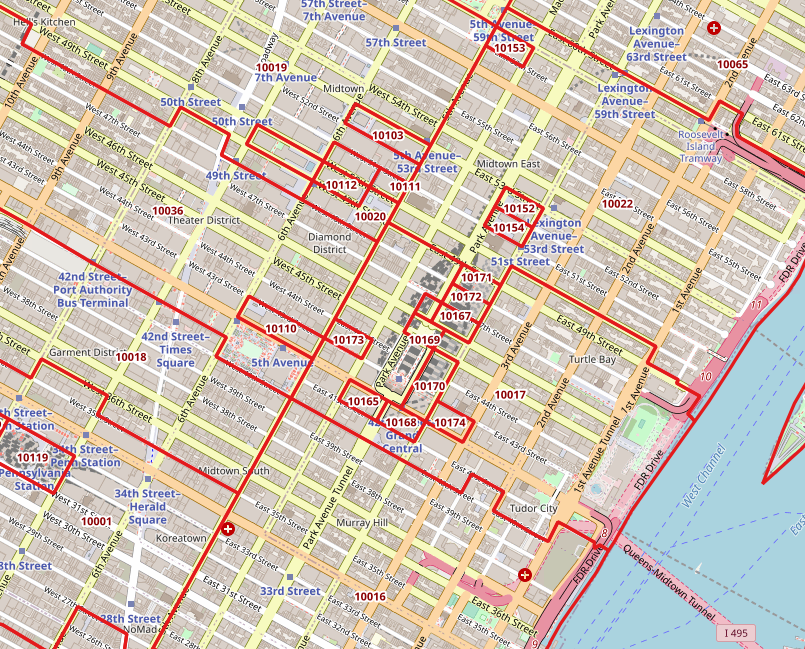
  3. Sometimes you’ll have no choice and must use ZIP Code / ZCTA data, if what you’re interested in studying is only provided in that summary form, or if there are privacy concerns around geocoding the raw address data. You may want to modify the ZCTA geography for your area to aggregate smaller ZCTAs into larger ones surrounding them, for both visual display and statistical analysis. For example, in New York City there are several ZCTAs that cover only one city and census block, as they’re occupied by one large office building that processes a lot of mail (and thus have their own ZIP number). Also, unlike most census geographies, ZCTAs have large holes in them. Any area that does not have streets and thus no addresses isn’t included in a ZCTA. In urban areas, this means large parks and cemeteries. In rural areas, vast tracts of unpopulated forest, desert, or mountain terrain. And large bodies of water in every place.

Midtown ZCTAs

One-block ZCTAs in Midtown Manhattan, NYC that have either low or zero population.

Analyzing ZIP Code Data Over Time…

In short – forget it. The Census Bureau introduced ZCTAs in the year 2000, and in 2010 they modified their process for creating them. For a variety of reasons, they’re not strictly compatible. ACS data for ZCTAs wasn’t published until 2013. Even the economic datasets don’t go that far back; the ZIP Code Business Patterns didn’t appear until the early 1990s. Use areas that have more longevity and are relatively stable: counties, census tracts.

Why Do my ZIP Codes Look Wrong in Excel?

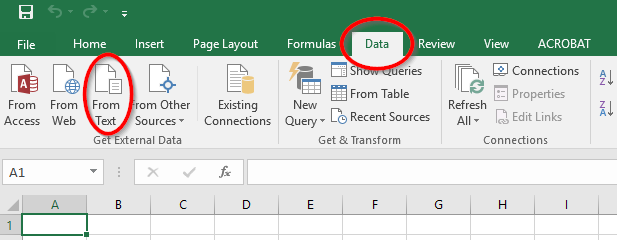
Regardless of whether you’re using a spreadsheet, database, or scripting language, always make sure to define ZIP / ZCTA columns as strings or text, and not as numeric types. ZIP Codes and ZCTAs begin with zeros in several states. Columns that contain ZIP / ZCTA codes must be saved as text to preserve the 5-digit code. If they’re saved as numbers, the leading zeros are dropped and the numbers are rendered incorrectly. This often happens if you’re working with data in a CSV file and you click on it to open it in Excel. In parsing the CSV, Excel assumes the ZIP / ZCTA field is a number and saves it as a number, which drops the zero and truncates the code. To prevent this from happening: open Excel to a blank project, go to the Data ribbon, click the button to import text data, choose delimited text on the import screen, choose the delimiter (comma or tab, etc), and when prompted you can select the ZIP / ZCTA column and designate it as text so that it imports properly.

Importing text files in Excel

To import CSV files in Excel, go to the Data ribbon and under Get External Data select From Text.

Conclusion

That’s all you ever (or maybe never) wanted to know about ZIP Codes and ZCTAs! For more information see the Census Bureau’s page about ZCTAs, a thorough write up by the Missouri Census Data Center, and these informative and fun blog posts from PolicyMap (complete with photos of Mr. ZIP). I wrote an article a few years back that demonstrates how to use some of these resources (the UDS mapper file, Geocorr) to process ZIP data with SQL and python. And of course, check out my book, Exploring the U.S. Census: Your Guide to America’s Data, to explore these concepts and resources in greater detail with hands-on exercises.