data sources

Info about any spatial or attribute data sources

zbp_table

County and ZIP Code Business Patterns 2017 and the Census API

The U.S. Census Bureau’s County and ZIP Code Business Patterns (CBP and ZBP) datasets are generated annually from the Business Register, a large administrative database updated by several federal agencies which contains every business establishment in the U.S. with paid employees. Business establishments are defined as single physical locations where business is conducted or where services or industrial operations are performed. Establishments are assigned to industries, which are groups of businesses that produce similar products or provide similar services, using the North American Industrial Classification System (NAICS). The ZBP contains tables with total establishments, employment, and wages by ZIP and counts of business establishments by NAICS and ZIP. The CBP has these tables plus a few others for counties.

The 2017 Business Patterns was recently released, and there are a few important changes to the dataset over previous iterations. I’ll summarize what they are and how they impact data retrieval using the Census Bureau’s ZBP API. I unwittingly discovered these issues this week as I was trying to use a Python / Pandas notebook I’d written for extracting ZBP data and aggregating the USPS ZIP codes to Zip Code Tabulation Areas (ZCTAs), which are used for publishing decennial and ACS census data. Everything went smoothly when I tested the scripts against the 2016 ZBP, but a few things went awry with 2017 and I was forced to make some revisions.

If you’re not familiar with the API, take a look at this earlier post for a basic introduction. The notebooks I’ll refer to are available on my github; zbp_to_zcta.ipynb works for the 2017 ZBP release, and I kept the earlier version that worked for 2016.

2017 NAICS Codes

NAICS codes are revised every five years in tandem with the Economic Census (conducted in years ending in 2 and 7), to effectively capture the changing nature of the economy. The CBP and ZBP employ the latest NAICS series in the year that it’s released, so beginning with 2012 the 2012 NAICS were used for categorizing establishments into industries. The 2012 definitions were used up through 2016, but now that we’re in 2017 we have a new NAICS 2017 series, and this was employed for the 2017 CBP and ZBP and will be used through 2021.

How different are the categories? If you’re working at the broad two-digit sector level nothing has changed. The more detailed the categories are (3 to 6 digit), the more likely it is that you’ll encounter changes: industries that were created, or removed (aggregated into a broader miscellaneous category), or modified. You can use the concordance tables to see how definitions have changed, and in some cases crosswalk data from one category to another.

If you’re using the API, you’ll need to modify your url to access the 2017 NAICS variables (&NAICS2017=) as opposed to the 2012 series (&NAICS2012= ).

New Privacy Regulations

For confidentiality purposes, the Census Bureau has always employed various methods to insure that the summary data produced for the CBP and ZBP can’t be used to identify characteristics of an individual business. If a geographic area or industrial category had fewer than 3 establishments in it, or if one establishment in an area or category constituted an overwhelming majority of the employment or wages, then those values were not disclosed or published. The only characteristic that was always published was the number of establishments.

Not any more – beginning with the 2017 CBP and ZBP, the following applies:

> Prior to reference year 2017, the number of establishments in a particular tabulation cell was not considered sensitive; therefore, counts of establishments were released without any disclosure avoidance methods applied. Beginning with reference year 2017, cells with fewer than 3 establishments have been omitted from the release.

So what does this mean? First, for any county or ZIP Code that has fewer than 3 business establishments in total, records for that county or ZIP Code will not appear in the dataset at all (although establishments in these areas will be counted in summaries of larger areas, like states or metro areas). In my script, about 30 ZIP Codes for NYC fell out of my results compared to last year; these were primarily non-residential ZIPs that represented a single business that processes lots of mail, and post office box ZIPs.

Second, for a given geographic area, if a given NAICS category has less than three business establishments, the number of establishments won’t be reported for that category, but they will be included in the sum total. Once again, in my case I’m working with two-digit sector codes. There is a 00 code that captures the sum of all establishments. When I was summing the values of all of the two-digit codes together, I discovered that these sums rarely matched the 00 total, like they did in the past, because of the new non-disclosure policy. To account for this, and to calculate percent totals correctly, I had to create a category that takes the difference between the total 00 category and the sum of all the others, to count how many businesses were not disclosed (see pic below). I could then treat that category like the others, and the sum of the parts would equal the whole again.

summary_naics

These data frames show counts of establishments by two digit NAICS sectors. In the top df, the totals column N00 does not equal the sum of the others columns. A column was added to the bottom df to get the difference between the two.

Subsequently, I replaced the zeros for any ZIP code that had businesses that weren’t disclosed with NULLs, as I can’t know for certain if the values are truly zero. The most likely categories (at the two digit level for ZIPs) where data was not disclosed were: 11 (agriculture), 21 (mining), 22 (utilities), and 99 (unclassified businesses).

Looping Through and Retrieving Geographies

The API allows you to select all geographies within another geography using the ‘in’ clause (visit the ZBP API to see a list of variables and examples). For example, you can select all the counties in a particular state – in the example below, values would be passed into the variables in braces, and you would pass ANSI FIPS codes into the geography variables:

base_url = f'https://api.census.gov/data/{year}/{dsource}'
edata_url=f'{base_url}?get={ecols}&for={county}:*&in=state:{state}&key={api_key}'

This option is only available for geographies that nest, according to the Census Bureau’s geographic hierarchy. ZIP Codes are not a census geography and don’t nest within anything, so we can’t use the ‘in’ clause. For the 2016 and prior versions of the ZBP API, there was a trick for getting around this; there was a state variable called ST, which you could use in a similar fashion to get all the ZIP Codes in a state in a ‘for’ clause:

edata_url = f'{base_url}?get={ecols}&for=zipcode:*&ST={state}&key={api_key}'

Not any more – the ST variable disappeared in the 2017 API for the ZBP. So what can you do instead? Option one is to loop through a list of ZIP codes, passing them to the API one by one. This is fine if you just need a few, but pretty slow if you need the 260 something that I needed. Option two is to pass in several ZIP codes into the URL at once, but there’s a catch: you’re only allowed to pass in 50 values at a time to any variable. To do this, you need to divide your list of ZIPs into chunks of no more than 50, loop through the sub-lists to insert them into the url, and append the results to a big list as you go along.

A function for breaking a list of ZIP Codes (or any list of variables) into chunks:

def chunks(l, n):
    for i in range(0, len(l), n):
        yield l[i:i+n]

Call the function to generate a list of lists with an equal number of values (in my case, my ZIP Codes are an index in a dataframe):

reqzips=list(chunks(zip2zcta.index.tolist(),48))

Then run the following to iterate through the list of ZIP code lists. I use enumerate so I can grab both the indices and values in the list. The ZIP codes values (v) have to be strung together and separated by commas before passing them into the url. The ecols variable is a list of columns I want to retrieve, which is also a single string with columns separated by commas. Once I receive the first chunk I append everything to a list (emp_data), but for every subsequent chunk I start reading from the second value [1:] and skip the first [0] because I only want to append the column headers once.

emp_data=[]
for i, v in enumerate (reqzips):
    batchzips=','.join(v)
    edata_url = f'{base_url}?get={ecols}&for=zipcode:{batchzips}&key={api_key}'
    response=requests.get(edata_url)
    if response.status_code==200:
        clear_output(wait=True)
        data=response.json()
        if i == 0:
            for record in data:
                emp_data.append(record)
        else:
            for record in data[1:]:
                emp_data.append(record)
        print('Retrieved data for chunk',i)
    else:
        print('***Problem with retrieval***, response code',response.status_code)
        break

The key here is to get the looping right, to insure that you end up with a list of lists where each list represents a row of data, in this case a ZIP code record with establishment data. I employed something similar (but a bit more complicated) with an ACS script that I wrote, but in that case I was looping through lists of columns / attributes instead of geographies.

If you’d like to learn more about the census business datasets and understand how to navigate NAICS, check out chapter 8 in my book. I don’t cover the APIs, but I do demonstrate how to use the new data.census.gov and I delve into the concepts behind these datasets in good detail.
FRED Chart - Pesronal Savings Rate

Finding Economic Data with FRED

I attended ALA’s annual conference in DC last month, where I met FRED. Not a person, but a database. I can’t believe I hadn’t met FRED before – it is an amazingly valuable resource for national, time-series economic data.

FRED was created by the Economic Research unit of the Federal Reserve Bank of St. Louis. It was designed to aggregate economic data from many government sources into a centralized database, with straightforward interface for creating charts and tables. At present, it contains 567,000 US and international time series datasets from 87 sources.

Categories of data include banking and finance (interest and exchange rates, lending, monetary data), labor markets (basic demographics, employment and unemployment, job openings, taxes, real estate), national accounts (national income, debt, trade), production and business (business cycles, production, retail trade, sector-level information about industries),  prices (commodities, consumer price indexes) and a lot more. Sources include the Federal Reserve, the Bureau of Labor Statistics, the Census Bureau, the Bureau of Economic Analysis, the Treasury Department, and a mix of other government and corporate sources from the US and around the world.

On their home page at https://fred.stlouisfed.org/ you can search for indicators or choose one of several options for browsing. The default dashboard shows you some of the most popular series and newest releases at a glance. Click on Civilian Unemployment Rate, and you retrieve a chart with monthly stats that stretch from the late 1940s to the present. Most of FRED’s plots highlight periods of recession since these have a clear impact on economic trends. You can modify the chart’s date range, change the frequency (monthly, quarterly, annually – varies by indicator), download the chart or the underlying data in a number of formats, and share a link to it. There are also a number of advanced customization features, such as adding other series to the chart. Directly below the chart are notes that provide a clear definition of the indicator and its source (in this case, the Bureau of Labor Statistics) and links to related tables and resources.

FRED - Chart of Civilian Unemployment Rate

The unemployment rate is certainly something that you’d expect to see, but once you browse around a bit you’ll be surprised by the mix of statistics and the level of detail. I happened to stumble across a monthly Condo Price Index for the New York City Metro Area.

Relative to other sources or portals, FRED is great for viewing and retrieving national (US and other countries) economic and fiscal data and charts gathered from many sources. It’s well suited for time-series data; there are lots of indexes and you can opt for seasonally adjusted or unadjusted values. Many of the series include data for large regions of the US, states, metro areas, and counties. The simplest way to find sub-national data is to do a search, and once you do you can apply filters for concepts, frequencies, geographies, and sources. FRED is not the place to go if you need data for small geographies below the county level. If you opt to create a FRED account (purely optional) you’ll be able to save and track indicators that you’re interested in and build your own dashboards.

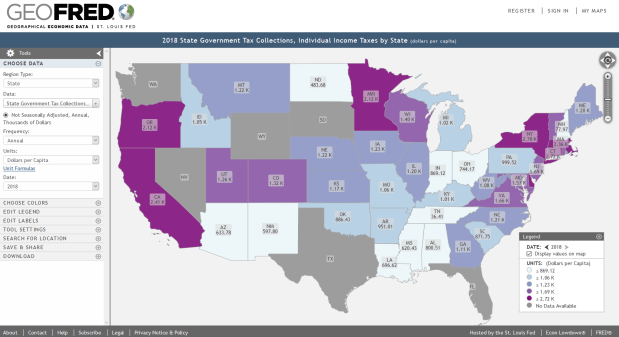
If you’re interested in maps, visit FRED’s brother GeoFRED at https://geofred.stlouisfed.org/.  The homepage has a series of sample thematic maps for US counties and states and globally for countries. Choose any map, and once it opens you can change the geography and indicator to something else. You can modify the frequency, units, and time periods for many of the indicators, and you have basic options for customizing the map (colors, labels, legend, etc.) The maps are interactive, so you can zoom in and out and click on a place to see its data value. Most of the county-level data comes from the Census Bureau, but as you move up to states or metro areas the number of indicators and sources increase. For example, the map below shows individual income taxes collected per capita by state in 2018.

GeoFRED - State Income Tax

There’s a basic search function for finding specific indicators. Just like the charts, maps can be downloaded as static images, shared and embedded in websites, and you can download the data behind the map (it’s simpler to download the same indicator for multiple geographies using GeoFRED compared to FRED).

Take a few minutes and check it out. For insights and analyses of data published via FRED, visit FRED’s blog at https://fredblog.stlouisfed.org/.

datacensusgov

Navigating the New data.census.gov

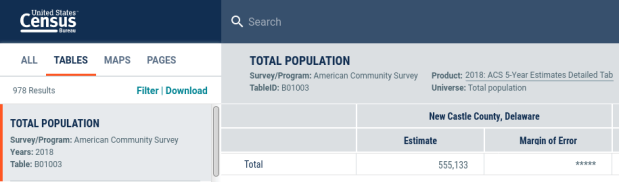
June 2019 is the final month that the Census Bureau will post new data in the American Factfinder (AFF). From this point forward, all new datasets will be published via the new data dissemination platform data.census.gov. The second chapter of my book (now available for pre-order!) is devoted to navigating this new interface. In this post I’ll provide a preview / brief tutorial of the advanced search functions.

The new interface is search-driven, so you can type the names of topics and geographies or table ID numbers to find and explore data tables. There are spiffy data profiles for several geographies, and you have the ability to make basic thematic maps. The search interface makes it much easier to casually browse and discover data, so go ahead and explore.

I’d still recommend having a search strategy to find precisely what you need. Keyword searching alone isn’t going to cut it, because you’re searching across tens of thousands of tables in dozens of datasets. The good news is that the same strategy I’ve used for the AFF can be applied to data.census.gov: use the advanced search to filter by survey, year, geography, and topic to narrow down the list of possible tables to a manageable number, and then search or browse through those results to find what you need.

Let’s say we want to download the most recent data on home values for all the counties in Pennsylvania (or a state of your choosing). On data.census.gov click on the advanced search link under the search box. On the advanced search page scroll to the bottom to the filters. We’ll address them one by one:

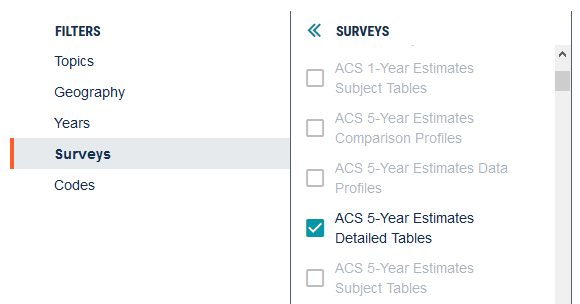
Surveys. These represent all the different census datasets. Select ACS 5-Year Estimates Detailed Tables. Detailed socio-economic characteristics of the population are primarily published in the ACS. The 1-Year estimates are published for all geographies that have at least 65k people. Since most states have rural counties that have less than this threshold, we’ll have to use the 5-year estimates to get all the counties. The detailed tables are narrow, focusing on estimates for a single variable. The other options include profiles (lots of different data for one place) and subject tables (narrower in scope than profiles, but broader than the detailed tables).

filter by survey

Years. At the moment 2017 is the latest year for the ACS, so let’s select that. This quickly eliminates a lot of tables that we’re not interested in.

Geography. Choose 050 – County, then scroll down and choose Pennsylvania in the County (State) list, then All counties in Pennsylvania in the final list.

filter by geography

Topics. For this example choose Housing, then Financial Characteristics, then Housing Value and Purchase Price. Of all the filter options, this one is the most opened-ended and may require some experimentation based on what you’re looking for.

filter by topic

Codes. We don’t need to filter by codes in this example, but if we were searching for labor or business-related data we’d use this filter to limit results to specific sectors or industries by NAICS codes.

Underneath the filter menu, click the View All Results button. This brings us to the first results page, which provides a list of tables, maps, and pages related to our search. Click the button to View All Tables under the tables section.

This brings us to the table results page; the list of tables is displayed on the left, and the currently selected table is displayed on the right; in this case Value of owner-occupied housing units is shown, with counts of units by value brackets. At this stage, we can scroll through the list and browse to find tables with data that we’re interested in. We can also access the filters at the top of the list, if we want to modify our search parameters.

table results

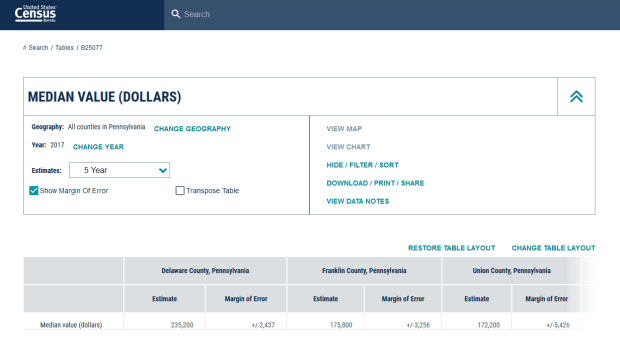
A little further down the results list is a table for Median Value. Selecting that table will preview it on the right. Hit the Customize Table button. This opens the table in its own dedicated view. Hit the blue drop down arrow to the right of the table name, and you can modify the geography, year, or time-period on the left. On the right is a Download option. Hit download and you’ll be prompted to download a CSV file. In the download you’ll get three text files that contain metadata, the data, and descriptive information about the download. Click Download and you can save it.

customize table

Back on the customize table page, you can navigate back to the table results by clicking on “Tables” in the breadcrumb links that appear in the top left-hand corner. Then you can browse and choose additional tables.

That’s it! Not bad, right? Well, there are always caveats. At the moment, the biggest one is that you can’t easily download most geographies that are contained within other geographies. With one click we can filter to select all counties within a state, or all states within the nation. But if we wanted all census tracts in a county or all county subdivisions in a state, there aren’t any “All geographies in…” options for these geographies. We’d have to select each and every tract within a county, one at a time…

While data.census.gov is now relatively stable, it’s still under development and additional features like this should (hopefully) be implemented as time passes between now and the 2020 census. This is one reason why the American Factfinder will survive for another year, as we’ll still need to lean on it to accomplish certain tasks. Of course, there are other options within the Census Bureau (the API, the FTP site) and without (NHGIS, MCDC, Census Reporter) for accessing data.

The new platform currently provides access to several datasets from the present back to the year 2010: the decennial census, the ACS, population estimates, and several of the business datasets. The first new datasets that will be published in data.census.gov (and NOT in the AFF) include the 2017 Economic Census this summer and the 1-year 2018 ACS in September.

View the Release Notes and FAQs for more details about the platform: general documentation, recent developments, bugs, and planned enhancements. The Census Bureau also has an archived webinar with slides that discuss the transition.

OSM Merida

Extracting OpenStreetMap Data in QGIS 3

The OpenStreetMap (OSM) can be a good source of geospatial data for all sorts of features, particularly for countries where the government doesn’t provide publicly accessible GIS data, and for features that most governments don’t publish data for. In this post I’ll demonstrate how to download a specific feature set for a relatively small area using QGIS 3.x. Instead of simply adding OSM as a web service base map we’ll extract features from OSM to create vector layers.

In the past I followed some straightforward instructions for doing this in QGIS 2.x, but of course with the movement to 3.x the core OSM plugin I previously used is no longer included, and no updated version was released. It’s a miracle that anyone can figure out what’s going on between one version of QGIS and the next. Fortunately, there’s another plugin called QuickOSM that’s quite good, and works fine with 3.x.

Use QuickOSM to Extract Features

Let’s say that we want to create a layer of churches for the city Merida in Mexico. First we launch QGIS, go to the Plugins menu, and choose Manage and Install plugins. Select plugins that are not installed, do a search for QuickOSM, select it, and install it. This adds a couple buttons to the plugins toolbar and a new sub-menu under the Vector menu called Quick OSM.

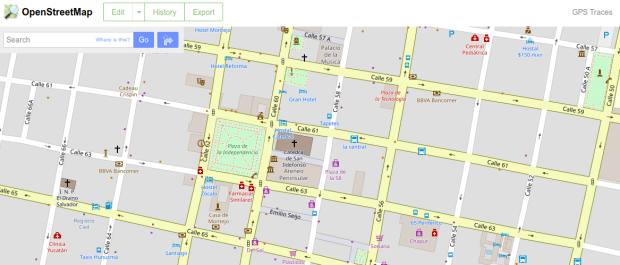
Next, we add a layer to serve as a frame of reference. We’re going to use the extent of the QGIS window to grab OSM features that fall within that area. We could download some vector files from GADM or Natural Earth; GADM provides several layers of administrative divisions which can be useful for locating and delineating our area. Or we can add a web service like OSM and simply zoom in to our area of interest. Adjust the zoom so that the entire city of Merida fits within the window.

Merida in QGIS

OSM XYZ Tiles in QGIS – Zoomed into Merida

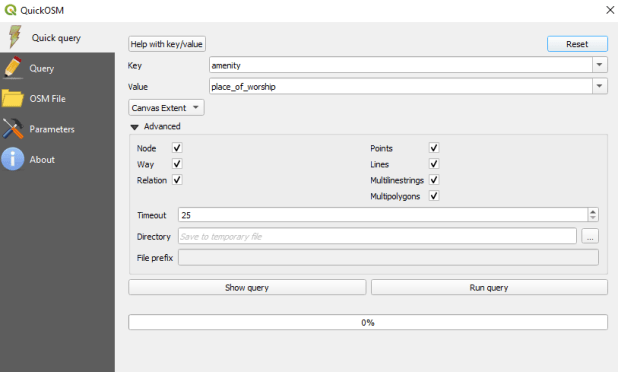
Now we can launch the Quick OSM tool. The default tab is Quick query, which allows us to select features directly from an OSM server (you need to be connected to the internet to do this). OSM data is stored in an XML format, so to extract the data we want we’ll need to specify the correct elements and tags. Ample documentation for all the map features is available. In our example, churches are referred to as places of worship and are classified as an amenity. So we choose amenity as the key and place_of_worship as the value. The drop down box allows us to search for features in or around a place, but as discussed in my previous post place names can be ambiguous. Choose the option for canvas extent, and that will capture any churches in our map window. Hit the advanced drop down arrow, and you have the option to select specific types of geometry (keep them all). Hit the run query button to execute.

Quick OSM Interface

Quick OSM Interface

We’ll see there are two results: one for places of worship that are points, and another for polygons. If you right click on one of these layers and open the attribute table, you’ll see a number of tags that have been extracted and saved as columns, such as the name, religion, and denomination. The Quick query tools pulls a series of pre-selected attributes that are appropriate for the type of feature.

Places of Worship

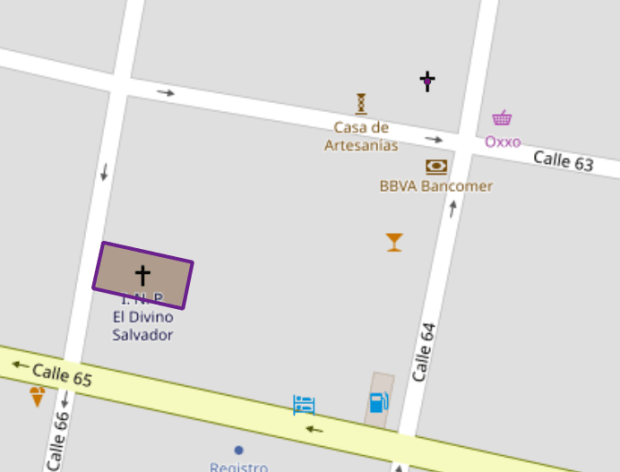
The data is saved temporarily in memory, so to keep it you need to save each as a shapefile or geopackage (right click, Export, Save Features As). But before we do that – why do have two separate layers to begin with? In some cases the OSM has the full shape of the building saved as a polygon, while in other cases the church is saved as a point feature, with a cross or other religious symbol appropriate for the type of worship space. It simply depends on the level of detail that was available when the feature was added.

Polygon versus Point

Church as polygon (lower left-hand corner) and as point (upper right-hand corner)

If we needed a single unified layer we would need to merge the two, but this process can be a pain. Using the vector menu you can convert the polygons to points using the centroid tool, and then use the merge tool to combine the two point layers. This is problematic as the number of fields in each file is different, and because the centroid tool changes the data type of the polygon’s id number to a type that doesn’t match the points. I think the easiest solution is to load both layers into a Spatialite database and create a unified layer in the DB.

Use SpatiaLite to Create a Single Point Layer

To do that, right click on the SpatiaLite option in the Browser Panel, choose Create Database, and name it (merida_churches). Then select the church point file, right click, export, save features as. Choose SpatiaLite as the format, for the file select the database we just created, and for layer name call it church_points. The default CRS (used by OSM) is WGS 84. Hit OK. Then repeat the steps for the polygons, creating a layer called church_polygons in that same database.

Once the features are database layers, we can write a SQL script (see below) where you create one table that has columns that you want to capture from both tables. You load the data from each of the tables into the unified one, and as you are loading the polygons you convert their geometry to points. The brackets around the names like [addr:full] allows you to overcome the illegal character designation in the original files (you shouldn’t use colons in db column names). I like to manually insert a date so to remember when I downloaded the feature set.

BEGIN;

CREATE TABLE all_churches (
full_id TEXT NOT NULL PRIMARY KEY,
osm_id INTEGER NOT NULL,
osm_type TEXT,
name TEXT,
religion TEXT,
denomination TEXT,
addr_housenumber TEXT,
addr_street TEXT,
addr_city TEXT,
addr_full TEXT,
download_date TEXT);

SELECT AddGeometryColumn('all_churches','geom',4326,'POINT','XY');

INSERT INTO all_churches
SELECT full_id, osm_id, osm_type, name, religion, denomination,
[addr:housenumber], [addr:street], [addr:city], [addr:full],
'02/11/2019', ST_CENTROID(geometry)
FROM church_polygons;

INSERT INTO all_churches
SELECT full_id, osm_id, osm_type, name, religion, denomination,
[addr:housenumber], [addr:street], [addr:city], [addr:full],
'02/11/2019', geometry
FROM church_points;

SELECT CreateSpatialIndex('all_churches', 'geom');

COMMIT;

Unfortunately the QGIS DB Browser does not allow you to run SQL transactions / scripts. You can paste the entire script into the window, highlight the first statement (CREATE TABLE), execute it, then highlight the next one (SELECT AddGeometryColumn), execute it, etc. Alternatively if you use the Spatialite CLI or GUI, you can save your script in a file, load it, and execute it in one go.

QGIS DB Browser

When finished we hit the refresh button and can see the new all_churches layer in the DB. We can preview the table and geometry and add it to the QGIS map window. If you prefer to work with a shapefile or geopackage you can always export it out of the db.

Other Options

The QuickOSM tool has a few other handy features. Under the Quick query tool is a plain old Query tool, which shows you the actual query being passed to the server. If you’re familiar with the map features and XML structure of OSM you can modify this query directly. Under the Query tool is the OSM File tool. Instead of grabbing features from the server, you can download an OSM pbf file (Geofabrik provides data for each country) and use this tool to load data from that file. It loads all features from the file for the geometries you choose, so the process can take awhile. You’ll want to load the data into a temporary file instead of saving in memory, to avoid a crash.

iceland_placename

Place Names: Comparing Two Global Gazetteers

Gazetteers are directories of place names and locations, which are useful for:

  1. Identifying variations in place names
  2. Obtaining coordinates
  3. Locating a place within a hierarchy of places
  4. Generating lists of types of features

For example, if you’re working with data that’s associated with specific cities, mountains, or bodies of water, and you have the names of these features but not the coordinates or the country or state / province where they’re located, you can use a gazetteer to obtain all three. Or, if you want to create a map of a specific type of feature (i.e. populated places, ruins, mines) or want map labels for features (forests, bodies of water) you can extract and plot the gazetteer data in GIS.

In this post I’ll provide an overview of two major global gazetteers: the GEOnet Names Server and Geonames. Each one provides several different interfaces and services for exploring and accessing data which I’ll briefly mention, but I’ll focus on on the data files that you can download and what’s contained in them. I’ll conclude with a strategy for relating a small to medium place-based data file of your own to the gazetteer to obtain coordinates. If you have a file with hundreds or a few thousand records and were planning to get coordinates by eyeballing Google Maps and clicking one by one, try this instead.

NGA GNS

File Downloads | Documentation and code book

The US National Geospatial-Intelligence Agency (NGA) maintains a vast gazetteer with data for all of the countries in the world (almost) and provides it to the public via the GEOnet Names Server (GNS). The GNS gazetteer does NOT include features in the United States or any of its territories; the US Geological Survey maintains a separate system called the Geographic Names Information System (GNIS) whose structure and organization is different.

The GNS is updated on a weekly basis and is provided through a number of interfaces that include a map-based and a text-based search, and Web Mapping (WMS) and Web Feature (WFS) Services that allow you to display data in a GIS or a web map.

Data files are packaged on a country by country basis. Alternatively you can download one file that has the whole world in it, or an archive with separate files for each country. The data is stored in tab-delimited text files that include a header row (i.e. the column names). ZIP files for each country include a primary file that contains all the country’s features, and a series of files that contain a subset of the primary file based on feature type. So, if you wanted to work with just populated places or with hydrographic features you can work with the specific file instead of having to filter them out of the primary one.

Each record in the GNS represents a name for a feature, as opposed to a feature itself. Thus, if a feature is known by more than one name it will appear multiple times in the file. Each record has a unique feature identifier (UFI) and a unique name identifier (UNI) which are large integers. The UFI number is repeated in the data, while the UNI is unique. The GNS files contain a number of different columns containing several feature names (short names, long ones, with and without diacritics) and a name type column (NT) that indicates whether the record is for a an approved (N), or variant name (V). If you want a list of features without duplicates, you would need to create a subset of the records that only includes the approved name.

Features are classified into nine broad classes (FC), which in turn are subdivided into many different designations (DSG). The nine classes are: administrative region, populated place, vegetation, locality or area, undersea, roads and railroads, hypsographic (terrain), hydrographic (water), and spot (point-based features). Additional columns include codes designating the size of a populated place (PC) and relative importance of the feature (DISPLAY) which is useful when mapping data at varying scales. The GNS does not contain information on actual population or elevation (this was included in the past but is no longer available).

The GNS includes a few geographic references that indicate where the feature is located. There is a global region code (RC) in the first column, a primary country code (cc1) and an administrative division (state or province) code for the primary country, and a secondary country code (cc2). Geographic features like rivers, seas, mountains, and forests may span the boundary of more than one country, so the cc1 and cc2 columns indicate this. Data in these fields may be stored as a comma-separated list or array with the different codes. The GNS uses two-letter FIPS 10-4 country codes created by the US government.

Country codes in the GNS

This SQL query illustrates how country and admin1 codes are stored in the GNS, and how some features (streams in this case) span several countries.

Lastly, longitude and latitude coordinates are provided in separate fields in two formats: decimal degrees (needed for plotting and mapping) and degrees-minutes-seconds. The coordinates are in the WGS 84 CRS (EPSG 4326).

Geonames

File Downloads | Documentation and code book

Geonames is the Wikipedia or OpenStreetMap of gazetteers. It’s a collaborative, crowd-sourced project. Many users may contribute a few locations or make a correction or two, but by and large most of the data comes from public or government sources that is loaded into Geonames en masse and subsequently modified. Geonames provides a text and map-based search, and an API that let’s scripters and programmers directly access the data.

Data files are packaged country by country, or globally by certain types (i.e. all countries or the largest cities). The data is stored in tab-delimited text files without a header row, so you need to consult the documentation to identify the columns. All data for each country is packaged in a single file.

Unlike the GNS, each Geonames record represents a specific feature. There is a conventional name (name) and a variant that uses plain ascii characters (asciiname). Some variant names are included in a single list / array column called alternatenames; to get a full list of variants and spellings in different languages you would download a separate alternate names file that you could link to this one. Each feature is assigned a geonameid, which is simply a large unique integer.

Features are divided into the same nine classes that are used in the GNS, and the subdivisions are the same as well. Documentation for the classes and subdivisions is provided. Population and elevation data is provided when available and relevant, but there’s no information on timeliness or source in the data file (but you can view the full edit history for a record in the online interface).

Geonames goes to great lengths to provide the geographic framework or hierarchy for each feature, so you can get instant geographic context. They use two-letter ISO country codes to designate countries (country_code), a list of alternate or secondary countries (cc2), and for the primary country up to four different levels of administrative divisions (i.e. state / province, county, municipality, etc). There’s also a field that indicates what timezone each feature is in.

There is one set of longitude and latitude coordinates in decimal degrees in the WGS84 CRS.

Geonames Belize City

Geonames search result for Belize City, illustrating options and available data.

Summary Comparison

To compare the different files I downloaded data for Belize, since it has a small number of records. The GNS file had 2,801 records for names, but if you look at unique features the record count was 2,180. The Geonames file for Belize has a comparable number of 2,309.

Commonalities

  • Free and publicly available
  • Tab-delimited text in country-based files
  • Longitude and latitude coordinates in decimal degrees in WGS84
  • Same feature classification system with nine classes and multiple sub-classes

GNS

  • A single, official government source
  • A file of feature names: must filter out variants to get unique feature records
  • File comes with column header
  • Files are divided into sub-files for feature classes
  • Uses FIPS codes for countries
  • Useful fields for ranking features for mapping
  • Limited data on geographic hierarchy
  • No data on population or elevation
  • Lacks data for the United States and territories (obtainable via the USGS GNIS)

Geonames

  • Collaborative project with data from many sources
  • A file of features, variant names included in separate column
  • Additional alternate names and spellings in most languages available in separate files
  • File lacks column header
  • Uses ISO codes for countries
  • Extensive information on geographic hierarchy
  • Has population, elevation, and timezone for certain features
  • No ranking columns for map display

Gazetteer Caveats

1. It’s important to recognize that each source uses different codes for classifying countries: the GNS uses FIPS and Geonames uses ISO. While they appear similar (two-letter abbreviations) they are NOT the same: The FIPS code for Belize is BH and the ISO Code if BZ; in the ISO system BH is for Bahrain while the FIPS system doesn’t use BZ as a code. The CIA World Factbook includes a table comparing different country code systems. The GNS will convert to ISO at some uncertain date in the future.

2. Gazetteer data must be imported using UTF-8 encoding to preserve all the characters from the various alphabets.

3. Each feature in a gazetteer will have longitude and latitude coordinates that represent the geographic center of a feature. That means that a large areal feature like a country, a linear feature like a road, and a small point feature like a monument will have one coordinate pair. The coordinates for the monument will be pretty precise, while the set for the road and country are broad generalizations. Long linear features like roads and rivers may appear in the datasets several times as distinct feature records at different points. While it’s possible to get bounding box coordinates from Geonames, this data is not included in the downloadable country files.

4. A place name may appear multiple times in a gazetteer because names are not unique. Several different places of the same type may have the same name, and several features of different types may have the same name. For example, the Geonames file for Belize has four places name Santa Elena; two are populated places in different parts of the country while the other two are spot features (a camp and an estate) that are located near each of the populated places. The GNS file has even more records for this place, some with the approved name Santa Elena and others with the variant Saint Helena.

GNS Names and Variants

GNS records for Santa Elena, Belize. Notice the UFI is duplicated for features that have multiple names while the UNI is unique. The NT field indicates approved names (N) versus other types like variants (V). Records are for a mix of populated places (P, PPL) and spot (S) types of various kinds (ancient site, campground, and estate).

For all these reasons, it rarely makes sense to use the files in their entirety for obtaining names and coordinates or plotting places. You’ll want to extract data just for the types of features that you need. If you’re trying to match a list of place names to the gazetteer you’ll need to insure that you’re matching the right name to the right place. You can use the feature classes and the administrative divisions of the country to narrow down the location, and when in doubt use the gazetteer map interfaces to locate a specific place.

Matching Your Own Data to a Gazetteer

Winnow down the gazetteer file to just the features you need. Make sure that all the place names in your own data file are standardized so you don’t have variant spellings for the same place. In your data add a column for a unique identifier at the beginning of the sheet. Locate each place in your file in the gazetteer, then copy the unique ID from that file into your sheet. Then, if you’re using a spreadsheet you can use the VLOOKUP formula to use the ID from your sheet to pull related data from the gazetteer sheet (the longitude and latitude coordinates, codes for the administrative divisions, etc). This saves you a lot of copying and pasting. Similarly, if you were using a relational database you can write a JOIN statement to tie the two tables together using the ID.

This approach saves you the time of manually clicking on Google Maps or OSM to look up coordinates for a place and transcribing them, and you get the added benefit of grabbing any extra useful information the gazetteer provides. If you haven’t started the process of gathering your own data, start with the gazetteer file: winnow it down and append your own data to it as your research progresses.

But what if you had tons of coordinates that you need to retrieve? Because of the ambiguity in place names using a VLOOKUP or JOIN based on the name will be imprecise, because there may be more than one place with the same name and you’ll have no way of knowing if you selected the right one. You could modify your own data and the data in the gazetteer by concatenating administrative codes to the place name (i.e. St. Elena, 02) to make the name more precise and increase the chances of an accurate join. This approach requires you to be familiar with the administrative subdivisions in the areas you’re researching.

If you were trying to identify coordinates for tens of thousands of towns, cities, and larger administrative divisions you could try using a geocoder instead of a gazetteer. Geocoders are designed primarily for obtaining coordinates for addresses, but if an exact match can’t be found many will return coordinates for the smallest possible area that’s part of the address. If you provided a list of cities that also include a state / province and country, you could obtain the coordinates for just the city.

A final alternative where you can get a wider range of features in a geospatial format in bulk is the OpenStreetMap. I’ll return to this in a future post, but there’s an excellent OSM – QGIS tutorial that can help get you started.

Interested in learning more? If you’re in the spatial sciences or digital humanities check out this book: Placing Names: Enriching and Integrating Gazetteers.

Business and Labor Force Data: The Census and the BLS

I’m still cranking away on my book, which will be published by SAGE Publications and is tentatively titled Exploring the US Census: Your Guide to America’s Data. I’m putting the finishing touches on the chapter devoted to business datasets.

Most of the chapter is dedicated to the Census Bureau’s (CB) Business Patterns and the Economic Census. In a final section I provide an overview of labor force data produced by the Bureau of Labor Statistics (BLS). At first glance these datasets appears to cover a lot of the same ground, but they do vary in terms of methodology, geographic detail, number of variables, and currency / frequency of release. I’ll provide a summary of the options in this post.

The Basics

Most of these datasets provide data for business establishments, which are individual physical locations where business is conducted or where services or industrial operations are performed, and are summarized by industries, which are groups of businesses that produce similar products or provide similar services. The US federal government uses the North American Industrial Classification System (NAICS), a hierarchical series of codes used to classify businesses and the labor force into divisions and subdivisions at varying levels of detail.

Since most of these datasets are generated from counts, surveys, or administrative records for business establishments they summarize business activity and the labor force based on where people work, i.e. where the businesses are. The Current Population Survey (CPS) and American Community Survey (ACS) are exceptions, as they summarize the labor force based on residency, i.e. where people live. The Census Bureau datasets tend to be more geographically detailed and present data at one point in time, while the BLS datasets tend to be more timely and are focused on providing data in time series. The BLS gives you the option to look at employment data that is seasonally adjusted; this data has been statistically “smoothed” to remove fluctuations in employment due to normal cyclical patterns in the economy related to summer and winter holidays, the start and end of school years, and general weather patterns.

Many of the datasets are subject to data suppression or non-disclosure to protect the confidentiality of businesses; if a given geography or industrial category has few establishments, or if a small number of establishments constitutes an overwhelmingly majority of employees or wages, data is either generalized or withheld. Most of these datasets exclude agricultural workers, government employees, and individuals who are self-employed. Data for these industries and workers is available through the USDA’s Census of Agriculture and the CB’s Census of Governments and Nonemployer Statistics.

The CB datasets are published on the Census Bureau’s website via the American Factfinder, the new data.census.gov, the FTP site and API, and via individual pages dedicated to specific programs. The BLS datasets are accessible through a variety of  applications via the BLS Data Tools. For each of the datasets discussed below I link to their program page, so you can see fuller descriptions of how the data is collected and what’s included.

The Census Bureau’s Business Data

Business Patterns (BP)
Typically referred to as the County and ZIP Code Business Patterns, this Census Bureau dataset is also published for states, metropolitan areas, and Congressional Districts. Published on an annual basis from administrative records, the number of employees, establishments, and wages (annual and first quarter) is published by NAICS, along with a summary of business establishments by employee size categories.
Economic Census
Released every five years in years ending in 2 and 7, this dataset is less timely than the BP but includes more variables: in addition to employment, establishments, and wages data is published on production and sales for various industries, and is summarized both geographically and in subject series that cover the entire industry. The Economic Census employs a mix of enumerations (100% counts) and sample surveying. It’s available for the same geographies as the BP with two exceptions: data isn’t published for Congressional Districts but is available for cities and towns.

Bureau of Labor Statistics Data

Current Employment Statistics (CES)
This is a monthly sample survey of approximately 150k businesses and government agencies that represent over 650k physical locations. It measures the number of workers, hours worked, and average hourly wages. Data is published for broad industrial categories for states and metropolitan areas.
Quarterly Census of Employment and Wages (QCEW)
An actual count of business establishments that’s conducted four times a year, it captures the same data that’s in the CES but also includes the number of establishments, total wages, and average annual pay (wages and salaries). Data is tabulated for states, metropolitan areas, and counties at detailed NAICS levels.
Occupational Employment Statistics (OES)
A bi-annual survey of 200k business establishments that measures the number of employees by occupation as opposed to industry (the specific job people do rather than the overall focus of the business). Data on the number of workers and wages is published for over 800 occupations for states and metro areas using the Standard Occupational Classification (SOC) system.

Labor Force Data by Residency

Current Population Survey (CPS)
Conducted jointly by the CB and BLS, this monthly survey of 60k households captures a broad range of demographic and socio-economic information about the population, but was specifically designed for measuring employment, unemployment, and labor force participation. Since it’s a survey of households it measures the labor force based on where people live and is able to capture people who are not working (which is something a survey of business establishments can’t achieve). Monthly data is only published for the nation, but sample microdata is available for researchers who want to create their own tabulations.
Local Area Unemployment Statistics (LAUS)
This dataset is generated using a series of statistical models to provide the employment and unemployment data published in the CPS for states, metro areas, counties, cities and towns. Over 7,000 different areas are included.
American Community Survey (ACS)
A rolling sample survey of 3.5 million addresses, this dataset is published annually as 1-year and 5-year period estimates. This is the Census Bureau’s primary program for collecting detailed socio-economic characteristics of the population on an on-going basis and includes labor force status and occupation. Data is published for all large geographies and small ones including census tracts, ZCTAs, and PUMAs. Each estimate is published with a margin of error at a 90% confidence interval. Labor force data from the ACS is best used when you’re OK with generally characterizing an area rather than getting a precise and timely measurement, or when you’re working with an array of ACS variables and want labor force data generated from the same source using the same methodology.

Wrap Up

In the book I’ll spend a good deal of time navigating the NAICS codes, explaining the impact of data suppression and how to cope with it, and covering the basics of using this data from an economic geography approach. I’ve written some exercises where we calculate location quotients for advanced industries and aggregate ZIP-Code based Business Patterns data to the ZCTA-level. This is still a draft, so we’ll have to wait and see what stays and goes.

In the meantime, if you’re looking for summaries of additional data sources in any and every field I highly recommend Julia Bauder’s excellent Reference Guide to Data Sources. Even though it was published back in 2014 I find that the descriptions and links are still spot on – it primarily covers public and free US federal and international government sources.

BLS Data Portal

Bureau of Labor Statistics Data Tools