sqlite

SQL View

SQL Views to Excel and Back with Pandas

I had lists of businesses that I queried from a large table and saved in individual views in SQLite, where each view contained related businesses based on their industrial classification code (NAICS). There were about 8,000 records in total. Another team needed to review these records and verify whether we needed to keep them in the study or not. The simplest approach was to segment the businesses based on activity, grab a subset of the necessary columns from the main table into a SQL view, and export them to individual Google Sheets so that everyone could access and edit the files. When they were finished, I had to re-aggregate the sheets and get them back into the database, to use a filter for records to keep. I wrote two python / pandas scripts for doing this, which I’ll walk through here.

Since I had already written and saved SQL views in the database (see sample image in the post’s header), I wanted to simply access those using pandas, rather than having to write the queries all over again in pandas. My solution is below. At the top I establish variables that specify file names and paths using the os module. I have an Excel file that will serve as my template; it contains one metadata README sheet that will be the same each year. Next, I create a list of the views, plus a list of new columns that I want to add to each sheet that the team will use for verifying the records. Since this is a process I will need to run each year, I provide the year as a variable and insert it into the output files and the view names rather than hard coding it. For example, ‘convenience_stores’ is formatted to ‘v_2023_convenience_stores’ to retrieve the current view from the database.

The work happens in the loop. I iterate through the list of views, and build a query string where I insert the view name. I use pandas.read_sql to execute a SELECT statement, and the result is saved in a dataframe; the result is essentially the result of the view when its executed. Then I iterate through a list of new columns that the reviewers will use, inserting them one by one. They will appear at the front of the worksheet, in the reverse order in which they appear in the list. I use pandas.ExcelWriter and the append mode so I can insert multiple sheets into the workbook template. And that’s it!

import sqlite3, os, pandas as pd

# CHANGE THE YEAR VARIABLE to reflect year we are processing
year='2022' # must be a string - quote!
outfolder='yr{}'.format(year)
vsuffix='v_{}_'.format(year)
outfile='business_lists_{}.xlsx'.format(year)

outpath=os.path.join('business_output',outfolder,outfile)
con = sqlite3.connect('project_db.sqlite') 

# views within the database that contain business lists
views=['convenience_stores','department_stores','drinking_places',
       'food_manufacturing', 'gas_stations', 'grocery_stores',
       'liquor_stores','pharmacies','restaurants',
       'specialty_food_stores', 'variety_stores','wholesale_clubs']

# blank columns to insert in each sheet to hold verification
newcols=['notes','maps_verified','recategorize','remove']

for v in views:
    vname=vsuffix+v # creates the actual name of the view in the db
    query='SELECT * FROM {}'.format(vname)
    df=pd.read_sql(query, con)
    for n in newcols:
        df.insert(0,n,'')
    with pd.ExcelWriter(outpath, mode='a') as writer:  
        df.to_excel(writer, sheet_name=v, index=False)
    print('Wrote',v,'to output')

print('Done')
con.close()

The final step is to upload the Excel workbook into Google Sheets, and then manually apply some formatting. I looked at some options for writing to Google Sheets directly and skipping Excel as an intermediary, but decided that it looked like more trouble than it was worth. You can’t trust that Google isn’t going to suddenly change something without notice, so this intermediary approach seemed safer.

Once the records have been verified, I needed to combine these sheets into one file and get them back into the database again, where I can use the results to filter the original business table and pull the records we want to keep. My solution for this part is below.

First, I download the finished Google spreadsheet as an Excel file, and provide that as input. Again, I set up input and output paths at the top. I use pandas.read_excel to read the sheets into a dictionary, where the key is the name of the sheet and the value is a dataframe that contains everything in that sheet. I loop through the dictionary, skip the metadata README sheet, and create a list of the dataframes where I add the name of the sheet as a dedicated column. Next, I compare the column names and number of columns in the first dataframe / sheet to each of the others to ensure they are the same in terms or order, name, and number. Lastly, I concatenate all the sheets into one and write them out to a CSV file.

import os, csv, pandas as pd

# CHANGE THE YEAR VARIABLE to reflect year we are processing
year='2022' # must be a string - quote!
folder='yr{}'.format(year)
infile='business_lists_{}.xlsx'.format(year)
outfile='checked_biz_{}.csv'.format(year)

inpath=os.path.join(folder,infile)
outpath=os.path.join(folder,outfile)

# Read sheets to dict, key sheet name and value df
# read all vals as strings to preserve ID codes
sheets_dict = pd.read_excel(inpath, sheet_name=None, dtype=str)

all_sheets_dfs = [] # a list of dataframes, one df per worksheet
for name, sheet in sheets_dict.items():
    if name !='README': # don't include the readme sheet
        sheet['biz_category'] = name # add the sheet name to the data
        all_sheets_dfs.append(sheet)

# This block checks number of columns and names of all sheets against the first one
f=all_sheets_dfs[0]
for i,s in enumerate(all_sheets_dfs):
    check_cols = (s.columns == f.columns).all() and s.shape[1] == f.shape[1]
    if check_cols is False:  
        print('Warning: difference in column names or number between first worksheet and number:',i)
    else:
        pass

# Block creates single dataframe of all records and writes to CSV
biz_df = pd.concat(all_sheets_dfs)
biz_df.reset_index(inplace=True, drop=True)
biz_df.to_csv(outpath, index=True, index_label='pid')

print('Done, record count:',len(biz_df))

With that, I can launch the database (using the DB Browser for SQLite), import that CSV to a table, and proceed to join it back to my original table and filter. Alternatively, I could have written the concatenated dataframe directly into the database, but in a pinch this works fine. It’s been a hectic semester and as soon as I get something working I polish it off and move on to the next thing…
SQL in QGIS Database Manager

Spatial SQL with Spatialite and QGIS

I’ve recently given a few presentations on the Ocean State Spatial Database, which is a basic geodatabase for Rhode Island that we’ve created in our lab. The database was designed so that new and experienced users alike could easily access a curated collection of foundational layers and data tables for thematic mapping and geospatial analysis. The database is available for download on GitHub, and there is documentation that describes the layers and tables that are included. The database comes in two formats: SQLite/ Spatialite that’s great for QGIS, and a File Geoadatabase version for ArcGIS Pro users.

One of the big advantages of using the Spatialite database in QGIS is that you can take advantage of the Database Manager, and write SQL and spatial SQL queries for selecting records and doing spatial analysis. Instead of using a series of point and click tools that create a bunch of new files, you can write a single block of code to perform an entire operation, and you can save that code to document your work. Access the Database Manager above the toolbars at the top of the QGIS interface. Once you’re in, you can select the Spatialite option, right click and then browse your file system to point to the database to establish a connection. At the top of the DB Manager is a button (piece of paper with wrench) to open a SQL query window.

Database Manager in QGIS with SQL Window Open

The following commands are basic SQL: SELECT some columns FROM some tables WHERE some criteria is met. This returns all rows and columns from the public libraries layer in the database:

SELECT *
FROM d_public_libraries;

This returns just some of the columns for all rows:

SELECT libid, libname, city, cnty
FROM d_public_libraries;

While this returns some of the columns and rows that meet specific criteria, in this case where libraries are located in Providence County, RI:

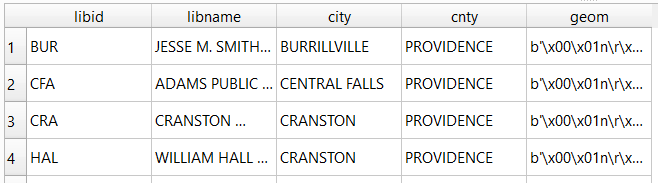
SELECT libid, libname, city, cnty, geom
FROM d_public_libraries
WHERE cnty='PROVIDENCE'
ORDER BY city;

Traditional database column types include strings (aka text), integers, and decimal numbers, which limit the values that can be stored in the column, and allow specific functions that can operate on values of that type (math on numeric columns, string operations on text columns). Beyond the basic data types, many databases have special ones, such as date types that allow you to store and manipulate dates and times as distinct objects.

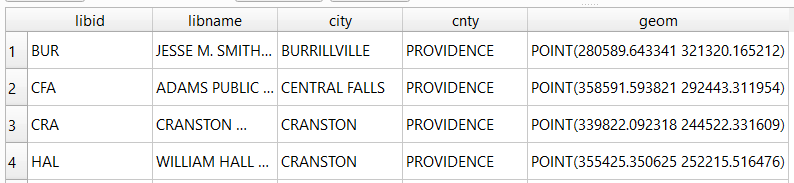
Spatial databases incorporate special columns for storing the geometry of features as strings of coordinates, and provide functions that can operate on that geometry. In the example above, the values stored in the geometry column were returned in a binary format. But we can apply a spatial function called ST_AsText to display the geometry as readable text:

SELECT libid, libname, city, cnty, ST_AsText(geom) AS geom
FROM d_public_libraries
WHERE cnty='PROVIDENCE'
ORDER BY city;

We can see that this is point geometry (as opposed to lines or polygons), and we have an X and Y coordinate for each point. The layers in this database are in the Rhode Island State Plane System, so the coordinates that are returned are in that system. We can convert these to longitude and latitude using the ST_Transform function:

SELECT libid, libname, city, cnty, ST_AsText(ST_Transform(geom,4269)) AS geom
FROM d_public_libraries
WHERE cnty='PROVIDENCE'
ORDER BY city;

This illustrates that the functions can be nested, first we transform the geometry and then display the result of that function as text. The number in the transform function is the unique identifier of the spatial reference system that we wish to transform the geometry to. In the open source world these are EPSG codes, and 4269 is the identifier for NAD 83, the basic long / lat system for North America (alternatively, we could use 4326 for WGS 84, the standard global long / lat system). The geometry column in a spatial table is connected to a series of internal tables that store all the definitions of the spatial reference systems. You can view the spatial reference system table:

SELECT * from spatial_ref_sys;

You can also get a read out of all the spatial tables in the database which include their type of geometry and the spatial reference system (3438 is the EPSG code for the RI State Plane zone, geometry of type 6 is a multipolygon, while type 1 is a point):

SELECT * from geometry_columns;

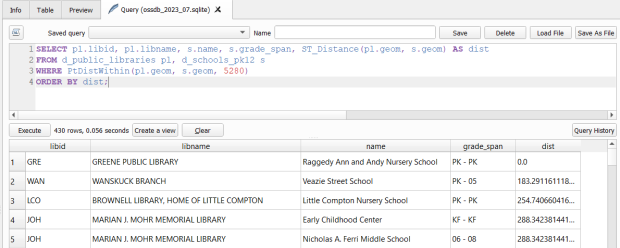
With a spatial database, you perform operations within and between tables by running functions against the geometry columns. For example, to return all public libraries and schools that are within a mile of a library while measuring the distance:

SELECT pl.libid, pl.libname, s.name, s.grade_span, ST_Distance(pl.geom, s.geom) AS dist
FROM d_public_libraries pl, d_schools_pk12 s
WHERE PtDistWithin(pl.geom, s.geom, 5280)
ORDER BY dist;

The ST_Distance function returns the actual distance in a new column, while the PtDistWithin function only returns libraries that have a school within one mile (5,280 feet – we have to express the measurement in the units used by the spatial reference system of both layers). In the FROM statement we provide aliases after each table name, so we can use those as shorthand (if our statement includes multiple tables, we need to indicate which table each column comes from).

You can also do summaries, like you would in standard SQL using GROUP BY. To count the number of schools that are within a mile of every library:

SELECT pl.libid, pl.libname, CAST(COUNT (s.name) AS integer) AS school_count, pl.geom
FROM d_public_libraries pl, d_schools_pk12 s
WHERE PtDistWithin(pl.geom, s.geom, 5280)
GROUP BY pl.libid, pl.libname, pl.geom
ORDER BY school_count DESC;

The rule for GROUP BY is that every column in the select statement must be used as a grouping variable, or has an aggregate function applied to it (COUNT, SUM, MEAN, etc). In this example we added the CAST function, which defines the data type for new columns that you create. Unless we explicitly declare it as an integer or real (decimal), values are returned as strings.

You can save your statements as views, by adding CREATE VIEW [view name] AS followed by the statement. Views are saved statements that appear as objects in the database; by opening a view, the statement is rerun and the result is returned. This approach works if you want to save a non-spatial view, i.e. a table without geometry. To save a spatial one with geometry, omit the VIEW statement and hit the Create a view button below the SQL window (each record must have a unique identifier and the geometry column in order for this to work). That registers the geometry column of the view in the database. Then, you can return to the main QGIS window, add the view and symbolize it. Alternatively, there is a Load as new layer button at the bottom of the screen, which allows you to see a temporary result without saving anything (while you can see features and records returned, you won’t be able to symbolize or manipulate the layer).

Count schools within 1 mile of libraries, and save as a spatial view
Symbolize the spatial query out in the main QGIS window

One of the primary reasons to use a database is to join related data stored in separate tables. This statement has two joins: a tabular join between the census tracts and an ACS data table, and a spatial join between the geometry of public libraries and tracts:

SELECT pl.libid, pl.libname, a.geoidshort, a.name, c.hshd01_e, c.hshd01_m
FROM d_public_libraries pl, a_census_tracts a
INNER JOIN c_tracts_acs2021_socecon c
ON a.geoidlong=c.geoidlong
WHERE ST_Intersects(pl.geom, a.geom);

This returns all public libraries and their intersecting tracts based on the relationship between their two geometries (could also have done ST_Within in this case to get the same result). Spatialite supports most of the spatial relationship functions defined by the OGC. The estimated number of households for these tracts are returned based on the shared unique census identifier between the two census tract tables.

You can visit the following references for a full list of SQLite functions and Spatialite functions. As it’s designed to be “Lite”, SQLite contains a smaller subset of the SQL standard. Spatialite contains a pretty full range of OGC spatial SQL functions, but there are instances where it deviates from the standard. PostgreSQL / PostGIS provides a greater range of functions that adhere more closely to the standard; it also provides you with greater storage, efficiency, and processing power. As a file-based database, SQLite / Spatialite’s strengths are that it’s compact and transportable, and gives you the option to write SQL rather than relying solely on the point and click tools of a desktop GIS package.

In addition to the QGIS DB Manager, you could also use the Spatialite command line tools provided by the developer, and the Spatialite GUI (graphic user interface) that gives you a standard, stand-alone database interface. Downloading it is a bit confusing; Windows users can grab one of the binaries at the bottom of this page. If you’re a Linux person, search for it in your package manager. Mac users can get it via Homebrew.

SQLite Logo

Looking for a Good SQLite GUI?

Goodbye SQLite Manager…

Late last year, I discovered that my favorite SQLite GUI was defunct. The SQLite Manager was a plugin for Firefox that allowed you to create and interact with SQLite databases with a simple yet highly functional interface. It had good support for importing and exporting csv files, color coding of cells based on data types, and a convenient feature for cycling back and forth between your SQL statements. Since it was a Firefox plugin it was guaranteed to work on any operating system, and since Firefox is installed on machines across my campus I knew I could rely on it for creating data extracts for students and faculty – I’d package data up in SQLite and send it to them along with a link to the plugin.

Firefox goes through about a million versions a year these days, and after a major upgrade last fall (to Firefox Quantum) most of the existing plugins, including the SQLite Manager, were no longer compatible. An upgrade it highly unlikely, as a few things changed under the hood of Firefox that makes the plugin unusable. While it still works on the Firefox Extended Support Release, in the long run the writing is on the wall.

Hello DB Browser for SQLite!

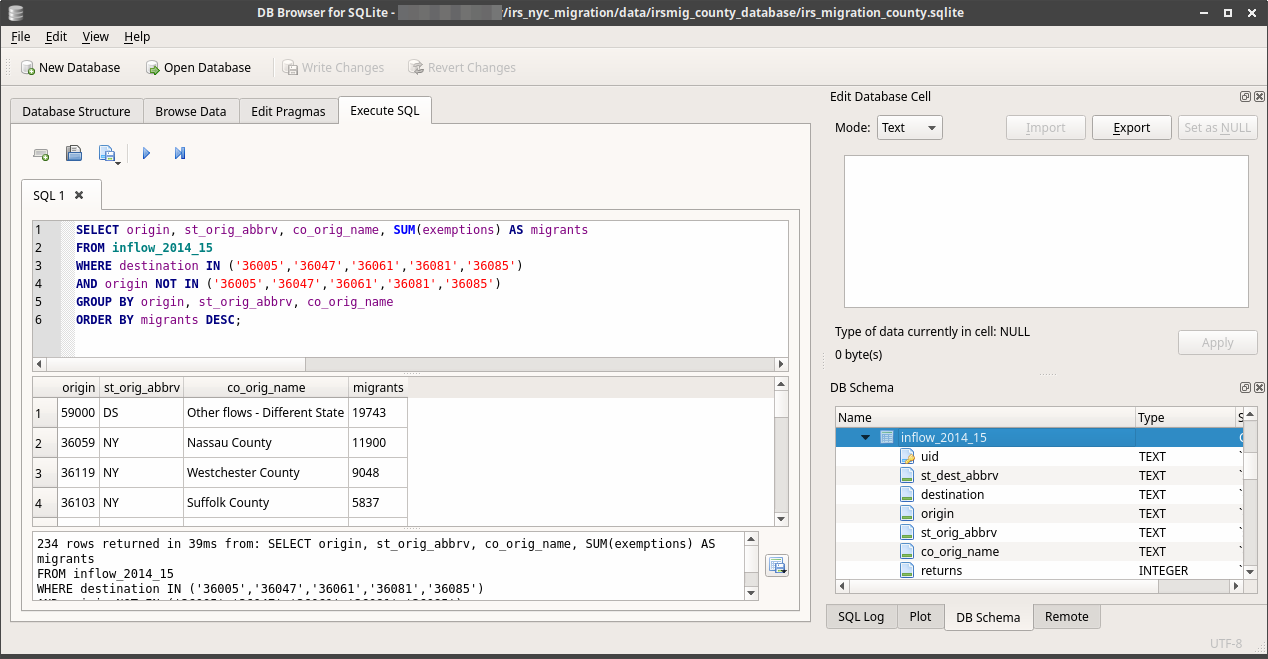
After searching through many alternatives I discovered the DB Browser for SQLite. It runs on Windows, Mac, and Linux and there’s a version for mobile. It was easy to install and has a clean interface. It provides a number of convenient tools and menus that you can use in place of writing SQL DDL, and in some cases it expands the functionality of SQLite by enabling a number of ALTER TABLE commands that are not part of SQLite SQL (like renaming and dropping columns). The Browse Data window makes it easy to quickly thumb through, sort, and filter records and to edit individual values by hand. The Execute SQL window has auto-complete and color-coded syntax, and you can see the database schema in one tab as you write your SQL in another (making it easy to reference table and column names). You can import and export data as CSV (or any delimited text file) or SQL files, and you can save the results of SELECT queries as CSV.

One interesting addition is that there’s actually a Save (Write Changes) and Undo button. So when you create, modify, or drop records, columns, or tables you see the result, but the act isn’t final until you commit the changes. A nice safety feature, especially for db novices.

DB Browser for SQLite - Browse

Browse Data

DB Browser for SQLite - SQL

Execute SQL and View DB Schema

I encountered a few quirks, but nothing insurmountable. I was using the nightly build version without realizing it, and when importing a CSV file the database takes a best guess as to what the data types for the columns should be. Even though the import screen gives you the option to specify that values are quoted, my quoted numeric fields were still saved as numbers and not text. As a result, ID codes like FIPS or ZIP Codes lose their leading zeros and are saved as integers.

The project is managed on github, so I went ahead and posted an issue. The developers were super responsive, and a discussion ensued over whether this behavior was desirable or not. We found two work-arounds. First, if you build an empty table with the desired structure, and then go to import the CSV, if you provide the name of that empty table as the new table name the db will import your data into that table. Alternatively, if I went and downloaded the latest stable release (3.10.1) the default behavior is that all columns are imported as text, which is a safer bet. You can use the GUI to change the types after import. The issue was marked as a bug, and will be addressed in a future release – one possible solution is to provide an option to turn the autodetect feature on (to determine what the types should be) or off (to import everything as text).

The browser also has a feature to attach a database to the current database, but when you do the attachment it appears like nothing happened – you can’t see  or browse the objects in database number two. But it IS attached (you can see every statement that’s been executed in a helpful log window) and you can copy a table from one db to the other like this:

CREATE TABLE sometable AS
SELECT *
FROM database2.sometable;

You run this within the current database, and database2 is the attached database (when you attach a db you provide an alias for referencing it).

These are minor quibbles. The DB Browser for SQLite is cross-platform, stable, has a clean interface with nice features, and is actively developed by a responsive and friendly team. I’ll be using it for all my SQLite tasks and projects, and will recommend it to others.

Spatialite?

An alternative I considered was to simply use the Spatialite GUI for both regular and spatial databases. It also has a simple, solid, and functional interface and supports spatial SQL, giving you the best of both worlds. So why not? While it works great for my own purposes it’s not something I can recommend to new users who are not GIS folks, either in my work or in the census data book I’m writing. Just figuring out where to download it from the website is overly complex, and while there are binaries for MS Windows there are none for Mac users. You’d have to install it from the source files, which is over the top for novices. Linux users may get lucky and find it in their software repos (it’s included for Debian and Ubuntu). The database browser in QGIS has matured in recent years, so that’s another option for GIS users who want to work with Spatialite or PostGIS.

Now if we only had a good GUI for PostgreSQL… I tried pgAdmin 4 about a year ago, and it was so bad that I’m still clinging to pgAdmin III as long as it still lives. But this is a different story, and one I’ll return to and investigate fully when it comes time to teach my spatial database course next year.

Net Out-Migration from the NY Metro Area to Other Metro Areas 2011-2015

Recent Migration Trends for New York City and Metro

The Baruch GIS lab crew just published a paper: New Yorkers on the Move: Recent Migration Trends for the City and Metro Area. The paper (no. 15 Feb 2018) is part of the Weissman Center for International Business Occasional Paper Series, which focuses on New York City’s role in the international and domestic economy.

Findings

We analyzed recent population trends (2010 to 2016) in New York City and the greater metropolitan area using the US Census Bureau’s Population Estimates to study components of population change (births, deaths, domestic and international migration) and the IRS Statistics of Income division’s county to county migration data to study domestic migration flows.

Here are the main findings:

  1. The population of New York City and the New York Metropolitan Area increased significantly between 2010 and 2016, but annually growth has slowed due to greater domestic out-migration.
  2. Compared to other large US cities and metro areas, New York’s population growth depends heavily on foreign immigration and natural increase (the difference between births and deaths) to offset losses from domestic out-migration.
  3. Between 2011 and 2015 the city had few relationships where it was a net receiver of migrants (receiving more migrants than it sends) from other large counties. The New York metro area had no net-receiver relationships with any major metropolitan area.
  4. The city was a net sender (sending more migrants than it received) to all of its surrounding suburban counties and to a number of large urban counties across the US. The metro area was a net sender to metropolitan areas throughout the country.

For the domestic migration portion of the analysis we were interested in seeing the net flows between places. For example, the NYC metro area sends migrants to and receives migrants from the Miami metro. What is the net balance between the two – who receives more versus who sends more?

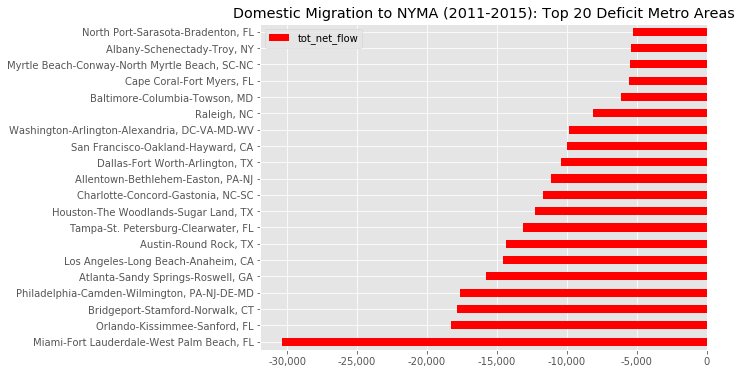
The answer is: the NYC metro is a net sender to most of the major metropolitan areas in the country, and has no significant net receiver relationships with any other major metropolitan area. For example, for the period from 2011 to 2015 the NYC metro’s largest net sender relationship was with the Miami metro. About 88,000 people left the NYC metro for metro Miami while 58,000 people moved in the opposite direction, resulting in a net gain of 30,000 people for Miami (or in other words, a net loss of 30k people for NYC). The chart below shows the top twenty metros where the NYC metro had a deficit in migration (sending more migrants to these areas than it received). A map of net out-migration from the NYC metro to other metros appears at the top of this post. In contrast, NYC’s largest net receiver relationship (where the NYC metro received more migrants than it sent) was with Ithaca, New York, which lost a mere 300 people to the NYC metro.

All of our summary data is available here.

domestic migration to NYMA 2011-2015: top 20 deficit metro areas

Process

For the IRS data we used the county to county migration SQLite database that Janine meticulously constructed over the course of the last year, which is freely available on the Baruch Geoportal. Anastasia employed her Python and Pandas wizardry to create Jupyter notebooks that we used for doing our analysis and generating our charts, all of which are available on github. I used an alternate approach with Python and the SQLite and prettytable modules to generate estimates independently of Anastasia, so we could compare the two and verify our numbers (we were aggregating migration flows across years and geographies from several tables, and calculating net flows between places).

One of our goals for this project was to use modern tools and avoid the clunky use of email. With the Jupyter notebooks, git and github for storing and syncing our work, and ShareLaTeX for writing the paper, we avoided using email for constantly exchanging revised versions of scripts and papers. Ultimately I had to use latex2rtf to convert the paper to a word processing format that the publisher could use. This post helped me figure out which bibliography packages to choose (in order for latex2rtf to interpret citations and references, you need to use the older natbib & bibtex combo and not biblatex & biber).

If you are doing similar research, Zillow has an excellent post that dicusses the merits of the different datasets. There are also good case studies on Washington DC and Philadelphia that employ the same datasets.

Copying Tables from SQLite to PostgreSQL

We recently created a PostgreSQL / PostGIS database on a server on our local campus network and spent the last few months loading data into it. We have a couple of different SQLite / Spatialite projects that we produce and I needed to move a large number of attribute tables from them into the Postgres database. My initial idea was to simply create a SQL dump file out of SQLite and then restore it in Postgres. I encountered a number of problems in doing this; there are slight differences in how each database creates and handles dump files. The solutions I found involved lousy things like opening the dump file in an editor (not feasible if the file is huge) and finding and replacing parentheses and commas, or running the file through a script to remove them.

That gave me a better idea – Python has SQLite and PostgreSQL modules (sqlite3 and psycopg2 respectfully). I could connect to the SQLite database and load the tables into Python’s data structures, and then simply connect to my PostgreSQL database and write them out. The original CREATE TABLE statements are stored in a master table; if I grab those statements and then the data that goes with them, I can simply recreate everything. The code is below.

First I define a number of variables that I hard code for each batch of tables. The SQLite variables are the name and path to the database (sqdb) and a string that I’ll use in a LIKE clause to grab certain tables (sqlike). For example, if my series of tables starts with yr followed by a year (yr2017) my string would be ‘yr%’. The remaining variables are for the Postgres database: pgdb (database name), pguser, pgpswd (my username and password), pghost, pgport (address of the database server on port 5432), and pgschema which is the name of the schema I want to write to.

I connect to the SQLite database and read all the names of the tables that match my LIKE statement from the master table. This returns a series of tuples where the name of the table is in the first position; I grab these and save them in a list. Then I loop through that list of tables and get the CREATE TABLE statement that’s stored in the master table and save that in string variable called create. Then I fetch all the rows for that table and save them in a tuple called rows. Lastly, I count the number of columns and create the number of string substitutions I’ll need in my SQL statement in a place holder variable (minus the last character, to remove a comma from the end of the statement).

That gives me everything I need for the first table. Then I connect to Postgres, set my schema path, execute the create table statement, and load the values in. Voila! If successful, we return to the top of the table loop and grab the next table. When we’re all done, we close the connection to the database.

#Frank Donnelly, Geospatial Data Librarian
#May 22, 2017
#Copies tables and data from a SQLite database and recreates them
#in a PostgreSQL database

import psycopg2, sqlite3, sys

#Change these values as needed

sqdb=''
sqlike=''
pgdb=''
pguser=''
pgpswd=''
pghost=''
pgport='5432'
pgschema=''

consq=sqlite3.connect(sqdb)
cursq=consq.cursor()

tabnames=[]

cursq.execute("SELECT name FROM sqlite_master WHERE type='table' AND name LIKE '%s'" % sqlike)
tabgrab = cursq.fetchall()
for item in tabgrab:
    tabnames.append(item[0])

for table in tabnames:
    cursq.execute("SELECT sql FROM sqlite_master WHERE type='table' AND name = ?;", (table,))
    create = cursq.fetchone()[0]
    cursq.execute("SELECT * FROM %s;" %table)
    rows=cursq.fetchall()
    colcount=len(rows[0])
    pholder='%s,'*colcount
    newholder=pholder[:-1]

    try:

        conpg = psycopg2.connect(database=pgdb, user=pguser, password=pgpswd,
                               host=pghost, port=pgport)
        curpg = conpg.cursor()
        curpg.execute("SET search_path TO %s;" %pgschema)
        curpg.execute("DROP TABLE IF EXISTS %s;" %table)
        curpg.execute(create)
        curpg.executemany("INSERT INTO %s VALUES (%s);" % (table, newholder),rows)
        conpg.commit()
        print('Created', table)

    except psycopg2.DatabaseError as e:
        print ('Error %s' % e) 
        sys.exit(1)

    finally:

        if conpg:
            conpg.close()

consq.close()

There are a few caveats to this. First, data in SQLite is loosely typed, so you’re allowed to get away with storing strings in numeric columns and vice versa. PostgreSQL will balk at this, so if your SQLite data is pretty loose this approach (and any other approach really) will fall flat. You’d have to tighten up your SQLite data first.

Second, this approach doesn’t handle spatial data / geometry columns. In instances where I had spatial data and I tried copying it over, it failed; there are differences with how spatial data is tied to the underlying tables in each database so moving it requires a special process. I tried using some spatial database modules in Python but couldn’t get them working. Ultimately, since my spatial layers were point features and I had the original X and Y coordinates stored in numeric columns, I simply copied the data over and left the geometry behind, and once I was in PostGIS I recreated the geometry from the coordinates. Another alternative would be to use the OGR tools to copy spatial (and attribute) data over – I’ve tried this in a few other instances in the past with success, but was going in the opposite direction (from PostGIS to Spatialite) at the time.

While I haven’t tried it, you could modify the code if you wanted to go in the other direction (copy data from PostgeSQL to SQLite). You would just need to identify the system tables in PostgreSQL where the table names and create statements are stored. Going in this direction, the abundance of data types in PostgreSQL may be a problem – in SQLite your only options are: integer, real, text, and blob. SQLite may be able to take certain types and convert them to what it needs (i.e. take a varchar and save it as text) but I’m not sure it can handle every case. You could always run each create table statement string through a find and replace operation to modify the data types.

Writing Functions and Building a Jinja Template

In previous posts I demonstrated how to pull data from a sqlite / spatialite data to generate reports using Python and Jinja, where Jinja2 is used as a template engine for creating LaTeX documents and the NYC Geodatabase is used as my test case. Up until now the scripts pulled the data “as is”. In this post I’ll demonstrate how I created derived variables, and how I created the Jinja2 template for the report. Please note – instead of duplicating all of the code I’m just going to illustrate the new pieces – you should check out the earlier posts to see how all the pieces fit together.

Aggregating Variables

Aggregating census data is a pretty common operation, and when working with American Community Survey estimates it’s also necessary to calculate a new margin of error for each derived value. I wrote two functions to accomplish this. For each function you pass in the keys for values you want to aggregate, a name which will be the name of the new variable, and a dictionary that contains all the keys and values that were taken from a database table for a specific geography.

#Functions for summing individual values and calculating margins of error
#for individual values

def calc_sums(keys,name,adict):
    tosum=[]
    for val in keys:
        tosum.append(adict.get(val))
    agg=sum(tosum)
    adict[name]=agg

def calc_moe(keys,name,adict):
    sqrd=[]
    for val in keys:
        item=adict.get(val)
        if item=='':
            pass
        else:
            sqrd.append(item**2)
    moe=round(math.sqrt(sum(sqrd)))
    adict[name]=moe

Later in the script, as we’re looping through all the geographies and gathering the necessary data into dictionaries that represent each data table, we call the function. In this example we’re combining household income brackets so that we don’t have so many categories:

for geog in geodict.keys():

    name=geodict.get(geog)
    filename='zzpuma_' + geog + '.tex'
    folder='puma_rept'
    outpath=os.path.join(folder,filename)

    acs1dict=pulltab('b_pumas_2013acs1','GEOID2',geog)
    acs2dict=pulltab('b_pumas_2013acs2','GEOID2',geog)

    calc_sums(['INC03_E','INC04_E'],'INC10K_E',acs1dict)
    calc_moe(['INC03_M','INC04_M'],'INC10K_M',acs1dict)
    calc_sums(['INC05_E','INC06_E'],'INC25K_E',acs1dict)
    calc_moe(['INC05_M','INC06_M'],'INC25K_M',acs1dict)
    calc_sums(['INC09_E','INC10_E'],'INC100K_E',acs1dict)
    calc_moe(['INC09_M','INC10_M'],'INC100K_M',acs1dict)

Rather than creating a new dictionary, these new values are simply appended to the existing dictionaries that contain the data taken from each of the ACS data tables in the database. They can be referenced in the template using their new column name.

Calculating Areas

I also want to include the geographic size of the PUMA as one of the report items. Columns for the area are included in the spatial table for the PUMAs – the features originally came from the TIGER files, and all TIGER files have an ALAND and an AWATER column that has land and water area in square meters. So we don’t have to calculate the area from the geometry – we can just use this function to convert the land and water attributes to square miles, and then calculate a total area:

def calc_area(adict,land,water,total):
    landarea=round(adict.get('aland10')*0.000000386102,2)
    waterarea=round(adict.get('awater10')*0.000000386102,2)
    totalarea=landarea+waterarea
    adict[land]=landarea
    adict[water]=waterarea
    adict[total]=totalarea

In the body of our script, we invoke our pulltab function (explained in an earlier post) to grab all the data from the PUMA spatial boundary table:

area=pulltab('c_bndy_pumas2010','geoid10',geog)

And then we can call our area function. We pass in the area dictionary, and what we want the new output column names to be – area for land, water, and total:

calc_area(area, 'LAND_SQM','WAT_SQM','TOT_SQM')

Like our previous aggregate script, this function appends our new values to the existing table-dictionary – in this case, one called area.

Aggregating Geographies

Our last function is a little more complicated. In all of our previous examples, we pulled PUMA-level data from the American Community Survey tables. What if we wanted 2010 Census data for the PUMAs? Decennial census data is not tabulated at the PUMA level, but it is tabulated at the census tract level. Since PUMAs are created by aggregating tracts, we can aggregate the census tract data in the NYC Geodatabase into PUMAs. Here’s our function:

#Function aggregates all values in a table with a group by field from a
#joined table, then creates a dictionary consisting of column names and values
#for a specific geography

def sumtab(tabname,jointab,id1,id2,gid,geog):
    query='SELECT * FROM %s LIMIT 1' %(tabname)
    curs.execute(query)
    col_names = [cn[0] for cn in curs.description]
    tosum=[]
    for var in col_names[3:]:
        tosum.append("SUM("+var+") AS '0_"+var+"'")
    summer=', '.join(str(command) for command in tosum)
    query='SELECT %s, %s FROM %s, %s WHERE %s = %s and %s = %s GROUP BY %s' %(gid,summer,tabname,jointab,id1,id2,gid,geog,gid)
    curs.execute(query)
    col_names = [cn[0] for cn in curs.description]
    rows = curs.fetchall()
    for row in rows:
        thedict=dict(zip(col_names,row))
    return thedict

What’s going on here? The first thing we need to do is associate the census tracts with the PUMAs they’re located in. The NYC Geodatabase does NOT have a relationship table for this, so I had to create one. We have to pass in the table name, the relationship table, the unique IDs for each, and then the ID and the geography that we’re interested in (remember our script is looping through PUMA geographies one by one). The first thing we do is a little trick – we get the names of every column in the existing data table, and we append them to a list where we create a new column name based on the existing one (in this case, append a 0 in front of the column name – in retrospect I realize this is a bad idea as column names should not begin with numbers, so this is something I will change). Then we can take the list of column names and create a giant string out of them.

With that giant string (called summer) we can now pass all of the parameters that we need into the SQL query. This selects all of our columns (using the summer string), the table names and join info, for the specific geographic area that we want and then groups the data by that geography (i.e. all tracts that have the same PUMA number). Then we zip the column names and values together in a dictionary that the function returns.

Later on in our script, we call the function:

   census10=sumtab('b_tracts_2010census','b_tracts_to_pumas','GEOID2','tractid','pumaid',geog)

Which creates a new dictionary called census10 that has all the 2010 census data for our PUMA. Like the rest of our dictionaries, census10 is passed out to the Jinja2 template and its values can be invoked using the dictionary keys (the column headings):

outfile=open(outpath,'w')
    outfile.write(template.render(geoid=geog, geoname=name, acs1=acs1dict, acs2=acs2dict, area=area,
                                  c2010=census10))
    outfile.close()

Designing the Template

The Jinja template is going to look pretty busy compared to our earlier examples, and in both cases they’re not complete (this is still a work in progress).

I wanted to design the entire report first, to get a sense for how to balance everything I want on the page, without including any Jinja code to reference specific variables in the database. So I initially worked just in LaTeX and focused on designing the document with placeholders. Ultimately I decided to use the LaTeX minipage environment as it seemed the best approach in giving me control in balancing items on the page. The LaTeX wikibook entries on floats, figures, and captions and on boxes was invaluable for figuring this out. I used rule to draw boxes to serve as placeholders for charts and figures. Since the report is being designed as a document (ANSI A 8 1/2 by 11 inches) I had no hang-up with specifying precise dimensions (i.e. this isn’t going into a webpage that could be stretched or mushed on any number of screens). I loaded the xcolor package so I could modify the row colors of the tables, as well as a number of other packages that make it easy to balance table and figure captions on the page (caption, subscaption, and multicol).

Once I was satisfied with the look and feel, I made a copy of this template and started modifying the copy with the Jinja references. The references look awfully busy, but this is the same thing I’ve illustrated in earlier posts. We’re just getting the values from the dictionaries we created by invoking their keys, regardless of whether we’re taking new derived values that we created or simply pulling existing values that were in the original data tables. Here’s a snippet of the LaTeX with Jinja that includes both derived (2010 Census, area) and existing (ACS) variables:

%Orientation - detail map and basic background info
begin{minipage}{textwidth}
	begin{minipage}[h]{3in}
   		centering
   		rule{3in}{3in}
    		captionof{figure}{Race by 2010 Census Tract}
	end{minipage}
  	hfill
	begin{minipage}[h]{4in}
		centering
		captionof{table}{Geography}
    	begin{tabular}{cccc}hline
		& Land & Water & Total\ hline
		Area (sq miles) &  num{VAR{area.get('LAND_SQM')}} & num {VAR{area.get('WAT_SQM')}} &  num {VAR{area.get('TOT_SQM')}} \ hline
		vspace{10pt}
	 end{tabular}
	captionof{table}{Basic Demographics}
	rowcolors{3}{SpringGreen}{white}
	 begin{tabular}{cccc}hline
		& textbf{2010 Census} & textbf{2009-2013} & textbf{ACS Margin}\
		& & textbf{ACS} & textbf{of Error}\ hline
		Population & num {VAR{c2010.get('0_HD01_S001')}} & num{VAR{acs2.get('SXAG01_E')}} & +/- num{VAR{acs2.get('SXAG01_M')}}\
		Males & num {VAR{c2010.get('0_HD01_S026')}} & num{VAR{acs2.get('SXAG02_E')}} & +/- num{VAR{acs2.get('SXAG02_M')}}\
		Females & num {VAR{c2010.get('0_HD01_S051')}}& num{VAR{acs2.get('SXAG03_E')}} & +/- num{VAR{acs2.get('SXAG03_M')}}\
		Median Age (yrs) & num {99999} & num{VAR{acs2.get('SXAG17_E')}} & +/- num{VAR{acs2.get('SXAG17_M')}}\
		Households & num {VAR{c2010.get('0_HD01_S150')}} & num{VAR{acs1.get('HSHD01_E')}} & +/- num{VAR{acs1.get('HSHD01_M')}}\
		Housing Units & num {VAR{c2010.get('0_HD01_S169')}} & num{VAR{acs2.get('HOC01_E')}} & +/- num{VAR{acs2.get('HOC01_M')}}\ hline
	end{tabular}
	end{minipage}
 end{minipage}

And here’s a snippet of the resulting PDF:

report_inprogress

What Next?

You may have noticed references to figures and charts in some of the code above. I’ll discuss my trials and tribulations with trying to use matplotlib to create charts in some future post. Ultimately I decided not to take that approach, and was experimenting with using various LaTeX packages to produce charts instead.