spatialite

SQL in QGIS Database Manager

Spatial SQL with Spatialite and QGIS

I’ve recently given a few presentations on the Ocean State Spatial Database, which is a basic geodatabase for Rhode Island that we’ve created in our lab. The database was designed so that new and experienced users alike could easily access a curated collection of foundational layers and data tables for thematic mapping and geospatial analysis. The database is available for download on GitHub, and there is documentation that describes the layers and tables that are included. The database comes in two formats: SQLite/ Spatialite that’s great for QGIS, and a File Geoadatabase version for ArcGIS Pro users.

One of the big advantages of using the Spatialite database in QGIS is that you can take advantage of the Database Manager, and write SQL and spatial SQL queries for selecting records and doing spatial analysis. Instead of using a series of point and click tools that create a bunch of new files, you can write a single block of code to perform an entire operation, and you can save that code to document your work. Access the Database Manager above the toolbars at the top of the QGIS interface. Once you’re in, you can select the Spatialite option, right click and then browse your file system to point to the database to establish a connection. At the top of the DB Manager is a button (piece of paper with wrench) to open a SQL query window.

Database Manager in QGIS with SQL Window Open

The following commands are basic SQL: SELECT some columns FROM some tables WHERE some criteria is met. This returns all rows and columns from the public libraries layer in the database:

SELECT *
FROM d_public_libraries;

This returns just some of the columns for all rows:

SELECT libid, libname, city, cnty
FROM d_public_libraries;

While this returns some of the columns and rows that meet specific criteria, in this case where libraries are located in Providence County, RI:

SELECT libid, libname, city, cnty, geom
FROM d_public_libraries
WHERE cnty='PROVIDENCE'
ORDER BY city;
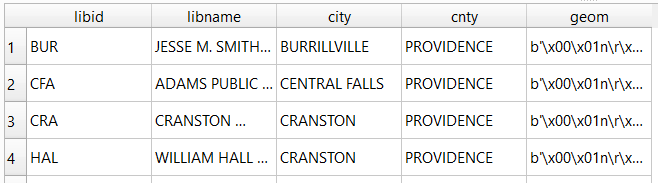
Traditional database column types include strings (aka text), integers, and decimal numbers, which limit the values that can be stored in the column, and allow specific functions that can operate on values of that type (math on numeric columns, string operations on text columns). Beyond the basic data types, many databases have special ones, such as date types that allow you to store and manipulate dates and times as distinct objects.

Spatial databases incorporate special columns for storing the geometry of features as strings of coordinates, and provide functions that can operate on that geometry. In the example above, the values stored in the geometry column were returned in a binary format. But we can apply a spatial function called ST_AsText to display the geometry as readable text:

SELECT libid, libname, city, cnty, ST_AsText(geom) AS geom
FROM d_public_libraries
WHERE cnty='PROVIDENCE'
ORDER BY city;
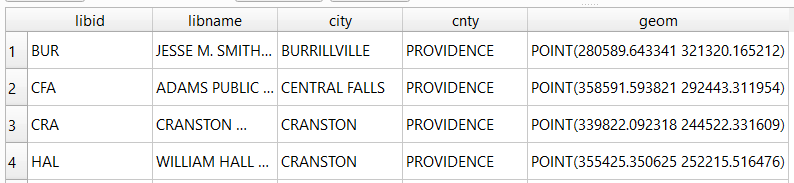
We can see that this is point geometry (as opposed to lines or polygons), and we have an X and Y coordinate for each point. The layers in this database are in the Rhode Island State Plane System, so the coordinates that are returned are in that system. We can convert these to longitude and latitude using the ST_Transform function:

SELECT libid, libname, city, cnty, ST_AsText(ST_Transform(geom,4269)) AS geom
FROM d_public_libraries
WHERE cnty='PROVIDENCE'
ORDER BY city;

This illustrates that the functions can be nested, first we transform the geometry and then display the result of that function as text. The number in the transform function is the unique identifier of the spatial reference system that we wish to transform the geometry to. In the open source world these are EPSG codes, and 4269 is the identifier for NAD 83, the basic long / lat system for North America (alternatively, we could use 4326 for WGS 84, the standard global long / lat system). The geometry column in a spatial table is connected to a series of internal tables that store all the definitions of the spatial reference systems. You can view the spatial reference system table:

SELECT * from spatial_ref_sys;

You can also get a read out of all the spatial tables in the database which include their type of geometry and the spatial reference system (3438 is the EPSG code for the RI State Plane zone, geometry of type 6 is a multipolygon, while type 1 is a point):

SELECT * from geometry_columns;

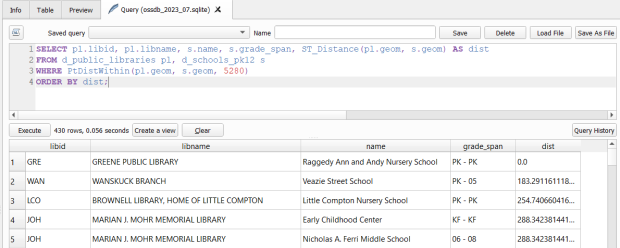
With a spatial database, you perform operations within and between tables by running functions against the geometry columns. For example, to return all public libraries and schools that are within a mile of a library while measuring the distance:

SELECT pl.libid, pl.libname, s.name, s.grade_span, ST_Distance(pl.geom, s.geom) AS dist
FROM d_public_libraries pl, d_schools_pk12 s
WHERE PtDistWithin(pl.geom, s.geom, 5280)
ORDER BY dist;

The ST_Distance function returns the actual distance in a new column, while the PtDistWithin function only returns libraries that have a school within one mile (5,280 feet – we have to express the measurement in the units used by the spatial reference system of both layers). In the FROM statement we provide aliases after each table name, so we can use those as shorthand (if our statement includes multiple tables, we need to indicate which table each column comes from).

You can also do summaries, like you would in standard SQL using GROUP BY. To count the number of schools that are within a mile of every library:

SELECT pl.libid, pl.libname, CAST(COUNT (s.name) AS integer) AS school_count, pl.geom
FROM d_public_libraries pl, d_schools_pk12 s
WHERE PtDistWithin(pl.geom, s.geom, 5280)
GROUP BY pl.libid, pl.libname, pl.geom
ORDER BY school_count DESC;

The rule for GROUP BY is that every column in the select statement must be used as a grouping variable, or has an aggregate function applied to it (COUNT, SUM, MEAN, etc). In this example we added the CAST function, which defines the data type for new columns that you create. Unless we explicitly declare it as an integer or real (decimal), values are returned as strings.

You can save your statements as views, by adding CREATE VIEW [view name] AS followed by the statement. Views are saved statements that appear as objects in the database; by opening a view, the statement is rerun and the result is returned. This approach works if you want to save a non-spatial view, i.e. a table without geometry. To save a spatial one with geometry, omit the VIEW statement and hit the Create a view button below the SQL window (each record must have a unique identifier and the geometry column in order for this to work). That registers the geometry column of the view in the database. Then, you can return to the main QGIS window, add the view and symbolize it. Alternatively, there is a Load as new layer button at the bottom of the screen, which allows you to see a temporary result without saving anything (while you can see features and records returned, you won’t be able to symbolize or manipulate the layer).

Count schools within 1 mile of libraries, and save as a spatial view
Symbolize the spatial query out in the main QGIS window

One of the primary reasons to use a database is to join related data stored in separate tables. This statement has two joins: a tabular join between the census tracts and an ACS data table, and a spatial join between the geometry of public libraries and tracts:

SELECT pl.libid, pl.libname, a.geoidshort, a.name, c.hshd01_e, c.hshd01_m
FROM d_public_libraries pl, a_census_tracts a
INNER JOIN c_tracts_acs2021_socecon c
ON a.geoidlong=c.geoidlong
WHERE ST_Intersects(pl.geom, a.geom);

This returns all public libraries and their intersecting tracts based on the relationship between their two geometries (could also have done ST_Within in this case to get the same result). Spatialite supports most of the spatial relationship functions defined by the OGC. The estimated number of households for these tracts are returned based on the shared unique census identifier between the two census tract tables.

You can visit the following references for a full list of SQLite functions and Spatialite functions. As it’s designed to be “Lite”, SQLite contains a smaller subset of the SQL standard. Spatialite contains a pretty full range of OGC spatial SQL functions, but there are instances where it deviates from the standard. PostgreSQL / PostGIS provides a greater range of functions that adhere more closely to the standard; it also provides you with greater storage, efficiency, and processing power. As a file-based database, SQLite / Spatialite’s strengths are that it’s compact and transportable, and gives you the option to write SQL rather than relying solely on the point and click tools of a desktop GIS package.

In addition to the QGIS DB Manager, you could also use the Spatialite command line tools provided by the developer, and the Spatialite GUI (graphic user interface) that gives you a standard, stand-alone database interface. Downloading it is a bit confusing; Windows users can grab one of the binaries at the bottom of this page. If you’re a Linux person, search for it in your package manager. Mac users can get it via Homebrew.
OSM Merida

Extracting OpenStreetMap Data in QGIS 3

The OpenStreetMap (OSM) can be a good source of geospatial data for all sorts of features, particularly for countries where the government doesn’t provide publicly accessible GIS data, and for features that most governments don’t publish data for. In this post I’ll demonstrate how to download a specific feature set for a relatively small area using QGIS 3.x. Instead of simply adding OSM as a web service base map we’ll extract features from OSM to create vector layers.

In the past I followed some straightforward instructions for doing this in QGIS 2.x, but of course with the movement to 3.x the core OSM plugin I previously used is no longer included, and no updated version was released. It’s a miracle that anyone can figure out what’s going on between one version of QGIS and the next. Fortunately, there’s another plugin called QuickOSM that’s quite good, and works fine with 3.x.

Use QuickOSM to Extract Features

Let’s say that we want to create a layer of churches for the city Merida in Mexico. First we launch QGIS, go to the Plugins menu, and choose Manage and Install plugins. Select plugins that are not installed, do a search for QuickOSM, select it, and install it. This adds a couple buttons to the plugins toolbar and a new sub-menu under the Vector menu called Quick OSM.

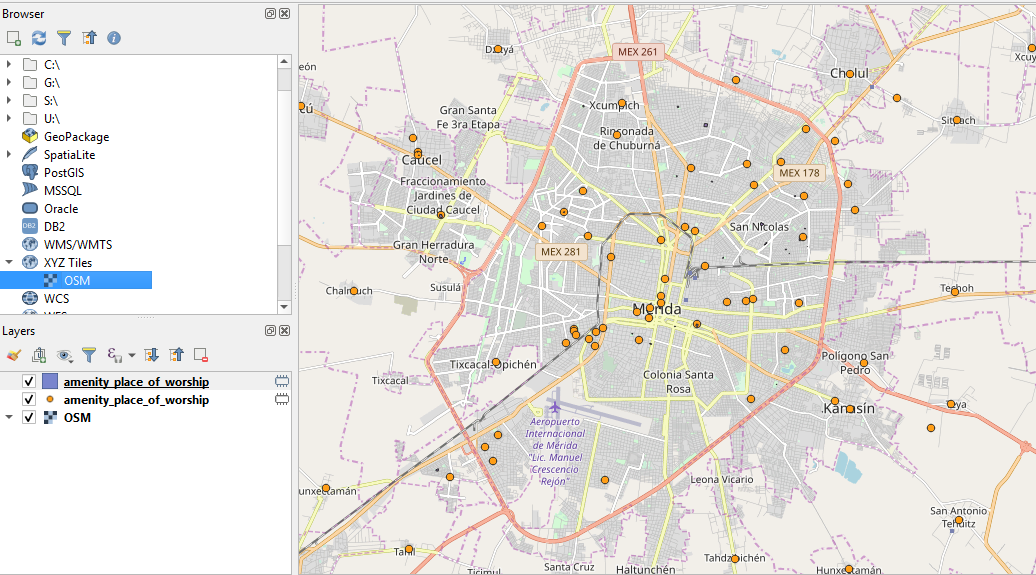
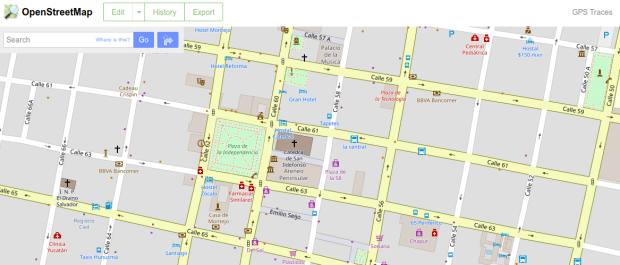
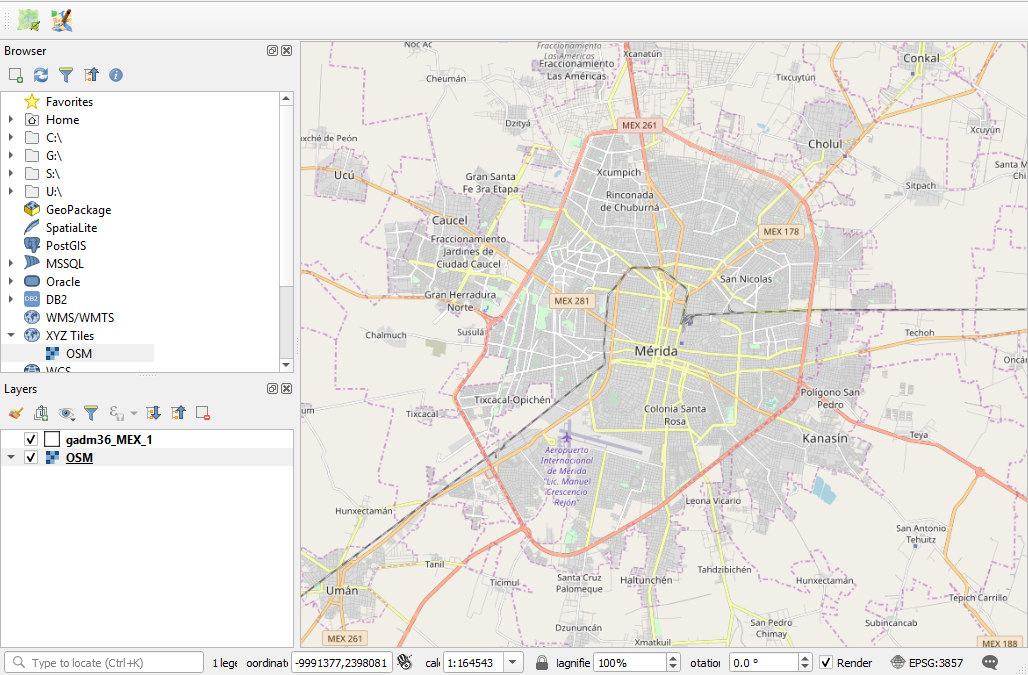
Next, we add a layer to serve as a frame of reference. We’re going to use the extent of the QGIS window to grab OSM features that fall within that area. We could download some vector files from GADM or Natural Earth; GADM provides several layers of administrative divisions which can be useful for locating and delineating our area. Or we can add a web service like OSM and simply zoom in to our area of interest. Adjust the zoom so that the entire city of Merida fits within the window.

Merida in QGIS

OSM XYZ Tiles in QGIS – Zoomed into Merida

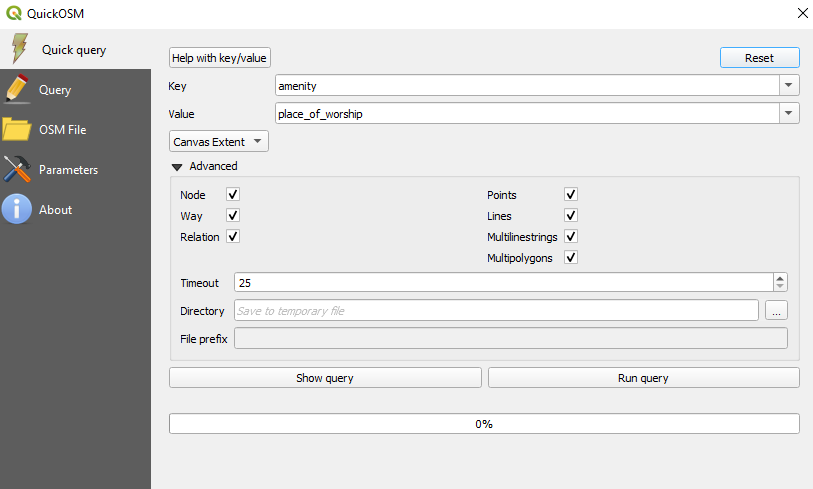
Now we can launch the Quick OSM tool. The default tab is Quick query, which allows us to select features directly from an OSM server (you need to be connected to the internet to do this). OSM data is stored in an XML format, so to extract the data we want we’ll need to specify the correct elements and tags. Ample documentation for all the map features is available. In our example, churches are referred to as places of worship and are classified as an amenity. So we choose amenity as the key and place_of_worship as the value. The drop down box allows us to search for features in or around a place, but as discussed in my previous post place names can be ambiguous. Choose the option for canvas extent, and that will capture any churches in our map window. Hit the advanced drop down arrow, and you have the option to select specific types of geometry (keep them all). Hit the run query button to execute.

Quick OSM Interface

Quick OSM Interface

We’ll see there are two results: one for places of worship that are points, and another for polygons. If you right click on one of these layers and open the attribute table, you’ll see a number of tags that have been extracted and saved as columns, such as the name, religion, and denomination. The Quick query tools pulls a series of pre-selected attributes that are appropriate for the type of feature.

Places of Worship

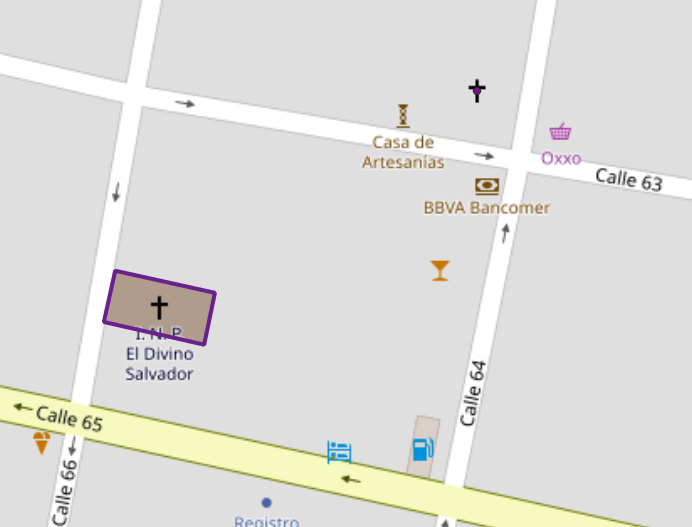
The data is saved temporarily in memory, so to keep it you need to save each as a shapefile or geopackage (right click, Export, Save Features As). But before we do that – why do have two separate layers to begin with? In some cases the OSM has the full shape of the building saved as a polygon, while in other cases the church is saved as a point feature, with a cross or other religious symbol appropriate for the type of worship space. It simply depends on the level of detail that was available when the feature was added.

Polygon versus Point

Church as polygon (lower left-hand corner) and as point (upper right-hand corner)

If we needed a single unified layer we would need to merge the two, but this process can be a pain. Using the vector menu you can convert the polygons to points using the centroid tool, and then use the merge tool to combine the two point layers. This is problematic as the number of fields in each file is different, and because the centroid tool changes the data type of the polygon’s id number to a type that doesn’t match the points. I think the easiest solution is to load both layers into a Spatialite database and create a unified layer in the DB.

Use SpatiaLite to Create a Single Point Layer

To do that, right click on the SpatiaLite option in the Browser Panel, choose Create Database, and name it (merida_churches). Then select the church point file, right click, export, save features as. Choose SpatiaLite as the format, for the file select the database we just created, and for layer name call it church_points. The default CRS (used by OSM) is WGS 84. Hit OK. Then repeat the steps for the polygons, creating a layer called church_polygons in that same database.

Once the features are database layers, we can write a SQL script (see below) where you create one table that has columns that you want to capture from both tables. You load the data from each of the tables into the unified one, and as you are loading the polygons you convert their geometry to points. The brackets around the names like [addr:full] allows you to overcome the illegal character designation in the original files (you shouldn’t use colons in db column names). I like to manually insert a date so to remember when I downloaded the feature set.

BEGIN;

CREATE TABLE all_churches (
full_id TEXT NOT NULL PRIMARY KEY,
osm_id INTEGER NOT NULL,
osm_type TEXT,
name TEXT,
religion TEXT,
denomination TEXT,
addr_housenumber TEXT,
addr_street TEXT,
addr_city TEXT,
addr_full TEXT,
download_date TEXT);

SELECT AddGeometryColumn('all_churches','geom',4326,'POINT','XY');

INSERT INTO all_churches
SELECT full_id, osm_id, osm_type, name, religion, denomination,
[addr:housenumber], [addr:street], [addr:city], [addr:full],
'02/11/2019', ST_CENTROID(geometry)
FROM church_polygons;

INSERT INTO all_churches
SELECT full_id, osm_id, osm_type, name, religion, denomination,
[addr:housenumber], [addr:street], [addr:city], [addr:full],
'02/11/2019', geometry
FROM church_points;

SELECT CreateSpatialIndex('all_churches', 'geom');

COMMIT;

Unfortunately the QGIS DB Browser does not allow you to run SQL transactions / scripts. You can paste the entire script into the window, highlight the first statement (CREATE TABLE), execute it, then highlight the next one (SELECT AddGeometryColumn), execute it, etc. Alternatively if you use the Spatialite CLI or GUI, you can save your script in a file, load it, and execute it in one go.

QGIS DB Browser

When finished we hit the refresh button and can see the new all_churches layer in the DB. We can preview the table and geometry and add it to the QGIS map window. If you prefer to work with a shapefile or geopackage you can always export it out of the db.

Other Options

The QuickOSM tool has a few other handy features. Under the Quick query tool is a plain old Query tool, which shows you the actual query being passed to the server. If you’re familiar with the map features and XML structure of OSM you can modify this query directly. Under the Query tool is the OSM File tool. Instead of grabbing features from the server, you can download an OSM pbf file (Geofabrik provides data for each country) and use this tool to load data from that file. It loads all features from the file for the geometries you choose, so the process can take awhile. You’ll want to load the data into a temporary file instead of saving in memory, to avoid a crash.

Copying Tables from SQLite to PostgreSQL

We recently created a PostgreSQL / PostGIS database on a server on our local campus network and spent the last few months loading data into it. We have a couple of different SQLite / Spatialite projects that we produce and I needed to move a large number of attribute tables from them into the Postgres database. My initial idea was to simply create a SQL dump file out of SQLite and then restore it in Postgres. I encountered a number of problems in doing this; there are slight differences in how each database creates and handles dump files. The solutions I found involved lousy things like opening the dump file in an editor (not feasible if the file is huge) and finding and replacing parentheses and commas, or running the file through a script to remove them.

That gave me a better idea – Python has SQLite and PostgreSQL modules (sqlite3 and psycopg2 respectfully). I could connect to the SQLite database and load the tables into Python’s data structures, and then simply connect to my PostgreSQL database and write them out. The original CREATE TABLE statements are stored in a master table; if I grab those statements and then the data that goes with them, I can simply recreate everything. The code is below.

First I define a number of variables that I hard code for each batch of tables. The SQLite variables are the name and path to the database (sqdb) and a string that I’ll use in a LIKE clause to grab certain tables (sqlike). For example, if my series of tables starts with yr followed by a year (yr2017) my string would be ‘yr%’. The remaining variables are for the Postgres database: pgdb (database name), pguser, pgpswd (my username and password), pghost, pgport (address of the database server on port 5432), and pgschema which is the name of the schema I want to write to.

I connect to the SQLite database and read all the names of the tables that match my LIKE statement from the master table. This returns a series of tuples where the name of the table is in the first position; I grab these and save them in a list. Then I loop through that list of tables and get the CREATE TABLE statement that’s stored in the master table and save that in string variable called create. Then I fetch all the rows for that table and save them in a tuple called rows. Lastly, I count the number of columns and create the number of string substitutions I’ll need in my SQL statement in a place holder variable (minus the last character, to remove a comma from the end of the statement).

That gives me everything I need for the first table. Then I connect to Postgres, set my schema path, execute the create table statement, and load the values in. Voila! If successful, we return to the top of the table loop and grab the next table. When we’re all done, we close the connection to the database.

#Frank Donnelly, Geospatial Data Librarian
#May 22, 2017
#Copies tables and data from a SQLite database and recreates them
#in a PostgreSQL database

import psycopg2, sqlite3, sys

#Change these values as needed

sqdb=''
sqlike=''
pgdb=''
pguser=''
pgpswd=''
pghost=''
pgport='5432'
pgschema=''

consq=sqlite3.connect(sqdb)
cursq=consq.cursor()

tabnames=[]

cursq.execute("SELECT name FROM sqlite_master WHERE type='table' AND name LIKE '%s'" % sqlike)
tabgrab = cursq.fetchall()
for item in tabgrab:
    tabnames.append(item[0])

for table in tabnames:
    cursq.execute("SELECT sql FROM sqlite_master WHERE type='table' AND name = ?;", (table,))
    create = cursq.fetchone()[0]
    cursq.execute("SELECT * FROM %s;" %table)
    rows=cursq.fetchall()
    colcount=len(rows[0])
    pholder='%s,'*colcount
    newholder=pholder[:-1]

    try:

        conpg = psycopg2.connect(database=pgdb, user=pguser, password=pgpswd,
                               host=pghost, port=pgport)
        curpg = conpg.cursor()
        curpg.execute("SET search_path TO %s;" %pgschema)
        curpg.execute("DROP TABLE IF EXISTS %s;" %table)
        curpg.execute(create)
        curpg.executemany("INSERT INTO %s VALUES (%s);" % (table, newholder),rows)
        conpg.commit()
        print('Created', table)

    except psycopg2.DatabaseError as e:
        print ('Error %s' % e) 
        sys.exit(1)

    finally:

        if conpg:
            conpg.close()

consq.close()

There are a few caveats to this. First, data in SQLite is loosely typed, so you’re allowed to get away with storing strings in numeric columns and vice versa. PostgreSQL will balk at this, so if your SQLite data is pretty loose this approach (and any other approach really) will fall flat. You’d have to tighten up your SQLite data first.

Second, this approach doesn’t handle spatial data / geometry columns. In instances where I had spatial data and I tried copying it over, it failed; there are differences with how spatial data is tied to the underlying tables in each database so moving it requires a special process. I tried using some spatial database modules in Python but couldn’t get them working. Ultimately, since my spatial layers were point features and I had the original X and Y coordinates stored in numeric columns, I simply copied the data over and left the geometry behind, and once I was in PostGIS I recreated the geometry from the coordinates. Another alternative would be to use the OGR tools to copy spatial (and attribute) data over – I’ve tried this in a few other instances in the past with success, but was going in the opposite direction (from PostGIS to Spatialite) at the time.

While I haven’t tried it, you could modify the code if you wanted to go in the other direction (copy data from PostgeSQL to SQLite). You would just need to identify the system tables in PostgreSQL where the table names and create statements are stored. Going in this direction, the abundance of data types in PostgreSQL may be a problem – in SQLite your only options are: integer, real, text, and blob. SQLite may be able to take certain types and convert them to what it needs (i.e. take a varchar and save it as text) but I’m not sure it can handle every case. You could always run each create table statement string through a find and replace operation to modify the data types.