screen scraping

Python Screen Scraping Code

Screen Scraping Government Data with Python

In my previous post, I summarized several efforts to rescue and preserve US federal government datasets that are being removed from the internet. In this post, I’ll provide a basic primer on screen scraping with Python, which is what I’ve used to capture datasets in participating in the Data Rescue Project. Screen scraping can employed to many ends, such as capturing text on web pages so it can be analyzed, or taking statistics embedded in HTML tables and saving them in machine readable formats. In the context of this post, screen scraping is an approach for downloading data and documentation files stored on websites.

There are several benefits to using a scripting approach for this work. It saves you from the tedious task of clicking and downloading files one by one. The script serves as documentation for what you did, and allows you to easily repeat the process in the future, if the datasets continue to exist and are updated. A scripted, screen-scraping approach may not be best or necessary if the website and datasets are relatively small and simple, or conversely if the site is complicated and difficult to scrape given the technology it employs. In both cases, manual downloading may be quicker, especially with a team of volunteers. Furthermore, if it seems clear that the dataset or website are not going to be updated, or are going to vanish, then the benefit of repeating the process in the future is moot.

In this example, we’ll assume that screen scraping is the way to go, and we’ll use Python to do it. I’ll address a few alternatives to this approach at the end, the primary one being using an API if and when it’s available, and will share links to working code that colleagues and I have written to save datasets.

You should only apply these approaches to public, open data. Capturing restricted or proprietary information violates licenses, terms of service, and in some cases privacy constraints, and is not condoned by any of the rescue projects. Even if the data is public, bear in mind that scraping can put undue pressure on web servers. For large websites, plan accordingly by building pauses into the process, breaking up the work into segments, or running programs at non-peak times (overnight). When writing and testing scripts, don’t repeat the process over and over again on the entire website; run your tests on samples until you get everything working.

Screen Scraping Basics

The first step is to explore the website where the data is hosted, to identify the best pages to use as a source and determine the feasibility of the approach. Many websites will have feature rich, user friendly pages that make it easy to view extracts of data and visualize it, such as the NOAA climate website below.
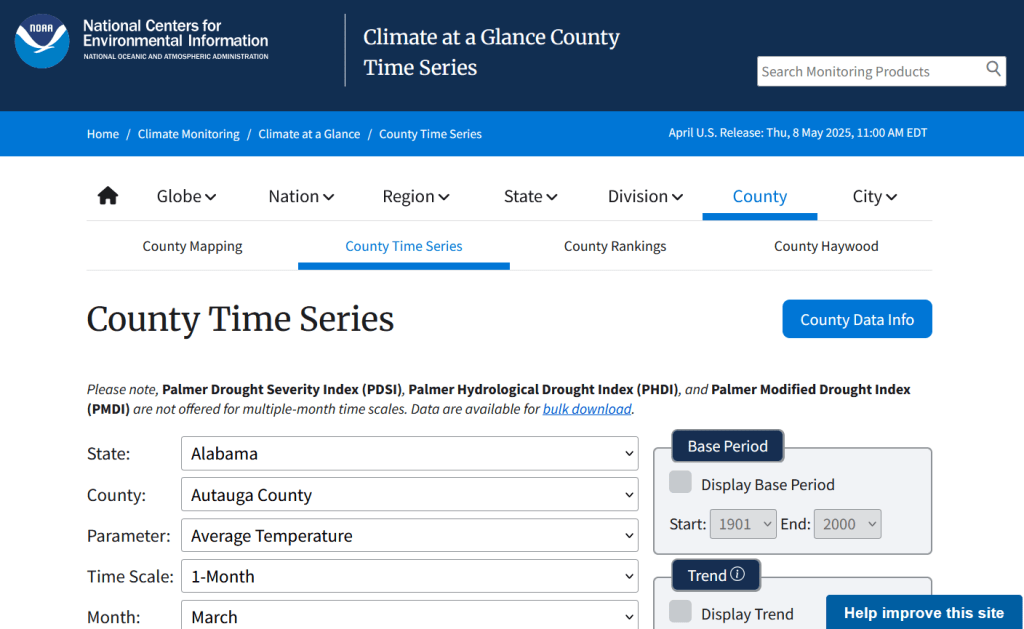
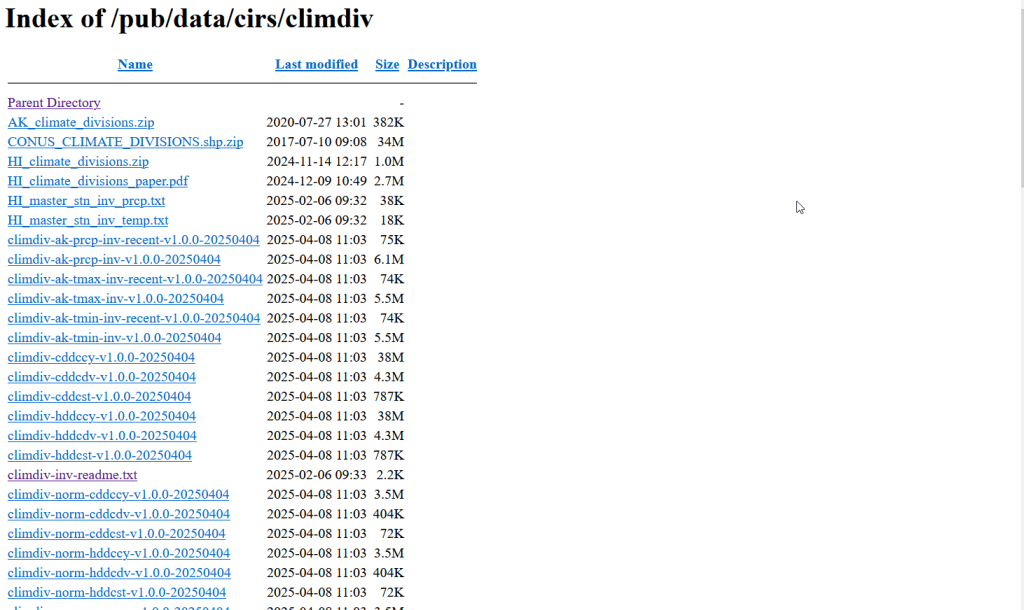
While easy to use, these pages can be complex and tedious to scrape. Always look for an option for bulk downloading datasets. They may lead you to a page sitting behind the scenes of the fancy website, such as the NOAA file directory below. Saving data from a page like this is fairly straightforward.
For the benefit of those of you who are not 1990s era people like myself and may not be familiar with working with HTML, the example below illustrates a simple webpage. With any browser, you can right click on a page and View the Source, to see the HTML code and stylesheets behind the page, which the browser processes and renders to display the site. HTML is a markup language where text is enclosed in tags that tell us something about the content within the tags, and which can be used for displaying the content in different ways. HTML is also hierarchical, so that content can be nested. For example, there is a head section that contains preliminary content about the page, and a body section that encloses the main content. Within the body there can be divisions, and anchor tags that represent links. In this example, one of these anchors is a link to a data file that we want to download.

<html>
<head>
    <title>Example Webpage</title>
</head>
<body>
    <div class='content'>
        <p>Paragraph with text.</p>
        <a href='https://www.page.gov/data.zip'/>
        <a href='https://www.page.gov/page.html'/>
    </div>
</body>
</html>

We can use Python to parse these tags and pull out desired content. There are four core modules I always use: Requests for downloading content, os for creating folders and working with paths, Beautiful Soup for screen scraping, and datetime for creating time stamps. In the code below, we begin by importing the modules and saving the url of the page we wish to scrape as a variable.

In most Python environments (unless you’ve modified some settings) it’s assumed that your current working directory is the folder where your Python script is stored. When you download files, they will automatically be stored in that folder. To keep things tidy, I always create a subfolder named with the date; I use the date function from datetime to retrieve today’s date, append that date to the word “downloaded-‘, and use the os module to create a subfolder with that name. If we run the program at a later date it will save everything in a new folder, rather than overwriting existing files.

import requests, os
from bs4 import BeautifulSoup as soup
from datetime import date

url='https://www.page.gov'

today = str(date.today())
outfolder='downloaded-'+today
if not os.path.exists(outfolder):
    os.makedirs(outfolder)
    
webpage=requests.get(url).content
soup_page=soup(webpage,'html.parser')
page_title = soup_page.title.text
container=soup_page.find('div',{'class':'content'})
links=container.findAll('a')

The final block in this example captures data from the website. We use requests to get the content stored at the url (the webpage), and then we pass this to Beautiful Soup, which parses all the HTML using their tags. Once parsed, we can retrieve specific objects. For example, we can save the page title (the text that appears in the heading of your browser for a particular site) as a variable. We also grab the section of the page that contains the links we want to capture by looking for a specific div or id tag. This isn’t strictly necessary for simple pages like this one, but speeds up processing for larger, more complex pages. Lastly, we can search through that specific container to find all the anchor tags, or links.

Once we have the links, we loop through and save the ones we want. My preference is to store them in a dictionary as key / value pairs, where the key is the name of the file, and the value is the file’s URL. We iterate through the links we saved, and with the soup we determine if the link has an ‘href’ attribute. If it does, we see if it ends with .zip, which is the data file. This skips any link that’s not a file we want, including links that go to other webpages as opposed to files. In practice, I provide a list of several file types here such as .zip, .csv, .txt, .xlsx, .pdf, etc to capture anything that could be data or documentation. If we find the zip, we split the link’s attributes from one string of text into a list of strings that are separated by the backslash, and grab the last element, which is the name of the file. Lastly, we add this to our datalinks dictionary; in this example, we’d have: {'data.zip':'https://www.page.gov/data.zip'}.

datalinks={}

for lnk in links:
    if 'href' in lnk.attrs:
        if lnk.attrs['href'].endswith(('.zip')):
            fname=lnk.attrs['href'].split('/')[-1]
            datalinks[fname]=lnk.attrs['href']

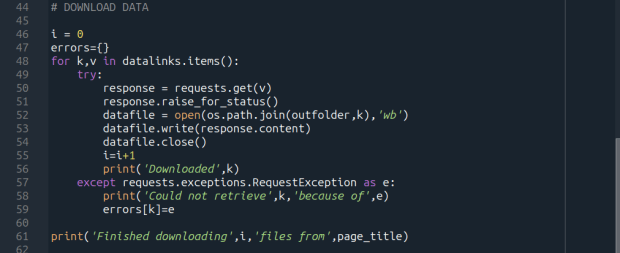
Time to download! We loop through each key (file name) and value (url) in our dictionary. We use the requests module to try and get the url (v), but if there’s a problem with the website or the link is invalid we bail out. If successful, we use the os module to go to our output folder and we supply the name of the file from the website (k) as the name of the file that we want to store on our computer. The ‘wb’ parameter specifies that we’re writing bytes to a file. I always like to keep count of the number of files I’ve done with an iterator (i) so I can print messages to a screen or a log file.

i = 0 
for k,v in datalinks.items():
    try:
        response=requests.get(v)
        response.raise_for_status()
        dfile=open(os.path.join(outfolder,k),'wb')
        dfile.write(response.content)
        dfile.close()
        i=i+1
        print('Downloaded',k)
    except requests.exceptions.RequestException as e:
        print('Could not get',k,'because of',e)
print('Downloaded',i,'files from',page_title)

It’s important to save documentation too, so people can understand how the data was created and structured. In addition to saving pdf and text files, you can also save a vanilla copy of the website; I use a generic name with a date stamp. This saves the basic HTML text of the page, but not any images, documents, or styling. Which is usually good enough for providing documentation.

wfile = '_WEBPAGE-{}.html'.format(today)
writefile=open(os.path.join(outfolder,wfile),'wb')
writefile.write(webpage)
writefile.close()

As mentioned previously, you don’t want to place undue burden on the webserver. With the time module, you can use the sleep function and add a pause to your script for a fixed amount of time, usually at the end of a loop, or after your iterator has recorded a certain number of files. The random module allows you to supply a random time value within a range, if you want to vary the length of the pause.

import time
from random import randint

# Pause fixed amount
time.sleep(5)

# Pause random amount within a range
time.sleep(randint(10,20))

Screen Scraping Caveats

Those are the basics! Now here are the primary exceptions. The first problem is that links to files may not be absolute links that contain the entire path to a file. Sometimes they’re relative, containing a reference to just the subfolder and file. The requests module won’t be able to find these, so we have to take the extra step of building the full path, as in the example below. You can do this by identifying what the relative path starts with (unless they’re all relative and the same), and you create the absolute by adding (concatenating) the root url and the relative one contained in the soup.

    <div class='content'>
        <p>Paragraph with text.</p>
        <a href='/us/data.zip'/>
    </div> 
url='https://www.page.gov'
datalinks={}
for lnk in links:
    if lnk.attrs['href'].endswith(('.zip')):
        if lnk.attrs['href'].startswith('/us/'):
            fname=lnk.attrs['href'].split('/')[-1]
            datalinks[fname]=url+lnk.attrs['href']
            ...

In other cases, a link to a data file may not lead directly to the file, but leads to another web page where that file is stored. We can embed another scraping block into a loop; retrieve and start scraping the main page, then once you find a link go to that page, and repeat retrieval and scraping. In these cases, it’s best to save these steps in a function, so you can call the function multiple times instead of repeating the same code.

<div class='content'>
        <p>Paragraph with text.</p>
        <a href='https://www.page.gov/us/'>
 </div>

Some websites will have dedicated pages where they embed a parameter in the url, such as codes for countries or states. If you know what these are, you can define them in a list, and iterate through that list by formatting the url to insert the code, and then scrape that page. If a page uses a unique integer as an ID and you know what the upper limit is, you can use for i in range(1,n) to step through each page (but make sure you handle exceptions, in case an integer isn’t used or is missing).

codes=['us','ca','mx']
url='https://www.page.gov/{}'
for c in codes:
    webpage=requests.get(url.format(c)).content
    soup_page=soup(webpage,'html.parser')
    ... 

For complicated sites with several pages, you might not want to dump all the files into the same folder. Instead, as you iterate through pages, you can create a dedicated folder for that iteration. Using the example above, if there is a page for each country code, you can create a folder for that code and when writing files, use the path module to store files in that folder for that iteration.

codes=['us','ca','mx']
for c in codes:
    ...
    cfolder=os.path.join(outfolder,c)
        if not os.path.exists(cfolder):
            os.makedirs(cfolder)
    ...
    response=requests.get(v)
        response.raise_for_status()
        dfile=open(os.path.join(cfolder,k),'wb')
        dfile.write(response.content)
        dfile.close()

For websites with lots of files, or with a few big files, you may run out of memory during the download process and your script will go kaput. To avoid this, you can stream a file in chunks instead of trying to download it in one go. Use the request module’s iter_content function, and supply a reasonable chunk size in bytes (10000000 bytes is 10 MB).

...
try:
    with requests.get(v,stream=True) as response:
        response.raise_for_status()
        fpath=os.path.join(outfolder,k)
        with open(fpath,'wb') as writefile:
            for chunk in response.iter_content(chunk_size=10000000):
                writefile.write(chunk)
    i=i+1
    print('Downloaded',k)
except requests.exceptions.RequestException as e:
        print('Could not get',fname,'because of',e) 

If you view the page source for a website, and don’t actually see the anchor links and file names in the HTML, you’re probably dealing with a page that employs JavaScript, which is a show stopper if you’re using Beautiful Soup. There may be a dropdown menu or option you have to choose first, in order to render the actual page (and you may be able to use the page parameters trick above, if the url on each page varies). But you may be stuck; instead of links, there may be download buttons you have to press or a dropdown menu option you have to choose in order to download the file.

One option would be to use a Python module called Selenium, which allows you to automate the process of using a web browser, to open a page, find a button, and click it. I’ve tried Selenium with some success, but find that it’s complex and clunky for screen scraping. It’s browser dependent (you’re automating the use of a browser, and they’re all different), and you’re forced to incorporate lots of pauses; waiting for a page to load before attempting to parse it, and dealing with pop up menus in the browser as you attempt to download multiple files, etc.

Another option that I’m not familiar with, and thus haven’t tried, would be to use JavaScript since that’s what the page uses. Most browsers have web developer console add-ons that allow you to execute snippets of JavaScript code in order to do something on a page. So some automation may be possible.

Using an API

You may be able to avoid scraping altogether if the data is made available via an API. With a REST API, you pass parameters into a base link to make a specific request. Using requests, you go to that URL, and instead of getting a web page you get the data that you’ve asked for, usually packaged in a JSON type object within your program (Python or another scripting language). Some APIs retrieve documents or dataset files, that you can stream and download as described previously. But most APIs for statistical data retrieve individual data records, which you would store in a nested list or dictionary and then write out to a CSV. The example below grabs the total population for four large cities in Rhode Island from 2020 decennial census public redistricting dataset.

import requests,csv

year='2020'
dsource='dec' # survey
dseries='pl' # dataset
cols='NAME,P1_001N' # variables
state='44' # geocodes for states
place='19180,54640,59000,74300' # geocodes for places
outfile='census_pop2020.csv'
keyfile='census_key.txt'

with open(keyfile) as key:
	api_key=key.read().strip()

base_url = f'https://api.census.gov/data/{year}/{dsource}/{dseries}'

# for sub-geography within larger geography - geographies must nest
data_url = f'{base_url}?get={cols}&for=place:{place}&in=state:{state}&key={api_key}'

response=requests.get(data_url)

popdata=response.json()
for record in popdata:
    print(record)
    
with open(outfile, 'w', newline='') as writefile:
    writer=csv.writer(writefile, quoting=csv.QUOTE_MINIMAL, delimiter=',')
    writer.writerows(popdata)

The benefit of an API is that it’s designed to retrieve machine readable data, and might be easier than scraping pages that have complex interfaces. The major downside is, if you’re forced to download individual records as opposed to entire files, the process can take a long time, to the point where it may be infeasible if the datasets are too large. It’s always worth checking to see if there is a bulk download option as that could be easier and more efficient (for example, the Census Bureau has an FTP site for downloading datasets in their entirety). Using an API also requires you to invest time in studying how it works, so you can build the appropriate links and ensure that you’re capturing everything.

Conclusion

Screen scraping will vary from website to website, but once you have enough examples it becomes easy to resample your code. You’ll always need to modify the Beautiful Soup step based on the structure of the individual pages, but the requests downloading step is more rote and may not require much modification. While I use Python, you can use other languages like R to achieve similar results.

Visit my library’s US Federal Government Data Backup GitHub for working examples of code that I and colleagues have used to capture datasets. In my programs I’ve added extra components, like writing a basic metadata file and error logs, which I haven’t covered in this post. The NOAA County at a Glance, IRS-SOI, and IMLS, scripts are basic examples, and the IMLS ones include some of the caveats I’ve described. The NOAA lake and sea level rise scripts are far more complex, and include cycling through many pages, creating multiple folders, streaming downloads, and encapsulating processes into functions. The USAID DHS Indicators scripts used APIs that retrieved files, while the USAID DHS SDR script used Selenium to step through a series of JavaScript pages.

You’ll find scripts but no datasets in the GitHub repo due to file size limitations. If you’re a member of an institution that has access to GLOBUS, you can access the data files by following the instructions at the top of the page. Otherwise, we’ve contributed all of our datasets to DataLumos (except for the sea level rise data, I’m working with another university to host that).

USAID DHS No Data Available

Rescuing US Government Data

There’s been a lot of turmoil emanating from Washington DC lately. One development that’s been more under the radar than others has been the modification or removal of US federal government datasets from the internet (for some news, see these articles in the New Yorker, Salon, Forbes, and CEN). In some cases, this is the intentional scrubbing or deletion of datasets that focus on topics the current administration doesn’t particularly like, such as climate and public health. In other cases, the dismemberment of agencies and bureaus makes data unavailable, as there’s no one left to maintain or administer it. While most government data is still available via functioning portals, most of the faculty and researchers I work with can identify at least a few series they rely on that have disappeared.

Librarians, archivists, researchers, professors, and non-profits across the country (and even in other parts of the world), have established rescue projects, where they are actively downloading and saving data in repositories. I’ve been participating in these efforts since January, and will outline some of the initiatives in this post.

The Internet Archive

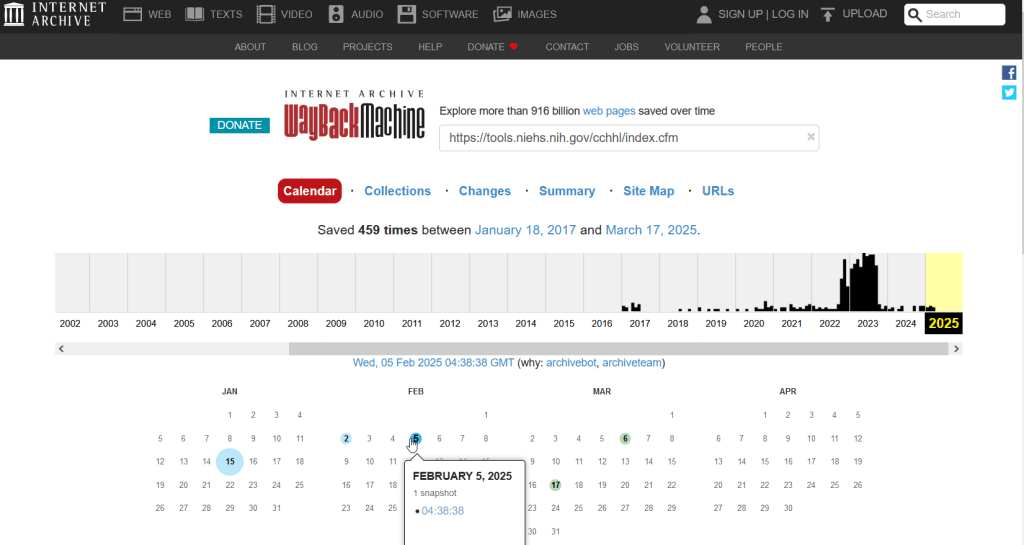
The place of last resort for finding deleted web content is the Internet Archive. This large, non-profit project has been around as long as the web has existed, with the goal of creating a historic archive of the internet. It uses web crawlers or spiders to creep across the web and make copies of websites. With the Wayback Machine, you can enter a URL and find previous copies of web pages, including sites that no longer exist. You’re presented with a calendar page where you can scroll by year and month to select a date when a page was captured, which opens up a copy.

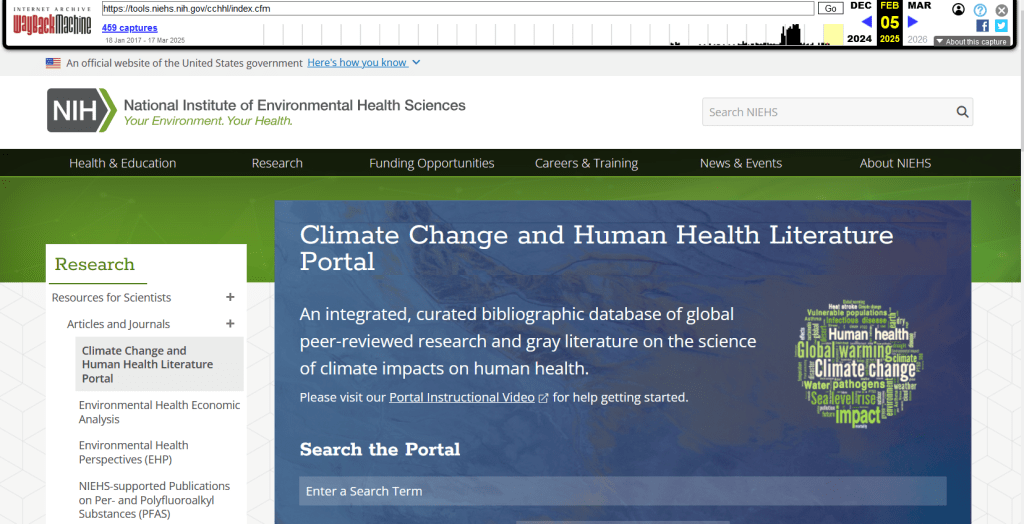
A Wayback Machine search for https://tools.niehs.nih.gov/cchhl/index.cfm. Blue circles on the calendar indicate when the page was captured.

This allows you to see the content, navigate through the old website, and in many cases download files that were stored on those pages. It’s a great resource, but it can’t capture everything; given the variety and complexity of web pages and evolving web technologies, some websites can’t be saved in working order (either partially or entirely). Content that was generated and presented dynamically with JavaScript, or was pulled and presented from a database, is often not preserved, as are restricted pages that required log-ins.

An archived copy of the NIEHS page (the actual website was deleted in mid February 2025)

The Internet Archive also hosts a number of special collections where folks have saved documents, images, sound and video, and software. For example, you can find many research articles that are available in PubMed from the PubMed Central collection, a ton of documents from the USDA’s National Agricultural Library, and about 100 GB of data someone captured from the CDC in January 2025. A large project called the End of Term Archive was launched in 2008 to capture what federal government websites looked like at the end of each presidential term. The pages are saved in a special collection in the IA.

Data Rescue Project

Dozens of new data archiving projects were launched at the end of 2024 and beginning of 2025 with the intention of saving federal datasets. The Data Rescue Project is one of the larger efforts, which has been driven by data librarians and archivists with non-profit partners. Professional groups including IASSIST, ICPSR, RDAP, the Data Curation Network, and the Safeguarding Research & Culture project have been active organizers and participators. While this will be an oversimplification, I’ll summarize the project as having two goals

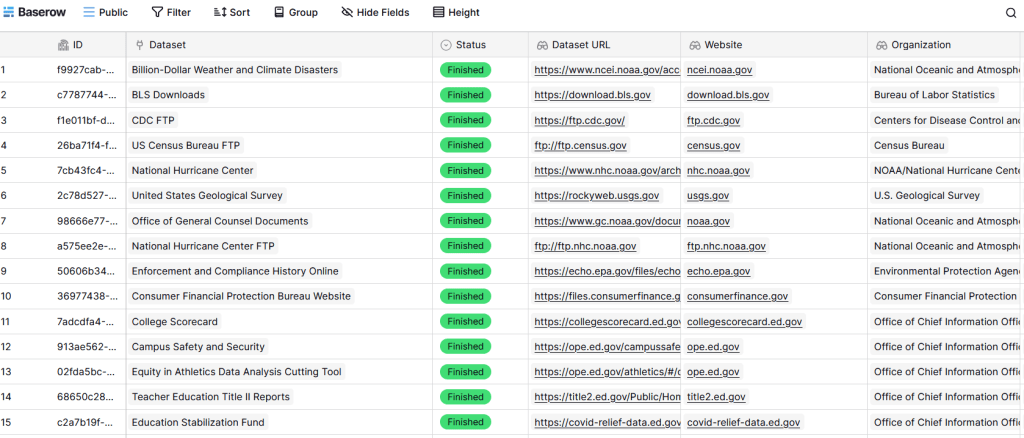
The first goal is to keep track of what the other archiving projects are, and what they have saved. To this end, they created the Data Rescue Tracker, which has two modules. The Downloads List is an archive of datasets that have been saved, with details about where the data came from and locations of archived copies. The Maintainers List is a catalog of all the different preservation projects, with links to their home pages. There is also a narrative page with a comprehensive list of links to the various rescue efforts, data repositories, alternate sources for government data, and tools and resources you can use to save and archive data.

The Data Rescue Tracker Downloads List

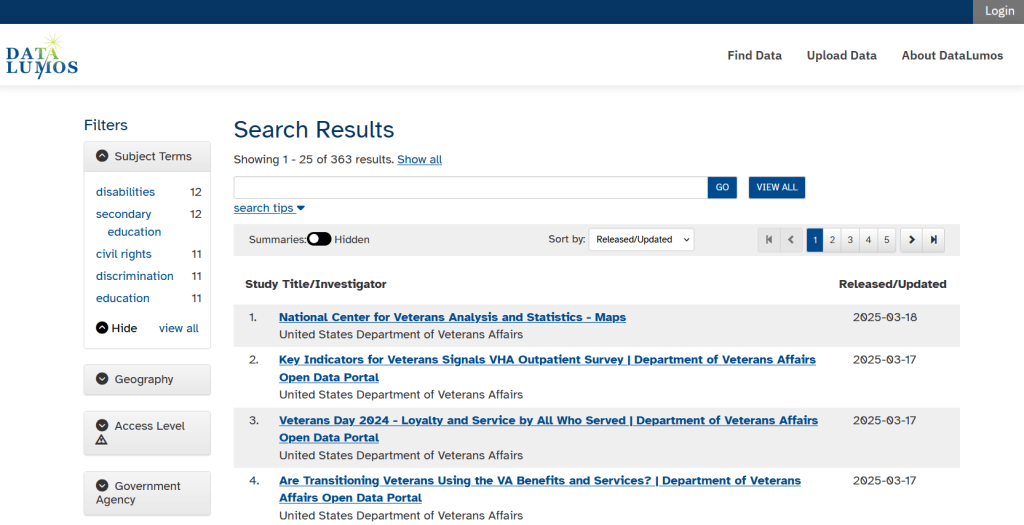
The second goal is to contribute to the effort of saving and archiving data. The team maintains an online spreadsheet with tabs for agencies that contain lists of datasets and URLs that are currently prioritized for saving. Volunteers sign up for a dataset, and then go out and get it. Some folks are manually downloading and saving files (pointing and clicking), while others write short screen scraping scripts to automate the process. The Data Rescue Project has partnered with ICPSR, a preeminent social science research center and repository in the US, at the University of Michigan. They created a repository called DataLumos, which was launched specifically for hosting extracts of US federal government data. Once data is captured, volunteers organize it and generate metadata records prior to submitting it to DataLumos (provided that the datasets are not too big).

DataLumos archive for federal government datasets, maintained by ICPSR

Most of the datasets that DRP is focused on are related to the social sciences and public policy. The Data Rescue Project coordinates with the Environmental and Government Data Initiative and the Public Environmental Data Partners (which I believe are driven by non-profit and academic partners), who are saving data related to the environment and health. They have their own workflows and internal tracking spreadsheets, and are archiving datasets in various places depending on how large they are. Data may be submitted to the Internet Archive, the Harvard Dataverse, GitHub, SciOp, and Zenodo (you can find out where in the Data Rescue Tracker Download’s List).

Mega Projects

There are different approaches for tackling these data preservation efforts. For the Data Rescue Project and related efforts, it’s like attacking the problem with millions of ants. Individual people are coordinating with one another in thousands of manual and semi-automated download efforts. A different approach would be to attack the problem with a small herd of elephants, who can employ larger resources and an automated approach.

For example, the Harvard Law School Library Innovation Lab launched the Archive of data.gov, a large project to crawl and download everything that’s in data.gov, the US federal government’s centralized data repository. It mirrors all the data files stored there and is updated regularly. The benefit of this approach is that it captures a comprehensive amount of data in one go, and can be readily updated. The primary limitation is that there are many cases where a dataset is not actually stored in data.gov, but is referenced in a catalog record with a link that goes out to a specific agency’s website. These datasets are not captured with this approach.

If trying to find back-ups is a bit bewildering, there’s a tool that can help. Boston University’s School of Public Health and Center for Health Data Science have created a find lost* data search engine, which crawls across the Harvard Project, DataLumos, the Data Rescue Project, and others.

Beyond the immediate data preservation projects that have sprung up recently, there are a number of large, on-going projects that serve as repositories for current and historical datasets. Some, like IPUMS at the University of Minnesota and the Election Lab at MIT focus on specific datasets (census data for the former, election results data for the latter). There are also more heterogeneous repositories like ICPSR (including OpenICPSR which doesn’t require a subscription), and university-based repositories like the Harvard Dataverse (which includes some special collections of federal data extracts, like CAFE). There are also private-sector partners that have an equal stake in preserving and providing access to government data, including PolicyMap and the Social Explorer.

Wrap-up

I’ve been practicing my Python screen scraping skills these past few months, and will share some tips in a subsequent post. I’ve been busy contributing data to these projects and coordinating a response on my campus. We’ve created a short list of data archives and alternative sources, which captures many of the sources I’ve mentioned here plus a few others. My library colleagues in the health and medical sciences have created a list of alternatives to government medical databases including PubMed and ClinicalTrials.gov

Having access to a public and robust federal statistical system is a non-partisan issue that we should all be concerned about. Our Constitution justifies (in several sections) that we should have such a system, and we have a large body of federal laws that require it. Like many other public goods, the federal statistical system contributes to providing a solid foundation on which our society and economy rest, and helps drive innovation in business, policy, science, and medicine. It’s up to us to protect and preserve it.

Sample of Geolocated Tweets Nov 1, 2022

Parsing the Internet Archive’s Twitter Stream Grab with Python

In this post I’ll share a process for getting geo-located tweets from Twitter, using large files of tweets archived by the Internet Archive. These are tweets where the user opted to have their phone or device record the longitude and latitude coordinates for their location, at the time of the tweet. I’ve created some straightforward scripts in Python without any 3rd party modules for processing a daily file of tweets. Given all the turmoil at Twitter in early 2023, most of the tried and true solutions for scraping tweets or using their APIs no longer function. What I’m presenting here is one, simple solution.

Social media data is not my forte, as I specialize in working with official government datasets. When such questions turn up from students, I’ve always turned to the great Web Scraping Toolkit developed by our library’s Center for Digital Scholarship. But the graduate student I was helping last week and I discovered that both the Twint and TAGS tools no longer function due to changes in Twitter’s developer policies. Surely there must be another solution – there are millions of posts on the internet that show how easy it is to grab tweets via R or Python! Alas, we tried several alternatives to no avail. Many of these projects rely on third party modules that are deprecated or dodgy (or both), and even if you can escape from dependency hell and get everything working, the changed policies rendered them moot.

You can register under Twitter’s new API policy and get access to a paltry number of records. But I thought – surely, someone else has scraped tons of tweets for academic research purposes and has archived them somewhere – could we just access those? Indeed, the folks at Harvard have. They have an archive of geolocated tweets in their dataverse repository, and another one for political tweets. They are also affiliated with a much larger project called DocNow with other schools that have different tweet archives. But alas, there are rules to follow, and to comply with Twitter’s license agreement Harvard and these institutions can’t directly share the raw tweets with anyone outside their institutions. You can search and get IDs to the tweets, using their Hydrator application, which you can use in turn to get the actual tweets. But then in small print:

“Twitter’s changes to their API which greatly reduce the amount of read-only access means that the Hydrator is no longer a useful application. The application keys, which functioned for the last 7 years, have been rescinded by Twitter.”

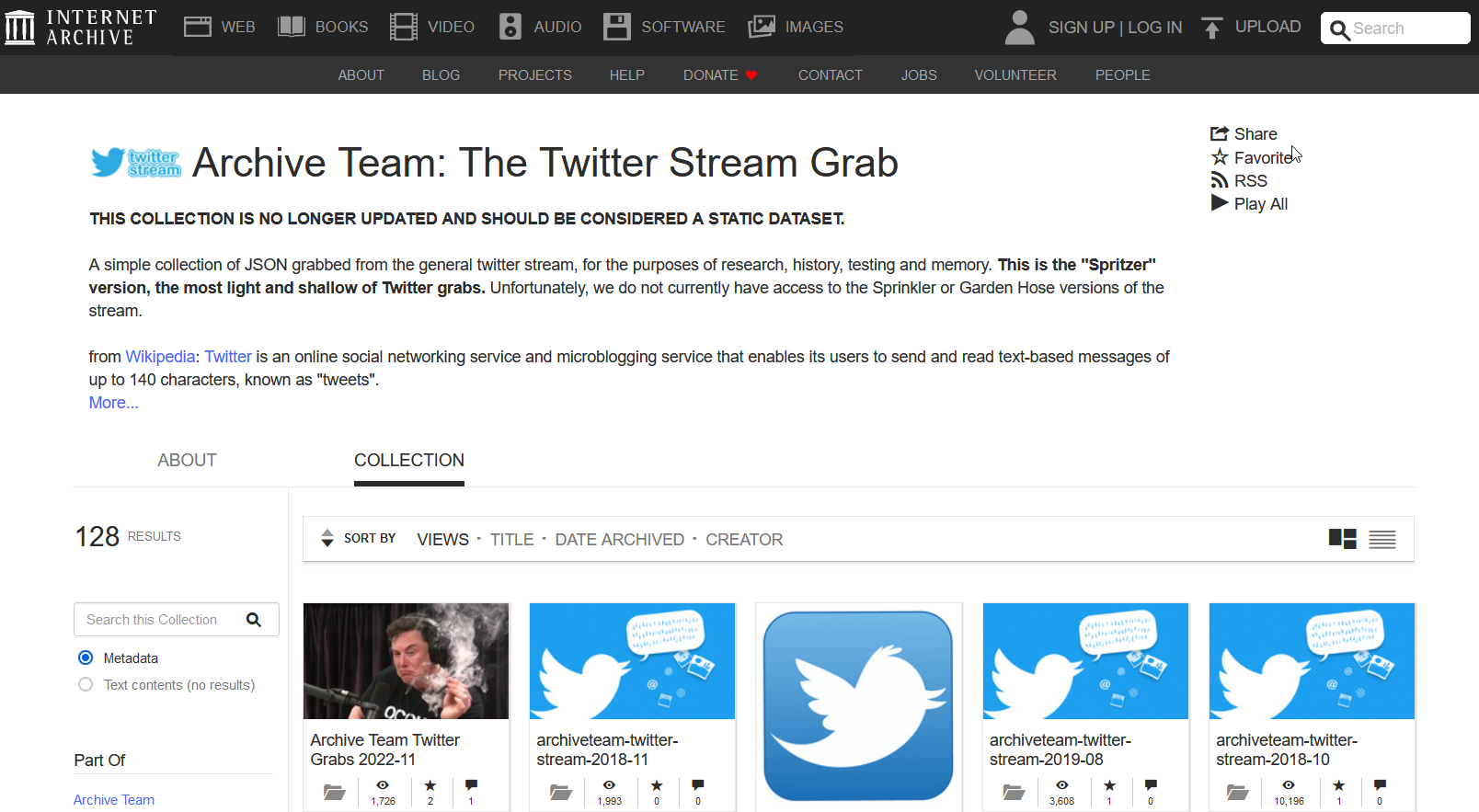
Fortunately, there is the Internet Archive, which has been working to preserve pieces of the internet for posterity for several decades. Their Twitter Stream Grab consists of monthly collections of daily files for the past few years, from 2016 to 2022. This project is no longer active, but there’s a newer one called the Twitter Archiving Project which has data from 2017 to now. I didn’t investigate this latter one, because I wasn’t sure if it provided the actual tweets or just metadata about them, while the older project definitely did. The IA describes the Stream Grab as the “spritzer” version of Twitter grabs (as opposed to a sprinkler or garden hose). Thanks to the internet, it’s easy to find statistics but hard to find reliable ones – this one, credible looking source (the GDELT Project) suggests that there are between 400 and 500 million tweets a day in recent years. The file I downloaded from IA for one day had over 4 million tweets, so that’s about 1% of all tweets.

I went into the November 2022 collection and downloaded the file for Nov 1st. It’s a TAR file that’s about 3 GB. Unzipping it gives you a folder for that data named for the date, with hundreds of gz ZIP files. Unzip those, and you have tons of JSON Line files. These are JSON files where each JSON record has been collapsed into one line.

Internet Archive Twitter Stream Grab

Python to the rescue. See GitHub for the full scripts – I’ll just add some snippets here for illustration. I wrote two scripts: the first reads in and aggregates all the tweets from the JSONL files, parses them into a Python dictionary, and writes out the geo-located records into regular JSON. The second reads in that file, selects the elements and values that we want into a list format, and writes those out to a CSV. The rationale was to separate importing and parsing from making these selections, as we’re not going to want to repeat the time-consuming first part while we’re tweaking and modifying the second part.

In the sample data I used for 11/01/2022, unzipping the downloaded TAR file gave me a date folder, and in that date folder were hundreds of gz ZIP files. Unzipping those revealed the JSONL files. I wrote the script to look in that date folder, one level below the folder that holds the scripts, and read in anything that ended with .json. Not all of the Internet Archive’s stream’s are structured this way; if your downloads are structured differently, you can simply move all the unzipped json files to one directory below the script to read them. Or, you can modify the script to iterate through sub-directories.

Because the data was stored as JSONL, I wasn’t able to read it in as regular JSON. I read each line as a string that I appended to a list, iterated through that list to convert it into a dictionary, pulled out the records that had geo-located elements, and added those records to a larger dictionary where I used an identifier in the record as a key and the value as a dictionary with all elements and values for a tweet. This gets written out as regular JSON at the end. Reading the data in didn’t take long; parsing the strings into dictionaries was the time consuming part. Originally, I wanted to parse and save all 4 million records, but the process stalled around 750k as I ran out of memory. Since so few records are geo-located, just selecting these circumvented this problem. If you wanted to modify this part to get other kinds of records, you would need to apply some filter, or implement a more efficient process than what I’m using.

json_list=[] # list of lists, each sublist has 1 string element = 1 line

for f in os.listdir(json_dir):
    if f.endswith('.json'):
        json_file=os.path.join(json_dir,f)
        with open(json_file,'r',encoding='utf-8') as jf:
            jfile_list = list(jf) # create list with one element, a line saved as a string 
            json_list.extend(jfile_list)
            print('Processed file',f,'...')

geo_dict={} # dictionary of dicts, each dict has line parsed into keys / values
i=0   
for json_str in json_list:
    result = json.loads(json_str) # convert line / string to dict
    if result.get('geo')!=None: # only take records that were geocoded
        geo_dict[result['id']]=result 
    i=i+1
    if i%100000==0:
        print('Processed',i,'records...')

The second script reads the JSON output from the first, and simply iterates through the dictionary and chooses the elements and values I want and assigns them to variables. Some of these are straightforward, such as grabbing the timestamp and tweet. Others required additional work. The source element provides HTML code with a source link and name, so I split and strip this value to get them separately. The coordinates are stored as a list, so to get longitude and latitude as separate values I indicate the list position. In cases where I’m delving into a sub-dictionary to get a value (like the coordinates), I added if statements to set values to None if they don’t exist in the JSON, otherwise you get an error. Once I finish iterating, I append all these variables to a list, and add this list to the main one that captures every record. I create a matching header row list, and both are written out as a CSV.

with open(input_json) as json_file:
    twit_data = json.load(json_file)

twit_list=[]

# In this block, select just the keys / values to save
for k,v in twit_data.items():
    tweet_id=k
    timestamp=v.get('created_at')
    tweet=v.get('text')
    # Source is in HTML with anchors. Separate the link and source name
    source=v.get('source') # This is in HTML
    source_url=source.split('"')[1] # This gets the url
    source_name=source.strip('</a>').split('>')[-1] # This gets the name
    lang=v.get('lang')
    # Value for long / lat is stored in a list, must specify position
    if v['geo'] !=None:
        longitude=v.get('geo').get('coordinates')[1]
        latitude=v.get('geo').get('coordinates')[0]
    else:
        longitude=None
        latitude=None
...

My code could use improvement – much of this could be abstracted into a function to avoid repetition. We were in a hurry, and I’m also working with folks who need data but aren’t necessarily familiar with Python, so something that’s inefficient but understandable is okay (although I will polish this up in the future).

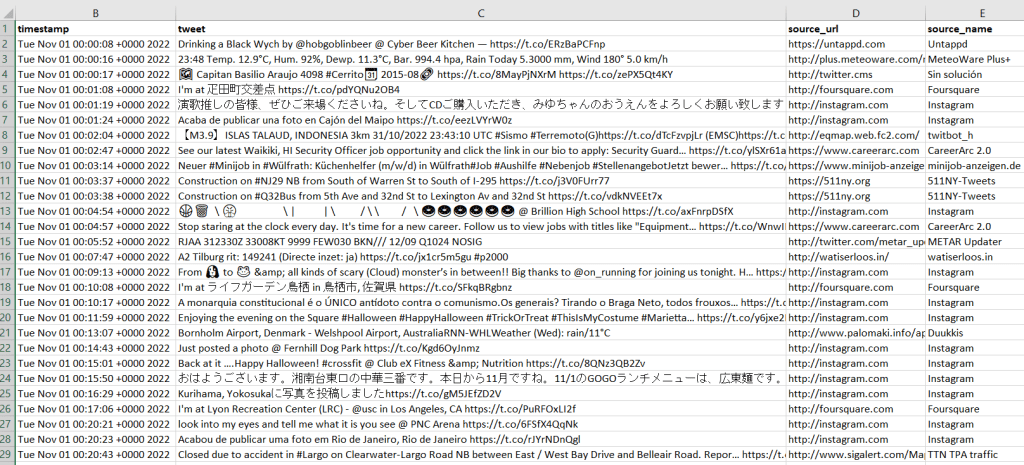
I provide the output in GitHub, examples of the final CSV appear below. Every language in the world is captured in these tweets, so Windows users need to import the CSV into Excel (Data – From Text/CSV) and choose UTF-8 encoding. Double-clicking the CSV to open it in Excel in Windows will render most of the text as junk, in the default Windows-1252 encoding.

Tweets extracted from Internet Archive with timestamp, tweets, and source information
Geolocated Twitter Data 1
Tweets extracted from Internet Archive, showing geo-located information

So, is this data actually useful? That’s an open question. Of the 4 million tweets in this file, just over 1,158 were geo-located! I checked and this is not a mistake. The metadata record for the Harvard geolocated tweets mentions that only 1% to 2% of all tweets are geo-located. So of the 400 million daily tweets, only 4 million. And out of our daily 4 million sample from IA, just 1,158 (less than 1%). What we ended up with does give you a sense of variety and global coverage (see map at the top of the post, showing sample of tweets by language Nov 1, 2022). In this sample, the top five countries represented were: US (35%), Japan (17%), Brazil (4%), UK (4%), Mexico and Turkey (tied 3%). For languages, the top five: English (51%), Japanese (17%), Spanish (9%), Portuguese (5%), and Turkish (3%).

In many cases, I think you’d need a larger sample than a single day, assuming you’re interested in just geo-located records. Perhaps 4 million is large enough for certain non-spatial research? Again, not my area of expertise, but you would want to be aware of events that happened on a certain date that would influence what was tweeted. My graduate student wanted to see differences in certain kinds of tweets in the LA metro area versus the rest of the US, but this sample includes less than 20 tweets from LA. To do anything meaningful, she’d have to download and process a whole month of tweets (at least). Even then, there are certain tweeters that show up repeatedly in given areas. In NYC, most of the tweets on this date were from the 511 service, warning people where that day’s potholes were.

Beyond the location of the tweet, there is a lot of information about the user, including their self-reported location. This data is available in all tweets (not just the geo-located ones). But there are a lot problems with this attribute: the user isn’t necessarily tweeting from that location, as it represents their “static” home. This location is not geocoded, and it’s self reported and uncontrolled. In this example, some users dutifully reported their home as ‘Cleveland, OH’ or ‘New York City’. Other folks listed ‘NYC – LA – ATL – MIA’, ‘CIUDAD DE LAS BAJAS PASIONES’, ‘H E L L’, and ‘Earth. For now’.

Even for research that incorporated geo-located tweets from other, larger data sources that were previously accessible, how representative are all those studies when the data represents only 1% of the total tweet volume? I am skeptical. Also consider the information from the good folks at the Pew Research Center, that tells us that only one in five US adults use Twitter, and that the minority of Twitter users generate the vast majority of tweets: “The top 25% of US users by tweet volume produce 97% of all tweets, while the bottom 75% of users produce just 3%” (10 Facts About Americans and Twitter May 5, 2022).

For what’s it worth, if you need access to Twitter data for academic, non-commercial research purposes and the old methods aren’t working, perhaps the Internet Archive’s data and the solution posed here will fit the bill. You can see the geo-located output (JSON and CSV) from this example in the GitHub repo’s output folder. There is also a samples folder, which contains JSON and CSV for about 77k records that include both geo-located and non-geolocated examples. Looking at the examples can help you decide how to modify the scripts, to pull out different elements and values of interest.

Screen Scraping Data with Python

I had a request recently for population centers (aka population centroids) for all the counties in the US. The Census provides the 2010 centroids in state level files and in one national file for download, but the 2000 centroids were provided in HTML tables on individual web pages for each state. Rather than doing the tedious work of copying and pasting 51 web pages into a spreadsheet, I figured this was my chance to learn how to do some screen scraping with Python. I’m certainly no programmer, but based on what I’ve learned (I took a three day workshop a couple years ago) and by consulting books and crawling the web for answers when I get stuck, I’ve been able to write some decent scripts for processing data.

For screen scraping there’s a must-have module called Beautiful Soup which easily let’s you parse web pages, well or ill-formed. After reading the Beautiful Soup Quickstart and some nice advice I found on a post on Stack Overflow, I was able to build a script that looped through each of the state web pages, scraped the data from the tables, and dumped it into a delimited text file. Here’s the code:

## Frank Donnelly Feb 29, 2012
## Scrapes 2000 centers of population for counties from individual state web pages
## and saves in one national-level text file.

from urllib.request import urlopen
from bs4 import BeautifulSoup

output_file=open('CenPop2000_Mean_CO.txt','a')
header=['STATEFP','COUNTYFP','COUNAME','STNAME','POPULATION','LATITUDE','LONGITUDE']
output_file.writelines(",".join(header)+"n")

url='http://www.census.gov/geo/www/cenpop/county/coucntr%s.html'

fips=['01','02','04','05','06','08','09','10',
'11','12','13','15','16','17','18','19','20',
'21','22','23','24','25','26','27','28','29','30',
'31','32','33','34','35','36','37','38','39','40',
'41','42','44','45','46','47','48','49','50',
'51','53','54','55','56']

for i in fips:
  soup = BeautifulSoup(urlopen(url %i).read())
  titleTag = soup.html.head.title
  list=titleTag.string.split()
  name=(list[4:])
  state=' '.join(name)  
 
  for row in soup('table')[1].tbody('tr'):
    tds = row('td')
    line=tds[0].string, tds[1].string, tds[2].string, state, 
    tds[3].string.replace(',',''), tds[4].string, tds[5].string

    output_file.writelines(",".join(line)+"n")     

output_file.close()

After installing the modules step 1 is to import them into the script. I initially got a little stuck here, because there are also some standard modules for working with urls (urllib and urlib2) that I’ve seen in books and other examples that weren’t working for me. I discovered that since I’m using Python 3.x and not the 2.x series, something had changed recently and I had to change how I was referencing urllib.

With that out of the way I created a a text file, a list with the column headings I want, and then wrote those column headings to my file.

Next I read in the url. Since the Census uses a static URL that varies for each state by FIPS code, I was able to assign the URL to a variable and inserted the % symbol to substitute where the FIPS code goes. I created a list of all the FIPS codes, and then I run through a loop – for every FIPS code in the list I pass that code into the url where the % place holder is, and process that page.

The first bit of info I need to grab is the name of the state, which doesn’t appear in the table. I grab the title tag from the page and save it as a list, and then grab everything from the fourth element (fifth word) to the end of the list to capture the state name, and then collapse those list elements back into one string (have to do this for states that have multiple words – New, North, South, etc.).

So we go from the HTML Title tag:

County Population Centroids for New York

To a list with elements 0 to 5:

list=[“County”, “Population”, “Centroids”, “for”, “New”, “York”]

To a shorter list with elements 4 to end:

name=[“New”,”York”]

To a string:

state=”New York”

But the primary goal here is to grab everything in the table. So we identify the table in the HTML that we want – the first table in those pages [0] is just an empty frame and the second one [1] is the one with the data. For every row (tr) in the table we can reference and grab each cell (td), and string those cells together as a line by referencing them in the list. As I string these together I also insert the state name so that it appears on every line, and for the third list element (total population in 2000) I strip out any commas (numbers in the HTML table included commas, a major no-no that leads to headaches in a csv file). After we grab that line we dump it into the output file, with each value separated by a comma and each record on it’s own line (using the new line character). Once we’ve looped through each table on each page for each state, we close the file.

There are a few variations I could have tried; I could have read the FIPS codes in from a table rather than inserting them into the script, but I preferred to keep everything together. I could have read the state names in as a list, or coupled them with the codes in a dictionary. This would have been less risky then relying on the state name in the title tag, but since the pages were well-formed and I wanted to experiment a little I went the title tag route. Instead of typing the codes in by hand I used Excel trickery to concatenate commas to the end of each code, and then concatenated all the values together in one cell so I could copy and paste the list into the script.

You can go here to see an individual state page and source, and here to see what the final output looks like. Or if you’re just looking for a national level file of 2000 population centroids for counties that you can download, look no further!