library services

Python Screen Scraping Code

Screen Scraping Government Data with Python

In my previous post, I summarized several efforts to rescue and preserve US federal government datasets that are being removed from the internet. In this post, I’ll provide a basic primer on screen scraping with Python, which is what I’ve used to capture datasets in participating in the Data Rescue Project. Screen scraping can employed to many ends, such as capturing text on web pages so it can be analyzed, or taking statistics embedded in HTML tables and saving them in machine readable formats. In the context of this post, screen scraping is an approach for downloading data and documentation files stored on websites.

There are several benefits to using a scripting approach for this work. It saves you from the tedious task of clicking and downloading files one by one. The script serves as documentation for what you did, and allows you to easily repeat the process in the future, if the datasets continue to exist and are updated. A scripted, screen-scraping approach may not be best or necessary if the website and datasets are relatively small and simple, or conversely if the site is complicated and difficult to scrape given the technology it employs. In both cases, manual downloading may be quicker, especially with a team of volunteers. Furthermore, if it seems clear that the dataset or website are not going to be updated, or are going to vanish, then the benefit of repeating the process in the future is moot.

In this example, we’ll assume that screen scraping is the way to go, and we’ll use Python to do it. I’ll address a few alternatives to this approach at the end, the primary one being using an API if and when it’s available, and will share links to working code that colleagues and I have written to save datasets.

You should only apply these approaches to public, open data. Capturing restricted or proprietary information violates licenses, terms of service, and in some cases privacy constraints, and is not condoned by any of the rescue projects. Even if the data is public, bear in mind that scraping can put undue pressure on web servers. For large websites, plan accordingly by building pauses into the process, breaking up the work into segments, or running programs at non-peak times (overnight). When writing and testing scripts, don’t repeat the process over and over again on the entire website; run your tests on samples until you get everything working.

Screen Scraping Basics

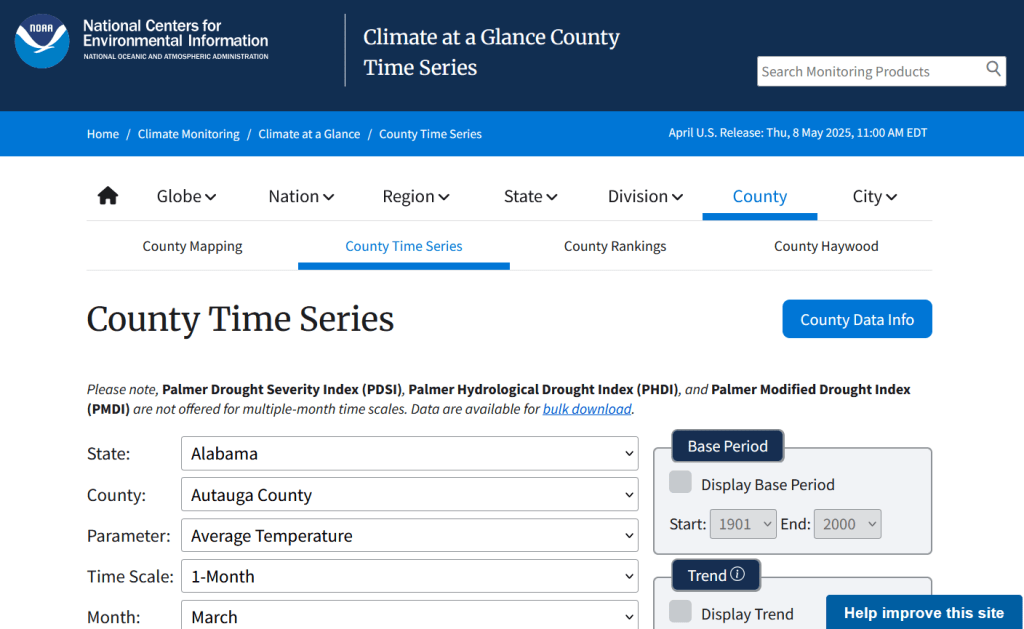
The first step is to explore the website where the data is hosted, to identify the best pages to use as a source and determine the feasibility of the approach. Many websites will have feature rich, user friendly pages that make it easy to view extracts of data and visualize it, such as the NOAA climate website below.

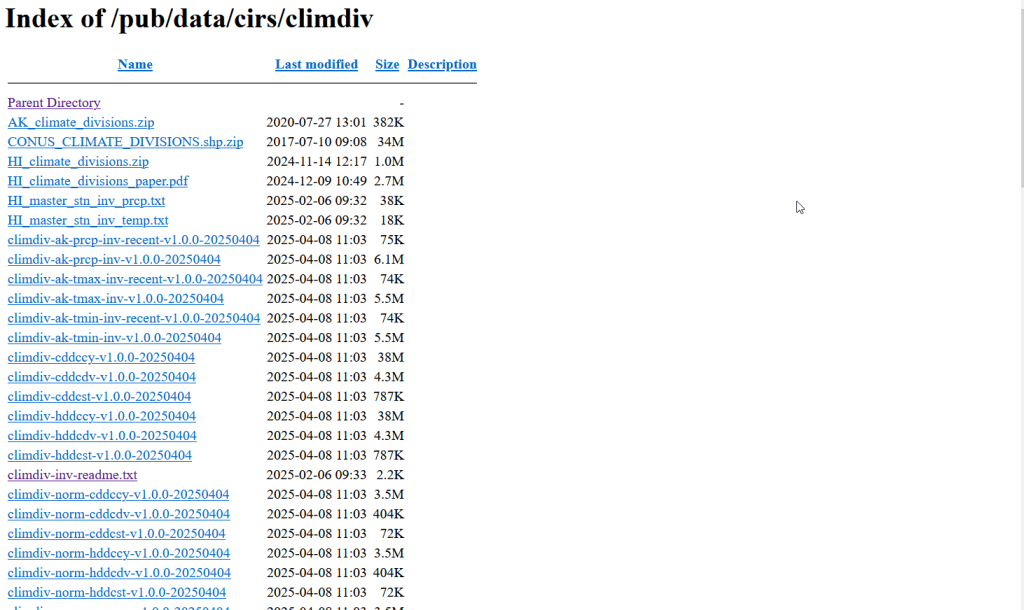
While easy to use, these pages can be complex and tedious to scrape. Always look for an option for bulk downloading datasets. They may lead you to a page sitting behind the scenes of the fancy website, such as the NOAA file directory below. Saving data from a page like this is fairly straightforward.

For the benefit of those of you who are not 1990s era people like myself and may not be familiar with working with HTML, the example below illustrates a simple webpage. With any browser, you can right click on a page and View the Source, to see the HTML code and stylesheets behind the page, which the browser processes and renders to display the site. HTML is a markup language where text is enclosed in tags that tell us something about the content within the tags, and which can be used for displaying the content in different ways. HTML is also hierarchical, so that content can be nested. For example, there is a head section that contains preliminary content about the page, and a body section that encloses the main content. Within the body there can be divisions, and anchor tags that represent links. In this example, one of these anchors is a link to a data file that we want to download.

<html>
<head>
    <title>Example Webpage</title>
</head>
<body>
    <div class='content'>
        <p>Paragraph with text.</p>
        <a href='https://www.page.gov/data.zip'/>
        <a href='https://www.page.gov/page.html'/>
    </div>
</body>
</html>

We can use Python to parse these tags and pull out desired content. There are four core modules I always use: Requests for downloading content, os for creating folders and working with paths, Beautiful Soup for screen scraping, and datetime for creating time stamps. In the code below, we begin by importing the modules and saving the url of the page we wish to scrape as a variable.

In most Python environments (unless you’ve modified some settings) it’s assumed that your current working directory is the folder where your Python script is stored. When you download files, they will automatically be stored in that folder. To keep things tidy, I always create a subfolder named with the date; I use the date function from datetime to retrieve today’s date, append that date to the word “downloaded-‘, and use the os module to create a subfolder with that name. If we run the program at a later date it will save everything in a new folder, rather than overwriting existing files.

import requests, os
from bs4 import BeautifulSoup as soup
from datetime import date

url='https://www.page.gov'

today = str(date.today())
outfolder='downloaded-'+today
if not os.path.exists(outfolder):
    os.makedirs(outfolder)
    
webpage=requests.get(url).content
soup_page=soup(webpage,'html.parser')
page_title = soup_page.title.text
container=soup_page.find('div',{'class':'content'})
links=container.findAll('a')

The final block in this example captures data from the website. We use requests to get the content stored at the url (the webpage), and then we pass this to Beautiful Soup, which parses all the HTML using their tags. Once parsed, we can retrieve specific objects. For example, we can save the page title (the text that appears in the heading of your browser for a particular site) as a variable. We also grab the section of the page that contains the links we want to capture by looking for a specific div or id tag. This isn’t strictly necessary for simple pages like this one, but speeds up processing for larger, more complex pages. Lastly, we can search through that specific container to find all the anchor tags, or links.

Once we have the links, we loop through and save the ones we want. My preference is to store them in a dictionary as key / value pairs, where the key is the name of the file, and the value is the file’s URL. We iterate through the links we saved, and with the soup we determine if the link has an ‘href’ attribute. If it does, we see if it ends with .zip, which is the data file. This skips any link that’s not a file we want, including links that go to other webpages as opposed to files. In practice, I provide a list of several file types here such as .zip, .csv, .txt, .xlsx, .pdf, etc to capture anything that could be data or documentation. If we find the zip, we split the link’s attributes from one string of text into a list of strings that are separated by the backslash, and grab the last element, which is the name of the file. Lastly, we add this to our datalinks dictionary; in this example, we’d have: {'data.zip':'https://www.page.gov/data.zip'}.

datalinks={}

for lnk in links:
    if 'href' in lnk.attrs:
        if lnk.attrs['href'].endswith(('.zip')):
            fname=lnk.attrs['href'].split('/')[-1]
            datalinks[fname]=lnk.attrs['href']

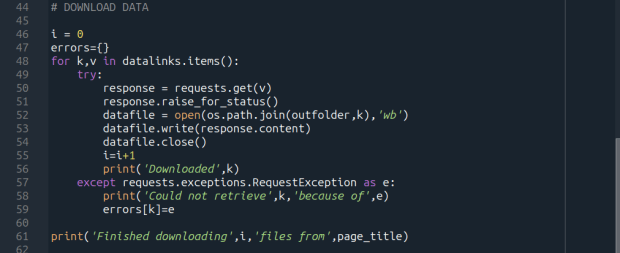
Time to download! We loop through each key (file name) and value (url) in our dictionary. We use the requests module to try and get the url (v), but if there’s a problem with the website or the link is invalid we bail out. If successful, we use the os module to go to our output folder and we supply the name of the file from the website (k) as the name of the file that we want to store on our computer. The ‘wb’ parameter specifies that we’re writing bytes to a file. I always like to keep count of the number of files I’ve done with an iterator (i) so I can print messages to a screen or a log file.

i = 0 
for k,v in datalinks.items():
    try:
        response=requests.get(v)
        response.raise_for_status()
        dfile=open(os.path.join(outfolder,k),'wb')
        dfile.write(response.content)
        dfile.close()
        i=i+1
        print('Downloaded',k)
    except requests.exceptions.RequestException as e:
        print('Could not get',k,'because of',e)
print('Downloaded',i,'files from',page_title)

It’s important to save documentation too, so people can understand how the data was created and structured. In addition to saving pdf and text files, you can also save a vanilla copy of the website; I use a generic name with a date stamp. This saves the basic HTML text of the page, but not any images, documents, or styling. Which is usually good enough for providing documentation.

wfile = '_WEBPAGE-{}.html'.format(today)
writefile=open(os.path.join(outfolder,wfile),'wb')
writefile.write(webpage)
writefile.close()

As mentioned previously, you don’t want to place undue burden on the webserver. With the time module, you can use the sleep function and add a pause to your script for a fixed amount of time, usually at the end of a loop, or after your iterator has recorded a certain number of files. The random module allows you to supply a random time value within a range, if you want to vary the length of the pause.

import time
from random import randint

# Pause fixed amount
time.sleep(5)

# Pause random amount within a range
time.sleep(randint(10,20))

Screen Scraping Caveats

Those are the basics! Now here are the primary exceptions. The first problem is that links to files may not be absolute links that contain the entire path to a file. Sometimes they’re relative, containing a reference to just the subfolder and file. The requests module won’t be able to find these, so we have to take the extra step of building the full path, as in the example below. You can do this by identifying what the relative path starts with (unless they’re all relative and the same), and you create the absolute by adding (concatenating) the root url and the relative one contained in the soup.

    <div class='content'>
        <p>Paragraph with text.</p>
        <a href='/us/data.zip'/>
    </div> 
url='https://www.page.gov'
datalinks={}
for lnk in links:
    if lnk.attrs['href'].endswith(('.zip')):
        if lnk.attrs['href'].startswith('/us/'):
            fname=lnk.attrs['href'].split('/')[-1]
            datalinks[fname]=url+lnk.attrs['href']
            ...

In other cases, a link to a data file may not lead directly to the file, but leads to another web page where that file is stored. We can embed another scraping block into a loop; retrieve and start scraping the main page, then once you find a link go to that page, and repeat retrieval and scraping. In these cases, it’s best to save these steps in a function, so you can call the function multiple times instead of repeating the same code.

<div class='content'>
        <p>Paragraph with text.</p>
        <a href='https://www.page.gov/us/'>
 </div>

Some websites will have dedicated pages where they embed a parameter in the url, such as codes for countries or states. If you know what these are, you can define them in a list, and iterate through that list by formatting the url to insert the code, and then scrape that page. If a page uses a unique integer as an ID and you know what the upper limit is, you can use for i in range(1,n) to step through each page (but make sure you handle exceptions, in case an integer isn’t used or is missing).

codes=['us','ca','mx']
url='https://www.page.gov/{}'
for c in codes:
    webpage=requests.get(url.format(c)).content
    soup_page=soup(webpage,'html.parser')
    ... 

For complicated sites with several pages, you might not want to dump all the files into the same folder. Instead, as you iterate through pages, you can create a dedicated folder for that iteration. Using the example above, if there is a page for each country code, you can create a folder for that code and when writing files, use the path module to store files in that folder for that iteration.

codes=['us','ca','mx']
for c in codes:
    ...
    cfolder=os.path.join(outfolder,c)
        if not os.path.exists(cfolder):
            os.makedirs(cfolder)
    ...
    response=requests.get(v)
        response.raise_for_status()
        dfile=open(os.path.join(cfolder,k),'wb')
        dfile.write(response.content)
        dfile.close()

For websites with lots of files, or with a few big files, you may run out of memory during the download process and your script will go kaput. To avoid this, you can stream a file in chunks instead of trying to download it in one go. Use the request module’s iter_content function, and supply a reasonable chunk size in bytes (10000000 bytes is 10 MB).

...
try:
    with requests.get(v,stream=True) as response:
        response.raise_for_status()
        fpath=os.path.join(outfolder,k)
        with open(fpath,'wb') as writefile:
            for chunk in response.iter_content(chunk_size=10000000):
                writefile.write(chunk)
    i=i+1
    print('Downloaded',k)
except requests.exceptions.RequestException as e:
        print('Could not get',fname,'because of',e) 

If you view the page source for a website, and don’t actually see the anchor links and file names in the HTML, you’re probably dealing with a page that employs JavaScript, which is a show stopper if you’re using Beautiful Soup. There may be a dropdown menu or option you have to choose first, in order to render the actual page (and you may be able to use the page parameters trick above, if the url on each page varies). But you may be stuck; instead of links, there may be download buttons you have to press or a dropdown menu option you have to choose in order to download the file.

One option would be to use a Python module called Selenium, which allows you to automate the process of using a web browser, to open a page, find a button, and click it. I’ve tried Selenium with some success, but find that it’s complex and clunky for screen scraping. It’s browser dependent (you’re automating the use of a browser, and they’re all different), and you’re forced to incorporate lots of pauses; waiting for a page to load before attempting to parse it, and dealing with pop up menus in the browser as you attempt to download multiple files, etc.

Another option that I’m not familiar with, and thus haven’t tried, would be to use JavaScript since that’s what the page uses. Most browsers have web developer console add-ons that allow you to execute snippets of JavaScript code in order to do something on a page. So some automation may be possible.

Using an API

You may be able to avoid scraping altogether if the data is made available via an API. With a REST API, you pass parameters into a base link to make a specific request. Using requests, you go to that URL, and instead of getting a web page you get the data that you’ve asked for, usually packaged in a JSON type object within your program (Python or another scripting language). Some APIs retrieve documents or dataset files, that you can stream and download as described previously. But most APIs for statistical data retrieve individual data records, which you would store in a nested list or dictionary and then write out to a CSV. The example below grabs the total population for four large cities in Rhode Island from 2020 decennial census public redistricting dataset.

import requests,csv

year='2020'
dsource='dec' # survey
dseries='pl' # dataset
cols='NAME,P1_001N' # variables
state='44' # geocodes for states
place='19180,54640,59000,74300' # geocodes for places
outfile='census_pop2020.csv'
keyfile='census_key.txt'

with open(keyfile) as key:
	api_key=key.read().strip()

base_url = f'https://api.census.gov/data/{year}/{dsource}/{dseries}'

# for sub-geography within larger geography - geographies must nest
data_url = f'{base_url}?get={cols}&for=place:{place}&in=state:{state}&key={api_key}'

response=requests.get(data_url)

popdata=response.json()
for record in popdata:
    print(record)
    
with open(outfile, 'w', newline='') as writefile:
    writer=csv.writer(writefile, quoting=csv.QUOTE_MINIMAL, delimiter=',')
    writer.writerows(popdata)

The benefit of an API is that it’s designed to retrieve machine readable data, and might be easier than scraping pages that have complex interfaces. The major downside is, if you’re forced to download individual records as opposed to entire files, the process can take a long time, to the point where it may be infeasible if the datasets are too large. It’s always worth checking to see if there is a bulk download option as that could be easier and more efficient (for example, the Census Bureau has an FTP site for downloading datasets in their entirety). Using an API also requires you to invest time in studying how it works, so you can build the appropriate links and ensure that you’re capturing everything.

Conclusion

Screen scraping will vary from website to website, but once you have enough examples it becomes easy to resample your code. You’ll always need to modify the Beautiful Soup step based on the structure of the individual pages, but the requests downloading step is more rote and may not require much modification. While I use Python, you can use other languages like R to achieve similar results.

Visit my library’s US Federal Government Data Backup GitHub for working examples of code that I and colleagues have used to capture datasets. In my programs I’ve added extra components, like writing a basic metadata file and error logs, which I haven’t covered in this post. The NOAA County at a Glance, IRS-SOI, and IMLS, scripts are basic examples, and the IMLS ones include some of the caveats I’ve described. The NOAA lake and sea level rise scripts are far more complex, and include cycling through many pages, creating multiple folders, streaming downloads, and encapsulating processes into functions. The USAID DHS Indicators scripts used APIs that retrieved files, while the USAID DHS SDR script used Selenium to step through a series of JavaScript pages.

You’ll find scripts but no datasets in the GitHub repo due to file size limitations. If you’re a member of an institution that has access to GLOBUS, you can access the data files by following the instructions at the top of the page. Otherwise, we’ve contributed all of our datasets to DataLumos (except for the sea level rise data, I’m working with another university to host that).

USAID DHS No Data Available

Rescuing US Government Data

There’s been a lot of turmoil emanating from Washington DC lately. One development that’s been more under the radar than others has been the modification or removal of US federal government datasets from the internet (for some news, see these articles in the New Yorker, Salon, Forbes, and CEN). In some cases, this is the intentional scrubbing or deletion of datasets that focus on topics the current administration doesn’t particularly like, such as climate and public health. In other cases, the dismemberment of agencies and bureaus makes data unavailable, as there’s no one left to maintain or administer it. While most government data is still available via functioning portals, most of the faculty and researchers I work with can identify at least a few series they rely on that have disappeared.

Librarians, archivists, researchers, professors, and non-profits across the country (and even in other parts of the world), have established rescue projects, where they are actively downloading and saving data in repositories. I’ve been participating in these efforts since January, and will outline some of the initiatives in this post.

The Internet Archive

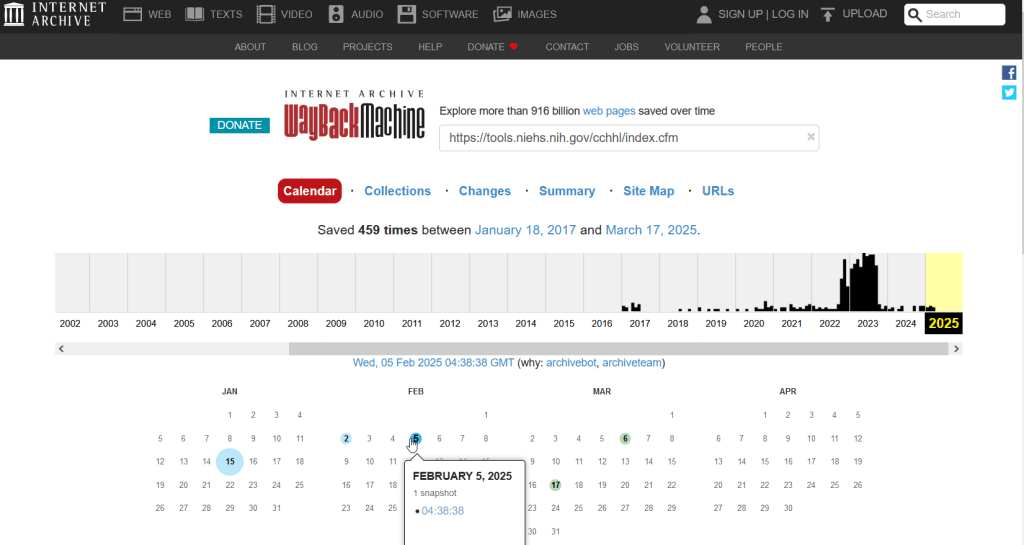
The place of last resort for finding deleted web content is the Internet Archive. This large, non-profit project has been around as long as the web has existed, with the goal of creating a historic archive of the internet. It uses web crawlers or spiders to creep across the web and make copies of websites. With the Wayback Machine, you can enter a URL and find previous copies of web pages, including sites that no longer exist. You’re presented with a calendar page where you can scroll by year and month to select a date when a page was captured, which opens up a copy.

A Wayback Machine search for https://tools.niehs.nih.gov/cchhl/index.cfm. Blue circles on the calendar indicate when the page was captured.

This allows you to see the content, navigate through the old website, and in many cases download files that were stored on those pages. It’s a great resource, but it can’t capture everything; given the variety and complexity of web pages and evolving web technologies, some websites can’t be saved in working order (either partially or entirely). Content that was generated and presented dynamically with JavaScript, or was pulled and presented from a database, is often not preserved, as are restricted pages that required log-ins.

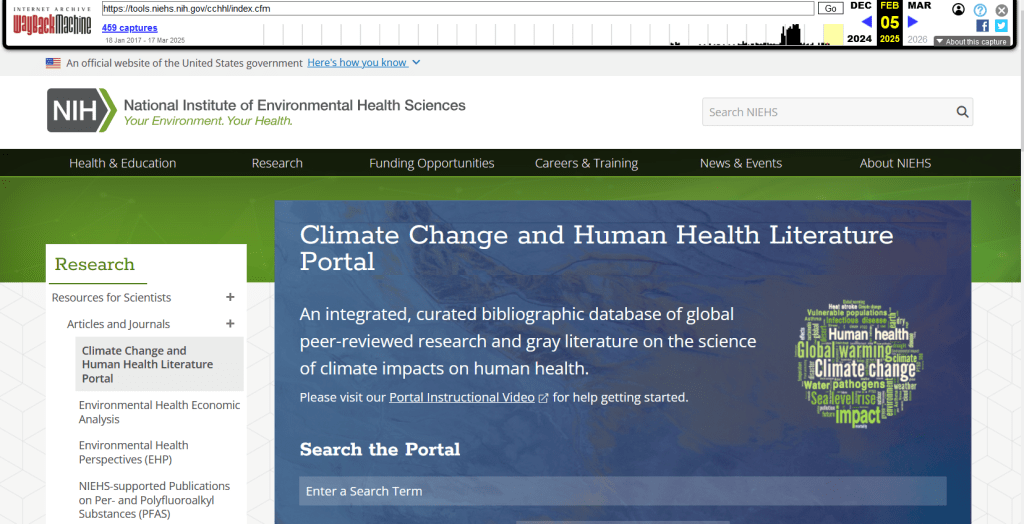
An archived copy of the NIEHS page (the actual website was deleted in mid February 2025)

The Internet Archive also hosts a number of special collections where folks have saved documents, images, sound and video, and software. For example, you can find many research articles that are available in PubMed from the PubMed Central collection, a ton of documents from the USDA’s National Agricultural Library, and about 100 GB of data someone captured from the CDC in January 2025. A large project called the End of Term Archive was launched in 2008 to capture what federal government websites looked like at the end of each presidential term. The pages are saved in a special collection in the IA.

Data Rescue Project

Dozens of new data archiving projects were launched at the end of 2024 and beginning of 2025 with the intention of saving federal datasets. The Data Rescue Project is one of the larger efforts, which has been driven by data librarians and archivists with non-profit partners. Professional groups including IASSIST, ICPSR, RDAP, the Data Curation Network, and the Safeguarding Research & Culture project have been active organizers and participators. While this will be an oversimplification, I’ll summarize the project as having two goals

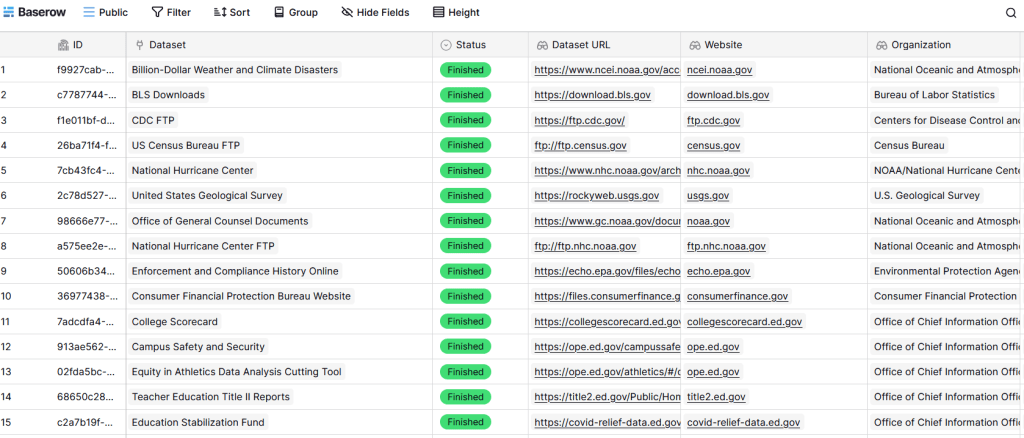
The first goal is to keep track of what the other archiving projects are, and what they have saved. To this end, they created the Data Rescue Tracker, which has two modules. The Downloads List is an archive of datasets that have been saved, with details about where the data came from and locations of archived copies. The Maintainers List is a catalog of all the different preservation projects, with links to their home pages. There is also a narrative page with a comprehensive list of links to the various rescue efforts, data repositories, alternate sources for government data, and tools and resources you can use to save and archive data.

The Data Rescue Tracker Downloads List

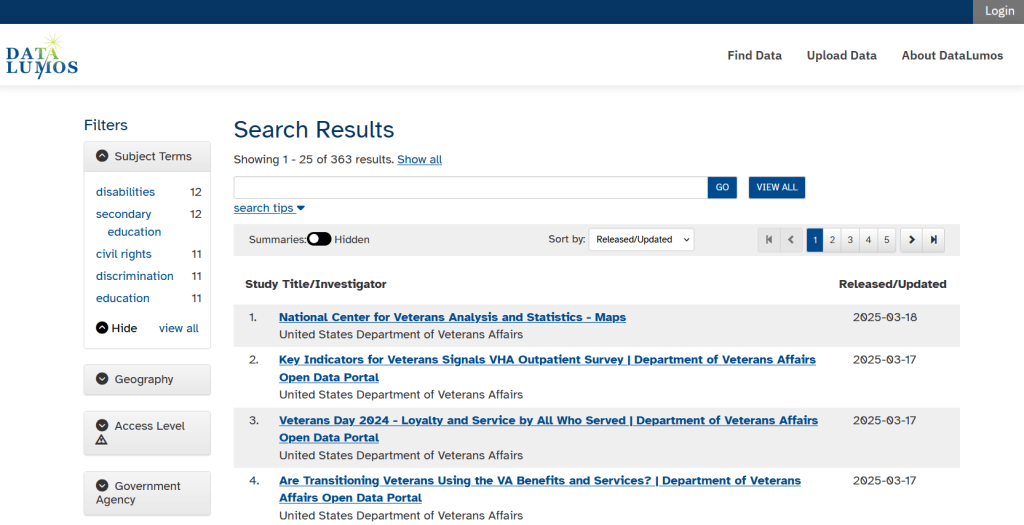
The second goal is to contribute to the effort of saving and archiving data. The team maintains an online spreadsheet with tabs for agencies that contain lists of datasets and URLs that are currently prioritized for saving. Volunteers sign up for a dataset, and then go out and get it. Some folks are manually downloading and saving files (pointing and clicking), while others write short screen scraping scripts to automate the process. The Data Rescue Project has partnered with ICPSR, a preeminent social science research center and repository in the US, at the University of Michigan. They created a repository called DataLumos, which was launched specifically for hosting extracts of US federal government data. Once data is captured, volunteers organize it and generate metadata records prior to submitting it to DataLumos (provided that the datasets are not too big).

DataLumos archive for federal government datasets, maintained by ICPSR

Most of the datasets that DRP is focused on are related to the social sciences and public policy. The Data Rescue Project coordinates with the Environmental and Government Data Initiative and the Public Environmental Data Partners (which I believe are driven by non-profit and academic partners), who are saving data related to the environment and health. They have their own workflows and internal tracking spreadsheets, and are archiving datasets in various places depending on how large they are. Data may be submitted to the Internet Archive, the Harvard Dataverse, GitHub, SciOp, and Zenodo (you can find out where in the Data Rescue Tracker Download’s List).

Mega Projects

There are different approaches for tackling these data preservation efforts. For the Data Rescue Project and related efforts, it’s like attacking the problem with millions of ants. Individual people are coordinating with one another in thousands of manual and semi-automated download efforts. A different approach would be to attack the problem with a small herd of elephants, who can employ larger resources and an automated approach.

For example, the Harvard Law School Library Innovation Lab launched the Archive of data.gov, a large project to crawl and download everything that’s in data.gov, the US federal government’s centralized data repository. It mirrors all the data files stored there and is updated regularly. The benefit of this approach is that it captures a comprehensive amount of data in one go, and can be readily updated. The primary limitation is that there are many cases where a dataset is not actually stored in data.gov, but is referenced in a catalog record with a link that goes out to a specific agency’s website. These datasets are not captured with this approach.

If trying to find back-ups is a bit bewildering, there’s a tool that can help. Boston University’s School of Public Health and Center for Health Data Science have created a find lost* data search engine, which crawls across the Harvard Project, DataLumos, the Data Rescue Project, and others.

Beyond the immediate data preservation projects that have sprung up recently, there are a number of large, on-going projects that serve as repositories for current and historical datasets. Some, like IPUMS at the University of Minnesota and the Election Lab at MIT focus on specific datasets (census data for the former, election results data for the latter). There are also more heterogeneous repositories like ICPSR (including OpenICPSR which doesn’t require a subscription), and university-based repositories like the Harvard Dataverse (which includes some special collections of federal data extracts, like CAFE). There are also private-sector partners that have an equal stake in preserving and providing access to government data, including PolicyMap and the Social Explorer.

Wrap-up

I’ve been practicing my Python screen scraping skills these past few months, and will share some tips in a subsequent post. I’ve been busy contributing data to these projects and coordinating a response on my campus. We’ve created a short list of data archives and alternative sources, which captures many of the sources I’ve mentioned here plus a few others. My library colleagues in the health and medical sciences have created a list of alternatives to government medical databases including PubMed and ClinicalTrials.gov

Having access to a public and robust federal statistical system is a non-partisan issue that we should all be concerned about. Our Constitution justifies (in several sections) that we should have such a system, and we have a large body of federal laws that require it. Like many other public goods, the federal statistical system contributes to providing a solid foundation on which our society and economy rest, and helps drive innovation in business, policy, science, and medicine. It’s up to us to protect and preserve it.

End of Year Reflections

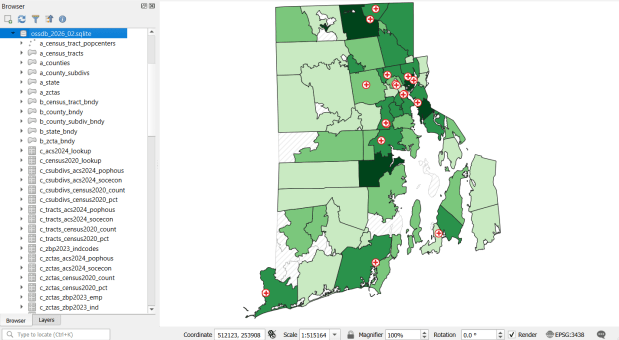
I’ve missed my once-a-month goal for writing posts several times this year. This is partially for good reasons, as I’ve been busy supporting students and faculty with coursework and projects, and have been supervising the excellent work of my own students in the lab. We’ve made great progress, releasing a spatial database for Rhode Island mapping projects, writing new tutorials, inventorying thousands of USGS topo maps, and supporting hundreds of students and faculty with their geospatial and demographic research.

But in order to effectively support the work of others, academic librarians need to have a research agenda of their own; to keep up with evolving technology and scholarship to remain effective, and to sustain your own intellectual interests as a professional. Which brings us to the bad reasons behind my posting inactivity. My professional development has come to a screeching halt since I began my new position three years ago. My employer is adverse to supporting scholarly activities for professional librarians (although they gladly share credit if you do the work on evenings, weekends, and vacation time), and a heavy workload makes it impossible to find time for professional development. There are many reasons behind this for which I can’t go into detail – I’ll generally say that bad management and an over-sized library managerial caste are the primary culprits.

Unfortunately this is all too common in academic librarianship. Some high-profile articles have discussed this recently, surveys show that morale is low, and there’s a small but budding branch of scholarship that focuses on library dysfunction. It’s a shame, because both traditional “core-research” librarians and data services-oriented librarians play vital roles within higher ed, and there is no shortage of students and professors who remind me of this on a regular basis. In my opinion, while many students and professors understand and value the work of librarians, many library administrators do not. They dismiss traditional subject librarians as legacy service providers, and they completely do not understand the work of data librarians.

I’ve heard several depressing stories from colleagues at other schools who have been undermined, shuffled around, and in some cases put out of business by incompetent leadership within their library. Within GIS and data librarianship I know several folks who have given up, leaving higher ed for the private sector or independent consulting.

Towards the end of the semester, as I was finishing an hour-long GIS consultation with a grateful undergrad, he asked me what research projects I was currently working on, and what kind of research I do. I was embarrassed to admit that I haven’t been working on anything of my own. After having written a book and publishing several well-received reports, I’m doing nothing more than the intellectual equivalent of shoveling snow. I can’t help but think that I’ve taken a wrong turn, and as the new year begins it’s time to consider the options: focus more sharply on the positive aspects of my position while minimizing the negatives? And somehow, carve out time to do work that I’m interested in? Or, consider moving on, being mindful to avoid exchanging one set of bad circumstances with another? For the latter, this may mean leaving academic librarianship behind.

I am most fortunate in that I don’t have to return to work until the second week of January, and it’s good to have this time to recuperate and reflect. Best wishes to you in the coming new year – Frank

US Census Data ALA Tech Report

ALA Tech Report on Using Census Data for Research

I have written a new report that’s just been released: US Census Data: Concepts and Applications for Supporting Research, was published as the May / June 2022 issue of the American Library Association’s Library and Technology Reports. It’s available for purchase digitally or in hard copy from the ALA from now through next year. It will also be available via EBSCOhost as full text, sometime this month. One year from now, the online version will transition to become a free and open publication available via the tech report archives.

The report was designed to be a concise primer (about 30 pages) for librarians who want to be knowledgeable with assisting researchers and students with finding, accessing, and using public summary census data, or who want to apply it to their own work as administrators or LIS researchers. But I also wrote it in such a way that it’s relevant for anyone who is interested in learning more about the census. In some respects it’s a good distillation of my “greatest hits”, drawing on work from my book, technical census-related blog posts, and earlier research that used census data to study the distribution of public libraries in the United States.

Chapter Outline

  1. Introduction
  2. Roles of the Census: in American society, the open data landscape, and library settings
  3. Census Concepts: geography, subject categories, tables and universes
  4. Datasets: decennial census, American Community Survey, Population Estimates, Business Establishments
  5. Accessing Data: data.census.gov, API with python, reports and data summaries
  6. GIS, historical research, and microdata: covers these topics plus the Current Population Survey
  7. The Census in Library Applications: overview of the LIS literature on site selection analysis and studying library access and user populations

I’m pleased with how it turned out, and in particular I hope that it will be used by MLIS students in data services and government information courses.

Although… I must express my displeasure with the ALA. The editorial team for the Library Technology Reports was solid. But once I finished the final reviews of the copy edits, I was put on the spot to write a short article for the American Libraries magazine, primarily to promote the report. This was not part of the contract, and I was given little direction and a month at a busy time of the school year to turn it around. I submitted a draft and never heard about it again – until I saw it in the magazine last week. They cut and revised it to focus on a narrow aspect of the census that was not the original premise, and they introduced errors to boot! As a writer I have never had an experience where I haven’t been given the opportunity to review revisions. It’s thoroughly unprofessional, and makes it difficult to defend the traditional editorial process as somehow being more accurate or thorough compared to the web posting and tweeting masses. They were apologetic, and are posting corrections. I was reluctant to contribute to the magazine to begin with, as I have a low opinion of it and think it’s deteriorated in recent years, but that’s a topic for a different discussion.

Stepping off the soapbox… I’ll be attending the ALA annual conference in DC later this month, to participate on a panel that will discuss the 2020 census, and to reconnect with some old colleagues. So if you want to talk about the census, you can buy me some coffee (or beer) and check out the report.

A final research and publication related note – the map that appears at the top of my post on the distribution of US public libraries from several years back has also made it into print. It appears on page 173 of The Argument Toolbox by K.J. Peters, published by Broadview Press. It was selected as an example of using visuals for communicating research findings, making compelling arguments in academic writing, and citing underlying sources to establish credibility. I’m browsing through the complimentary copy I received and it looks excellent. If you’re an academic librarian or a writing center professional and are looking for core research method guides, I would recommend checking it out.

STATA records

Creating STATA Variable Lists in Excel and Do Files With Python

In this post I demonstrate how export a list of variables from a STATA dta file to an Excel spreadsheet, and how to create a STATA do file by using Python to read in a list of variables from a spreadsheet; the do file will generate an extract of attributes and observations from a larger dta file. Gallup Analytics microdata serves as the example.

Gallup Analytics Microdata

Many academic libraries subscribe to an online database called Gallup Analytics, which lets users explore and download summary statistics from a number of on-going polls and surveys conducted by the Gallup Organization, such as the US Daily Tracker poll, World Poll, and SPSS polling series. As part of the package, subscribing institutions also receive microdata files for some of the surveys, in STATA and SPSS formats. These files contain the anonymized, individual responses to the surveys. The microdata is valuable to social science researchers who use the responses to conduct statistical analyses.

STATA
Microdata in STATA

Naturally, the microdata is copyrighted and licensed for non-commercial research purposes to members of the university or institution who are covered by the license agreement, and cannot be shared outside the institution. Another stipulation is that the files cannot be shared in their entirety, even for members of the licensed institution; researchers must request individual extracts of variables and observations to answer a specific research question. This poses a challenge for the data librarian, who somehow has to communicate to the researcher what’s available in the files and mediate the request. Option 1 is to share the codebooks (which are also copyrighted and can’t be publicly distributed) with the researcher and haggle back and forth via email to iron out the details of the request. Option 2 is to have a stand-alone computer set up in the library, where a researcher can come and generate their own extract from files stored on a secure, internal network. In both cases, the manual creation of the extract and the researcher’s lack of familiarity with the contents of the data makes for a tedious process.

My solution was to create spreadsheets that list all of the variables in each dataset, and have the researcher check the ones they want. I created a resource guide that advertises and describes the datasets, and provides secure links to the Gallup codebooks and these spreadsheets, which are stored on a Google Drive and are protected via university authentication. The researcher can then fill out a Google form (also linked to from that page), where they describe the nature of the request, select the specific dataset of interest, specify filters on observations (rows), and upload the spreadsheet of requested variables (columns). Then, I can read the spreadsheet variables into Python and generate a STATA do file (STATA scripts stored in plain text format), to create the desired extract which I can share with the researcher.

Create List of STATA Variables in Excel Spreadsheet

First, I created a standard set of STATA do files to output lists of all variables to a spreadsheet for the different data files. An example for the US Daily Tracker poll from pre-2018 is below. I was completely unfamiliar with STATA, but the online docs and forums taught me what I needed to pull this together.

Some commands are the same across all the do files. I use describe and then translate to create a simple text file that saves a summary from the screen that counts rows and columns. Describe gives a description of the data stored in memory, while replace is used to swap out existing variables with a new subset. Then, generate select_vars gives me codebook information about the dataset (select_vars is a variable name I created), which I sort using the name column. The export excel command is followed by the specific summary fields I wish to output; the position of the variable, data type, variable label, and the variable name itself.

* Create variable list for Gallup US Tracker Survey 2008-2017

local y = YEAR in 1

describe,short
summarize YEAR
translate @Results gallup_tracker_`y'_summary.txt, replace

describe, replace
generate select_vars = ""
sort name

export excel position name type varlab select_vars using gallup_tracker_`y'_vars.xlsx, firstrow(variables) replace

The variation for this particular US Daily Tracker dataset is that the files are packaged as one file per year. I load the first file for 2008, and the do file saves the YEAR attribute as a local variable, which allows me to include the year in the summary and excel output file names. I had to run this do file for each subsequent year up to 2017. This is not a big deal as I’ll never have to repeat the process on the old files, as new data will be released in separate, new files. Other datasets imposed different requirements; the GPSS survey is packaged in eleven separate files for different surveys, and the updates are cumulative (each file contains older data plus any updates – Gallup sends us updated files a few times each year). For the GPSS, I prompt the user for input to specify the survey file name, and overwrite the previous Excel file.

With the do file in hand, you open STATA and the data file you want to process, change the working directory from the default user folder to a better location for storing the output, open the do file, and it runs and creates the variable list spreadsheet.

Excel spreadsheet of variables generated from STATA
List of variables in Excel generated from STATA file. Users check the variables they want in an extract in the select_vars column

Create a STATA Do File with Python and Excel

Once a researcher submits their Google form and their selected variable spreadsheet (placing an X in a dedicated column to indicate that they want to include a variable), I run the Python script below. I use the openpyxl module to read the Excel file. I have to modify the paths, spreadsheet file name, and an integer for the particular survey each time I run it. I use the os module to navigate up and down through folders to store outputs in specific places. If the researcher specifies in the Google form that they want to filter observations, for example records for specific states or age ranges, I have to add those manually but I commented out a few examples that I can copy and modify. One caveat is that you must filter using the coded variable and not its label (i.e. if a month value is coded as 2 and its label is February, I must reference the code and not the label). Reading in the requested columns is straightforward; the script identifies cells in the selection column (E) that have an X, then grabs the variable name from the adjacent column.

# -*- coding: utf-8 -*-
"""
Pull selected gallup variables from spreadsheet to create STATA Do File
Frank Donnelly / GIS and Data Librarian / Brown University
"""

import openpyxl as xl, os
from datetime import date

thedate=date.today().strftime("%m%d%Y")
surveys={1:'gallup_covid',2:'gallup_gpss',3:'gallup_tracker',4:'gallup_world'}

rpath=os.path.join('requests','test') # MODIFY BASED ON INPUT
select_file=os.path.join(rpath,'gallup_tracker_2017_vars_TEST.xlsx') #MODIFY BASED ON INPUT
survey_file=surveys[3] #MODIFY BASED ON INPUT

dofile=os.path.join(rpath,'{}_vars_{}.do'.format(survey_file,thedate))
dtafile=os.path.join(os.path.abspath(os.getcwd()),rpath,'{}_extract_{}.dta'.format(survey_file,thedate))


#MODIFY to filter by observations - DO NOT ERASE EXAMPLES - copy, then modify
obsfilter=None
# obsfilter=None
# obsfilter='keep if inlist(STATE_NAME,"CT","MA","ME","NH","RI","VT")'
# obsfilter='keep if inrange(WP1220,18,64)'
# obsfilter='keep if SC7==2 & MONTH > 6'
# obsfilter='keep if FIPS_CODE=="44007" | FIPS_CODE=="25025"'

workbook = xl.load_workbook(select_file)
ws = workbook['Sheet1']

# May need to modify ws col and cell values based on user input
vlist=[]
for cell in ws['E']:
    if cell.value in ('x','X'): 
        vlist.append((ws.cell(row=cell.row, column=2).value))
outfile = open(dofile, "w")
outfile.writelines('keep ')
outfile.writelines(" ".join(vlist)+"\n")
if obsfilter==None:
    pass
else:
    outfile.writelines(obsfilter+"\n")
outfile.writelines('save '+dtafile+"\n")
outfile.close()
print('Created',dofile) 

The plain text do file begins with the command keep followed by the columns, and if requested, an additional keep statement to filter by records. The final save command will direct the output to a specific location.

keep CENREG D17A D23 D24 D5 FIPS_CODE HISPANIC INT_DATE MONTH MOTHERLODE_ID PE_WEIGHT RACE SC7 STATE_NAME WP10202 WP10208 WP10209 WP10215 WP10216 WP10229 WP10230 WP1220 WP1223 YEAR ZIPGALLUPREGION ZIPSTATE
save S:\gallup\processing\scripts\reques\test\gallup_tracker_extract_02202022.dta

All that remains is to open the requested data file in STATA, open the do file, and an extract is created. Visit my GitHub for the do files, Python script, and sample output. The original source data and the variable spreadsheets are NOT included due to licensing issues; if you have the original data files you can generate what I’ve described here. Sorry, I can’t share the Gallup data with you (so please don’t ask). You’ll need to contact your own university or institution to determine if you have access.

Brown University on OpenTopoMap

A New Year and a New Start

I have some news! After 13 1/2 years, January 31, 2021 will be my last day as the Geospatial Data Librarian at Baruch College, City University of New York (CUNY). On February 1, 2021, I will be the new GIS and Data Librarian at Brown University in Providence, Rhode Island!

It’s an exciting opportunity that I’m looking forward to. I will be building geospatial information and data services in the library from the ground up, in concert with many new colleagues. I will be working closely with the Population Studies Training Center (PSTC) and the Spatial Structures in Social Sciences (S4) as well as the Center for Digital Scholarship within the library. Several aspects of the position will be similar, as I will continue to provide research and consultation services, create research guides and tutorials, teach workshops, collect and create datasets, and eventually build and manage a data repository and small lab where we’ll provide services and peer mentor students.

The resources I’ve created at Baruch CUNY will remain accessible, and eventually a new person will take the reins. I have moved the latest materials for the GIS Practicum, my introductory QGIS tutorial and workshop, to this website and I hope to continue updating and maintaining this resource. There are a lot of people throughout CUNY that I’m going to miss, at: the Newman Library, the CUNY Institute for Demographic Research, the Weissman Center for International Business, the Marxe School, Baruch’s Journalism Department, the Geography Department at Lehman College, the Digital Humanities program and the CUNY Mapping Service at the CUNY Graduate Center, and many others.

I will continue writing posts and sharing tips and resources here based on my new adventures at Brown, but may need a little break as I transition… stay tuned!

Best – Frank