spatial databases

Posts about spatial or relational databases

Providence Census Geography Map

Crosswalking Census Data to Neighborhood Geographies

Last semester we completed a project to create a crosswalk between census geographies and local geographies in Providence, RI. Crosswalks are used for relating two disparate sets of geography, so that you can compile data that’s published for one set of geography in another. Many cities have locally-defined jurisdictions like wards or community districts, as well as informally defined areas like neighborhoods. When you’re working with US Census data, you use small statistical areas that the Bureau defines and publishes data for; blocks, block groups, census tracts, and perhaps ZCTAs and PUMAs. A crosswalk allows you to apportion data that’s published for census areas, to create estimates for local areas (there are also crosswalks that are used for relating census geography that changes over time, such as the IPUMS crosswalks).

How the Crosswalk Works

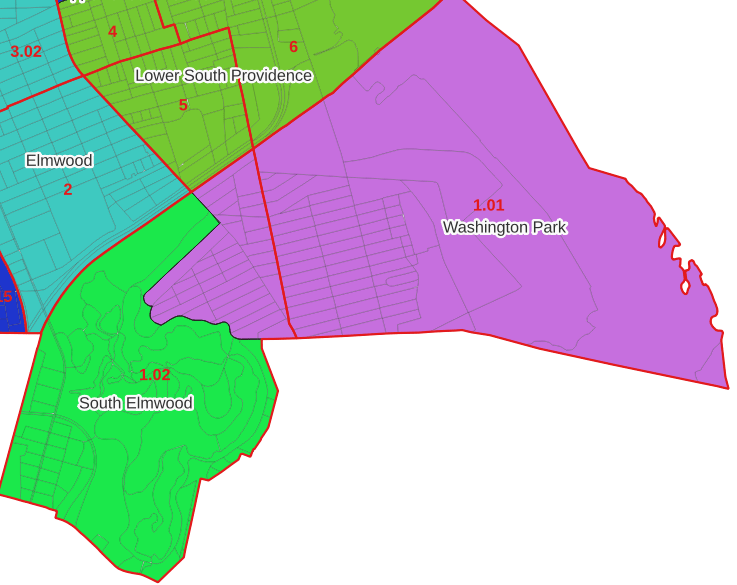
For example, in the Providence Census Geography Crosswalk we have two crosswalks that allow you to take census tract data, and convert it to either neighborhoods or wards. I’ll refer to the neighborhoods in this post. In the crosswalk table, there is one record for each portion of a tract that overlaps a neighborhood. For each record, there are attribute columns that indicate the count and the percentage of a tract’s population, housing units, land area, and total area that fall within a given neighborhood. If a tract appears just once in the table, that means it is located entirely within one neighborhood. In the image below, we see that tract 1.01 appears in the table once, and its population percentage is 1. That means that it falls entirely within the Washington Park neighborhood, and 100% of its population is in that neighborhood. In contrast, tract 1.02 appears in the table twice, which means it’s split between two neighborhoods. Its pct_pop column indicates that 31.5% of its population is in South Elmwood, while 68.5% is in Washington Park. The population count represents the number of people from that tract that are in that neighborhood.

Looking at the map below, we can see that census tract 1.01 falls entirely within Washington Park, and tract 1.02 is split between Washington Park and South Elmwood. To generate estimates for Washington Park, we would sum data for tract 1.01 and the portion of tract 1.02 that falls within it. Estimates for South Elmwood would be based solely on the portion of tract 1.02 that falls within it. With the crosswalk, “portion” can be defined as the percentage of the tract’s population, housing units, land area, or total area that falls within a neighborhood.

The primary purpose of the crosswalk is to generate census data estimates for neighborhoods. You apportion tract data to neighborhoods using an allocation factor (population, housing units, or area) and aggregate the result. For example, if we have a census tract table from the 2020 census with the population that’s 65 years and older, we can use the crosswalk to generate neighborhood-level estimates of the 65+ population. To do that, we would:

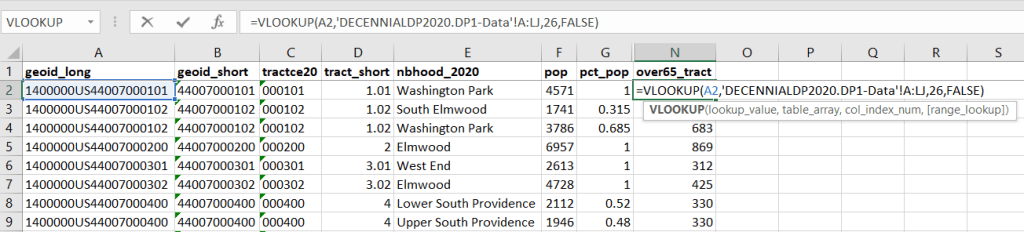
  1. Join the data table to the crosswalk using the tract’s unique ID; the crosswalk has both the long and short form of the GEOIDs used by the Census Bureau. So for each crosswalk record, we would associate the 65+ population for the entire tract with it.
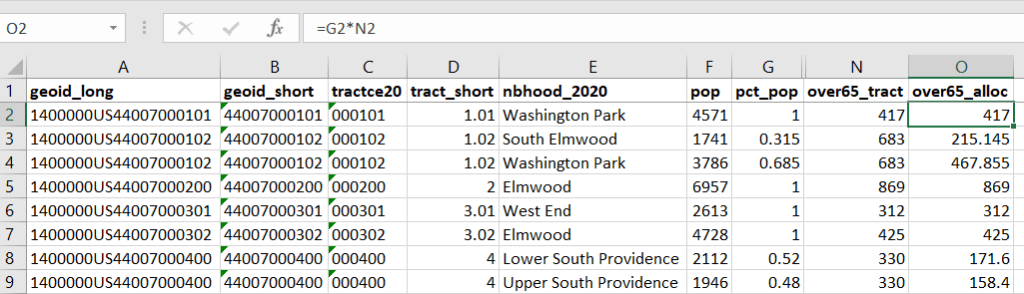
  2. Multiply the 65+ population by one of the allocation columns – the percent population in this example. This would give us an estimate of the 65+ population that live in that tract / neighborhood piece.
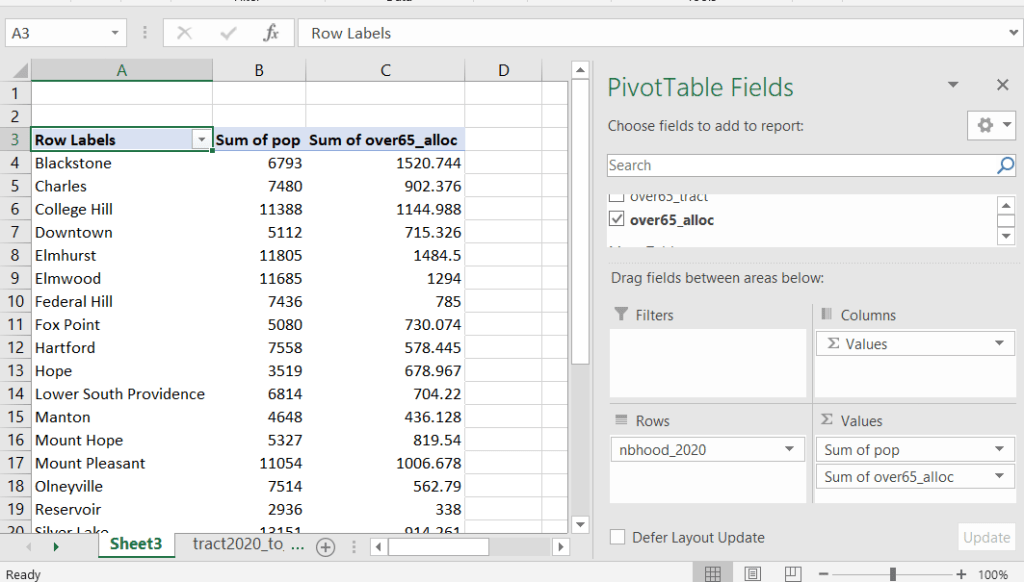
  3. Group or aggregate this product by the neighborhood name, to obtain a neighborhood-level table of the 65+ population.
  4. Round decimals to whole numbers.

To do the calculations in a spreadsheet, you would import the appropriate crosswalk sheet into the workbook that contains the census data that you want to apportion, so that they appear as separate sheets in the same workbook. In the crosswalk worksheet, use the VLOOKUP formula and reference the GEOID to “join” the census tract data to the crosswalk. The formula requires: cell containing the ID value you wish to look up, the range of cells in a worksheet that you will search through, the number of the column that contains the value you wish to retrieve (column A is 1, Z is 26, etc.), and the parameter “FALSE” to get an exact match. It is assumed that the look up value in the target table (the matching ID) appears in the first column (A).

The tract data is now repeated for each tract / neighborhood segment. Next, use formulas to multiply the allocation percentage (pct_pop in this example) by the census data value (over 65 pop for the entire tract) to create an allocated estimate for each tract / neighborhood piece.

Then you can generate a pivot table (on the Insert ribbon in Excel) where you group and sum that allocated result by neighborhood (neighborhoods as rows, census data as summed values in columns). Final step is to round the estimates.

This process is okay for small projects where you have a few estimates you want to quickly tabulate, but it doesn’t scale well. I’d use a relational database instead; import the crosswalk and census data table into SQLite, where you can easily do a left join, calculated field, and then a group by statement. Or, use the joining / calculating / aggregating equivalents in Python or R.

I used the percentage of population as the allocation factor in this example. If the census data you’re apportioning pertains to housing units, you could use the housing units percentage instead. In any case, there is an implicit assumption that the data you are apportioning has the same distribution as the allocation factor. In reality this may not be true; the distribution of children, seniors, homeowners, people in poverty etc. may vary from the total population’s distribution. It’s important to bear in mind that you’re creating an estimate. If you are apportioning American Community Survey data this process gets more complicated, as the ACS statistics are fuzzy estimates. You’d also need to apportion the margin of error (MOE) and create a new MOE for the neighborhood-level estimates.

The Providence crosswalk has some additional sheets that allow you to go from tracts, ZCTAs, or blocks to neighborhoods or wards. The tract crosswalk is by far the most useful. The ZCTA crosswalk was an exercise in futility; I created it to demonstrate the complete lack of correlation between ZCTAs and the other geographies, and recommend against using it (we also produced a series of maps to visually demonstrate the relationship between all the geographies). There is a limited amount of data published at the block level, but I included it in the crosswalk for another reason…

Creating the Crosswalk

I used census blocks to create the crosswalk. They are the smallest unit of census geography, and nest within all other census geographies. I used GIS to assign each block to a neighborhood or ward based on the geography the block fell within, and then aggregated the blocks into distinct tract / ward and tract / neighborhood combinations. Then I calculated the allocation factors, the percentage of the tract’s total attributes that fell in a particular neighborhood or ward. This operation was straightforward for the wards; the city constructed them using 2020 census blocks, so the blocks nested or fit perfectly within the wards.

The neighborhoods were more complicated, as these were older boundaries that didn’t correspond to the 2020 blocks, and there were many instances where blocks were split between neighborhoods. My approach was to create a new set of neighborhood boundaries based on the 2020 blocks, and then use those new boundaries to create the crosswalk. I began with a spatial join, assigning each block a neighborhood ID based on where the center of the block fell. Then, I manually inspected the borders between each neighborhood, to determine whether I should manually re-assign a block. In almost all instances, blocks I reassigned were unpopulated and consisted of slivers that contained large highways, or blocks of greenspace or water. I struck a balance between remaining as faithful to the original boundaries as possible, while avoiding the separation of unpopulated blocks from a tract IF the rest of the blocks in that tract fell entirely within one neighborhood. In two cases where I had to assign a populated block, I used satellite imagery to determine that the population of the block lived entirely on one side of a neighborhood boundary, and made the assignment accordingly.
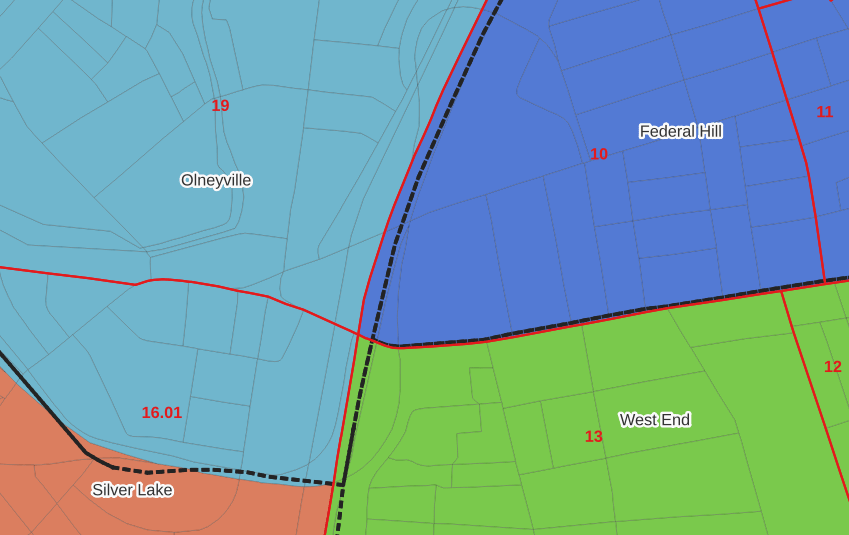
In the example below, 2020 tract boundaries are shown in red, 2020 block boundaries are light grey, original neighborhood boundaries are shown with dotted black lines, and reconstituted neighborhoods using 2020 blocks are shown in different colors. The boundaries of Federal Hill and the West End are shifted west, to incorporate thin unpopulated blocks that contain expressways. These empty blocks are part of tracts (10 and 13) that fall entirely within these neighborhoods; so splitting them off to adjacent Olneyville and Silver Lake didn’t make sense (as there would be no population or homes to apportion). Reassigning them doesn’t change the fact that the true boundary between these neighborhoods is still the expressway. We also see an example between Olneyville and Silver Lake where the old neighborhood boundary was just poorly aligned, and in this case blocks are assigned based on where the center of the block fell.

Creating the crosswalk from the ground up with blocks was the best approach for accounting how population is distributed within larger areas. It was primarily an aggregation-based approach, where I could sum blocks that fell within geographies. This approach allowed me to generate allocation factors for population and housing units, since this data was published with the blocks and could be carried along.

Conversely, in GIS 101 you would learn how to calculate the percentage of an area that falls within another area. You could use that approach to create a tract-level crosswalk based on area, i.e. if a tract’s area is split 50/50 between two neighborhoods, we’ll apportion its population 50/50. While this top down approach is simpler to implement, it’s far less ideal because you often can’t assume that population and area are equally distributed. Reconsider the example we began with: 31.5% of tract 1.02’s population is in South Elmwood, while 68.5% is in Washington Park. In contrast, 75.3% of tract 1.02’s land area is in South Elmwood, versus only 24.7% in Washington Park! If we apportioned our census data by area instead of population, we’d get a dramatically different, and less accurate, result. Roger Williams Park is primarily located in the portion of tract 1.02 that falls within Elmwood; it covers a lot of land but includes zero people.
Why can’t we just simply aggregate block-level census data to neighborhoods and skip the whole apportionment step? The answer is that there isn’t much data published at the block level. There’s a small set of tables that capture basic demographic variables as part of the decennial census, and that’s it. There was a sharp reduction in the number of block-level tables in the 2020 census due to new privacy regulations, and the ACS isn’t published at the block-level at all. While you can use the block-level table in the crosswalk to join and aggregate block data, in most cases you’ll need to work with tract-data and apportion it.

I used spatial SQL to create the crosswalks in Spatialite and QGIS , and if you’re interested in seeing all the gory details you can look at the code and spatial database in source folder of the project’s GitHub repo. I always prefer SQL for spatial join and aggregation operations, as I can write a single block of code instead of running 4 or 5 different of desktop GIS tools in a sequence. I’ll be updating the project this semester to include additional geographies (block groups – the level between blocks and tracts), and perhaps an introductory tutorial for using it (there are some basic docs at present).

SQL in QGIS Database Manager

Spatial SQL with Spatialite and QGIS

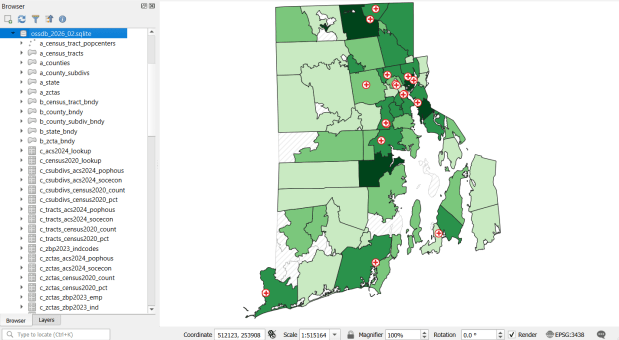
I’ve recently given a few presentations on the Ocean State Spatial Database, which is a basic geodatabase for Rhode Island that we’ve created in our lab. The database was designed so that new and experienced users alike could easily access a curated collection of foundational layers and data tables for thematic mapping and geospatial analysis. The database is available for download on GitHub, and there is documentation that describes the layers and tables that are included. The database comes in two formats: SQLite/ Spatialite that’s great for QGIS, and a File Geoadatabase version for ArcGIS Pro users.

One of the big advantages of using the Spatialite database in QGIS is that you can take advantage of the Database Manager, and write SQL and spatial SQL queries for selecting records and doing spatial analysis. Instead of using a series of point and click tools that create a bunch of new files, you can write a single block of code to perform an entire operation, and you can save that code to document your work. Access the Database Manager above the toolbars at the top of the QGIS interface. Once you’re in, you can select the Spatialite option, right click and then browse your file system to point to the database to establish a connection. At the top of the DB Manager is a button (piece of paper with wrench) to open a SQL query window.

Database Manager in QGIS with SQL Window Open

The following commands are basic SQL: SELECT some columns FROM some tables WHERE some criteria is met. This returns all rows and columns from the public libraries layer in the database:

SELECT *
FROM d_public_libraries;

This returns just some of the columns for all rows:

SELECT libid, libname, city, cnty
FROM d_public_libraries;

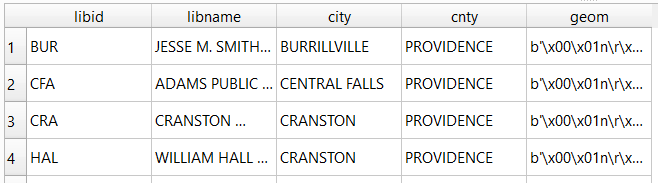
While this returns some of the columns and rows that meet specific criteria, in this case where libraries are located in Providence County, RI:

SELECT libid, libname, city, cnty, geom
FROM d_public_libraries
WHERE cnty='PROVIDENCE'
ORDER BY city;

Traditional database column types include strings (aka text), integers, and decimal numbers, which limit the values that can be stored in the column, and allow specific functions that can operate on values of that type (math on numeric columns, string operations on text columns). Beyond the basic data types, many databases have special ones, such as date types that allow you to store and manipulate dates and times as distinct objects.

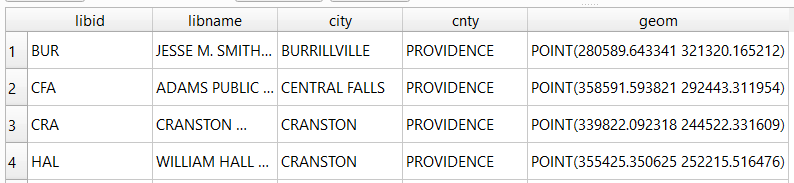
Spatial databases incorporate special columns for storing the geometry of features as strings of coordinates, and provide functions that can operate on that geometry. In the example above, the values stored in the geometry column were returned in a binary format. But we can apply a spatial function called ST_AsText to display the geometry as readable text:

SELECT libid, libname, city, cnty, ST_AsText(geom) AS geom
FROM d_public_libraries
WHERE cnty='PROVIDENCE'
ORDER BY city;

We can see that this is point geometry (as opposed to lines or polygons), and we have an X and Y coordinate for each point. The layers in this database are in the Rhode Island State Plane System, so the coordinates that are returned are in that system. We can convert these to longitude and latitude using the ST_Transform function:

SELECT libid, libname, city, cnty, ST_AsText(ST_Transform(geom,4269)) AS geom
FROM d_public_libraries
WHERE cnty='PROVIDENCE'
ORDER BY city;

This illustrates that the functions can be nested, first we transform the geometry and then display the result of that function as text. The number in the transform function is the unique identifier of the spatial reference system that we wish to transform the geometry to. In the open source world these are EPSG codes, and 4269 is the identifier for NAD 83, the basic long / lat system for North America (alternatively, we could use 4326 for WGS 84, the standard global long / lat system). The geometry column in a spatial table is connected to a series of internal tables that store all the definitions of the spatial reference systems. You can view the spatial reference system table:

SELECT * from spatial_ref_sys;

You can also get a read out of all the spatial tables in the database which include their type of geometry and the spatial reference system (3438 is the EPSG code for the RI State Plane zone, geometry of type 6 is a multipolygon, while type 1 is a point):

SELECT * from geometry_columns;

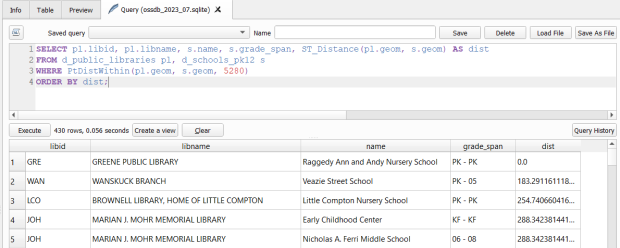
With a spatial database, you perform operations within and between tables by running functions against the geometry columns. For example, to return all public libraries and schools that are within a mile of a library while measuring the distance:

SELECT pl.libid, pl.libname, s.name, s.grade_span, ST_Distance(pl.geom, s.geom) AS dist
FROM d_public_libraries pl, d_schools_pk12 s
WHERE PtDistWithin(pl.geom, s.geom, 5280)
ORDER BY dist;

The ST_Distance function returns the actual distance in a new column, while the PtDistWithin function only returns libraries that have a school within one mile (5,280 feet – we have to express the measurement in the units used by the spatial reference system of both layers). In the FROM statement we provide aliases after each table name, so we can use those as shorthand (if our statement includes multiple tables, we need to indicate which table each column comes from).

You can also do summaries, like you would in standard SQL using GROUP BY. To count the number of schools that are within a mile of every library:

SELECT pl.libid, pl.libname, CAST(COUNT (s.name) AS integer) AS school_count, pl.geom
FROM d_public_libraries pl, d_schools_pk12 s
WHERE PtDistWithin(pl.geom, s.geom, 5280)
GROUP BY pl.libid, pl.libname, pl.geom
ORDER BY school_count DESC;

The rule for GROUP BY is that every column in the select statement must be used as a grouping variable, or has an aggregate function applied to it (COUNT, SUM, MEAN, etc). In this example we added the CAST function, which defines the data type for new columns that you create. Unless we explicitly declare it as an integer or real (decimal), values are returned as strings.

You can save your statements as views, by adding CREATE VIEW [view name] AS followed by the statement. Views are saved statements that appear as objects in the database; by opening a view, the statement is rerun and the result is returned. This approach works if you want to save a non-spatial view, i.e. a table without geometry. To save a spatial one with geometry, omit the VIEW statement and hit the Create a view button below the SQL window (each record must have a unique identifier and the geometry column in order for this to work). That registers the geometry column of the view in the database. Then, you can return to the main QGIS window, add the view and symbolize it. Alternatively, there is a Load as new layer button at the bottom of the screen, which allows you to see a temporary result without saving anything (while you can see features and records returned, you won’t be able to symbolize or manipulate the layer).

Count schools within 1 mile of libraries, and save as a spatial view
Symbolize the spatial query out in the main QGIS window

One of the primary reasons to use a database is to join related data stored in separate tables. This statement has two joins: a tabular join between the census tracts and an ACS data table, and a spatial join between the geometry of public libraries and tracts:

SELECT pl.libid, pl.libname, a.geoidshort, a.name, c.hshd01_e, c.hshd01_m
FROM d_public_libraries pl, a_census_tracts a
INNER JOIN c_tracts_acs2021_socecon c
ON a.geoidlong=c.geoidlong
WHERE ST_Intersects(pl.geom, a.geom);

This returns all public libraries and their intersecting tracts based on the relationship between their two geometries (could also have done ST_Within in this case to get the same result). Spatialite supports most of the spatial relationship functions defined by the OGC. The estimated number of households for these tracts are returned based on the shared unique census identifier between the two census tract tables.

You can visit the following references for a full list of SQLite functions and Spatialite functions. As it’s designed to be “Lite”, SQLite contains a smaller subset of the SQL standard. Spatialite contains a pretty full range of OGC spatial SQL functions, but there are instances where it deviates from the standard. PostgreSQL / PostGIS provides a greater range of functions that adhere more closely to the standard; it also provides you with greater storage, efficiency, and processing power. As a file-based database, SQLite / Spatialite’s strengths are that it’s compact and transportable, and gives you the option to write SQL rather than relying solely on the point and click tools of a desktop GIS package.

In addition to the QGIS DB Manager, you could also use the Spatialite command line tools provided by the developer, and the Spatialite GUI (graphic user interface) that gives you a standard, stand-alone database interface. Downloading it is a bit confusing; Windows users can grab one of the binaries at the bottom of this page. If you’re a Linux person, search for it in your package manager. Mac users can get it via Homebrew.

Calculate margin of error for ratio (mean income)

Calculating Mean Income for Groups of Geographies with Census ACS Data

When aggregating small census geographies to larger ones (census tracts to neighborhoods for example) when you’re working with American Community Survey (ACS) data, you need to sum estimates and calculate new margins of error. This is straightforward for most estimates; you simply sum them, and take the square root of the sum of squares for the margins of error (MOEs) for each estimate that you’re aggregating. But what if you need to group and summarize derived estimates like means or medians? In this post, I’ll demonstrate how to calculate mean household income by aggregating ZCTAs to United Hospital Fund neighborhoods (UHF), which is a type of public health area in NYC created by aggregating ZIP Codes.

I’m occasionally asked how to summarize median household income from tracts to neighborhood-like areas. You can’t simply add up the medians and divide them, the result would be completely erroneous. Calculating a new median requires us to sort individual household-level records and choose the middle-value, which we cannot do as those records are confidential and not public. There are a few statistical interpolation methods that we can use with interval data (number of households summarized by income brackets) to estimate a new median and MOE, but the calculations are rather complex. The State Data Center in California provides an excellent tutorial that demonstrates the process, and in my new book I’ll walk through these steps in the supplemental material.

While a mean isn’t as desirable as a median (as it can be skewed by outliers), it’s much easier to calculate. The ACS includes tables on aggregate income, including the sum of all income earned by households and other population group (like families or total population). If we sum aggregate household income and number of households for our small geographic areas, we can divide the total income by total households to get mean income for the larger area, and can use the ACS formula for computing the MOE for ratios to generate a new MOE for the mean value. The Census Bureau publishes all the ACS formulas in a detailed guidebook for data users, and I’ll cover many of them in the ACS chapter of my book (to be published by the end of 2019).

Calculating a Derived Mean in Excel

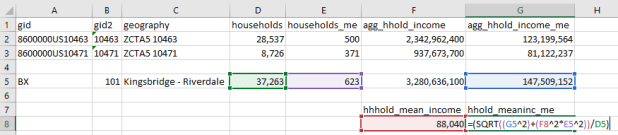
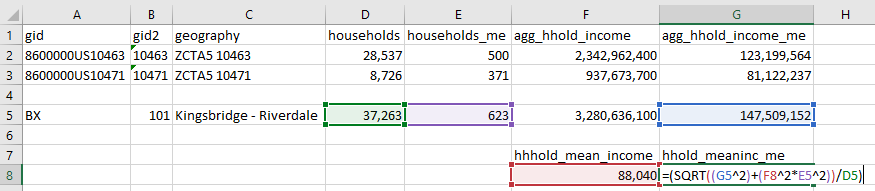
Let’s illustrate this with a simple example. I’ve gathered 5-year 2017 ACS data on number of households (table B11001) and aggregate household income (table B19025) by ZCTA, and constructed a sheet to correlate individual ZCTAs to the UHF neighborhoods they belong to. UHF 101 Kingsbridge-Riverdale in the Bronx is composed of just two ZCTAs, 10463 and 10471. We sum the households and aggregate income to get totals for the neighborhood. To calculate a new MOE, we take the square root of the sum of squares for each of the estimate’s MOEs:

Calculate margin of error for new sum

Calculate margin of error for new sum

To calculate mean income, we simply divide the total aggregate household income by total households. Calculating the MOE is more involved. We use the ACS formula for derived ratios, where aggregate income is the numerator of the ratio and households is the denominator. We multiply the square of the ratio (mean income) by the square of the MOE of the denominator (households MOE), add that product to the square of the MOE of the numerator (aggregate income MOE), take the square root, and divide the result by the denominator (households):

=(SQRT((moe_ratio_numerator^2)+(ratio^2*moe_ratio_denominator^2))/ratio_denominator)

Calculate margin of error for ratio (mean income)

Calculate margin of error for ratio (mean income)

The 2013-2017 mean household income for UHF 101 is $88,040, +/- $4,223. I always check my math using the Cornell Program on Applied Demographic’s ACS Calculator to make sure I didn’t make a mistake.

This is how it works in principle, but life is more complicated. When I downloaded this data I had number of households by ZCTA and aggregate household income by ZCTA in two different sheets, and the relationship between ZCTAs and UHFs in a third sheet. There are 42 UHF neighborhoods and 211 ZCTAs in the city, of which 182 are actually assigned to UHFs; the others have no household population. I won’t go into the difference between ZIP Codes and ZCTAs here, as it isn’t a problem in this particular example.

Tying them all together would require using the ZCTA in the third sheet in a VLOOKUP formula to carry over the data from the other two sheets. Then I’d have to aggregate the data to UHF using a pivot table. That would easily give me sum of households and aggregate income by UHF, but getting the MOEs would be trickier. I’d have to square them all first, take the sum of these squares when pivoting, and take the square root after the pivot to get the MOEs. Then I could go about calculating the means one neighborhood at a time.

Spreadsheet-wise there might be a better way of doing this, but I figured why do that when I can simply use a database? PostgreSQL to the rescue!

Calculating a Derived Mean in PostgreSQL

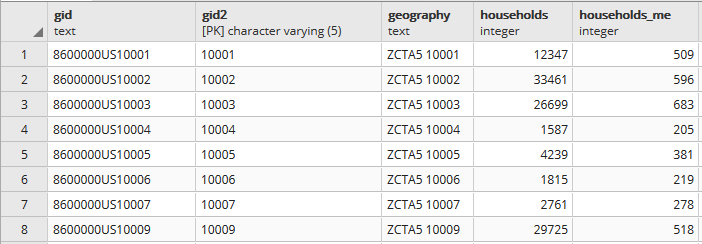
In PostgreSQL I created three empty tables for: households, aggregate income, and the ZCTA to UHF relational table, and used pgAdmin to import ZCTA-level data from CSVs into those tables (alternatively you could use SQLite instead of PostgreSQL, but you would need to have the optional math module installed as SQLite doesn’t have the capability to do square roots).

Portion of households table. A separate aggregate household income table is structured the same way, with income stored as bigint type.

Portion of households table. A separate aggregate household income table is structured the same way, with income stored as bigint type.

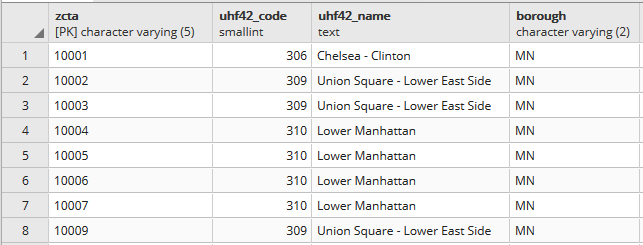
Portion of the ZCTA to UHF relational table.

Portion of the ZCTA to UHF relational table.

In my first run through I simply tried to join the tables together using the 5-digit ZCTA to get the sum of households and aggregate incomes. I SUM the values for both and use GROUP BY to do the aggregation to UHF. In PostgreSQL pipe-forward slash: |/ is the operator for square root. I sum the squares for each ZCTA MOE and take the root of the total to get the UHF MOEs. I omit ZCTAs that have zero households so they’re not factored into the formulas:

SELECT z.uhf42_code, z.uhf42_name, z.borough,
    SUM(h.households) AS hholds,
    ROUND(|/(SUM(h.households_me^2))) AS hholds_me,
    SUM(a.agg_hhold_income) AS agghholds_inc,
    ROUND(|/(SUM(a.agg_hhold_income_me^2))) AS agghholds_inc_me
FROM zcta_uhf42 z, hsholds h, agg_income a
WHERE z.zcta=h.gid2 AND z.zcta=a.gid2 AND h.households !=0
GROUP BY z.uhf42_code, z.uhf42_name, z.borough
ORDER BY uhf42_code;

Portion of query result, households and income aggregated from ZCTA to UHF district.

Portion of query result, households and income aggregated from ZCTA to UHF district.

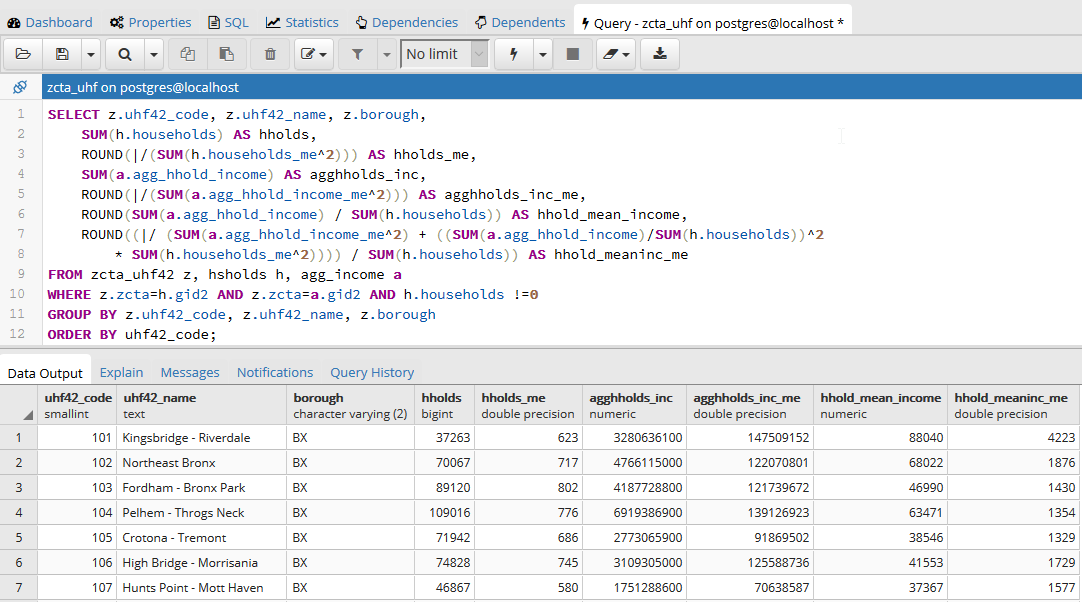
Once that was working, I modified the statement to calculate mean income. Calculating the MOE for the mean looks pretty rough, but it’s simply because we have to repeat the calculation for the ratio over again within the formula. This could be avoided if we turned the above query into a temporary table, and then added two columns and populated them with the formulas in an UPDATE – SET statement. Instead I decided to do everything in one go, and just spent time fiddling around to make sure I got all the parentheses in the right place. Once I managed that, I added the ROUND function to each calculation:

SELECT z.uhf42_code, z.uhf42_name, z.borough,
    SUM(h.households) AS hholds,
    ROUND(|/(SUM(h.households_me^2))) AS hholds_me,
    SUM(a.agg_hhold_income) AS agghholds_inc,
    ROUND(|/(SUM(a.agg_hhold_income_me^2))) AS agghholds_inc_me,
    ROUND(SUM(a.agg_hhold_income) / SUM(h.households)) AS hhold_mean_income,
    ROUND((|/ (SUM(a.agg_hhold_income_me^2) + ((SUM(a.agg_hhold_income)/SUM(h.households))^2 * SUM(h.households_me^2)))) / SUM(h.households)) AS hhold_meaninc_me
FROM zcta_uhf42 z, hsholds h, agg_income a
WHERE z.zcta=h.gid2 AND z.zcta=a.gid2 AND h.households !=0
GROUP BY z.uhf42_code, z.uhf42_name, z.borough
ORDER BY uhf42_code;

Query in pgAdmin and portion of result for calculating mean household income

Query in pgAdmin and portion of result for calculating mean household income

I chose a couple examples where a UHF had only one ZCTA, and another that had two, and tested them in the Cornell ACS calculator to insure the results were correct. Once I got it right, I added:

CREATE VIEW household_sums AS

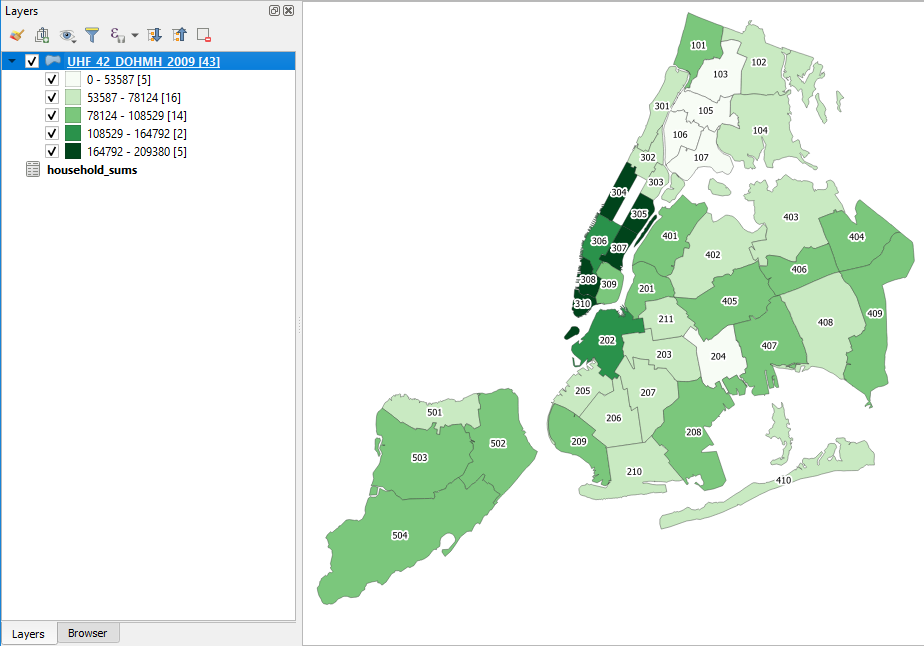
To the top of the statement and executed again to save it as a view. Mission accomplished! To make doubly sure that the values were correct, I connected my db to QGIS and joined this view to a UHF shapefile to visually verify that the results made sense (could also have imported the shapefile into the DB as a spatial table and incorporated it into the query).

Mean household income by UHF neighborhood in QGIS

Mean household income by UHF neighborhood in QGIS

Conclusion

While it would be preferable to have a median, calculating a new mean for an aggregated area is a fair alternative, if you simply need some summary value for the variable and don’t have the time to spend doing statistical interpolation. Besides income, the Census Bureau also publishes aggregate tables for other variables like: travel time to work, hours worked, number of vehicles, rooms, rent, home value, and various subsets of income (earnings, wages or salary, interest and dividends, social security, public assistance, etc) that makes it possible to calculate new means for aggregated areas. Just make sure you use the appropriate denominator, whether it’s total population, households, owner or renter occupied housing units, etc.

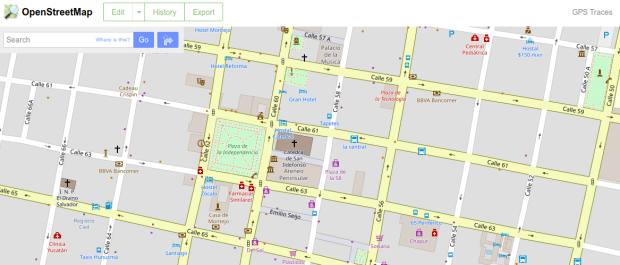
OSM Merida

Extracting OpenStreetMap Data in QGIS 3

The OpenStreetMap (OSM) can be a good source of geospatial data for all sorts of features, particularly for countries where the government doesn’t provide publicly accessible GIS data, and for features that most governments don’t publish data for. In this post I’ll demonstrate how to download a specific feature set for a relatively small area using QGIS 3.x. Instead of simply adding OSM as a web service base map we’ll extract features from OSM to create vector layers.

In the past I followed some straightforward instructions for doing this in QGIS 2.x, but of course with the movement to 3.x the core OSM plugin I previously used is no longer included, and no updated version was released. It’s a miracle that anyone can figure out what’s going on between one version of QGIS and the next. Fortunately, there’s another plugin called QuickOSM that’s quite good, and works fine with 3.x.

Use QuickOSM to Extract Features

Let’s say that we want to create a layer of churches for the city Merida in Mexico. First we launch QGIS, go to the Plugins menu, and choose Manage and Install plugins. Select plugins that are not installed, do a search for QuickOSM, select it, and install it. This adds a couple buttons to the plugins toolbar and a new sub-menu under the Vector menu called Quick OSM.

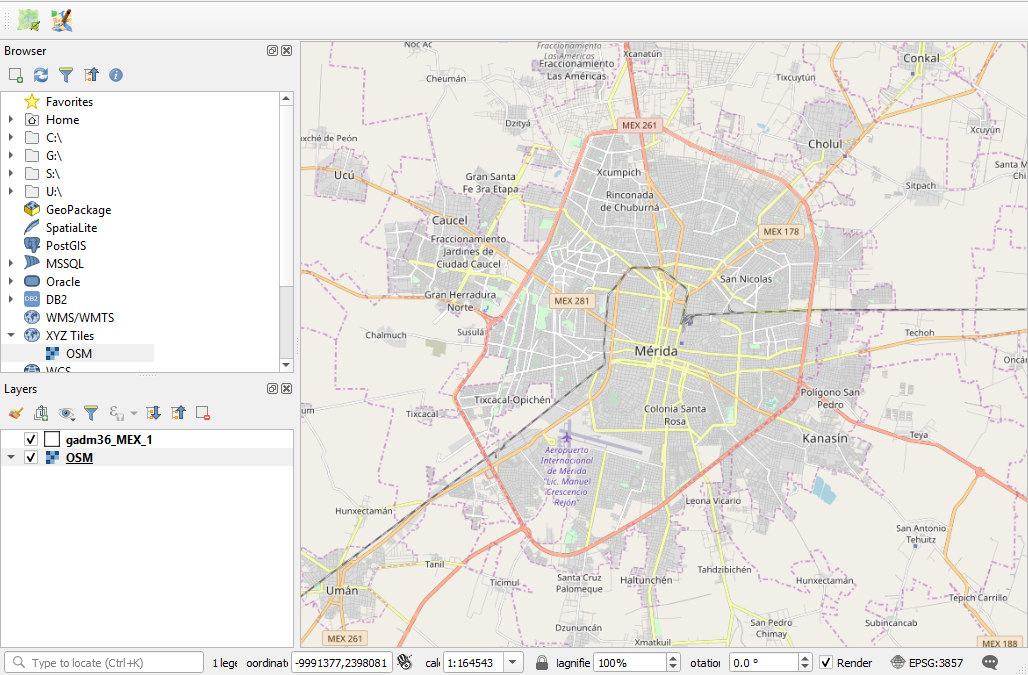
Next, we add a layer to serve as a frame of reference. We’re going to use the extent of the QGIS window to grab OSM features that fall within that area. We could download some vector files from GADM or Natural Earth; GADM provides several layers of administrative divisions which can be useful for locating and delineating our area. Or we can add a web service like OSM and simply zoom in to our area of interest. Adjust the zoom so that the entire city of Merida fits within the window.

Merida in QGIS

OSM XYZ Tiles in QGIS – Zoomed into Merida

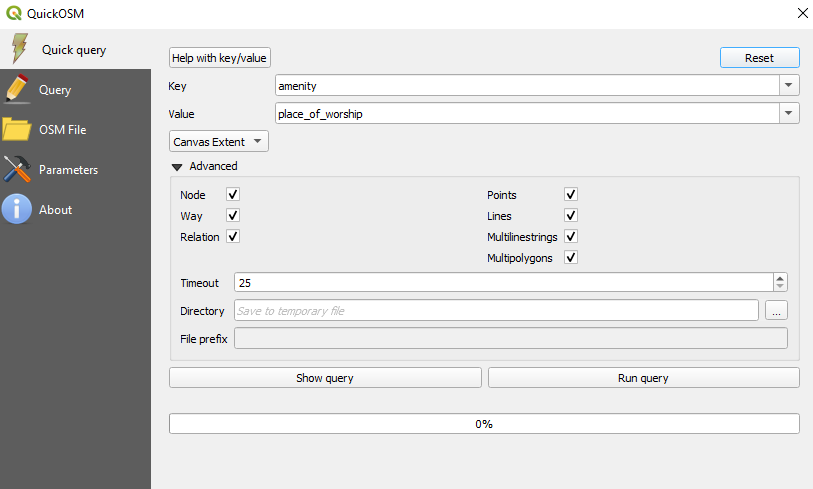
Now we can launch the Quick OSM tool. The default tab is Quick query, which allows us to select features directly from an OSM server (you need to be connected to the internet to do this). OSM data is stored in an XML format, so to extract the data we want we’ll need to specify the correct elements and tags. Ample documentation for all the map features is available. In our example, churches are referred to as places of worship and are classified as an amenity. So we choose amenity as the key and place_of_worship as the value. The drop down box allows us to search for features in or around a place, but as discussed in my previous post place names can be ambiguous. Choose the option for canvas extent, and that will capture any churches in our map window. Hit the advanced drop down arrow, and you have the option to select specific types of geometry (keep them all). Hit the run query button to execute.

Quick OSM Interface

Quick OSM Interface

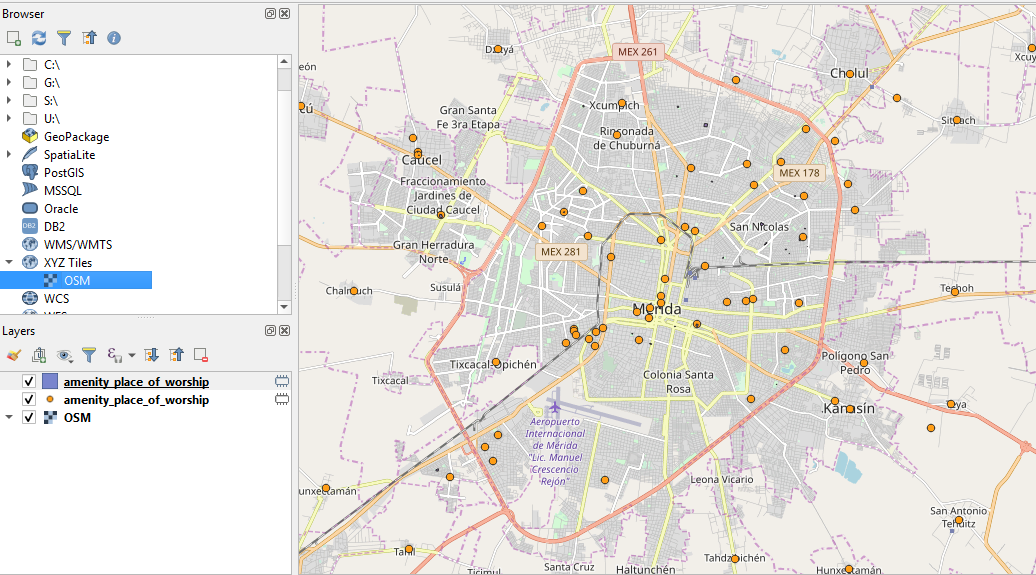
We’ll see there are two results: one for places of worship that are points, and another for polygons. If you right click on one of these layers and open the attribute table, you’ll see a number of tags that have been extracted and saved as columns, such as the name, religion, and denomination. The Quick query tools pulls a series of pre-selected attributes that are appropriate for the type of feature.

Places of Worship

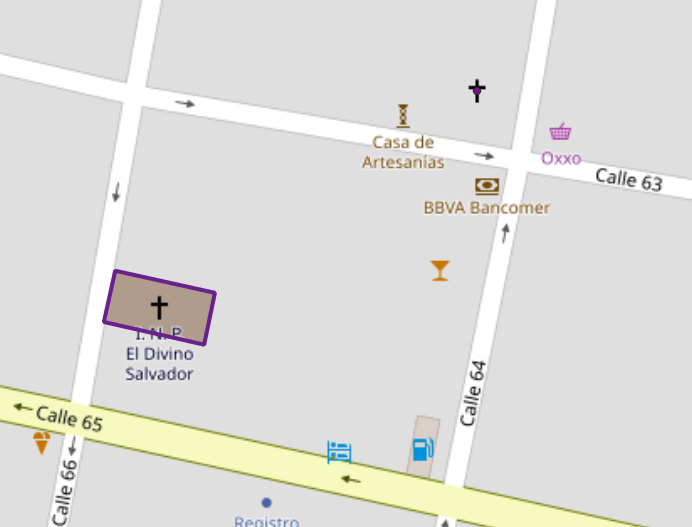
The data is saved temporarily in memory, so to keep it you need to save each as a shapefile or geopackage (right click, Export, Save Features As). But before we do that – why do have two separate layers to begin with? In some cases the OSM has the full shape of the building saved as a polygon, while in other cases the church is saved as a point feature, with a cross or other religious symbol appropriate for the type of worship space. It simply depends on the level of detail that was available when the feature was added.

Polygon versus Point

Church as polygon (lower left-hand corner) and as point (upper right-hand corner)

If we needed a single unified layer we would need to merge the two, but this process can be a pain. Using the vector menu you can convert the polygons to points using the centroid tool, and then use the merge tool to combine the two point layers. This is problematic as the number of fields in each file is different, and because the centroid tool changes the data type of the polygon’s id number to a type that doesn’t match the points. I think the easiest solution is to load both layers into a Spatialite database and create a unified layer in the DB.

Use SpatiaLite to Create a Single Point Layer

To do that, right click on the SpatiaLite option in the Browser Panel, choose Create Database, and name it (merida_churches). Then select the church point file, right click, export, save features as. Choose SpatiaLite as the format, for the file select the database we just created, and for layer name call it church_points. The default CRS (used by OSM) is WGS 84. Hit OK. Then repeat the steps for the polygons, creating a layer called church_polygons in that same database.

Once the features are database layers, we can write a SQL script (see below) where you create one table that has columns that you want to capture from both tables. You load the data from each of the tables into the unified one, and as you are loading the polygons you convert their geometry to points. The brackets around the names like [addr:full] allows you to overcome the illegal character designation in the original files (you shouldn’t use colons in db column names). I like to manually insert a date so to remember when I downloaded the feature set.

BEGIN;

CREATE TABLE all_churches (
full_id TEXT NOT NULL PRIMARY KEY,
osm_id INTEGER NOT NULL,
osm_type TEXT,
name TEXT,
religion TEXT,
denomination TEXT,
addr_housenumber TEXT,
addr_street TEXT,
addr_city TEXT,
addr_full TEXT,
download_date TEXT);

SELECT AddGeometryColumn('all_churches','geom',4326,'POINT','XY');

INSERT INTO all_churches
SELECT full_id, osm_id, osm_type, name, religion, denomination,
[addr:housenumber], [addr:street], [addr:city], [addr:full],
'02/11/2019', ST_CENTROID(geometry)
FROM church_polygons;

INSERT INTO all_churches
SELECT full_id, osm_id, osm_type, name, religion, denomination,
[addr:housenumber], [addr:street], [addr:city], [addr:full],
'02/11/2019', geometry
FROM church_points;

SELECT CreateSpatialIndex('all_churches', 'geom');

COMMIT;

Unfortunately the QGIS DB Browser does not allow you to run SQL transactions / scripts. You can paste the entire script into the window, highlight the first statement (CREATE TABLE), execute it, then highlight the next one (SELECT AddGeometryColumn), execute it, etc. Alternatively if you use the Spatialite CLI or GUI, you can save your script in a file, load it, and execute it in one go.

QGIS DB Browser

When finished we hit the refresh button and can see the new all_churches layer in the DB. We can preview the table and geometry and add it to the QGIS map window. If you prefer to work with a shapefile or geopackage you can always export it out of the db.

Other Options

The QuickOSM tool has a few other handy features. Under the Quick query tool is a plain old Query tool, which shows you the actual query being passed to the server. If you’re familiar with the map features and XML structure of OSM you can modify this query directly. Under the Query tool is the OSM File tool. Instead of grabbing features from the server, you can download an OSM pbf file (Geofabrik provides data for each country) and use this tool to load data from that file. It loads all features from the file for the geometries you choose, so the process can take awhile. You’ll want to load the data into a temporary file instead of saving in memory, to avoid a crash.

Final PostGIS Result

Measuring Polygon Overlap in QGIS and PostGIS

I was helping someone with a project this semester where we wanted to calculate overlap between two different polygon layers (postal code areas and grid cells) for over forty countries throughout the world. The process involved calculating the area of overlap and percentage of total overlap between each postal area and grid cell. We began our experiment in QGIS and perfected the process, but ultimately failed because the software was not able to handle the large number of polygons: almost 2 million postal codes and over 60k grid cells. Ultimately we employed PostGIS, which was more efficient and able to do the job.

In this post I’ll outline the steps for calculating area and polygon overlap in both QGIS (as an example of desktop GIS software) and PostGIS (as an example of a spatial database); I’ll assume you have some familiarity with both. For this example I’ll use two layers from the Census Bureau’s TIGER Line Shapefiles: Congressional Districts (CDs) and ZIP Code Tabulation Areas (ZCTAs). We’ll calculate how ZCTAs overlap with CD boundaries.

Before we begin, I should say that overlap is a technical term for a specific type of spatial selection. Overlapping features must share some interior space, and the geometry of one feature is not entirely enclosed within the geometry of another. I am NOT using the term overlap in this technical sense here – I’m using it more generally to refer to features that share any interior space with another, including areas that are entirely enclosed with another (i.e. 100% overlap).

QGIS

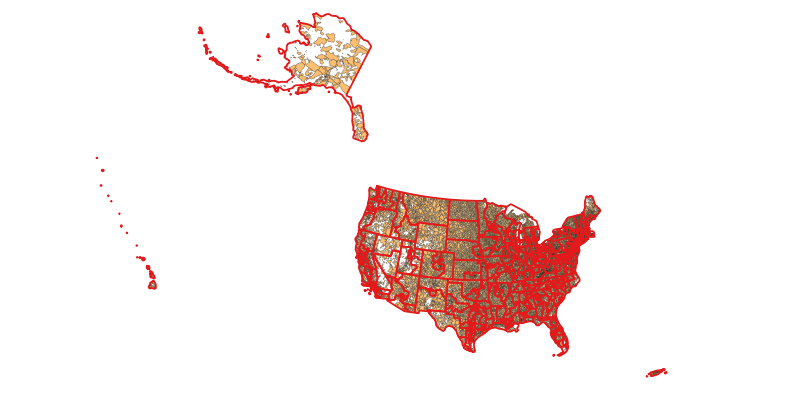
Since we’re measuring areas, the first step is to reproject our layers to a projected coordinate system that preserves area (an equal area projection). If we were working in a local area we could use a UTM or (in the US) a State Plane Zone. For continents and large countries like the US we could use Albers Equal Area Conic. If we were working globally we could use Mollweide or a Cylindrical Equal Area projection. The US Census layers are in the geographic coordinate system NAD 83. To reproject them, we select each one in the layers panel, right click, and choose save as. Browse and save them as new files, hit the CRS button, search for North America Albers Equal Area (AEA), select it, and save the new layers in that system. In the map window we select one of the new layers, right click, and choose Set Project CRS from Layer to apply the new system to the map window.

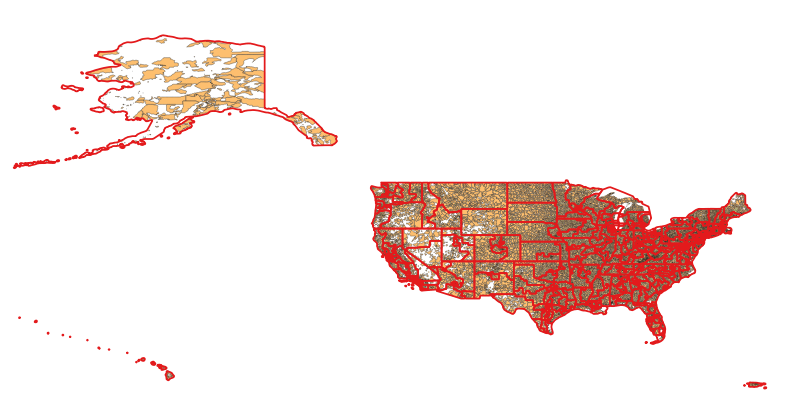
Map of CDs and ZCTAs in NAD 83

Congressional Districts (red) and ZCTAs (orange) in NAD 83

Map of CDs and ZCTAs in AEA

Congressional Districts (red) and ZCTAs (orange) in North America Albers Equal Area Conic

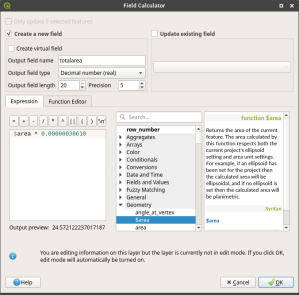
Next, we need to create a new field where we calculate the area for the ZCTAs. The census layers already come with pre-calculated area attributes, but we’ll need to calculate our own. Open the attribute table for the ZCTAs and hit the field calculator button (looks like an abacus). In the menu we create a new field called areatotal and populate it with the expression:

$area * 0.00000038610

$area is a geometry function that calculates the area of each polygon. Since the AEA projection uses square meters as its unit, the area will be in square meters. Multiplying by this fraction gives us square miles (or if you prefer, divide by 1000000 to get square kilometers). It’s important that we set the field type to a real / decimal number and specify a meaningful length (total number of digits) and precision (number of digits right of the decimal place). A length of 20 and a precision of 5 gives us 15 places to the left of the decimal point and 5 to the right, which should be plenty. Hit Calculate, exit out of the edit mode, and save changes.

QGIS Field Calculator

Calculating area in the QGIS Field Calculator

Before calculating the overlap it’s a good idea to check the geometry of each layer to make sure all of the polygons are valid (i.e. properly constructed), otherwise we will run into errors. Use Vector – Geometry Tools – Check Validity to check geometry, and if anything is broken open the Processing box and search for the Fix Geometry Tool. In this example both layers have valid geometry.

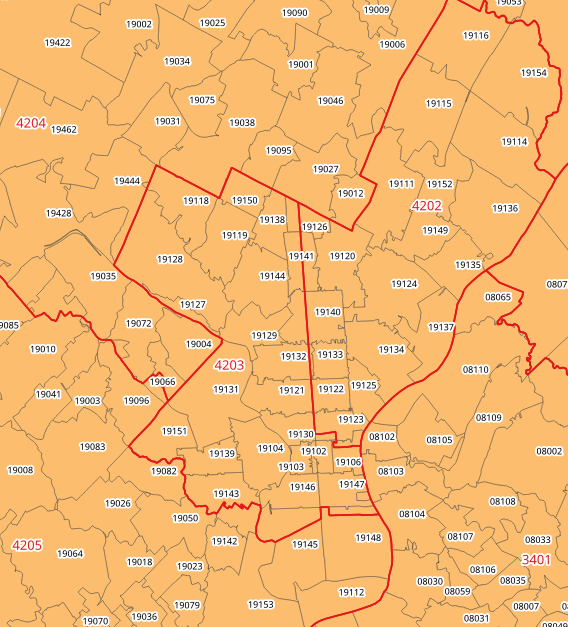
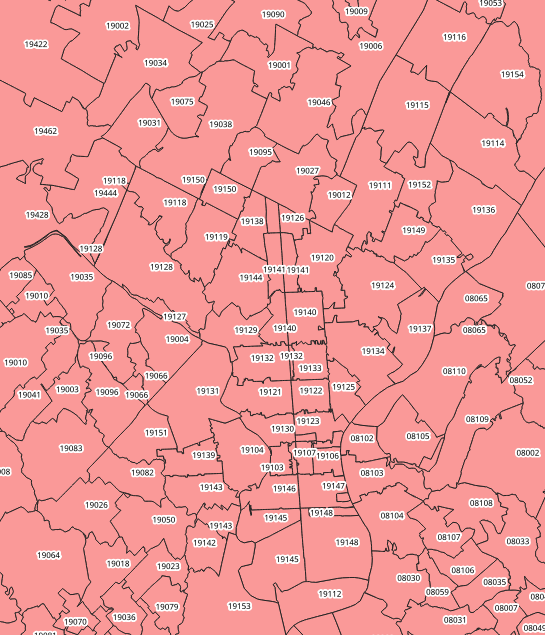
Use Vector – Geoprocessing – Union to meld the ZCTA and CD layers together. This will create unique polygons that consist of geometry occupied by a unique ZCTA and CD combination. So in instances where there is overlap between layers the polygon will be split into two (or more) pieces. See the image below, which illustrates CDs and ZCTAs before and after unioning in the Philadelphia area.

Congressional Disticts and ZCTAs in Philly

CDs and ZCTAs in Philly

ZCTAs in Philly after union with Congressional Districts

Split ZCTAs after union with Congressional Districts

Processing time will vary based on the number of features, their level of detail (nodes per polygon), the number of overlaps, and the number of attributes (columns) per layer. There are 444 CD features and about 33k ZCTAs. While these numbers aren’t huge, the polygons are very detailed and there is a fair amount of overlap: it took me approx 1.5 hours to run. To minimize processing time you could create copies of these layers, modify them by deleting attribute columns, and run the process on this modified layer. You should strip everything out except some unique identifiers and the totalarea field; you can always join the results back to the larger body of attributes later if you need them.

Once the process is complete, open the attribute table for the unioned layer and create a new calculated field called piecearea, where you calculate the area for these smaller pieces. At this stage you have what you need to calculate overlap: for these pieces you have columns with the total area of the original ZCTA and the area of this ZCTA piece that overlaps with a particular CD. You can add an additional calculated field called pct_in (length 5 precision 2) where you divide one by the other to get a percentage:

( “piecearea” / “totalarea” ) * 100

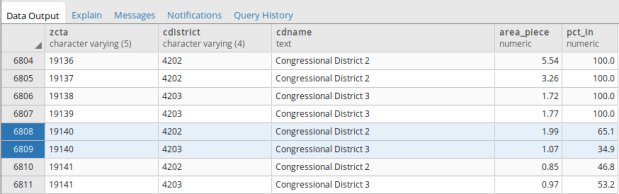
If a ZCTA record appears once in the table that means it’s fully inside one CD, and it should have a percentage of 100%. Otherwise it will appear multiple times, which means there is overlap and this will be reflected in the percentages. The output below is for ZCTAs 19138 through 19141 in Philadelphia, PA. Compare this to the maps above (these ZCTAs are located towards the center of the map). 19138 and 19139 are wholly within one CD, while 19140 and 19141 are split across two CDs. Unfortunately, QGIS doesn’t provide a simple way for hiding columns, so I can’t clearly represent the result in the image below – you’ll see a clearer picture from the PostGIS process. But you’ll end up with the attributes from both layers, so you can see what CD each ZCTA falls in.

QGIS Attribute Table

Attribute table with areas and percentages

PostGIS

The QGIS method is fine if you don’t have many polygons to calculate, but if you have a large number of features the process will either take a long time, or will crash (incidentally ArcGIS would be no different).

PostGIS to the rescue. For this approach, first you create a spatial database and activate the PostGIS extension with the command CREATE EXTENSION postgis. Then you can load the shapefiles into PostGIS using the shapefile loader that is bundled with PostGIS, or you could use the QGIS DB Manager to load them. During the import process you need to specify that the layers are in NAD 83 by specifying the correct EPSG code, changing the SRID from 0 to 4269.

PostGIS doesn’t have many global or continental projected coordinate system definitions, so we’ll have to add one for North America Albers Equal Area to its spatial reference table. A quick visit to Spatial Reference and a search for this system yields the definition, and we can get a PostGIS Insert statement that we can copy and paste into a SQL query window in our database. Before executing it, we have to change the SRID number in the statement from 9102008 to 102008 to avoid violating a check restraint that prevents IDs from being larger than 6 digits.

With the definition in place, we create a series of blank tables that will hold our two layers, and then run an insert statement where we take columns we want from the original tables and bring them into the new tables. In the course of doing this, we also transform the geometry from NAD 83 to Albers. At the end it’s important to create a spatial index on the geometry, as it will really speed up spatial selections.

BEGIN;

CREATE TABLE zctas_aea (
zcta5 varchar(5) PRIMARY KEY,
geom geometry (Multipolygon, 102008)
);

INSERT INTO zctas_aea (zcta5, geom)
SELECT zcta5ce10, ST_Transform(geom, 102008)
FROM tl_2018_us_zcta510;

CREATE INDEX zctas_aea_geom_gist
ON zctas_aea
USING gist (geom);

COMMIT;
BEGIN;
CREATE TABLE cds_aea (
geoid varchar(4) PRIMARY KEY,
statefp varchar(2),
name text,
session varchar(3),
geom geometry (Multipolygon, 102008)
);

INSERT INTO cds_aea (geoid, statefp, name, session, geom)
SELECT geoid, statefp, namelsad, cdsessn, ST_Transform(geom, 102008)
FROM tl_2018_us_cd116;

CREATE INDEX cds_aea_geom_gist
ON cds_aea
USING gist (geom);

COMMIT;

Once the data is inserted we can check the geometry validity with ST_IsValid, and if there is bad geometry we can fix it with another statement using ST_MakeValid, where IN contains identifiers for bad geometry discovered in the previous statement.

SELECT geoid, ST_IsValid(geom) AS notvalid,
ST_IsValidReason(geom) AS reason
FROM cds_aea
WHERE NOT ST_IsValid(geom);
UPDATE cds_aea
SET geom=ST_MakeValid(geom)
WHERE geoid IN (INSERT LIST OF IDS HERE);

We can execute the overlap operation with a single statement. PostGIS allows you to calculate area on the fly with the ST_Area function, and there are two functions for overlap: ST_Intersects acts as a spatial join that relates one layer to the other by selecting all features that Intersect, while ST_Intersection selects the actual pieces of each feature’s geometry that intersect. This example is just for Pennsylvania, which we select using the state FIPS code ’42’ from the CD layer.  It’s a good idea to get the statement right on a sample of records before executing it on the entire set. The double colons are a PostgreSQL shortcut for casting data types from one type to the other. This is necessary when using the ROUND function to produce a non-integer result (as ROUND can’t be used to round real decimal numbers produced from the AREA function to a fixed number of decimal places).

SELECT z.zcta5 AS zcta, c.geoid AS cd, c.name AS cdname,
ROUND((ST_Area(ST_Intersection(z.geom, c.geom)) *  0.00000038610)::numeric,2) AS area_piece,
ROUND((ST_Area(ST_Intersection(z.geom, c.geom)) / ST_Area(z.geom) * 100)::numeric,1) AS pct_in
FROM zctas_aea z, cds_aea c
WHERE ST_Intersects(z.geom, c.geom) AND c.statefp = '42'
ORDER BY z.zcta5, c.geoid, pct_in DESC;

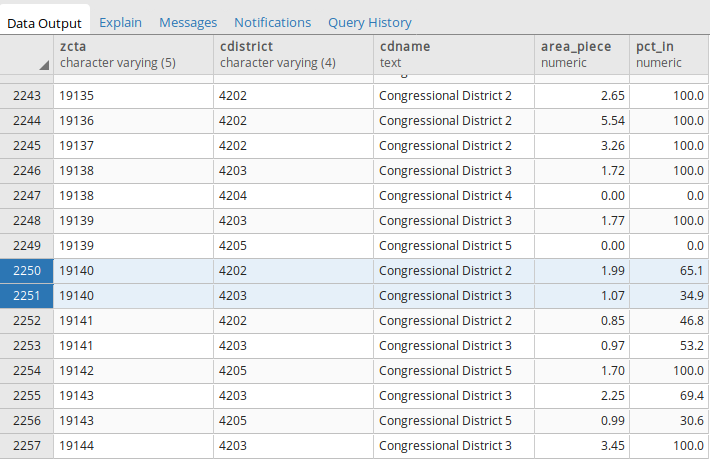
This statement took me about 20 seconds to run. The results (see below) include several records that QGIS didn’t return, where the area and overlap is 0, either due to an infinitely small area of overlap that rounds to zero or strict interpretation of intersect (which includes areas that overlap and touch). While there is an ST_Overlap function, it will not return geometries where one geometry is completely contained within another (so we can’t use that). For example, ZCTAs 19138 and 19139 appear within one district but there are two records for them, one with a 100% value and another with a 0% value.

Query results in PostgreSQL

Result of intersect operations and area calculations in pgAdmin / PostGIS

We can toss these records by either deleting them from the final result when the process is finished, or we can add another statement to our WHERE clause to filter them out:

AND ROUND((ST_Area(ST_Intersection(z.geom, c.geom)) *  0.00000038610)::numeric,2) > 0

This lengthened the execution time to 30 seconds and dropped the number of records from 2,523 to 2,061.

Once the statement looks good, we can drop the AND filter for Pennsylvania and generate a result for the entire country. Using pgAdmin 4 we can write the result directly out as a CSV. Or, you can preface the statement with CREATE VIEW overlap AS to save the statement as a query which you can call up any time. Or, you can preface the statement with CREATE TABLE overlap AS and the result of the query will be saved in a new table. This takes longer than the other two options, but gives you the ability to query and modify the resulting table. Exporting the table out as a CSV can be accomplished quickly, giving you the best of options 1 and 3. The final code and result is shown below.

CREATE TABLE zcta_cd_overlap AS
SELECT z.zcta5 AS zcta, c.geoid AS cdistrict, c.name AS cdname,
ROUND((ST_Area(ST_Intersection(z.geom, c.geom)) *  0.00000038610)::numeric,2) AS area_piece,
ROUND((ST_Area(ST_Intersection(z.geom, c.geom)) / ST_Area(z.geom) * 100)::numeric,1) AS pct_in
FROM zctas_aea z, cds_aea c
WHERE ST_Intersects(z.geom, c.geom) AND
ROUND((ST_Area(ST_Intersection(z.geom, c.geom)) *  0.00000038610)::numeric,2) > 0
ORDER BY z.zcta5, c.geoid, pct_in DESC;

Final PostGIS Result

Final Result in PostGIS / pgAdmin

Conclusion – which is best?

I’m using a 64-bit Lenovo Thinkpad laptop that has 4 Intel processors at 2.3Ghz and 8 gigs of memory. I’m running Xubuntu 18.04 and am using QGIS 3.4 Madeira, PostgreSQL 10, PostGIS 2.4, and pgAdmin 4. With 444 CDs and 33k ZCTAs it took me over 1.5 hours to run the union operation in QGIS, and that’s without altering the attribute tables to delete unnecessary columns. Executing the PostGIS statement, simply writing the output to the screen with the caveat to exclude areas with 0, took only 12 minutes. Writing the result to a new table took 22 minutes.

For the larger project that I mentioned at the beginning of this post, neither QGIS nor ArcGIS was able to complete the union process between 2 million polygons and 60k grid areas without crashing, even when we reduced the number of attribute columns to a bare minimum. It took PostGIS about 50 minutes to execute the overlap query and print the output to the screen or directly to a CSV, and about 3 hours to write the results to a new table.

I think the PostGIS approach is more straightforward and gives you more control over the process. There’s no need calculate area in advance or to delete attribute columns, as you can simply choose to include or exclude the ones you want. Finding and fixing invalid geometry in PostGIS is simpler, and the process is faster to execute. Rest assured you can handle layers with large numbers of features. I’ve wondered if the problems with QGIS and ArcGIS might be mitigated by using something other than a shapefile, like the newer geopackage format which is built on SQLite. I have no idea but it would be worth trying if you really wanted or needed to go the desktop GIS route for large files.

SQLite Logo

Looking for a Good SQLite GUI?

Goodbye SQLite Manager…

Late last year, I discovered that my favorite SQLite GUI was defunct. The SQLite Manager was a plugin for Firefox that allowed you to create and interact with SQLite databases with a simple yet highly functional interface. It had good support for importing and exporting csv files, color coding of cells based on data types, and a convenient feature for cycling back and forth between your SQL statements. Since it was a Firefox plugin it was guaranteed to work on any operating system, and since Firefox is installed on machines across my campus I knew I could rely on it for creating data extracts for students and faculty – I’d package data up in SQLite and send it to them along with a link to the plugin.

Firefox goes through about a million versions a year these days, and after a major upgrade last fall (to Firefox Quantum) most of the existing plugins, including the SQLite Manager, were no longer compatible. An upgrade it highly unlikely, as a few things changed under the hood of Firefox that makes the plugin unusable. While it still works on the Firefox Extended Support Release, in the long run the writing is on the wall.

Hello DB Browser for SQLite!

After searching through many alternatives I discovered the DB Browser for SQLite. It runs on Windows, Mac, and Linux and there’s a version for mobile. It was easy to install and has a clean interface. It provides a number of convenient tools and menus that you can use in place of writing SQL DDL, and in some cases it expands the functionality of SQLite by enabling a number of ALTER TABLE commands that are not part of SQLite SQL (like renaming and dropping columns). The Browse Data window makes it easy to quickly thumb through, sort, and filter records and to edit individual values by hand. The Execute SQL window has auto-complete and color-coded syntax, and you can see the database schema in one tab as you write your SQL in another (making it easy to reference table and column names). You can import and export data as CSV (or any delimited text file) or SQL files, and you can save the results of SELECT queries as CSV.

One interesting addition is that there’s actually a Save (Write Changes) and Undo button. So when you create, modify, or drop records, columns, or tables you see the result, but the act isn’t final until you commit the changes. A nice safety feature, especially for db novices.

DB Browser for SQLite - Browse

Browse Data

DB Browser for SQLite - SQL

Execute SQL and View DB Schema

I encountered a few quirks, but nothing insurmountable. I was using the nightly build version without realizing it, and when importing a CSV file the database takes a best guess as to what the data types for the columns should be. Even though the import screen gives you the option to specify that values are quoted, my quoted numeric fields were still saved as numbers and not text. As a result, ID codes like FIPS or ZIP Codes lose their leading zeros and are saved as integers.

The project is managed on github, so I went ahead and posted an issue. The developers were super responsive, and a discussion ensued over whether this behavior was desirable or not. We found two work-arounds. First, if you build an empty table with the desired structure, and then go to import the CSV, if you provide the name of that empty table as the new table name the db will import your data into that table. Alternatively, if I went and downloaded the latest stable release (3.10.1) the default behavior is that all columns are imported as text, which is a safer bet. You can use the GUI to change the types after import. The issue was marked as a bug, and will be addressed in a future release – one possible solution is to provide an option to turn the autodetect feature on (to determine what the types should be) or off (to import everything as text).

The browser also has a feature to attach a database to the current database, but when you do the attachment it appears like nothing happened – you can’t see  or browse the objects in database number two. But it IS attached (you can see every statement that’s been executed in a helpful log window) and you can copy a table from one db to the other like this:

CREATE TABLE sometable AS
SELECT *
FROM database2.sometable;

You run this within the current database, and database2 is the attached database (when you attach a db you provide an alias for referencing it).

These are minor quibbles. The DB Browser for SQLite is cross-platform, stable, has a clean interface with nice features, and is actively developed by a responsive and friendly team. I’ll be using it for all my SQLite tasks and projects, and will recommend it to others.

Spatialite?

An alternative I considered was to simply use the Spatialite GUI for both regular and spatial databases. It also has a simple, solid, and functional interface and supports spatial SQL, giving you the best of both worlds. So why not? While it works great for my own purposes it’s not something I can recommend to new users who are not GIS folks, either in my work or in the census data book I’m writing. Just figuring out where to download it from the website is overly complex, and while there are binaries for MS Windows there are none for Mac users. You’d have to install it from the source files, which is over the top for novices. Linux users may get lucky and find it in their software repos (it’s included for Debian and Ubuntu). The database browser in QGIS has matured in recent years, so that’s another option for GIS users who want to work with Spatialite or PostGIS.

Now if we only had a good GUI for PostgreSQL… I tried pgAdmin 4 about a year ago, and it was so bad that I’m still clinging to pgAdmin III as long as it still lives. But this is a different story, and one I’ll return to and investigate fully when it comes time to teach my spatial database course next year.