scripting

Anything about scripting – Python, R, Javascript, etc

SQL in QGIS Database Manager

Spatial SQL with Spatialite and QGIS

I’ve recently given a few presentations on the Ocean State Spatial Database, which is a basic geodatabase for Rhode Island that we’ve created in our lab. The database was designed so that new and experienced users alike could easily access a curated collection of foundational layers and data tables for thematic mapping and geospatial analysis. The database is available for download on GitHub, and there is documentation that describes the layers and tables that are included. The database comes in two formats: SQLite/ Spatialite that’s great for QGIS, and a File Geoadatabase version for ArcGIS Pro users.

One of the big advantages of using the Spatialite database in QGIS is that you can take advantage of the Database Manager, and write SQL and spatial SQL queries for selecting records and doing spatial analysis. Instead of using a series of point and click tools that create a bunch of new files, you can write a single block of code to perform an entire operation, and you can save that code to document your work. Access the Database Manager above the toolbars at the top of the QGIS interface. Once you’re in, you can select the Spatialite option, right click and then browse your file system to point to the database to establish a connection. At the top of the DB Manager is a button (piece of paper with wrench) to open a SQL query window.

Database Manager in QGIS with SQL Window Open

The following commands are basic SQL: SELECT some columns FROM some tables WHERE some criteria is met. This returns all rows and columns from the public libraries layer in the database:

SELECT *
FROM d_public_libraries;

This returns just some of the columns for all rows:

SELECT libid, libname, city, cnty
FROM d_public_libraries;

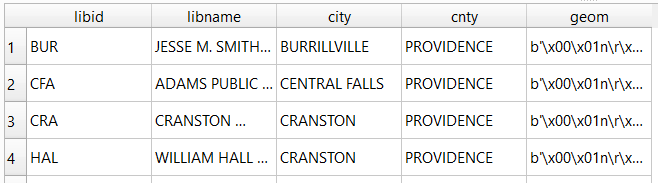
While this returns some of the columns and rows that meet specific criteria, in this case where libraries are located in Providence County, RI:

SELECT libid, libname, city, cnty, geom
FROM d_public_libraries
WHERE cnty='PROVIDENCE'
ORDER BY city;

Traditional database column types include strings (aka text), integers, and decimal numbers, which limit the values that can be stored in the column, and allow specific functions that can operate on values of that type (math on numeric columns, string operations on text columns). Beyond the basic data types, many databases have special ones, such as date types that allow you to store and manipulate dates and times as distinct objects.

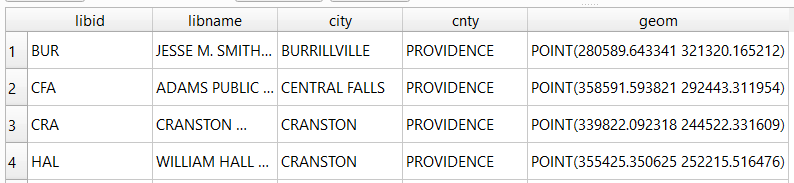
Spatial databases incorporate special columns for storing the geometry of features as strings of coordinates, and provide functions that can operate on that geometry. In the example above, the values stored in the geometry column were returned in a binary format. But we can apply a spatial function called ST_AsText to display the geometry as readable text:

SELECT libid, libname, city, cnty, ST_AsText(geom) AS geom
FROM d_public_libraries
WHERE cnty='PROVIDENCE'
ORDER BY city;

We can see that this is point geometry (as opposed to lines or polygons), and we have an X and Y coordinate for each point. The layers in this database are in the Rhode Island State Plane System, so the coordinates that are returned are in that system. We can convert these to longitude and latitude using the ST_Transform function:

SELECT libid, libname, city, cnty, ST_AsText(ST_Transform(geom,4269)) AS geom
FROM d_public_libraries
WHERE cnty='PROVIDENCE'
ORDER BY city;

This illustrates that the functions can be nested, first we transform the geometry and then display the result of that function as text. The number in the transform function is the unique identifier of the spatial reference system that we wish to transform the geometry to. In the open source world these are EPSG codes, and 4269 is the identifier for NAD 83, the basic long / lat system for North America (alternatively, we could use 4326 for WGS 84, the standard global long / lat system). The geometry column in a spatial table is connected to a series of internal tables that store all the definitions of the spatial reference systems. You can view the spatial reference system table:

SELECT * from spatial_ref_sys;

You can also get a read out of all the spatial tables in the database which include their type of geometry and the spatial reference system (3438 is the EPSG code for the RI State Plane zone, geometry of type 6 is a multipolygon, while type 1 is a point):

SELECT * from geometry_columns;

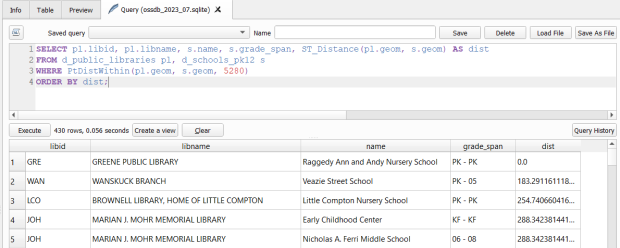
With a spatial database, you perform operations within and between tables by running functions against the geometry columns. For example, to return all public libraries and schools that are within a mile of a library while measuring the distance:

SELECT pl.libid, pl.libname, s.name, s.grade_span, ST_Distance(pl.geom, s.geom) AS dist
FROM d_public_libraries pl, d_schools_pk12 s
WHERE PtDistWithin(pl.geom, s.geom, 5280)
ORDER BY dist;

The ST_Distance function returns the actual distance in a new column, while the PtDistWithin function only returns libraries that have a school within one mile (5,280 feet – we have to express the measurement in the units used by the spatial reference system of both layers). In the FROM statement we provide aliases after each table name, so we can use those as shorthand (if our statement includes multiple tables, we need to indicate which table each column comes from).

You can also do summaries, like you would in standard SQL using GROUP BY. To count the number of schools that are within a mile of every library:

SELECT pl.libid, pl.libname, CAST(COUNT (s.name) AS integer) AS school_count, pl.geom
FROM d_public_libraries pl, d_schools_pk12 s
WHERE PtDistWithin(pl.geom, s.geom, 5280)
GROUP BY pl.libid, pl.libname, pl.geom
ORDER BY school_count DESC;

The rule for GROUP BY is that every column in the select statement must be used as a grouping variable, or has an aggregate function applied to it (COUNT, SUM, MEAN, etc). In this example we added the CAST function, which defines the data type for new columns that you create. Unless we explicitly declare it as an integer or real (decimal), values are returned as strings.

You can save your statements as views, by adding CREATE VIEW [view name] AS followed by the statement. Views are saved statements that appear as objects in the database; by opening a view, the statement is rerun and the result is returned. This approach works if you want to save a non-spatial view, i.e. a table without geometry. To save a spatial one with geometry, omit the VIEW statement and hit the Create a view button below the SQL window (each record must have a unique identifier and the geometry column in order for this to work). That registers the geometry column of the view in the database. Then, you can return to the main QGIS window, add the view and symbolize it. Alternatively, there is a Load as new layer button at the bottom of the screen, which allows you to see a temporary result without saving anything (while you can see features and records returned, you won’t be able to symbolize or manipulate the layer).

Count schools within 1 mile of libraries, and save as a spatial view
Symbolize the spatial query out in the main QGIS window

One of the primary reasons to use a database is to join related data stored in separate tables. This statement has two joins: a tabular join between the census tracts and an ACS data table, and a spatial join between the geometry of public libraries and tracts:

SELECT pl.libid, pl.libname, a.geoidshort, a.name, c.hshd01_e, c.hshd01_m
FROM d_public_libraries pl, a_census_tracts a
INNER JOIN c_tracts_acs2021_socecon c
ON a.geoidlong=c.geoidlong
WHERE ST_Intersects(pl.geom, a.geom);

This returns all public libraries and their intersecting tracts based on the relationship between their two geometries (could also have done ST_Within in this case to get the same result). Spatialite supports most of the spatial relationship functions defined by the OGC. The estimated number of households for these tracts are returned based on the shared unique census identifier between the two census tract tables.

You can visit the following references for a full list of SQLite functions and Spatialite functions. As it’s designed to be “Lite”, SQLite contains a smaller subset of the SQL standard. Spatialite contains a pretty full range of OGC spatial SQL functions, but there are instances where it deviates from the standard. PostgreSQL / PostGIS provides a greater range of functions that adhere more closely to the standard; it also provides you with greater storage, efficiency, and processing power. As a file-based database, SQLite / Spatialite’s strengths are that it’s compact and transportable, and gives you the option to write SQL rather than relying solely on the point and click tools of a desktop GIS package.

In addition to the QGIS DB Manager, you could also use the Spatialite command line tools provided by the developer, and the Spatialite GUI (graphic user interface) that gives you a standard, stand-alone database interface. Downloading it is a bit confusing; Windows users can grab one of the binaries at the bottom of this page. If you’re a Linux person, search for it in your package manager. Mac users can get it via Homebrew.

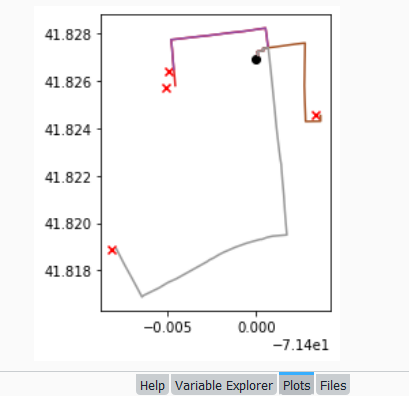
Coordinates Plotted in Rhode Island

Using PyProj to Transform Coordinates

I’ve written a number of spatial Python posts over the past few months; I’ll cap off this series with a short one on using PyProj to convert coordinates from one spatial reference system to another. PyProj is Python’s interface to PROJ, a library of coordinate system functions that power projection handling in many open source GIS and spatial packages.

A few months back I geocoded a large batch addresses against the Rhode Island DOT’s geocoding API, which returns coordinates in the local state plane system in feet. I decided to run the non-matching addresses against the Census Bureau’s Batch Geocoder, which returns coordinates in NAD 83 longitude and latitude. You can upload a CSV file of 10k addresses and get nearly instant results (one of my students recently wrote a tutorial on how to use it). So I split the unmatched records from my original CSV, uploaded it to the Census geocoder, and got matches.

Next, I needed to get the results from both processes into the same spatial reference system back in one unified file. The kludgy way to do this would be to plot each file separately in their respective systems in QGIS or ArcGIS, convert the NAD 83 plot to the state plane system, and merge the two vector files together. I used PyProj instead, to convert the NAD 83 coordinate data in the CSV to state plane, added that data to my main address CSV file, and plotted them all at once in the state plane system.

PyProj’s Transformer function does the job. I pass the EPSG / WKID codes for the input and output systems (4269 for NAD 83 and 3438 for NAD 83 RI State Plane ft-US) to Transformer.from_crs, and specify that I’m working with XY coordinates. I open the CSV file that contains the results from the Census Geocoder and read it in as a nested list, with each record as a sublist. Here are some sample records:

[["42221","1720 Victory Hwy, Glendale, RI, ","Match","Exact","1720 VICTORY HWY, GLENDALE, RI, 02826","-71.63746768099998,41.96913042600005","647200684","L","44","007","013002","1083"],
["44882","129 SHORE RD, Riverside, RI, ","No_Match"]]

Then I iterate through the records; in my example any record with less than 3 variables was a non-match, so I skip those. The Census geocoder returns longitude and latitude in the 5th position, in the same field separated with a comma (notice quotes around the coordinates in the example above, indicating that these are part of the same field so the comma is not used as a delimiter). I split this value on the comma, read the longitude as x1 and latitude as y1. The output of the transformer function returns coordinates x2 and y2 in the new system. I tack these new coordinates on to the existing record. Once the loop is finished, I write the result out as a new CSV; I used the name of the input file and tacked “stateplane” plus today’s date to the end. Here are the results for the same records:

[["42221","1720 Victory Hwy, Glendale, RI, ","Match","Exact","1720 VICTORY HWY, GLENDALE, RI, 02826","-71.63746768099998,41.96913042600005","647200684","L","44","007","013002","1083","290699.10687381076","322797.1874965105"],
["44882","129 SHORE RD, Riverside, RI, ","No_Match"]]

That’s it! I took the resulting CSV and tacked it to end of my primary CSV, which contained the successful matches from the RIDOT geocoder, in such a way that matching fields lined up. I can still identify which results came from what geocoder, as a few of the fields are different.

import csv
from datetime import date
from pyproj import Transformer

reproject = Transformer.from_crs(4269,3438,always_xy=True)

records=[]

addfile='GeocodeResults.csv'
with open(addfile,'r') as infile:
    reader = csv.reader(infile)
    for row in reader:
        records.append(row)

for r in records:
    if len(r)>3:
        x1,y1=r[5].split(',')
        x2,y2=reproject.transform(float(x1),float(y1))
        r.extend([str(x2),str(y2)])

today=str(date.today())        

outfile=addfile.split('.')[0]+'_stateplane_'+today+'.csv'
with open(outfile, 'w', newline='') as writefile:
    writer = csv.writer(writefile, quoting=csv.QUOTE_ALL, delimiter=',')
    writer.writerows(records)

print('Done')
PRISM Temperature Raster and Test Points Jan 15, 2020

Clipping Rasters and Extracting Values with Geospatial Python

In an earlier post, I described how to summarize and extract raster temperature data using GIS. In this post I’ll demonstrate some alternate methods using spatial Python. I’ll describe some scripts I wrote for batch clipping rasters, overlaying them with point locations, and extracting raster values (mean temperature) at those locations based on attributes of the points (a matching date). I used a number of third party modules, including geopandas (storing vector data in a tabular form), rasterio (working with raster grids), shapely (building vector geometry), matplotlib (plotting), and datetime (working with date data types). Using Anaconda Python, I searched for and added each of these modules via its package handler. I opted for this modular approach instead of using something like ArcPy, because I don’t want the scripts to be wedded to a specific software package. My scripts and sample data are available in GitHub; I’ll add snippets of code to this post for illustration purposes. The repo includes the full batch scripts that I’ll describe here, plus some earlier, shorter, sample scripts that are not batch-based and are useful for basic experimentation.

Overview

I was working with a medical professor who had point observations of where patients lived, which included a date attribute of when they had visited a clinic to receive certain treatment. For the study we needed to know what the mean temperature was on that day, as well as the temperature of each day of the preceding week. We opted to use daily temperature data from the PRISM Climate Group at Oregon State, where you can download a raster of the continental US for a given day that has the mean temperature (degrees Celsius) in one band, at 4km resolution. There are separate files for min and max temperature, as well as precipitation. You can download a year’s worth of data in one go, with one file per date.

Our challenge was that we had thousands of observations than spanned five years, so doing this one by one in GIS wasn’t going to be feasible. A custom script in Python seemed to be the best solution. Each raster temperature file has the date embedded in the file name. If we iterate through the point observations, we could grab its observation date, and using string manipulation grab the raster with the matching date in its file name, and then do the overlay and extraction. We would need to use Python’s datetime module to convert each date to a common format, and use a function to iterate over dates from the previous week.

Prior to doing that, we needed to clip or mask the rasters to the study area, which consists of the three southern New England states (Connecticut, Rhode Island, and Massachusetts). The PRISM rasters cover the lower 48 states, and clipping them to our small study area would speed processing time. I downloaded the latest Census TIGER file for states, and extracted the three SNE states. ArcGIS Pro does have batch clipping tools, but I found they were terribly slow. I opted to write one Python script to do the clipping, and a second to do the overlay and extraction.

Batch Clipping Rasters

I downloaded a sample of PRISM’s raster data that included two full months of daily mean temperature files, from Jan and Feb 2020. At the top of the clipper script, we import all the modules we need, and set our input and output paths. It’s best to use the path.join method from the os module to construct cross platform paths, so we don’t encounter the forward / backward \ slash issues between Mac and Linux versus Windows. Using geopandas I read in the shapefile of the southern New England (SNE) states into a geodataframe.

import os
import matplotlib.pyplot as plt
import geopandas as gpd
import rasterio
from rasterio.mask import mask
from shapely.geometry import Polygon
from rasterio.plot import show

#Inputs
clip_file=os.path.join('input_raster','mask','states_southern_ne.shp')
# new file created by script:
box_file=os.path.join('input_raster','mask','states_southern_ne_bbox.shp') 
raster_path=os.path.join('input_raster','to_clip')
out_folder=os.path.join('input_raster','clipped')

clip_area = gpd.read_file(clip_file)

Next, I create a new geodataframe that represents the bounding box for the SNE states. The total_bounds method provides a list of the four coordinates (west, south, east, north) that form a minimum bounding rectangle for the states. Using shapely, I build polygon geometry from those coordinates by assigning them to pairs, beginning with the northwest corner. This data is from the Census Bureau, so the coordinates are in NAD83. Why bother with the bounding box when we can simply mask the raster using the shapefile itself? Since the bounding box is a simple rectangle, the process will go much faster than if we used the shapefile that contains thousands of coordinate pairs.

corners=clip_area.total_bounds
minx=corners[0]
miny=corners[1]
maxx=corners[2]
maxy=corners[3]
areabbox = gpd.GeoDataFrame({'geometry':Polygon([(minx,maxy),
                                                (maxx,maxy),
                                                (maxx,miny),
                                                (minx,miny),
                                                (minx,maxy)])},index=[0],crs="EPSG:4269")

Once we have the bounding box as geometry, we proceed to iterate through the rasters in the folder in a loop, reading in each raster (PRISM files are in the .bil format) using rasterio, and its mask function to clip the raster to the bounding box. The PRISM rasters and the TIGER states both use NAD83, so we didn’t need to do any coordinate reference system (CRS) transformation prior to doing the mask (if they were in different systems, we’d have to convert one to match the other). In creating a new raster, we need to specify metadata for it. We copy the metadata from the original input file to the output file, and update specific attributes for the output file (such as the pixel height and width, and the output CRS). Here’s a mask example and update from the rasterio docs. Once that’s done, we write the new file out as a simple GeoTIFF, using the name of the input raster with the prefix “clipped_”.

idx=0
for rf in os.listdir(raster_path):
    if rf.endswith('.bil'):
        raster_file=os.path.join(raster_path,rf)
        in_raster=rasterio.open(raster_file)
        # Do the clip operation
        out_raster, out_transform = mask(in_raster, areabbox.geometry, filled=False, crop=True)
        # Copy the metadata from the source and update the new clipped layer 
        out_meta=in_raster.meta.copy() 
        out_meta.update({
            "driver":"GTiff",
            "height":out_raster.shape[1], # height starts with shape[1]
            "width":out_raster.shape[2], # width starts with shape[2]
            "transform":out_transform})  
        # Write output to file
        out_file=rf.split('.')[0]+'.tif'
        out_path=os.path.join(out_folder,'clipped_'+out_file)
        with rasterio.open(out_path,'w',**out_meta) as dest:
            dest.write(out_raster)
        idx=idx+1
        if idx % 20 ==0:
            print('Processed',idx,'rasters so far...')
    else:
        pass
    
print('Finished clipping',idx,'raster files to bounding box: \n',corners)

Just to see some evidence that things worked, outside of the loop I take the last raster that was processed, and plot that to the screen. I also export the bounding box out as a shapefile, to verify what it looks like in GIS.

#Show last clipped raster
fig, ax = plt.subplots(figsize=(12,12))
areabbox.plot(ax=ax, facecolor='none', edgecolor='black', lw=1.0)
show(in_raster,ax=ax)

fig, ax = plt.subplots(figsize=(12,12))
show(out_raster,ax=ax)

# Write bbox to shapefile 
areabbox.to_file(box_file)
Clipped raster with bounding box
PRISM US mean daily temperature raster, clipped / masked to bounding box of southern New England

Extract Raster Values by Date at Point Locations

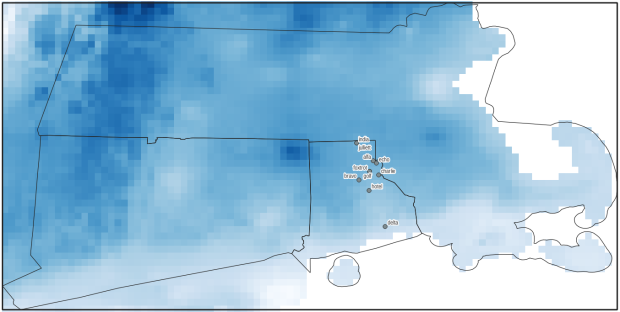
In the second script, we begin with reading in the modules and setting paths. I added an option at the top with a variable called temp_many_days; if it’s set to True, it will take the date range below it and retrieve temperatures for x to y days before the observation date in the point file. If it’s False, it will retrieve just the matching date. I also specify the names of columns in the input point observation shapefile that contain a unique ID number, name, and date. In this case the input data consists of ten sample points and dates that I’ve concocted, labeled alfa through juliett, all located in Rhode Island and stored as a shapefile.

import os,csv,rasterio
import matplotlib.pyplot as plt
import geopandas as gpd
from rasterio.plot import show
from datetime import datetime as dt
from datetime import timedelta
from datetime import date

#Calculate temps over multiple previous days from observation
temp_many_days=True # True or False
date_range=(1,7) # Range of past dates 

#Inputs
point_file=os.path.join('input_points','test_obsv.shp')
raster_dir=os.path.join('input_raster','clipped')
outfolder='output'
if not os.path.exists(outfolder):
    os.makedirs(outfolder)

# Column names in point file that contain: unique ID, name, and date
obnum='OBS_NUM'
obname='OBS_NAME'
obdate='OBS_DATE'

Next, we loop through the folder of clipped raster files, and for each raster (ending in .tif) we grab the file name and extract the date from it. We take that date and store it in Python’s standard date format. The date becomes a key, and the path to the raster its value, which get added to a dictionary called rf_dict. For example, if we split the file name clipped_PRISM_tmean_stable_4kmD2_20200131_bil.tif using the underscores, counting from zero we get the date in the 5th position, 20200131. Converting that to the standard datetime format gives us datetime.date(2020, 1, 31).

rf_dict={} # Create dictionary of dates and raster file names

for rf in os.listdir(raster_dir):
    if rf.endswith('.tif'):
        rfdatestr=rf.split('_')[5]
        rfdate=dt.strptime(rfdatestr,'%Y%m%d').date() #format of dates is 20200131
        rfpath=os.path.join(raster_dir,rf)
        rf_dict[rfdate]=rfpath
    else:
        pass

Then we read the observation point shapefile into a geodataframe, create an empty result_list that will hold each of our extracted values, and construct the header row for the list. If we are grabbing temperatures for multiple days, we generate extra header values to add to that row.

#open point shapefile
point_data = gpd.read_file(point_file)

result_list=[]
result_list.append(['OBS_NUM','OBS_NAME','OBS_DATE','RASTER_ROW','RASTER_COL','RASTER_FILE','TEMP'])

if temp_many_days==True:
    for d in range(date_range[0],date_range[1]):
        tcol='TMINUS_'+str(d)
        result_list[0].append(tcol)
    result_list[0].append('TEMP_RANGE')
    result_list[0].append('AVG_TEMP')
    temp_ftype='multiday_'
else:
    temp_ftype='singleday_'

Now the preliminaries are out of the way, and processing can begin. This post and tutorial helped me to grasp the basics of the process. We loop through the point data in the geodataframe (we indicate point.data.index because these are dataframe records we’re looping through). We get the observation date for the point and store that it the standard Python date format. Then we take that date, compare it to the dictionary, and get the path to the corresponding temperature raster for that date. We open that raster with rasterio, isolate the x and y coordinate from the geometry of the point observation, and retrieve the corresponding row and column for that coordinate pair from the raster. Then we read the value that’s associated with the grid cell at those coordinates. We take some info from the observation points (the number, name, and date) and the raster data we’ve retrieved (the row, column, file name, and temperature from the raster) and add it to a list called record.

#Pull out and format the date, and use date to look up file
for idx in point_data.index:
    obs_date=dt.strptime(point_data[obdate][idx],'%m/%d/%Y').date() #format of dates is 1/31/2020
    obs_raster=rf_dict.get(obs_date)
    if obs_raster == None:
        print('No raster available for observation and date',
              point_data[obnum][idx],point_data[obdate][idx])
    #Open raster for matching date, overlay point coordinates, get cell location and value
    else:
        raster=rasterio.open(obs_raster)
        xcoord=point_data['geometry'][idx].x
        ycoord=point_data['geometry'][idx].y
        row, col = raster.index(xcoord,ycoord)
        tempval=raster.read(1)[row,col]
        rfile=os.path.split(obs_raster)[1]
        record=[point_data[obnum][idx],point_data[obname][idx],
                point_data[obdate][idx],row,col,rfile,tempval]

If we had specified that we wanted a single day (option near the top of the script), we’d skip down to the bottom of the next block, append the record to the main result_list, and continue iterating through the observation points. Else, if we wanted multiple dates, we enter into a sub-loop to get data from a range of previous dates. The datetime timedelta function allows us to do date subtraction; if we subtract 1 from the current date, we get the previous day. We loop through and get rasters and the temperature values for the points from each previous date in the range and append them to an old_temps list; we also build in a safety mechanism in case we don’t have a raster file for a particular date. Once we have all the dates, we do some calculations to get the average temperature and range for that entire period. We do this on a copy of old_temps called all_temps, where we delete null values and add the current observation date. Then we add the average and range to old_temps, and old_temps to our record list for this point observation, and when finished we append the observation record to our main result_list, and proceed to the next observation.

       # Optional block, if pulling past dates
        if temp_many_days==True:
            old_temps=[]
            for d in range(date_range[0],date_range[1]):
                past_date=obs_date-timedelta(days=d) # iterate through days, subtracting
                past_raster=rf_dict.get(past_date)
                if past_raster == None: # if no raster exists for that date
                    old_temps.append(None)
                else:
                    old_raster=rasterio.open(past_raster)
                    # Assumes rasters from previous dates are identical in structure to 1st date
                    past_temp=old_raster.read(1)[row,col]
                    old_temps.append(past_temp)
            # Calculate avg and range, must exclude None values and include obs day
            all_temps=[t for t in old_temps if t is not None]
            all_temps.append(tempval)
            temp_range=max(all_temps)-min(all_temps)
            avg_temp=sum(all_temps)/len(all_temps)
            old_temps.extend([temp_range,avg_temp])
            record.extend(old_temps)
            result_list.append(record)
        else: # if NOT doing many days, just append data for observation day
            result_list.append(record)
    if (idx+1)%200==0:
        print('Processed',idx+1,'records so far...')

Once the loop is complete, we plot the last point and raster to the screen just to check that it looks good, and we write the results out to a CSV.

#Plot the points over the final raster that was processed    
fig, ax = plt.subplots(figsize=(12,12))
point_data.plot(ax=ax, color='black')
show(raster, ax=ax)

today=str(date.today()).replace('-','_')
outfile='temp_observations_'+temp_ftype+today+'.csv'
outpath=os.path.join(outfolder,outfile)

with open(outpath, 'w', newline='') as writefile:
    writer=csv.writer(writefile, quoting=csv.QUOTE_MINIMAL, delimiter=',')
    writer.writerows(result_list)  

print('Done. {} observations in input file, {} records in results'.format(len(point_data),len(result_list)-1))
Output data for script
CSV output from script, temperatures extracted from raster by date for observation points

Results and Wrap-up

Visit the GitHub repo for full copies of the scripts, plus input and output data. In creating test observation points, I purposefully added some locations that had identical coordinates, identical dates, dates that varied by a single day, and dates for which there would be no corresponding raster file in the sample data if we went one week back in time. I looked up single dates for all point observations manually, and a sample of multi-day selections as well, and they matched the output of the script. The scripts ran quickly, and the overall process seemed intuitive to me; resetting the metadata for rasters after masking is the one part that wouldn’t have occurred to me, and took a little bit of time to figure out. This solution worked well for this case, and I would definitely apply geospatial Python to a problem like this again. An alternative would have been to use a spatial database like PostGIS; this would be an attractive option if we were working with a bigger dataset and processing time became an issue. The benefit of using this Python approach is that it’s easier to share the script and replicate the process without having to set up a database.

Observation points on raster in QGIS
Observation points plotted on temperature raster with single-day output temperatures in QGIS
Sample of Geolocated Tweets Nov 1, 2022

Parsing the Internet Archive’s Twitter Stream Grab with Python

In this post I’ll share a process for getting geo-located tweets from Twitter, using large files of tweets archived by the Internet Archive. These are tweets where the user opted to have their phone or device record the longitude and latitude coordinates for their location, at the time of the tweet. I’ve created some straightforward scripts in Python without any 3rd party modules for processing a daily file of tweets. Given all the turmoil at Twitter in early 2023, most of the tried and true solutions for scraping tweets or using their APIs no longer function. What I’m presenting here is one, simple solution.

Social media data is not my forte, as I specialize in working with official government datasets. When such questions turn up from students, I’ve always turned to the great Web Scraping Toolkit developed by our library’s Center for Digital Scholarship. But the graduate student I was helping last week and I discovered that both the Twint and TAGS tools no longer function due to changes in Twitter’s developer policies. Surely there must be another solution – there are millions of posts on the internet that show how easy it is to grab tweets via R or Python! Alas, we tried several alternatives to no avail. Many of these projects rely on third party modules that are deprecated or dodgy (or both), and even if you can escape from dependency hell and get everything working, the changed policies rendered them moot.

You can register under Twitter’s new API policy and get access to a paltry number of records. But I thought – surely, someone else has scraped tons of tweets for academic research purposes and has archived them somewhere – could we just access those? Indeed, the folks at Harvard have. They have an archive of geolocated tweets in their dataverse repository, and another one for political tweets. They are also affiliated with a much larger project called DocNow with other schools that have different tweet archives. But alas, there are rules to follow, and to comply with Twitter’s license agreement Harvard and these institutions can’t directly share the raw tweets with anyone outside their institutions. You can search and get IDs to the tweets, using their Hydrator application, which you can use in turn to get the actual tweets. But then in small print:

“Twitter’s changes to their API which greatly reduce the amount of read-only access means that the Hydrator is no longer a useful application. The application keys, which functioned for the last 7 years, have been rescinded by Twitter.”

Fortunately, there is the Internet Archive, which has been working to preserve pieces of the internet for posterity for several decades. Their Twitter Stream Grab consists of monthly collections of daily files for the past few years, from 2016 to 2022. This project is no longer active, but there’s a newer one called the Twitter Archiving Project which has data from 2017 to now. I didn’t investigate this latter one, because I wasn’t sure if it provided the actual tweets or just metadata about them, while the older project definitely did. The IA describes the Stream Grab as the “spritzer” version of Twitter grabs (as opposed to a sprinkler or garden hose). Thanks to the internet, it’s easy to find statistics but hard to find reliable ones – this one, credible looking source (the GDELT Project) suggests that there are between 400 and 500 million tweets a day in recent years. The file I downloaded from IA for one day had over 4 million tweets, so that’s about 1% of all tweets.

I went into the November 2022 collection and downloaded the file for Nov 1st. It’s a TAR file that’s about 3 GB. Unzipping it gives you a folder for that data named for the date, with hundreds of gz ZIP files. Unzip those, and you have tons of JSON Line files. These are JSON files where each JSON record has been collapsed into one line.

Internet Archive Twitter Stream Grab

Python to the rescue. See GitHub for the full scripts – I’ll just add some snippets here for illustration. I wrote two scripts: the first reads in and aggregates all the tweets from the JSONL files, parses them into a Python dictionary, and writes out the geo-located records into regular JSON. The second reads in that file, selects the elements and values that we want into a list format, and writes those out to a CSV. The rationale was to separate importing and parsing from making these selections, as we’re not going to want to repeat the time-consuming first part while we’re tweaking and modifying the second part.

In the sample data I used for 11/01/2022, unzipping the downloaded TAR file gave me a date folder, and in that date folder were hundreds of gz ZIP files. Unzipping those revealed the JSONL files. I wrote the script to look in that date folder, one level below the folder that holds the scripts, and read in anything that ended with .json. Not all of the Internet Archive’s stream’s are structured this way; if your downloads are structured differently, you can simply move all the unzipped json files to one directory below the script to read them. Or, you can modify the script to iterate through sub-directories.

Because the data was stored as JSONL, I wasn’t able to read it in as regular JSON. I read each line as a string that I appended to a list, iterated through that list to convert it into a dictionary, pulled out the records that had geo-located elements, and added those records to a larger dictionary where I used an identifier in the record as a key and the value as a dictionary with all elements and values for a tweet. This gets written out as regular JSON at the end. Reading the data in didn’t take long; parsing the strings into dictionaries was the time consuming part. Originally, I wanted to parse and save all 4 million records, but the process stalled around 750k as I ran out of memory. Since so few records are geo-located, just selecting these circumvented this problem. If you wanted to modify this part to get other kinds of records, you would need to apply some filter, or implement a more efficient process than what I’m using.

json_list=[] # list of lists, each sublist has 1 string element = 1 line

for f in os.listdir(json_dir):
    if f.endswith('.json'):
        json_file=os.path.join(json_dir,f)
        with open(json_file,'r',encoding='utf-8') as jf:
            jfile_list = list(jf) # create list with one element, a line saved as a string 
            json_list.extend(jfile_list)
            print('Processed file',f,'...')

geo_dict={} # dictionary of dicts, each dict has line parsed into keys / values
i=0   
for json_str in json_list:
    result = json.loads(json_str) # convert line / string to dict
    if result.get('geo')!=None: # only take records that were geocoded
        geo_dict[result['id']]=result 
    i=i+1
    if i%100000==0:
        print('Processed',i,'records...')

The second script reads the JSON output from the first, and simply iterates through the dictionary and chooses the elements and values I want and assigns them to variables. Some of these are straightforward, such as grabbing the timestamp and tweet. Others required additional work. The source element provides HTML code with a source link and name, so I split and strip this value to get them separately. The coordinates are stored as a list, so to get longitude and latitude as separate values I indicate the list position. In cases where I’m delving into a sub-dictionary to get a value (like the coordinates), I added if statements to set values to None if they don’t exist in the JSON, otherwise you get an error. Once I finish iterating, I append all these variables to a list, and add this list to the main one that captures every record. I create a matching header row list, and both are written out as a CSV.

with open(input_json) as json_file:
    twit_data = json.load(json_file)

twit_list=[]

# In this block, select just the keys / values to save
for k,v in twit_data.items():
    tweet_id=k
    timestamp=v.get('created_at')
    tweet=v.get('text')
    # Source is in HTML with anchors. Separate the link and source name
    source=v.get('source') # This is in HTML
    source_url=source.split('"')[1] # This gets the url
    source_name=source.strip('</a>').split('>')[-1] # This gets the name
    lang=v.get('lang')
    # Value for long / lat is stored in a list, must specify position
    if v['geo'] !=None:
        longitude=v.get('geo').get('coordinates')[1]
        latitude=v.get('geo').get('coordinates')[0]
    else:
        longitude=None
        latitude=None
...

My code could use improvement – much of this could be abstracted into a function to avoid repetition. We were in a hurry, and I’m also working with folks who need data but aren’t necessarily familiar with Python, so something that’s inefficient but understandable is okay (although I will polish this up in the future).

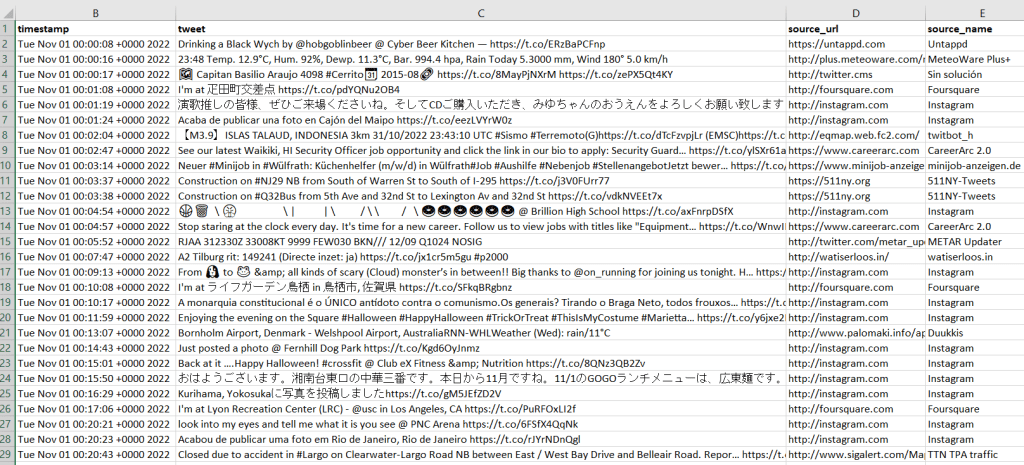
I provide the output in GitHub, examples of the final CSV appear below. Every language in the world is captured in these tweets, so Windows users need to import the CSV into Excel (Data – From Text/CSV) and choose UTF-8 encoding. Double-clicking the CSV to open it in Excel in Windows will render most of the text as junk, in the default Windows-1252 encoding.

Tweets extracted from Internet Archive with timestamp, tweets, and source information
Geolocated Twitter Data 1
Tweets extracted from Internet Archive, showing geo-located information

So, is this data actually useful? That’s an open question. Of the 4 million tweets in this file, just over 1,158 were geo-located! I checked and this is not a mistake. The metadata record for the Harvard geolocated tweets mentions that only 1% to 2% of all tweets are geo-located. So of the 400 million daily tweets, only 4 million. And out of our daily 4 million sample from IA, just 1,158 (less than 1%). What we ended up with does give you a sense of variety and global coverage (see map at the top of the post, showing sample of tweets by language Nov 1, 2022). In this sample, the top five countries represented were: US (35%), Japan (17%), Brazil (4%), UK (4%), Mexico and Turkey (tied 3%). For languages, the top five: English (51%), Japanese (17%), Spanish (9%), Portuguese (5%), and Turkish (3%).

In many cases, I think you’d need a larger sample than a single day, assuming you’re interested in just geo-located records. Perhaps 4 million is large enough for certain non-spatial research? Again, not my area of expertise, but you would want to be aware of events that happened on a certain date that would influence what was tweeted. My graduate student wanted to see differences in certain kinds of tweets in the LA metro area versus the rest of the US, but this sample includes less than 20 tweets from LA. To do anything meaningful, she’d have to download and process a whole month of tweets (at least). Even then, there are certain tweeters that show up repeatedly in given areas. In NYC, most of the tweets on this date were from the 511 service, warning people where that day’s potholes were.

Beyond the location of the tweet, there is a lot of information about the user, including their self-reported location. This data is available in all tweets (not just the geo-located ones). But there are a lot problems with this attribute: the user isn’t necessarily tweeting from that location, as it represents their “static” home. This location is not geocoded, and it’s self reported and uncontrolled. In this example, some users dutifully reported their home as ‘Cleveland, OH’ or ‘New York City’. Other folks listed ‘NYC – LA – ATL – MIA’, ‘CIUDAD DE LAS BAJAS PASIONES’, ‘H E L L’, and ‘Earth. For now’.

Even for research that incorporated geo-located tweets from other, larger data sources that were previously accessible, how representative are all those studies when the data represents only 1% of the total tweet volume? I am skeptical. Also consider the information from the good folks at the Pew Research Center, that tells us that only one in five US adults use Twitter, and that the minority of Twitter users generate the vast majority of tweets: “The top 25% of US users by tweet volume produce 97% of all tweets, while the bottom 75% of users produce just 3%” (10 Facts About Americans and Twitter May 5, 2022).

For what’s it worth, if you need access to Twitter data for academic, non-commercial research purposes and the old methods aren’t working, perhaps the Internet Archive’s data and the solution posed here will fit the bill. You can see the geo-located output (JSON and CSV) from this example in the GitHub repo’s output folder. There is also a samples folder, which contains JSON and CSV for about 77k records that include both geo-located and non-geolocated examples. Looking at the examples can help you decide how to modify the scripts, to pull out different elements and values of interest.

Stata splash screen

Introduction to Stata Tutorial

This month’s post will be brief, but helpful for anyone who wants to learn Stata. I wrote a short tutorial called First Steps with Stata for an introductory social science data course I visited earlier this month. It’s intended for folks who have never used a statistical package or a command-driven interface, and represents initial steps prior to doing any statistical analysis:

  1. Loading and viewing Stata dta files
  2. Describing and summarizing data
  3. Modifying and recoding data
  4. Batch processing with Do files / scripts
  5. Importing data from other formats

I chose the data that I used in my examples to illustrate the difference between census microdata and summary data, using sample data from the Current Population Survey to illustrate the former, and a table from the American Community Survey to represent the latter.

I’m not a statistician by training; I know the basics but rely on Python, databases, Excel, or GIS packages instead of stats packages. I learned a bit of Stata on my own in order to maintain some datasets I’m responsible for hosting, but to prepare more comprehensively to write this tutorial I relied on Using Stata for Quantitative Analysis, which I highly recommend. There’s also an excellent collection of Stata learning modules created by UCLA’s Advance Research Computing Center. Stata’s official user documentation is second to none for clearly introducing and explaining the individual commands and syntax.

In my years working in higher ed, the social science and public policy faculty I’ve met have all sworn by Stata over the alternatives. A study of citations in the health sciences, where stats packages used for the research were referenced in the texts, illustrates that SPSS is employed most often, but that Stata and R have increased in importance / usage over the last twenty years, while SAS has declined. I’ve had some students tell me that Stata commands remind them of R. In searching through the numerous shallow reviews and comparisons on the web, I found this post from a data science company that compares R, Python, SPSS, SAS, and Stata to be comprehensive and even-handed in summarizing the strengths and weaknesses of each. In short, I thought Stata was fairly intuitive, and the ability to batch script commands in Do files and to capture all input / output in logs makes it particularity appealing for creating reproducible research. It’s also more affordable than the other proprietary stats packages and runs on all operating systems.

Example – print the first five records of the active dataset to the screen for specific variables:

list statefip age sex race cinethp in f/5
     +-------------------------------------------+
     | statefip   age      sex    race   cinethp |
     |-------------------------------------------|
  1. |  alabama    76   female   white       yes |
  2. |  alabama    68   female   black       yes |
  3. |  alabama    24     male   black        no |
  4. |  alabama    56   female   black        no |
  5. |  alabama    80   female   white       yes |
     |-------------------------------------------|
UN ICSC Retail Price Index Map

UN Retail Price Index Time Series

We recently launched our fledgling geodata portal on GitHub for the open datasets we’ll create in our new lab. In the spring we carved out a space on the 11th floor of the Sciences Library at Brown which we’ve christened GeoData@SciLi, a GIS and data consultation and work space. We’ll be doing renovations on both the webspace and workspace over the summer.

Our inaugural dataset was created by Ethan McIntosh, a senior (now graduate) who began working with me this spring. The dataset is the United Nations International Civil Service Commission’s (UN ICSC) Retail Price Indices with Details (RPID). The index measures the cost of living based on several categories of goods and services in duty stations around the world. It’s used to adjust the salaries of the UN’s international staff relative to UN headquarters in New York City (index value of 100 = cost of living in New York). The data is updated six times a year, published in an Excel spreadsheet that contains a macro that allows you to look up the value of each duty station via a dropdown menu. The UN ICSC makes the data public by request; you register and are granted access to download the data in PDF and Excel format in files that are packaged in one month / year at a time.

We were working with a PhD student in economics who wanted to construct a time-series of this data. Ethan wrote a Python script to aggregate all of the files from 2004 to present into a single CSV; the actual values for each country / duty station were stored in hidden cells that the macro pulled from, and he was able to pull them from these cells. He parsed the data into logical divisions, and added the standard 3-letter ISO 3166 country code to each duty station so that each record now has a unique place identifier. His script generates three outputs: a basic CSV of the data in separate month / year files, a “long” (aka flat) time series file where each record represents a specific duty station and retail index category or weight for a given month and year, and a “wide” time series file where the category / weight has been pivoted to a column, so each record represents all values for a duty station for a given month / year. He’s written the program to process and incorporate additional files as they’re published.

While the primary intention was to study this data as a time series in a statistical analysis, it can also be used for geospatial analysis and mapping. Using the wide file, I created the map in the header of this post, which depicts the total retail index for February 2022 for each country, where the value represents the duty station within the country (usually the capital city). I grabbed some boundaries from Natural Earth and joined the data to it using the ISO code. I classified the data using natural breaks, but manually adjusted the top level category to include all countries with a value greater than or equal to the base value of 100.

There were only five duty stations that were more expensive than New York, with values between 102 and 124: Tokyo, Ashkhabad (Turkmenistan), Singapore, Beirut, and Hong Kong. Beijing and Geneva were equivalent in price at 100. The least expensive stations with values between 52 and 69 were: Caracas (Venezuela), Tripoli, Damascus, Ankara (Turkey), Bucharest (Romania), Mbabane (Eswatini – formerly Swaziland), and Sofia (Bulgaria). There appears to be regional clustering of like values, although I didn’t run any tests. The station in the US that’s measured relative to NYC is Washington DC (index value of 89).

The final datasets and code used to generate them are available on GitHub, and we’ll update it at least once, if not a couple times, a year. We are not providing the original month / year macro spreadsheets; if you want those you should register with the UN ICSC and access them there. If you’re using our data files, you should still register with them, as they would like to be aware of how their data is being used.

We will post additional projects, datasets, and code in individual repos as we create them, linked to from our main page. I’m working on creating a basic metadata profile for our lab, so we’ll provide structured metadata for each of our datasets in the near future.