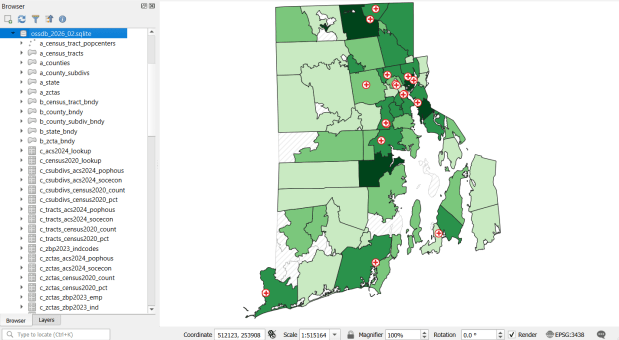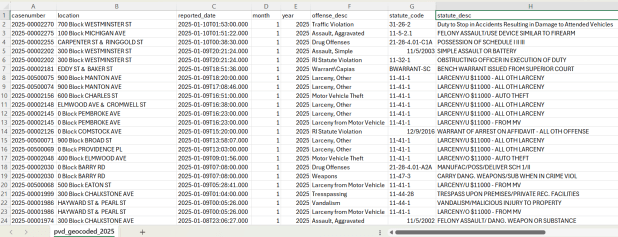
databases

Python Spyder IDE

Python Tips for Somewhat Bigger Data

I’m fortunate to be on sabbatical for much of this summer, and am working on a project where I’m measuring the effectiveness of comparing census American Community Survey estimates over time. I’ve written a lot of Python code over the past six weeks, and thought I’d share some general tips for working with bigger datasets.

For my project, I’m looking at 317 variables stored in 25 tables for over 406,000 individual geographic areas; approximately 129.5 million data points. Multiply that by two, as I’m comparing two time periods. While this wouldn’t fall into the realm of what data scientists would consider as ‘big data’, it is big enough that you have to think strategically about how handle it, so you don’t run out of memory or have to wait hours while tasks grind away. While you could take advantage of parallel processing, or find access to a high performance computer, with this amount of data you can stick with a decent laptop, if you take steps to ensure that it doesn’t go kaput.

While the following suggestions may seem obvious to experienced programmers, it should be helpful to novices. I work with a lot of students whose exposure to Python programming is using Google Colab with Pandas. While that’s a fine place to start, the basic approaches you learn in an intro course will fall flat once you start working with datasets that are this big.

  • Don’t use a notebook. Ipython notebooks like Jupyter or Colab are popular, and are great for doing iterative analysis, visualization, and annotation of your work. But they run via web browsers which introduce extra overhead memory-wise. Iterative notebooks are unnecessary if you’re processing lots of data and don’t need to see step by step results. Use a traditional development environment instead (Spyder is my favorite – see the pic in this post’s header).
  • Don’t rely so much on Pandas DataFrames. They offer convenience as you can explicitly reference rows and columns, and reading and writing data to and from files is straightforward. But DataFrames can hog memory, and processing them can be inefficient (depending on what you’re doing). Instead of loading all your data from a file into a frame, and then making a copy of it where you filter out records you don’t need, it’s more efficient to read a file line by line and omit records while reading. Appending records to a DataFrame one at a time is terribly slow. Instead, use Python’s basic CSV module for reading and append records to nested lists. When you reach the point where a DataFrame would be easier for subsequent steps, you can convert the nested list to a frame. The basic Python data structures – lists, dictionaries, and sets – give you a lot of power at less cost. Novices would benefit from learning how to use these structures effectively, rather than relying on DataFrames for everything. Case in point: after loading a csv file with 406,000 records and 49 columns into a Pandas DataFrame, the frame consumed 240 MB of memory. Loading that same file with the csv module into a nested list, the list consumed about 3 MB.

Reads a file, skips the header row, adds a key / value pair to a dictionary for each row using the first and second value (assuming the key value is unique).

import os, csv

keep_ids={}
with open(recskeep_file,'r') as csv_file:
    reader=csv.reader(csv_file,delimiter='\t')
    next(reader)
    for row in reader:        
        keep_ids[row[0]]=row[1]

Or, save all the records as a list in a nested list, while keeping the header row in a separate list.

records=[]
with open(recskeep_file,'r') as csv_file:
    reader=csv.reader(csv_file,delimiter='\t')
    header=next(reader)
    for row in reader:        
        records.append(row)]
  • Delete big variables when you’re done with them. The files I was reading were segmented in twos: one file for estimates, and one for margins of error for those same estimates. I read each into separate, nested lists while filtering for records I wanted. I had to associate each set with a header row, filter by columns, and then join the two together. Arguably that part was easier to do with DataFrames, so at that stage I read both into separate frames, filtered by column, and joined the two. Once I had the joined frame as a distinct copy, I deleted the two individual frames to save memory.
  • Take out the garbage. Python automatically frees up memory when it can, but you can force the issue by emptying deleted objects from memory by calling the garbage collection module. After I deleted the two DataFrames in the previous step, I explicitly called gc.collect() to free up the space.
...
del est_df
del moe_df
gc.collect()
  • Write as you read. There’s no way I could read all my data in and hold it in memory before writing it all out. Instead I had to iterate – in my case the data is segmented by data tables, which were logical collections of variables. After I read and processed one table, I wrote it out as a file, then moved on to the next one. The variable that held the table was overwritten each time by the next table, and never grew in size beyond the table I was actively processing.
  • Take a break. You can use the sleep module to build in brief pauses between big operations. This can give your program time to “catch up”, finishing one task and freeing up some juice before proceeding to the next one.
time.sleep(3)
  • Write several small scripts, not one big one. The process for reading, processing, and writing my files was going to be one of the longer processes that I had to run. It’s also one that I’d likely not have to repeat if all went well. In contrast, there were subsequent analytical tasks that I knew would require a lot of back and forth, and revision. So I wrote several scripts to handle individual parts of the process, to avoid having to repeat a lot of long, unnecessary tasks.
  • Lean on a database for heavy stuff. Relational databases can handle large, structured data more efficiently compared to scripts reading data from text files. I installed PostgreSQL on my laptop to operate as a localhost database server. After I created my filtered, processed CSV files, I wrote a second program that loaded them into the database using Psycopg2, a Python module that interacts with PostgreSQL (this is a good tutorial that demonstrates how it works). SQL statements can be long, but you can use Python to iteratively write the statements for you, by building strings and filling placeholders in with the format method. This gives you two options. Option 1, you execute the SQL statements from within Python. This is what I did when I loaded my processed CSV files; I used Python to iterate and read the files into memory, wrote CREATE TABLE and INSERT statements in the script, and then inserted the data from Python’s data structures into the database. Option 2, is you can use Python to write a SQL transaction statement, save the transaction as a SQL text file, and then load it in the database and run it. I followed this approach later in my process, where I had to iterate through two sets of 25 tables for each year, and perform calculations to create a host of new variables. It was much quicker to do these operations within the database rather than have Python do them, and executing the SQL script as a separate process made it easier for me to debug problems.

Connect to a database, save SQL statement as a string, loops through a list of variables IDs, and for each variable format the string by passing the values in as parameters, execute the statement and fetch the result – fetchone() in this case, but could also fetchmany():

# Database connection parameters
pgdb='acs_timeseries'
pguser='postgres'
pgpswd='password'
pgport='5432'
pghost='localhost'
pgschema='public'

conpg = psycopg2.connect(database=pgdb, user=pguser, password=pgpswd,
                             host=pghost, port=pgport)
curpg=conpg.cursor()

sql_varname="SELECT var_lbl from acs{}_variables_mod WHERE var_id='{}'"
year='2019'

for v in varids:
    # Get labels associated with variables
    qvarname=sql_varname.format(year, v)
    curpg.execute(qvarname)
    vname=curpg.fetchone()[0]
... #do stuff...

curpg.close()
  • When using Psycopg2, don’t use the executemany() function. When performing an INSERT statement, you can have the module executeone() statement at a time, or executemany(). But the latter was excruciatingly slow – in my case it ran overnight before it finished. Instead I found this trick called mogrify, where you convert your INSERT arguments into one enormous string, and pass that to the mogrify() function. This was lightning fast, but because the text string is massive I ran out of memory if my tables were too big. My solution was to split tables in half if the number of columns exceeded a certain number, and pass them in one after the other.
  • Use the database and script for what they do best. Once I finished my processing, I was ready to begin analyzing. I needed to do several different cross-tabulations on the entire dataset, which was segmented into 25 tables. PostgreSQL is able to summarize data quickly, but it would be cumbersome to union all these tables together, and calculating percent totals in SQL for groups of data is a pain. Python with Pandas would be much better at the latter, but there’s no way I could load a giant flat file of my data into Python to use as the basis for all my summaries. So, I figured out the minimal level of grouping that I would need to do, which would still allow me to run summaries on the output for different combinations of groups (i.e. in total and by types of geography, tables, types of variables, and by variables). I used Python to write and execute GROUP BY statements in the database, iterating over each table and appending the result to a nested list, where one record represented a summary count for a variable by table and geography type. This gave me a manageable number of records. Since the GROUP BY operation took some time, I did that in one script to produce output files. Creating different summaries and reports was a more iterative process that required many revisions, but was quick to execute, so I performed those operations in a subsequent script.
SQL GROUP BY Output
Instead of 386 mil records for (406k geographies * 317 variables * 3 categories), about 18k summary counts for 19 groups of geography

Lastly, while writing and perfecting your script, run it against a sample of your data and not the entire dataset! This will save you time and needless frustration. If I have to iterate through hundreds of files, I’ll begin by creating a list that has a couple of file names in it and iterate over those. If I have a giant nested list of records to loop through, I’ll take a slice and just go through the first ten. Once I’m confident that all is well, then I’ll go back and make changes to execute the program on everything.

USAID DHS No Data Available

Rescuing US Government Data

There’s been a lot of turmoil emanating from Washington DC lately. One development that’s been more under the radar than others has been the modification or removal of US federal government datasets from the internet (for some news, see these articles in the New Yorker, Salon, Forbes, and CEN). In some cases, this is the intentional scrubbing or deletion of datasets that focus on topics the current administration doesn’t particularly like, such as climate and public health. In other cases, the dismemberment of agencies and bureaus makes data unavailable, as there’s no one left to maintain or administer it. While most government data is still available via functioning portals, most of the faculty and researchers I work with can identify at least a few series they rely on that have disappeared.

Librarians, archivists, researchers, professors, and non-profits across the country (and even in other parts of the world), have established rescue projects, where they are actively downloading and saving data in repositories. I’ve been participating in these efforts since January, and will outline some of the initiatives in this post.

The Internet Archive

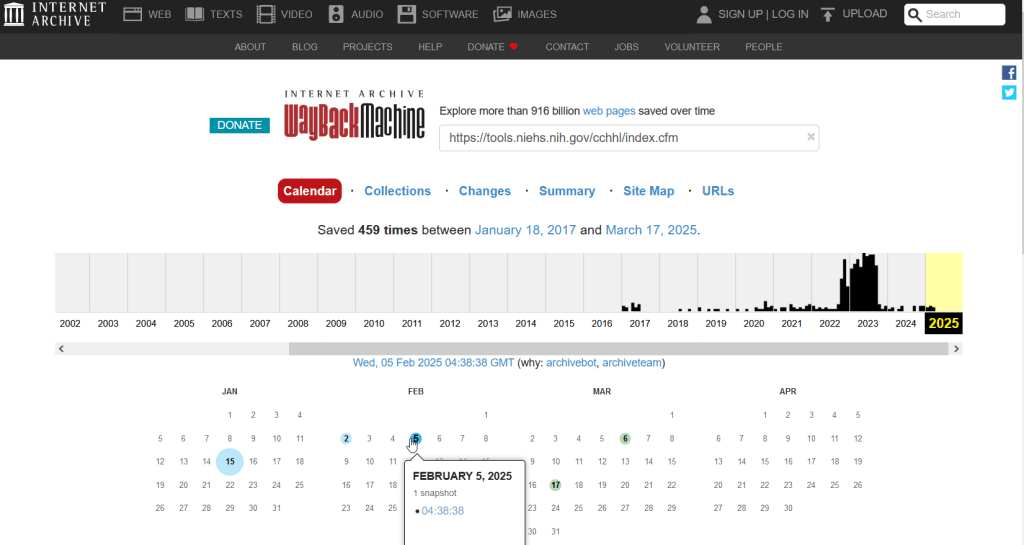
The place of last resort for finding deleted web content is the Internet Archive. This large, non-profit project has been around as long as the web has existed, with the goal of creating a historic archive of the internet. It uses web crawlers or spiders to creep across the web and make copies of websites. With the Wayback Machine, you can enter a URL and find previous copies of web pages, including sites that no longer exist. You’re presented with a calendar page where you can scroll by year and month to select a date when a page was captured, which opens up a copy.

A Wayback Machine search for https://tools.niehs.nih.gov/cchhl/index.cfm. Blue circles on the calendar indicate when the page was captured.

This allows you to see the content, navigate through the old website, and in many cases download files that were stored on those pages. It’s a great resource, but it can’t capture everything; given the variety and complexity of web pages and evolving web technologies, some websites can’t be saved in working order (either partially or entirely). Content that was generated and presented dynamically with JavaScript, or was pulled and presented from a database, is often not preserved, as are restricted pages that required log-ins.

An archived copy of the NIEHS page (the actual website was deleted in mid February 2025)

The Internet Archive also hosts a number of special collections where folks have saved documents, images, sound and video, and software. For example, you can find many research articles that are available in PubMed from the PubMed Central collection, a ton of documents from the USDA’s National Agricultural Library, and about 100 GB of data someone captured from the CDC in January 2025. A large project called the End of Term Archive was launched in 2008 to capture what federal government websites looked like at the end of each presidential term. The pages are saved in a special collection in the IA.

Data Rescue Project

Dozens of new data archiving projects were launched at the end of 2024 and beginning of 2025 with the intention of saving federal datasets. The Data Rescue Project is one of the larger efforts, which has been driven by data librarians and archivists with non-profit partners. Professional groups including IASSIST, ICPSR, RDAP, the Data Curation Network, and the Safeguarding Research & Culture project have been active organizers and participators. While this will be an oversimplification, I’ll summarize the project as having two goals

The first goal is to keep track of what the other archiving projects are, and what they have saved. To this end, they created the Data Rescue Tracker, which has two modules. The Downloads List is an archive of datasets that have been saved, with details about where the data came from and locations of archived copies. The Maintainers List is a catalog of all the different preservation projects, with links to their home pages. There is also a narrative page with a comprehensive list of links to the various rescue efforts, data repositories, alternate sources for government data, and tools and resources you can use to save and archive data.

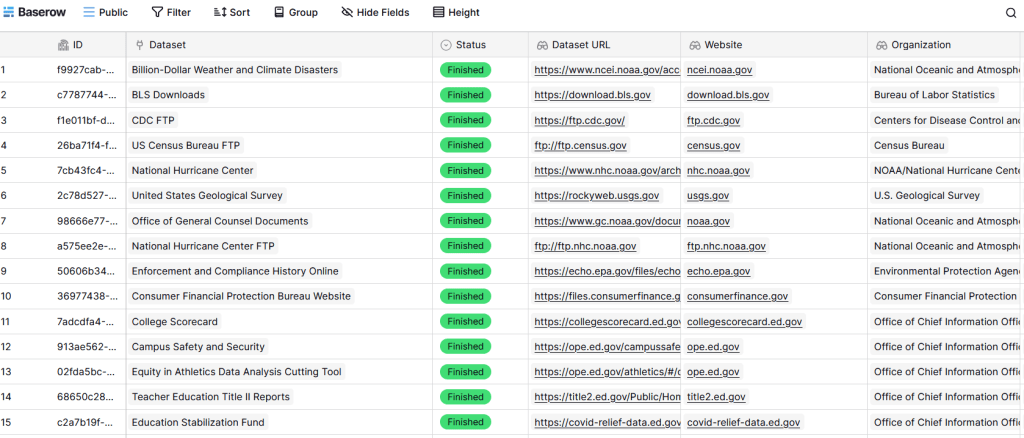
The Data Rescue Tracker Downloads List

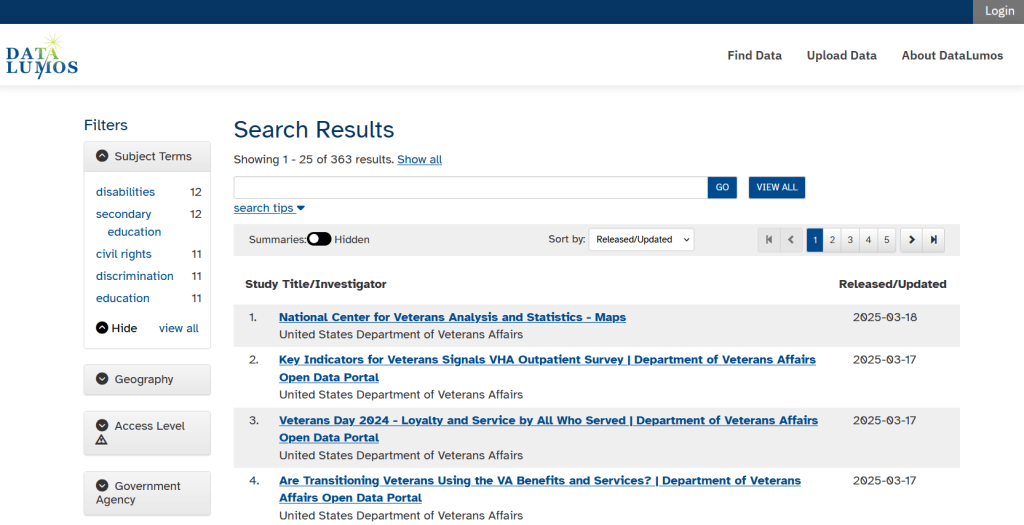
The second goal is to contribute to the effort of saving and archiving data. The team maintains an online spreadsheet with tabs for agencies that contain lists of datasets and URLs that are currently prioritized for saving. Volunteers sign up for a dataset, and then go out and get it. Some folks are manually downloading and saving files (pointing and clicking), while others write short screen scraping scripts to automate the process. The Data Rescue Project has partnered with ICPSR, a preeminent social science research center and repository in the US, at the University of Michigan. They created a repository called DataLumos, which was launched specifically for hosting extracts of US federal government data. Once data is captured, volunteers organize it and generate metadata records prior to submitting it to DataLumos (provided that the datasets are not too big).

DataLumos archive for federal government datasets, maintained by ICPSR

Most of the datasets that DRP is focused on are related to the social sciences and public policy. The Data Rescue Project coordinates with the Environmental and Government Data Initiative and the Public Environmental Data Partners (which I believe are driven by non-profit and academic partners), who are saving data related to the environment and health. They have their own workflows and internal tracking spreadsheets, and are archiving datasets in various places depending on how large they are. Data may be submitted to the Internet Archive, the Harvard Dataverse, GitHub, SciOp, and Zenodo (you can find out where in the Data Rescue Tracker Download’s List).

Mega Projects

There are different approaches for tackling these data preservation efforts. For the Data Rescue Project and related efforts, it’s like attacking the problem with millions of ants. Individual people are coordinating with one another in thousands of manual and semi-automated download efforts. A different approach would be to attack the problem with a small herd of elephants, who can employ larger resources and an automated approach.

For example, the Harvard Law School Library Innovation Lab launched the Archive of data.gov, a large project to crawl and download everything that’s in data.gov, the US federal government’s centralized data repository. It mirrors all the data files stored there and is updated regularly. The benefit of this approach is that it captures a comprehensive amount of data in one go, and can be readily updated. The primary limitation is that there are many cases where a dataset is not actually stored in data.gov, but is referenced in a catalog record with a link that goes out to a specific agency’s website. These datasets are not captured with this approach.

If trying to find back-ups is a bit bewildering, there’s a tool that can help. Boston University’s School of Public Health and Center for Health Data Science have created a find lost* data search engine, which crawls across the Harvard Project, DataLumos, the Data Rescue Project, and others.

Beyond the immediate data preservation projects that have sprung up recently, there are a number of large, on-going projects that serve as repositories for current and historical datasets. Some, like IPUMS at the University of Minnesota and the Election Lab at MIT focus on specific datasets (census data for the former, election results data for the latter). There are also more heterogeneous repositories like ICPSR (including OpenICPSR which doesn’t require a subscription), and university-based repositories like the Harvard Dataverse (which includes some special collections of federal data extracts, like CAFE). There are also private-sector partners that have an equal stake in preserving and providing access to government data, including PolicyMap and the Social Explorer.

Wrap-up

I’ve been practicing my Python screen scraping skills these past few months, and will share some tips in a subsequent post. I’ve been busy contributing data to these projects and coordinating a response on my campus. We’ve created a short list of data archives and alternative sources, which captures many of the sources I’ve mentioned here plus a few others. My library colleagues in the health and medical sciences have created a list of alternatives to government medical databases including PubMed and ClinicalTrials.gov

Having access to a public and robust federal statistical system is a non-partisan issue that we should all be concerned about. Our Constitution justifies (in several sections) that we should have such a system, and we have a large body of federal laws that require it. Like many other public goods, the federal statistical system contributes to providing a solid foundation on which our society and economy rest, and helps drive innovation in business, policy, science, and medicine. It’s up to us to protect and preserve it.

SQL View

SQL Views to Excel and Back with Pandas

I had lists of businesses that I queried from a large table and saved in individual views in SQLite, where each view contained related businesses based on their industrial classification code (NAICS). There were about 8,000 records in total. Another team needed to review these records and verify whether we needed to keep them in the study or not. The simplest approach was to segment the businesses based on activity, grab a subset of the necessary columns from the main table into a SQL view, and export them to individual Google Sheets so that everyone could access and edit the files. When they were finished, I had to re-aggregate the sheets and get them back into the database, to use a filter for records to keep. I wrote two python / pandas scripts for doing this, which I’ll walk through here.

Since I had already written and saved SQL views in the database (see sample image in the post’s header), I wanted to simply access those using pandas, rather than having to write the queries all over again in pandas. My solution is below. At the top I establish variables that specify file names and paths using the os module. I have an Excel file that will serve as my template; it contains one metadata README sheet that will be the same each year. Next, I create a list of the views, plus a list of new columns that I want to add to each sheet that the team will use for verifying the records. Since this is a process I will need to run each year, I provide the year as a variable and insert it into the output files and the view names rather than hard coding it. For example, ‘convenience_stores’ is formatted to ‘v_2023_convenience_stores’ to retrieve the current view from the database.

The work happens in the loop. I iterate through the list of views, and build a query string where I insert the view name. I use pandas.read_sql to execute a SELECT statement, and the result is saved in a dataframe; the result is essentially the result of the view when its executed. Then I iterate through a list of new columns that the reviewers will use, inserting them one by one. They will appear at the front of the worksheet, in the reverse order in which they appear in the list. I use pandas.ExcelWriter and the append mode so I can insert multiple sheets into the workbook template. And that’s it!

import sqlite3, os, pandas as pd

# CHANGE THE YEAR VARIABLE to reflect year we are processing
year='2022' # must be a string - quote!
outfolder='yr{}'.format(year)
vsuffix='v_{}_'.format(year)
outfile='business_lists_{}.xlsx'.format(year)

outpath=os.path.join('business_output',outfolder,outfile)
con = sqlite3.connect('project_db.sqlite') 

# views within the database that contain business lists
views=['convenience_stores','department_stores','drinking_places',
       'food_manufacturing', 'gas_stations', 'grocery_stores',
       'liquor_stores','pharmacies','restaurants',
       'specialty_food_stores', 'variety_stores','wholesale_clubs']

# blank columns to insert in each sheet to hold verification
newcols=['notes','maps_verified','recategorize','remove']

for v in views:
    vname=vsuffix+v # creates the actual name of the view in the db
    query='SELECT * FROM {}'.format(vname)
    df=pd.read_sql(query, con)
    for n in newcols:
        df.insert(0,n,'')
    with pd.ExcelWriter(outpath, mode='a') as writer:  
        df.to_excel(writer, sheet_name=v, index=False)
    print('Wrote',v,'to output')

print('Done')
con.close()

The final step is to upload the Excel workbook into Google Sheets, and then manually apply some formatting. I looked at some options for writing to Google Sheets directly and skipping Excel as an intermediary, but decided that it looked like more trouble than it was worth. You can’t trust that Google isn’t going to suddenly change something without notice, so this intermediary approach seemed safer.

Once the records have been verified, I needed to combine these sheets into one file and get them back into the database again, where I can use the results to filter the original business table and pull the records we want to keep. My solution for this part is below.

First, I download the finished Google spreadsheet as an Excel file, and provide that as input. Again, I set up input and output paths at the top. I use pandas.read_excel to read the sheets into a dictionary, where the key is the name of the sheet and the value is a dataframe that contains everything in that sheet. I loop through the dictionary, skip the metadata README sheet, and create a list of the dataframes where I add the name of the sheet as a dedicated column. Next, I compare the column names and number of columns in the first dataframe / sheet to each of the others to ensure they are the same in terms or order, name, and number. Lastly, I concatenate all the sheets into one and write them out to a CSV file.

import os, csv, pandas as pd

# CHANGE THE YEAR VARIABLE to reflect year we are processing
year='2022' # must be a string - quote!
folder='yr{}'.format(year)
infile='business_lists_{}.xlsx'.format(year)
outfile='checked_biz_{}.csv'.format(year)

inpath=os.path.join(folder,infile)
outpath=os.path.join(folder,outfile)

# Read sheets to dict, key sheet name and value df
# read all vals as strings to preserve ID codes
sheets_dict = pd.read_excel(inpath, sheet_name=None, dtype=str)

all_sheets_dfs = [] # a list of dataframes, one df per worksheet
for name, sheet in sheets_dict.items():
    if name !='README': # don't include the readme sheet
        sheet['biz_category'] = name # add the sheet name to the data
        all_sheets_dfs.append(sheet)

# This block checks number of columns and names of all sheets against the first one
f=all_sheets_dfs[0]
for i,s in enumerate(all_sheets_dfs):
    check_cols = (s.columns == f.columns).all() and s.shape[1] == f.shape[1]
    if check_cols is False:  
        print('Warning: difference in column names or number between first worksheet and number:',i)
    else:
        pass

# Block creates single dataframe of all records and writes to CSV
biz_df = pd.concat(all_sheets_dfs)
biz_df.reset_index(inplace=True, drop=True)
biz_df.to_csv(outpath, index=True, index_label='pid')

print('Done, record count:',len(biz_df))

With that, I can launch the database (using the DB Browser for SQLite), import that CSV to a table, and proceed to join it back to my original table and filter. Alternatively, I could have written the concatenated dataframe directly into the database, but in a pinch this works fine. It’s been a hectic semester and as soon as I get something working I polish it off and move on to the next thing…

Calculate margin of error for ratio (mean income)

Calculating Mean Income for Groups of Geographies with Census ACS Data

When aggregating small census geographies to larger ones (census tracts to neighborhoods for example) when you’re working with American Community Survey (ACS) data, you need to sum estimates and calculate new margins of error. This is straightforward for most estimates; you simply sum them, and take the square root of the sum of squares for the margins of error (MOEs) for each estimate that you’re aggregating. But what if you need to group and summarize derived estimates like means or medians? In this post, I’ll demonstrate how to calculate mean household income by aggregating ZCTAs to United Hospital Fund neighborhoods (UHF), which is a type of public health area in NYC created by aggregating ZIP Codes.

I’m occasionally asked how to summarize median household income from tracts to neighborhood-like areas. You can’t simply add up the medians and divide them, the result would be completely erroneous. Calculating a new median requires us to sort individual household-level records and choose the middle-value, which we cannot do as those records are confidential and not public. There are a few statistical interpolation methods that we can use with interval data (number of households summarized by income brackets) to estimate a new median and MOE, but the calculations are rather complex. The State Data Center in California provides an excellent tutorial that demonstrates the process, and in my new book I’ll walk through these steps in the supplemental material.

While a mean isn’t as desirable as a median (as it can be skewed by outliers), it’s much easier to calculate. The ACS includes tables on aggregate income, including the sum of all income earned by households and other population group (like families or total population). If we sum aggregate household income and number of households for our small geographic areas, we can divide the total income by total households to get mean income for the larger area, and can use the ACS formula for computing the MOE for ratios to generate a new MOE for the mean value. The Census Bureau publishes all the ACS formulas in a detailed guidebook for data users, and I’ll cover many of them in the ACS chapter of my book (to be published by the end of 2019).

Calculating a Derived Mean in Excel

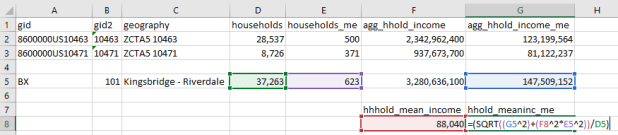
Let’s illustrate this with a simple example. I’ve gathered 5-year 2017 ACS data on number of households (table B11001) and aggregate household income (table B19025) by ZCTA, and constructed a sheet to correlate individual ZCTAs to the UHF neighborhoods they belong to. UHF 101 Kingsbridge-Riverdale in the Bronx is composed of just two ZCTAs, 10463 and 10471. We sum the households and aggregate income to get totals for the neighborhood. To calculate a new MOE, we take the square root of the sum of squares for each of the estimate’s MOEs:

Calculate margin of error for new sum

Calculate margin of error for new sum

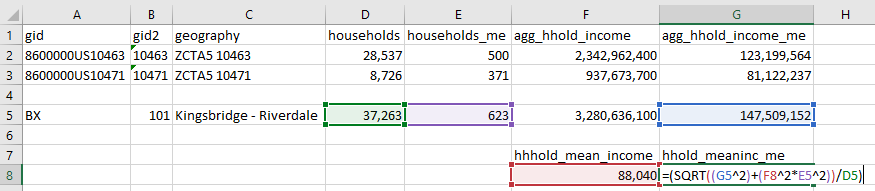
To calculate mean income, we simply divide the total aggregate household income by total households. Calculating the MOE is more involved. We use the ACS formula for derived ratios, where aggregate income is the numerator of the ratio and households is the denominator. We multiply the square of the ratio (mean income) by the square of the MOE of the denominator (households MOE), add that product to the square of the MOE of the numerator (aggregate income MOE), take the square root, and divide the result by the denominator (households):

=(SQRT((moe_ratio_numerator^2)+(ratio^2*moe_ratio_denominator^2))/ratio_denominator)

Calculate margin of error for ratio (mean income)

Calculate margin of error for ratio (mean income)

The 2013-2017 mean household income for UHF 101 is $88,040, +/- $4,223. I always check my math using the Cornell Program on Applied Demographic’s ACS Calculator to make sure I didn’t make a mistake.

This is how it works in principle, but life is more complicated. When I downloaded this data I had number of households by ZCTA and aggregate household income by ZCTA in two different sheets, and the relationship between ZCTAs and UHFs in a third sheet. There are 42 UHF neighborhoods and 211 ZCTAs in the city, of which 182 are actually assigned to UHFs; the others have no household population. I won’t go into the difference between ZIP Codes and ZCTAs here, as it isn’t a problem in this particular example.

Tying them all together would require using the ZCTA in the third sheet in a VLOOKUP formula to carry over the data from the other two sheets. Then I’d have to aggregate the data to UHF using a pivot table. That would easily give me sum of households and aggregate income by UHF, but getting the MOEs would be trickier. I’d have to square them all first, take the sum of these squares when pivoting, and take the square root after the pivot to get the MOEs. Then I could go about calculating the means one neighborhood at a time.

Spreadsheet-wise there might be a better way of doing this, but I figured why do that when I can simply use a database? PostgreSQL to the rescue!

Calculating a Derived Mean in PostgreSQL

In PostgreSQL I created three empty tables for: households, aggregate income, and the ZCTA to UHF relational table, and used pgAdmin to import ZCTA-level data from CSVs into those tables (alternatively you could use SQLite instead of PostgreSQL, but you would need to have the optional math module installed as SQLite doesn’t have the capability to do square roots).

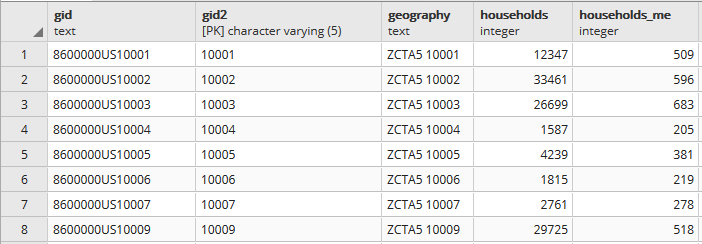
Portion of households table. A separate aggregate household income table is structured the same way, with income stored as bigint type.

Portion of households table. A separate aggregate household income table is structured the same way, with income stored as bigint type.

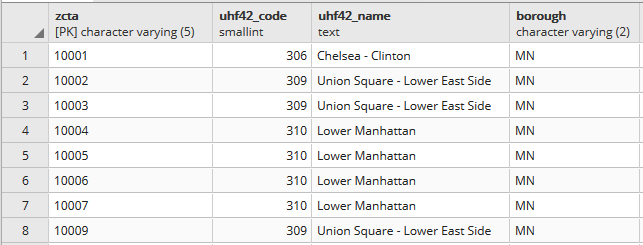
Portion of the ZCTA to UHF relational table.

Portion of the ZCTA to UHF relational table.

In my first run through I simply tried to join the tables together using the 5-digit ZCTA to get the sum of households and aggregate incomes. I SUM the values for both and use GROUP BY to do the aggregation to UHF. In PostgreSQL pipe-forward slash: |/ is the operator for square root. I sum the squares for each ZCTA MOE and take the root of the total to get the UHF MOEs. I omit ZCTAs that have zero households so they’re not factored into the formulas:

SELECT z.uhf42_code, z.uhf42_name, z.borough,
    SUM(h.households) AS hholds,
    ROUND(|/(SUM(h.households_me^2))) AS hholds_me,
    SUM(a.agg_hhold_income) AS agghholds_inc,
    ROUND(|/(SUM(a.agg_hhold_income_me^2))) AS agghholds_inc_me
FROM zcta_uhf42 z, hsholds h, agg_income a
WHERE z.zcta=h.gid2 AND z.zcta=a.gid2 AND h.households !=0
GROUP BY z.uhf42_code, z.uhf42_name, z.borough
ORDER BY uhf42_code;

Portion of query result, households and income aggregated from ZCTA to UHF district.

Portion of query result, households and income aggregated from ZCTA to UHF district.

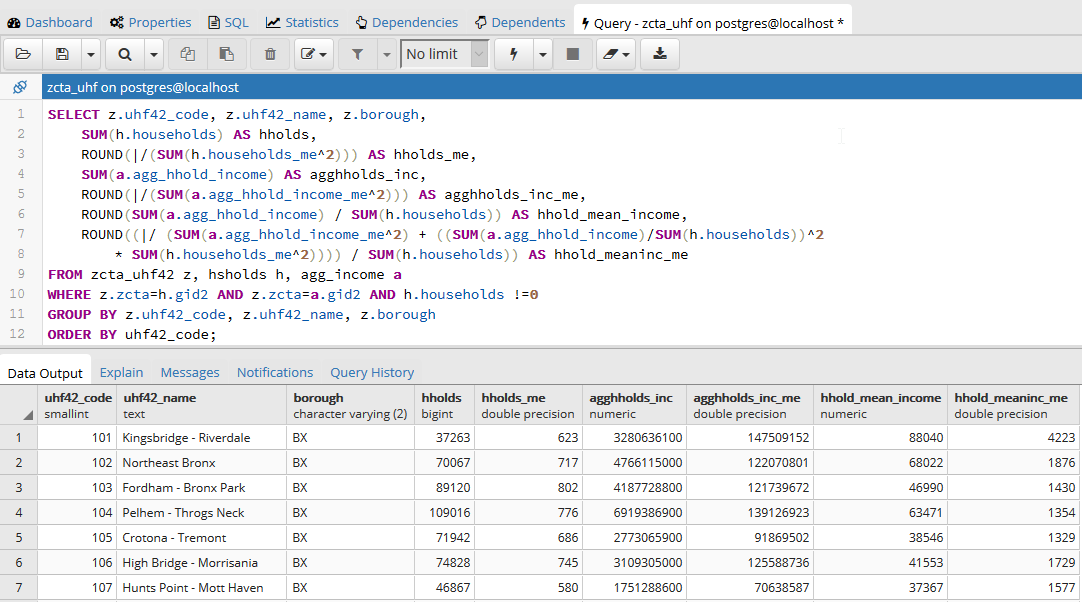
Once that was working, I modified the statement to calculate mean income. Calculating the MOE for the mean looks pretty rough, but it’s simply because we have to repeat the calculation for the ratio over again within the formula. This could be avoided if we turned the above query into a temporary table, and then added two columns and populated them with the formulas in an UPDATE – SET statement. Instead I decided to do everything in one go, and just spent time fiddling around to make sure I got all the parentheses in the right place. Once I managed that, I added the ROUND function to each calculation:

SELECT z.uhf42_code, z.uhf42_name, z.borough,
    SUM(h.households) AS hholds,
    ROUND(|/(SUM(h.households_me^2))) AS hholds_me,
    SUM(a.agg_hhold_income) AS agghholds_inc,
    ROUND(|/(SUM(a.agg_hhold_income_me^2))) AS agghholds_inc_me,
    ROUND(SUM(a.agg_hhold_income) / SUM(h.households)) AS hhold_mean_income,
    ROUND((|/ (SUM(a.agg_hhold_income_me^2) + ((SUM(a.agg_hhold_income)/SUM(h.households))^2 * SUM(h.households_me^2)))) / SUM(h.households)) AS hhold_meaninc_me
FROM zcta_uhf42 z, hsholds h, agg_income a
WHERE z.zcta=h.gid2 AND z.zcta=a.gid2 AND h.households !=0
GROUP BY z.uhf42_code, z.uhf42_name, z.borough
ORDER BY uhf42_code;

Query in pgAdmin and portion of result for calculating mean household income

Query in pgAdmin and portion of result for calculating mean household income

I chose a couple examples where a UHF had only one ZCTA, and another that had two, and tested them in the Cornell ACS calculator to insure the results were correct. Once I got it right, I added:

CREATE VIEW household_sums AS

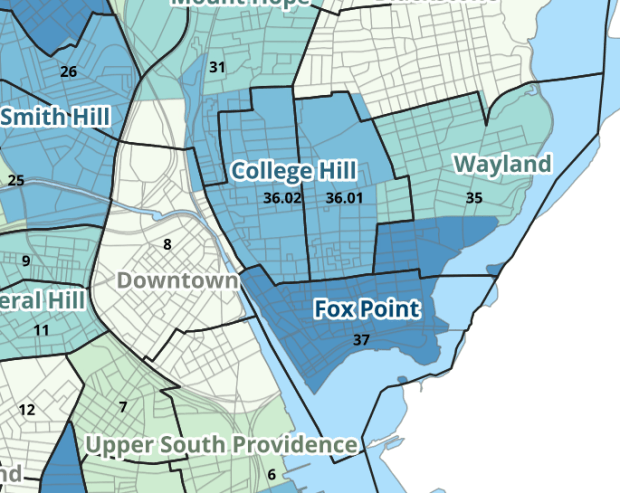
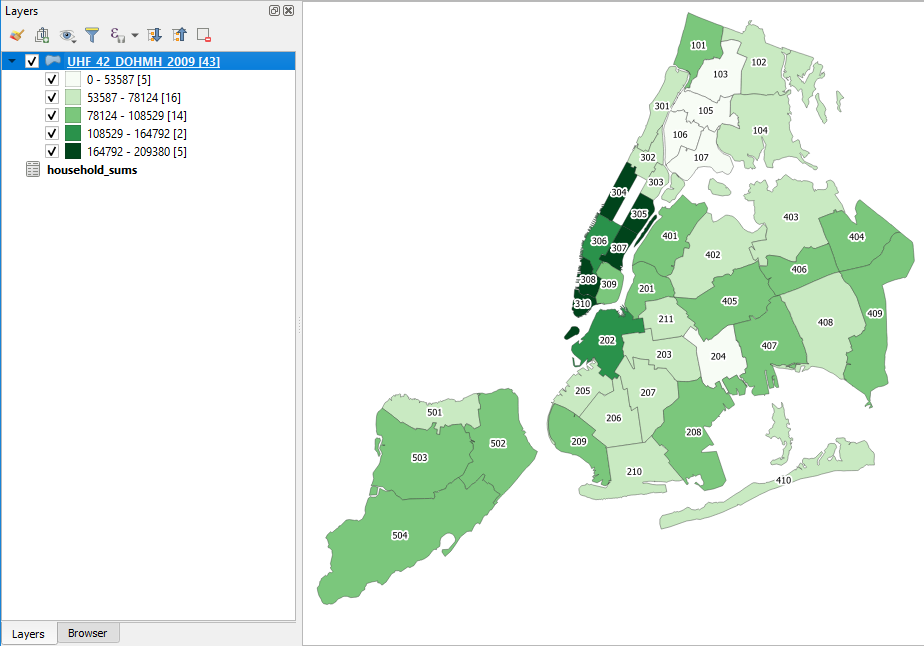
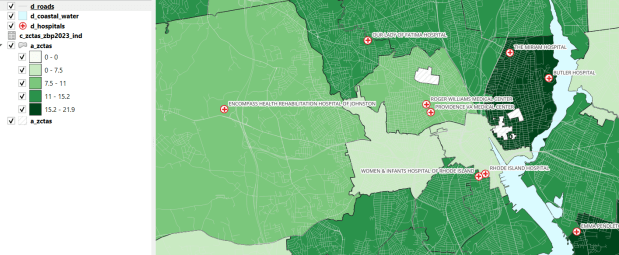
To the top of the statement and executed again to save it as a view. Mission accomplished! To make doubly sure that the values were correct, I connected my db to QGIS and joined this view to a UHF shapefile to visually verify that the results made sense (could also have imported the shapefile into the DB as a spatial table and incorporated it into the query).

Mean household income by UHF neighborhood in QGIS

Mean household income by UHF neighborhood in QGIS

Conclusion

While it would be preferable to have a median, calculating a new mean for an aggregated area is a fair alternative, if you simply need some summary value for the variable and don’t have the time to spend doing statistical interpolation. Besides income, the Census Bureau also publishes aggregate tables for other variables like: travel time to work, hours worked, number of vehicles, rooms, rent, home value, and various subsets of income (earnings, wages or salary, interest and dividends, social security, public assistance, etc) that makes it possible to calculate new means for aggregated areas. Just make sure you use the appropriate denominator, whether it’s total population, households, owner or renter occupied housing units, etc.

SQLite Logo

Looking for a Good SQLite GUI?

Goodbye SQLite Manager…

Late last year, I discovered that my favorite SQLite GUI was defunct. The SQLite Manager was a plugin for Firefox that allowed you to create and interact with SQLite databases with a simple yet highly functional interface. It had good support for importing and exporting csv files, color coding of cells based on data types, and a convenient feature for cycling back and forth between your SQL statements. Since it was a Firefox plugin it was guaranteed to work on any operating system, and since Firefox is installed on machines across my campus I knew I could rely on it for creating data extracts for students and faculty – I’d package data up in SQLite and send it to them along with a link to the plugin.

Firefox goes through about a million versions a year these days, and after a major upgrade last fall (to Firefox Quantum) most of the existing plugins, including the SQLite Manager, were no longer compatible. An upgrade it highly unlikely, as a few things changed under the hood of Firefox that makes the plugin unusable. While it still works on the Firefox Extended Support Release, in the long run the writing is on the wall.

Hello DB Browser for SQLite!

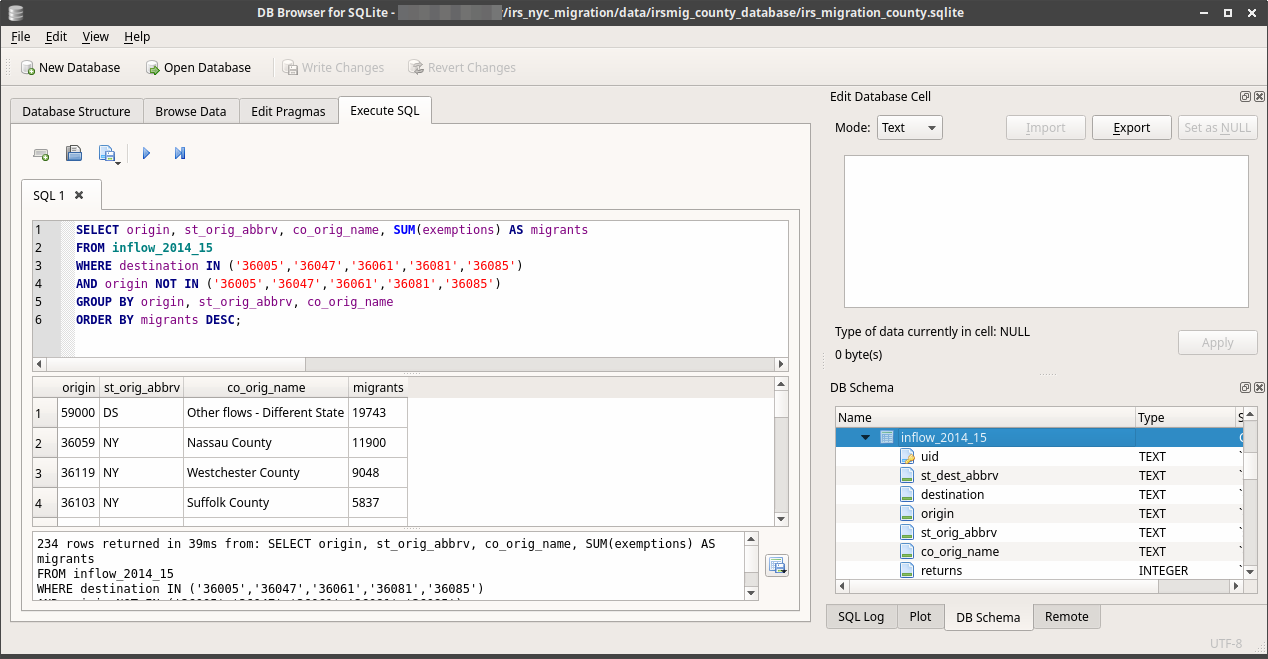
After searching through many alternatives I discovered the DB Browser for SQLite. It runs on Windows, Mac, and Linux and there’s a version for mobile. It was easy to install and has a clean interface. It provides a number of convenient tools and menus that you can use in place of writing SQL DDL, and in some cases it expands the functionality of SQLite by enabling a number of ALTER TABLE commands that are not part of SQLite SQL (like renaming and dropping columns). The Browse Data window makes it easy to quickly thumb through, sort, and filter records and to edit individual values by hand. The Execute SQL window has auto-complete and color-coded syntax, and you can see the database schema in one tab as you write your SQL in another (making it easy to reference table and column names). You can import and export data as CSV (or any delimited text file) or SQL files, and you can save the results of SELECT queries as CSV.

One interesting addition is that there’s actually a Save (Write Changes) and Undo button. So when you create, modify, or drop records, columns, or tables you see the result, but the act isn’t final until you commit the changes. A nice safety feature, especially for db novices.

DB Browser for SQLite - Browse

Browse Data

DB Browser for SQLite - SQL

Execute SQL and View DB Schema

I encountered a few quirks, but nothing insurmountable. I was using the nightly build version without realizing it, and when importing a CSV file the database takes a best guess as to what the data types for the columns should be. Even though the import screen gives you the option to specify that values are quoted, my quoted numeric fields were still saved as numbers and not text. As a result, ID codes like FIPS or ZIP Codes lose their leading zeros and are saved as integers.

The project is managed on github, so I went ahead and posted an issue. The developers were super responsive, and a discussion ensued over whether this behavior was desirable or not. We found two work-arounds. First, if you build an empty table with the desired structure, and then go to import the CSV, if you provide the name of that empty table as the new table name the db will import your data into that table. Alternatively, if I went and downloaded the latest stable release (3.10.1) the default behavior is that all columns are imported as text, which is a safer bet. You can use the GUI to change the types after import. The issue was marked as a bug, and will be addressed in a future release – one possible solution is to provide an option to turn the autodetect feature on (to determine what the types should be) or off (to import everything as text).

The browser also has a feature to attach a database to the current database, but when you do the attachment it appears like nothing happened – you can’t see  or browse the objects in database number two. But it IS attached (you can see every statement that’s been executed in a helpful log window) and you can copy a table from one db to the other like this:

CREATE TABLE sometable AS
SELECT *
FROM database2.sometable;

You run this within the current database, and database2 is the attached database (when you attach a db you provide an alias for referencing it).

These are minor quibbles. The DB Browser for SQLite is cross-platform, stable, has a clean interface with nice features, and is actively developed by a responsive and friendly team. I’ll be using it for all my SQLite tasks and projects, and will recommend it to others.

Spatialite?

An alternative I considered was to simply use the Spatialite GUI for both regular and spatial databases. It also has a simple, solid, and functional interface and supports spatial SQL, giving you the best of both worlds. So why not? While it works great for my own purposes it’s not something I can recommend to new users who are not GIS folks, either in my work or in the census data book I’m writing. Just figuring out where to download it from the website is overly complex, and while there are binaries for MS Windows there are none for Mac users. You’d have to install it from the source files, which is over the top for novices. Linux users may get lucky and find it in their software repos (it’s included for Debian and Ubuntu). The database browser in QGIS has matured in recent years, so that’s another option for GIS users who want to work with Spatialite or PostGIS.

Now if we only had a good GUI for PostgreSQL… I tried pgAdmin 4 about a year ago, and it was so bad that I’m still clinging to pgAdmin III as long as it still lives. But this is a different story, and one I’ll return to and investigate fully when it comes time to teach my spatial database course next year.