The Weissman Center for International Business at Baruch College just published my paper, “New York’s Population and Migration Trends in the 2010s“, as part of their Occasional Paper Series. In the paper I study population trends over the last ten years for both New York City (NYC) and the greater New York Metropolitan Area (NYMA) using annual population estimates from the Census Bureau (vintage 2019), county to county migration data (2011-2018) from the IRS SOI, and the American Community Survey (2014-2018). I compare NYC to the nine counties that are home to the largest cities in the US (cities with population greater than 1 million) and the NYMA to the 13 largest metro areas (population over 4 million) to provide some context. I conclude with a brief discussion of the potential impact of COVID-19 on both the 2020 census count and future population growth. Most of the analysis was conducted using Python and Pandas in Jupyter Notebooks available on my GitHub. I discussed my method for creating rank change grids, which appear in the paper’s appendix and illustrate how the sources and destinations for migrants change each year, in my previous post.
Terminology
Natural increase: the difference between births and deaths
Domestic migration: moves between two points within the United States
Foreign migration: moves between the United States and a US territory or foreign country
Net migration: the difference between in-migration and out-migration (measured separately for domestic and foreign)
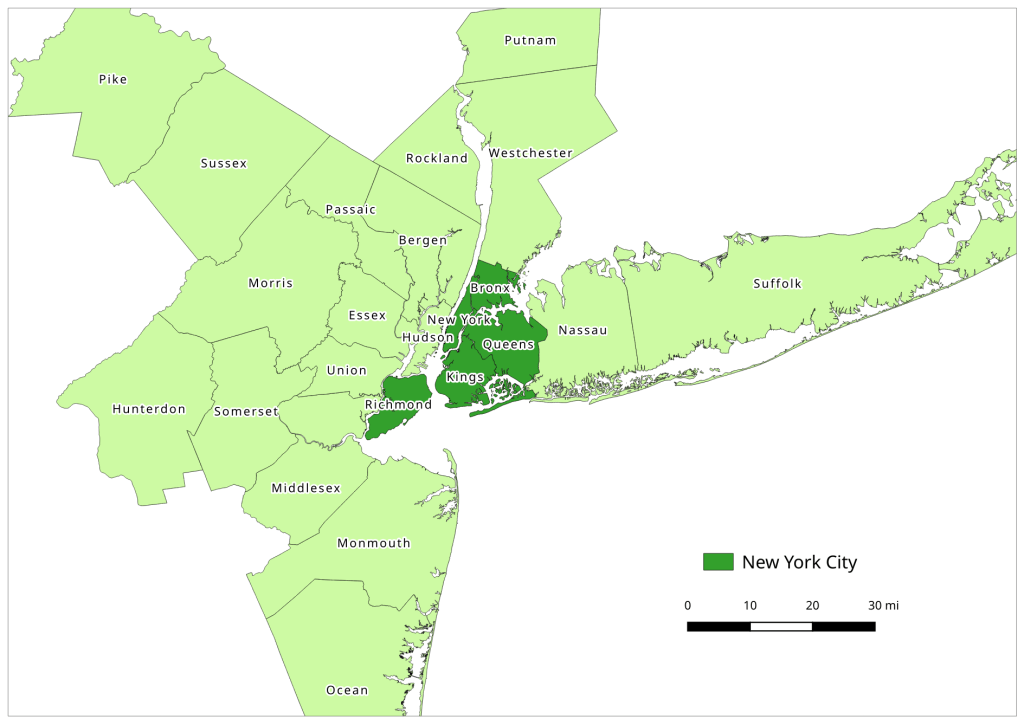
NYC: the five counties / boroughs that comprise New York City
NYMA: the New York Metropolitan Area as defined by the Office of Management and Budget in Sept 2018, consists of 10 counties in NY State (including the 5 NYC counties), 12 in New Jersey, and one in Pennsylvania
The New York-Newark-Jersey City, NY-NJ-PA Metropolitan Area
Highlights
Population growth in both NYC and the NYMA was driven by positive net foreign migration and natural increase, which offset negative net domestic migration.
Population growth for both NYC and the NYMA was strong over the first half of the decade, but population growth slowed as domestic out-migration increased from 2011 to 2017.
NYC and the NYMA began experiencing population loss from 2017 forward, as both foreign migration and natural increase began to decelerate. Declines in foreign migration are part of a national trend; between 2016 and 2019 net foreign migration for the US fell by 43% (from 1.05 million to 595 thousand).
The city and metro’s experience fit within national trends. Most of the top counties in the US that are home to the largest cities and many of the largest metropolitan areas experienced slower population growth over the decade. In addition to NYC, three counties: Cook (Chicago), Los Angeles, and Santa Clara (San Jose) experienced actual population loss towards the decade’s end. The New York, Los Angeles, and Chicago metro areas also had declining populations by the latter half of the decade.
Most of NYC’s domestic out-migrants moved to suburban counties within the NYMA (representing 38% of outflows and 44% of net out-migration), and to Los Angeles County, Philadelphia County, and counties in Florida. Out-migrants from the NYMA moved to other large metros across the country, as well as smaller, neighboring metros like Poughkeepsie NY, Fairfield CT, and Trenton NJ. Metro Miami and Philadelphia were the largest sources of both in-migrants and out-migrants.
NYC and the NYMA lack any significant relationships with other counties and metro areas where they are net receivers of domestic migrants, receiving more migrants from those places than they send to those places.
NYC and the NYMA are similar to the cities and metros of Los Angeles and Chicago, in that they rely on high levels foreign migration and natural increase to offset high levels of negative domestic migration, and have few substantive relationships where they are net receivers of domestic migrants. Academic research suggests that the absolute largest cities and metros behave this way; attracting both low and high skilled foreign migrants while redistributing middle and working class domestic migrants to suburban areas and smaller metros. This pattern of positive foreign migration offsetting negative domestic migration has characterized population trends in NYC for many decades.
During the 2010s, most of the City and Metro’s foreign migrants came from Latin America and Asia. Compared to the US as a whole, NYC and the NYMA have slightly higher levels of Latin American and European migrants and slightly lower levels of Asian and African migrants.
Given the Census Bureau’s usual residency concept and the overlap in the onset the of COVID-19 pandemic lock down with the 2020 Census, in theory the pandemic should not alter how most New Yorkers identify their usual residence as of April 1, 2020. In practice, the pandemic has been highly disruptive to the census-taking process, which raises the risk of an under count.
The impact of COVID-19 on future domestic migration is difficult to gauge. Many of the pandemic destinations cited in recent cell phone (NYT and WSJ) and mail forwarding (NYT) studies mirror the destinations that New Yorkers have moved to between 2011 and 2018. Foreign migration will undoubtedly decline in the immediate future given pandemic disruptions, border closures, and restrictive immigration policies. The number of COVID-19 deaths will certainly push down natural increase for 2020.
In this post I’ll demonstrate how I created annotated heatmaps (or what I’m calling a rank change grid) showing change in rank over time using Python and Matplotlib’s imshow plots. I was writing a report on population trends and internal migration using the IRS county to county migration dataset, and wanted to depict the top origins and destinations of migrants for New York City and the New York Metropolitan Area and how they changed from year to year.
I hit upon this idea based on an example in the Matplotlib documentation using the imshow plot. Imshow was designed for manipulating and creating images, but since images are composed of rows and columns of pixels you can use this function to create grids (for GIS folks, think of a raster). The rows can indicate rank from 1 to N, while the columns could represent time, which in my case is years. I could label each grid cell with the name of a place (i.e. origin or destination), and if a place changes ranks over time I could assign the cell a color indicating increase or decrease; otherwise I’d assign a neutral color indicating no change. The idea is that you could look at place at a given rank in year 1 and follow it across the chart by looking at the label. If a new place appears in a given position, the color change clues you in, and you can quickly scan to see whether a given place went up or down.
The image below shows change in rank for the top metro area destinations for migrants leaving the NYC metro from 2011 to 2018. You can see that metro Miami was the top destination for several years, up until 2016-17 when it flips positions with metro Philadelphia, which had been the number 2 destination. The sudden switch from a neutral color indicates that the place occupying this rank is new. You can also follow how 3rd ranked Bridgeport falls to 4th place in the 2nd year (displaced by Los Angeles), remains in 4th place for a few years, and then falls to 5th place (again bumped by Los Angeles, which falls from 3rd to 4th as it’s bumped by Poughkeepsie).
Annual Change in Ranks for Top Destinations for NYC Metro Migrants (Metro Outflows)
I opted for this over a more traditional approach called a bump chart (also referred to a slope chart or graph), with time on the x-axis and ranks on the y-axis, and observations labeled at either the first or last point in time. Each observation is assigned a specific color or symbol, and lines connect each observation to its changing position in rank so you can follow it along the chart. Interpreting these charts can be challenging; if there are frequent changes in rank the whole thing begins to look like spaghetti, and the more observations you have the tougher it gets to interpret. Most of the examples I found depicted a small and finite number of observations. I have hundreds of observations and only want to see the top ten, and if observations fall in and out of the top N ranks you get several discontinuous lines which look odd. Lastly, neither Matplotlib or Pandas have a default function for creating bump charts, although I found a few examples where you could create your own.
Creating the rank change grids was a three-part process that required: taking the existing data and transforming it into an array of the top or bottom N values that you want to show, using that array to generate an array that shows change in ranks over time, and generating a plot using both arrays, one for the value and the other for the labels. I’ll tackle each piece in this post. I’ve embedded the functions at the end of each explanation; you can also look at my GitHub repo that has the Jupyter Notebook I used for the analysis for the paper (to be published in Sept 2020).
Create the Initial Arrays
In the paper I was studying flows between NYC and other counties, and the NYC metro area and other metropolitan statisical areas. I’ll refer just to the metro areas as my example in this post, but my functions were written to handle both types of places, stored in separate dataframes. I began with a large dataframe with every metro that exchanged migrants with the NYC metro. There is a row for each metro where the index is the Census Bureau’s unique FIPS code, and columns that show inflows, outflows, and net flows year by year (see image below). There are some rows that represent aggregates, such as flows to all non-metro areas and the sum of individual metro flows that could not be disclosed due to privacy regulations.
Initial Dataframe
The first step is to create an array that has just the top or bottom N places that I want to depict, just for one flow variable (in, out, or net). Why an array? Arrays are pretty solid structures that allow you to select specific rows and columns, and they mesh nicely with imshow charts as each location in the matrix can correspond with the same location in the chart. Most of the examples I looked at used arrays. It’s possible to use other structures but it’s more tedious; nested Python lists don’t have explicit rows and columns so a lot of looping and slicing is required, and with dataframes there always seems to be some catch with data types, messing with the index versus the values, or something else. I went with NumPy’s array type.
I wrote a function where I pass in the dataframe, the type of variable (in, out, or net flow), the number of places I want, whether they are counties or metro areas, and whether I want the top or bottom N records (true or false). Two arrays are returned: the first shows the FIPS unique ID numbers of each place, while the second returns the labels. You don’t have to do anything to calculate actual ranks, because once the data is sorted the ranks become implicit; each row represents ranks 1 through 10, each column represents a year, and the ID or label for a place that occupies each position indicates its rank for that year.
In my dataframe, the names of the columns are prefixed based on the type of variable (inflow, outflow, or net flow), followed by the year, i.e. inflows_2011_12. In the function, I subset the dataframe by selecting columns that start with the variable I want. I have to deal with different issues based on whether I’m looking at counties or metro areas, and I need to get rid of any IDs that are for summary values like the non-metro areas; these IDS are stored in a list called suppressed, and the ~df.indexisin(suppressed) is pandaesque for taking anything that’s not in this list (the tilde acts as not). Then, I select the top or bottom values for each year, and append them to lists in a nested list (each sub-list represents the top / bottom N places in order for a given year). Next, I get the labels I want by creating a dictionary that relates all ID codes to label names, pull out the labels for the actual N values that I have, and format them before appending them to lists in a nested list. For example, the metro labels are really long and won’t fit in the chart, so I split them and grab just the first piece: Albany-Schenectady-Troy, NY becomes Albany (split using the dash) while Akron, OH becomes Akron (if no dash is present, split at comma). At the end, I use np.array to turn the nested lists into arrays, and transpose (T) them so rows become ranks and years become values. The result is below:
Function and Result for Creating Array of IDs Top N Places
# Create array of top N geographies by flow type, with rows as ranks and columns as years
# Returns 2 arrays with values for geographies (id codes) and place names
# Must specify: number of places to rank, counties or metros, or sort by largest or smallest (True or False)
def create_arrays(df,flowtype,nsize,gtype,largest):
geogs=[]
cols=[c for c in df if c.startswith(flowtype)]
for c in cols:
if gtype=='counties':
row=df.loc[~df.index.isin(suppressed),[c]]
elif gtype=='metros':
row=df.loc[~df.index.isin(msuppressed),[c]]
if largest is True:
row=row[c].nlargest(nsize)
elif largest is False:
row=row[c].nsmallest(nsize)
idxs=list(row.index)
geogs.append(idxs)
if gtype=='counties':
fips=df.to_dict()['co_name']
elif gtype=='metros':
fips=df.to_dict()['mname']
labels=[]
for row in geogs:
line=[]
for uid in row:
if gtype=='counties':
if fips[uid]=='District of Columbia, DC':
line.append('Washington\n DC')
else:
line.append(fips[uid].replace('County, ','\n')) #creates short labels
elif gtype=='metros':
if '-' in fips[uid]:
line.append(fips[uid].split('-')[0]) #creates short labels
else:
line.append(fips[uid].split(',')[0])
labels.append(line)
a_geogs=np.array(geogs).T
a_labels=np.array(labels).T
return a_geogs, a_labels
Change in Rank Array
Using the array of geographic ID codes, I can feed this into function number two to create a new array that indicates change in rank over time. It’s better to use the ID code array as we guarantee that the IDs are unique; labels (place names) may not be unique and pose all kinds of formatting issues. All places are assigned a value of 0 for the first year, as there is no previous year to compare them to. Then, for each subsequent year, we look at each value (ID code) and compare it to the value in the same position (rank) in the previous column (year). If the value is the same, that place holds the same rank and is assigned a 0. Otherwise, if it’s different we look at the new value and see what position it was in in the previous year. If it was in a higher position last year, then it has declined and we assign -1. If it was in a lower position last year or was not in the array in that column (i.e. below the top 10 in that year) it has increased and we assign it a value of 1. This result is shown below:
Function and Result for Creating Change in Rank Array
# Create array showing how top N geographies have changed ranks over time, with rows as rank changes and
# columns as years. Returns 1 array with values: 0 (no change), 1 (increased rank), and -1 (descreased rank)
def rank_change(geoarray):
rowcount=geoarray.shape[0]
colcount=geoarray.shape[1]
# Create a number of blank lists
changelist = [[] for _ in range(rowcount)]
for i in range(colcount):
if i==0:
# Rank change for 1st year is 0, as there is no previous year
for j in range(rowcount):
changelist[j].append(0)
else:
col=geoarray[:,i] #Get all values in this col
prevcol=geoarray[:,i-1] #Get all values in previous col
for v in col:
array_pos=np.where(col == v) #returns array
current_pos=int(array_pos[0]) #get first array value
array_pos2=np.where(prevcol == v) #returns array
if len(array_pos2[0])==0: #if array is empty, because place was not in previous year
previous_pos=current_pos+1
else:
previous_pos=int(array_pos2[0]) #get first array value
if current_pos==previous_pos:
changelist[current_pos].append(0)
#No change in rank
elif current_posprevious_pos: #Larger value = smaller rank
changelist[current_pos].append(-1)
#Rank has decreased
else:
pass
rankchange=np.array(changelist)
return rankchange
Create the Plot
Now we can create the actual chart! The rank change array is what will actually be charted, but we will use the labels array to display the names of each place. The values that occupy the positions in each array pertain to the same place. The chart function takes the names of both these arrays as input. I do some fiddling around at the beginning to get the labels for the x and y axis the way I want them. Matplotlib allows you to modify every iota of your plot, which is in equal measures flexible and overwhelming. I wanted to make sure that I showed all the tick labels, and changed the default grid lines to make them thicker and lighter. It took a great deal of fiddling to get these details right, but there were plenty of examples to look at (Matplotlib docs, cookbook, Stack Overflow, and this example in particular). For the legend, shrinking the colorbar was a nice option so it’s not ridiculously huge, and I assign -1, 0, and 1 to specific colors denoting decrease, no change, and increase. I loop over the data values to get their corresponding labels, and depending on the color that’s assigned I can modify whether the text is dark or light (so you can see it against the background of the cell). The result is what you saw at the beginning of this post for outflows (top destinations for migrants leaving the NY metro). The function call is below:
Function for Creating Rank Change Grid
# Create grid plot based on an array that shows change in ranks and an array of cell labels
def rank_grid(rank_change,labels):
alabels=labels
xlabels=[yr.replace('_','-') for yr in years]
ranklabels=['1st','2nd','3rd','4th','5th','6th','7th','8th','9th','10th',
'11th','12th','13th','14th','15th','16th','17th','18th','19th','20th']
nsize=rank_change.shape[0]
ylabels=ranklabels[:nsize]
mycolors = colors.ListedColormap(['#de425b','#f7f7f7','#67a9cf'])
fig, ax = plt.subplots(figsize=(10,10))
im = ax.imshow(rank_change, cmap=mycolors)
# Show all ticks...
ax.set_xticks(np.arange(len(xlabels)))
ax.set_yticks(np.arange(len(ylabels)))
# ... and label them with the respective list entries
ax.set_xticklabels(xlabels)
ax.set_yticklabels(ylabels)
# Create white grid.
ax.set_xticks(np.arange(rank_change.shape[1]+1)-.5, minor=True)
ax.set_yticks(np.arange(rank_change.shape[0]+1)-.5, minor=True)
ax.grid(which="minor", color="w", linestyle='-', linewidth=3)
ax.grid(which="major",visible=False)
cbar = ax.figure.colorbar(im, ax=ax, ticks=[1,0,-1], shrink=0.5)
cbar.ax.set_yticklabels(['Increased','No Change','Decreased'])
# Loop over data dimensions and create text annotations.
for i in range(len(ylabels)):
for j in range(len(xlabels)):
if rank_change[i,j] < 0:
text = ax.text(j, i, alabels[i, j],
ha="center", va="center", color="w", fontsize=10)
else:
text = ax.text(j, i, alabels[i, j],
ha="center", va="center", color="k", fontsize=10)
#ax.set_title("Change in Rank Over Time")
plt.xticks(fontsize=12)
plt.yticks(fontsize=12)
fig.tight_layout()
plt.show()
return ax
Conclusions and Alternatives
I found that this approach worked well for my particular circumstances, where I had a limited number of data points to show and the ranks didn’t fluctuate much from year to year. The charts for ten observations displayed over seven points in time fit easily onto standard letter-sized paper; I could even get away with adding two additional observations and an eighth point in time if I modified the size and placement of the legend. However, beyond that you can begin to run into trouble. I generated charts for the top twenty places so I could see the results for my own analysis, but it was much too large to create a publishable graphic (at least in print). If you decrease the dimensions for the chart or reduce the size of the grid cells, the labels start to become unreadable (print that’s too small or overlapping labels).
There are a number of possibilities for circumventing this. One would be to use shorter labels; if we were working with states or provinces we can use the two-letter postal codes, or ISO country codes in the case of countries. Not an option in my example. Alternatively, we could move the place names to the y-axis (sorted alphabetically or by first or final year rank) and then use the rank as the annotation label. This would be a fundamentally different chart; you could see how one place changes in rank over time, but it would be tougher to discern which places were the most important source / destination for the area you’re studying (you’d have to skim through the whole chart). Or, you could keep ranks on the y-axis and assign each place a unique color in the legend, shade the grid cells using that color, and thus follow the changing colors with your eye. But this flops is you have too many places / colors.
A different caveat is this approach doesn’t work so well if there is a lot of fluctuation in ranks from year to year. In this example, the top inflows and outflows were relatively stable from year to year. There were enough places that held the same rank that you could follow the places that changed positions. We saw the example above for outflows, below is an example for inflows (i.e. the top origins or sources of migrants moving to the NY metro):
Annual Change in Ranks for Top Origins for NYC Metro Migrants (Metro Inflows)
In contrast, the ranks for net flows were highly variable. There was so much change that the chart appears as a solid block of colors with few neutral (unchanged) values, making it difficult to see what’s going on. An example of this is below, representing net flows for the NYC metro area. This is the difference between inflows and outflows, and the chart represents metros that receive more migrants from New York than they send (i.e. net receivers of NY migrants). While I didn’t use the net flow charts in my paper, it was still worth generating as it made it clear to me that net flow ranks fluctuate quite a bit, which was a fact I could state in the text.
Annual Change in Ranks for Net Receivers of NYC Metro Migrants (Metro Net Flows)
There are also a few alternatives to using imshow. Matplotlib’s pcolor plot can produce similar effects but with rectangles instead of square grid cells. That could allow for more observations and longer labels. I thought it was less visually pleasing than the equal grid, and early on I found that implementing it was clunkier so I went no further. My other idea was to create a table instead of a chart. Pandas has functions for formatting dataframes in a Jupyter Notebook, and there are options for exporting the results out to HTML. Formatting is the downside – if you create a plot as an image, you export it out and can then embed it into any document format you like. When you’re exporting tables out of a notebook, you’re only exporting the content and not the format. With a table, the content and formatting is separate, and the latter is often tightly bound to the publication format (Word, LaTeX, HTML, etc.) You can design with this in mind if you’re self-publishing a blog post or report, but this is not feasible when you’re submitting something for publication where an editor or designer will be doing the layout.
I really wanted to produce something that I could code and run automatically in many different iterations, and was happy with this solution. It was an interesting experiment, as I grappled with taking something that seemed intuitive to do the old-fashioned way (see below) and reproducing it in a digital, repeatable format.
NOTE – in mid-2021 the GeoBlacklight metadata standard was refined and renamed as the OpenGeoMetadata Aardvark Metadata Schema. The documentation for the standard was moved from the GB to the OGM GitHub repo.
During the COVID-19 lock down this past spring, I took the opportunity to tackle a project that was simmering on my back burner for quite a while: creating a coherent metadata standard for describing all of the GIS data we create in the lab. For a number of years we had been creating ISO 19115 / 19139 metadata records in XML, which is the official standard. But the process for creating them was cumbersome and I felt it provided little benefit. We don’t have a sophisticated repository where the records are part of a search and retrieval system, and that format wasn’t great for descriptive documentation either, i.e. people weren’t reading or referring to the metadata to learn about the datasets.
We were already creating basic Dublin Core (DC) records for our spatial databases and non-spatial data layers, so I decided to create some in-house guidelines and build processes and scripts for creating all of our metadata in DC, while adhering to guidelines and best practices established by the GeoBlacklight community. I’ll describe my process in this post, and hopefully it should be useful for others who are looking to do similar work. I’ll mention some resources for learning more about geospatial metadata in the conclusion.
FGDC and ISO 19115 / 19139 have long been the standards for creating geospatial metadata and expressing it in XML. The ISO standard has eclipsed the FGDC standard, but some institutions continue to use FGDC for legacy reasons. Since ISO was the standard, I decided that we should use it for all the layers we create in the lab. So why am I abandoning it?
The ISO standard is enormous and complex. Even though we were using just the required elements in the North American Profile, there were still over 100 fields that we had to enter. Many of them seemed silly, like having to input a name and mailing address for our organization for every instance where we were a publisher, distributor, creator, etc. We were creating the records in the ArcCatalog, which only permits you to create and edit records using the ArcGIS metadata standard. You have to export the results out to ISO, but if you have changes to make you need to edit the original ArcGIS metadata, which forces you to keep two copies of every record. The metadata can be easily viewed in ArcCatalog, but not in other software. Creating your own stylesheet for displaying ISO records is a real pain, because there are dozens of namespaces and lots of nesting in the XML. So we ended up printing the styled records from ArcCatalog as PDFs (ugh), to include alongside the XML. Processing and validating the records to our own standards was equally painful.
In short, metadata creation became a real bottleneck in our data creation process, and the records didn’t serve a useful purpose for either search or description. Each record was about six pages long, and at least two-thirds of the information wasn’t relevant for people who were trying to understand our data.
In with the New
Dublin Core (DC) is a basic, open-ended metadata standard that was created in the mid 1990s, and has been adopted by numerous libraries and archives for documenting collections. There is a set of core elements and an additional set of terms that refine these elements. For example, there is a core Coverage element intended for describing time and place, but then there are more specific DC terms for Temporal and Spatial description. DC hasn’t been widely used for geospatial metadata because it’s not able to express all of the details that are important to those datasets, such as coordinate reference systems, resolution, and scale.
At least that’s what I thought. GeoBlacklight is an open source search and discovery platform for GIS data which relies on metadata records to power the platform. It was developed at Stanford and is used by several universities such as NYU and Cornell. A working group behind the project created and adopted a GeoBlacklight Metadata Schema (GB) which uses a mix of DC elements and GB-specific elements that are necessary for that platform. GB metadata is stored in a JSON format.
The primary aim of the standard is to provide records that aid searching, and there is less of an emphasis on fully describing the datasets for the purpose of providing documentation. But for my purposes, it was fine. I could adopt a subset of the DC elements and terms that I felt were necessary for describing our resources, while keeping an eye on the GB standard and following it wherever I could. If there was a conflict between what we wanted to do and the GB standard, I made sure that I could crosswalk one to the other. I would express our records in XML, and would write a script to transform them to the GB standard in a JSON format. That way, I can share our data and metadata with NYU, which has a GB-backed spatial data repository and re-hosts several of our datasets.
Data Application Profile
The first step was to establish our in-house guidelines. I created a data application profile to specify the DC elements we would use, which are required versus optional, and whether they can repeat or not. For example, we require a Title and Creator element, where there can be only one title but multiple creators (as more than one person may have created the resource). We also use the Contributor element to reference people who had some role in creating the dataset, but not as significant as the creator. This element is optional, as there might not be a contributor.
For some of the elements we require specific formatting, while for others we specify a set of controlled terms that must be used. For the Title, we follow Open Geoportal best practices where the title is written as: Layer Name, Place, Date (OGP is a separate but related geospatial data discovery platform and community). Publication dates are written as YYYY-MM. For the Subject element, we use the ISO 19115 categories that are commonly used for describing geospatial data. These are useful for filtering records by topic, and are much easier to consistently implement than Library of Congress Subject Headings. In some cases I adopted elements and vocabulary that were required by GB, such as the Provenance field which is used by GB to record the name of the institution that holds the dataset.
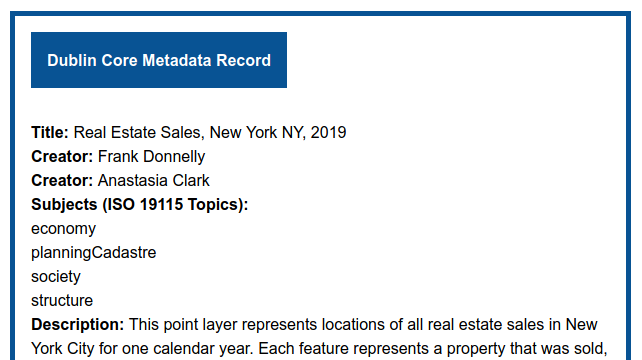
Snippet of an XML metadata record:
<title>Real Estate Sales, New York NY, 2019</title>
<creator>Frank Donnelly</creator>
<creator>Anastasia Clark</creator>
<subject>economy</subject>
<subject>planningCadastre</subject>
<subject>society</subject>
<subject>structure</subject>
In other cases I went contrary to the GB standard, but kept an eye on how to satisfy it so when records are crosswalked from our DC standard in XML to the GB standard in JSON, the GB records will contain all the required information. I used the DC Medium element to specify how the GIS data was represented (point, line, polygon, raster, etc), which is required as a non-DC element in GB records. I used the Source element to express the original data sources we used for creating our data, which is something that’s important to us. GB doesn’t use the Source element in this way – so when our records are crosswalked this information will be dropped. I used Coverage for expressing place names from Geonames, and Spatial to record the bounding box for the features using the DC Box format. I also used The Spatial field as a way of expressing the coordinate reference system for the layer: the coordinates and system name published in the record are for the system the layer uses. When this information gets crosswalked to a GB record, the data in Coverage will be transferred to Spatial (as GB uses this DC field for designating place names), and the Spatial bounding box data gets migrated and transformed to a GB-specific envelope element (in GB, the bounding box is used for spatial searching and is expressed in WGS 84).
Creating Records and Expressing them in XML
I created a blank XML template that contains all our required and optional elements, with some sample values to indicate how the elements should be populated. If we are creating new records from scratch, we can copy the template and fill it in using a plain text editor. Alternatively we can also use the Dublin Core Metadata Generator, but in using that we’d have to be careful to follow our DAP, selecting just our required elements and omitting ones that we don’t use. All of our elements are expressed under a single root element called “metadata”. While it is common to prefix DC elements with a namespace, we do NOT include these namespaces because it makes validating the records a pain… more about that in the next section.
In most cases, we won’t be creating records from scratch but will be modifying existing ones, and only a handful of the elements would need to be updated in any given year. To this end, I wrote two scripts that make copies of specific records, one for each year or time period (for one feature that repeats over many years – one file to many), and one for each file name (for a series of different layers produced for one time period – one file to one file). That way, we can edit the copies and change just the fields that need updating.
The process of updating the records is going to vary with each series and with each particular iteration. I wrote some Python functions that can be used repeatedly, and import these into scripts that are custom designed for each dataset. I use the ElementTree module to parse the XML and update specific fields. For elements that require updated values, I either hard code them into the script or read them from a JSON file that I construct. For example, to update our real estate sales layers I took the file for the most recent year and made copies of it, named for each year in the past. Then I created a JSON file that’s read into a Python dictionary, and using the year in the file name as the key, elements for: year issued, year published, creator, and contributor in the XML are modified using the dictionary values. In some cases the substring of an element must be changed, such as the year that appears at the end of the Title field. In other cases an entire value can simply be swapped out.
A portion of a json file is below, where year is the key and value is a dictionary that contains element name as key, and value is element text / value to be updated:
Several files called “real_property_sales_nyc_YEAR.xml” are read in. These files are all copies of data for the most recent year (2019), but YEAR in the file name is substituted with each year of data that we have (2018, 2017, etc). The script reads in the year from the file name, and updates the appropriate elements using that year as the key (in the actual code the functions are imported from a separate file so they can be used in multiple scripts). With ElementTree: parse the xml file to save it as a tree object, then getroot to get the root element of the tree, which allows you to find specific elements (like the title element) and get the text value of that element (the actual title), so you can modify the value:
import xml.etree.ElementTree as ET
def esimple(root,elem,value):
"""Replace the value of an element"""
e=root.find(elem)
e.text=value
def esubstring(root,elem,oldstring,newstring):
"""Replace a portion (substring) of the value of an element"""
e=root.find(elem)
e.text=e.text.replace(oldstring,newstring)
with open(json_update_file) as jfile:
updates = json.load(jfile)
for file in os.listdir(infolder):
if file[-4:]=='.xml':
xfilein=os.path.join(infolder,file)
year=file[-8:-4] #assumes year is at end of file name
tree = ET.parse(xfilein)
root = tree.getroot()
esimple(root,'temporal',year)
esimple(root,'issued',updates[year]['issued'])
esubstring(root,'title','2019',year)
...
Validating Records
Since I’m already operating within Python, I decided to use a 3rd party Python module called xmlschema to validate our records. It’s simple and works quite nicely, but first we need to have a schema. An XML schema or XSD file is an XML file that contains instructions on how our XML metadata should be structured: all the elements we use, whether they are required or not, whether they can repeat or not, the order in which they must appear, and whether there are controlled vocabularies. I hard-coded shorter vocabs like the ISO categories and many of the GB requirements into the schema, but I didn’t include absolutely everything. Since we’re a small shop that makes a limited amount of metadata, we’ll still be checking the records manually.
The Python validator script checks for well formed-ness first (i.e. every open tag has a closing tag), and then proceeds to check the record against the schema file. If it hits something that’s invalid, it stops. I wrote the script as a batch process, so if one file fails it moves on to the next one. It produces an error report, and we make the corrections and go back and try validating again until everything passes.
In the snippet below, we read in the schema file and a folder of records to be validated. myschema.is_valid(file) tests whether the schema is valid or not. If it’s valid (True) I perform some other check (not shown), and if that turns out OK then we have no problems. Otherwise if my check fails, or the schema returns as not valid (False), record the problem and move on to the next file. Problems are printed to screen, and other status messages are output (not shown):
import xmlschema as xmls
import os
schemafile=os.path.join('bcgis_dc_schema.xsd')
xmlfolder=os.path.join('projects','nyc_real_estate','newfiles')
problems={}
noproblems=[]
my_schema = xmls.XMLSchema(schemafile)
for file in os.listdir(xmlfolder):
if file[-4:]=='.xml':
filepath=os.path.join(xmlfolder,file)
my_xml = xmls.XMLResource(filepath)
test=my_schema.is_valid(my_xml)
if test==True:
msg=spatial_check(my_xml)
if msg==None:
noproblems.append(file)
else:
problems[file]=msg
else:
try:
my_schema.validate(my_xml)
except xmls.XMLSchemaException as e:
problems[file]=e
continue
if len(problems)&amp;gt;0:
print('***VALIDATION ERRORS***\n')
for k, v in problems.items():
print(k,v)
else:
pass
Creating the schema was an area where I ran into trouble, because I initially tried to refer to the DC namespaces in my records and kept all of the namespace prefixes with the elements, i.e. dc:title instead of title. This seemed like the “right” thing to do. It turns out that schema creation and validation for XML records with multiple namespaces is a royal pain; you have to create multiple schemas for each namespace, which in this case would mean three: DC elements, DC terms, and my own root metadata element. Then I’d have to write all kinds of stuff to over-ride the default DC schema files, because they were designed to be flexible: the only requirement is that just the listed DC elements and terms can appear. My requirements are much more stringent, as I wanted to use a subset of the DC elements and impose restrictions to insure consistency. I watched countless YouTube videos on XML schemas and read several tutorials that didn’t address this complexity, and what I did find suggested that it was going to be arduous.
Ultimately I decided – why bother? I jettisoned the namespaces from our records, and have yet another script for stripping them out of records (for older records where we had included namespaces). As long as I have a solid DAP, am following best practices consistently, am using vocabularies that others are using, and we validate and check our records, others should be able to interpret them and either ingest or transform them if they need to.
Styling the Records
While XML is fine for search and data exchange, it’s not friendly for humans to read, so it’s a good idea to apply a stylesheet to render the XML in a readable form in a web browser. XLST stylesheets give you lots of control, as you can actually process and transform the underlying XML to display what you want. But to my dismay, this was also needlessly complicated. Searching around, I discovered that many web browsers had deprecated the display of XML via XLST stylesheets stored locally for security reasons, which makes development cumbersome. I also got the sense that this is an atrophying technology; most of the references I found to XSLT were 10 to 20 years old.
So, I took a simpler route and created a CSS stylesheet, which can style XML essentially the same way that it styles HTML. You must display all of the underlying data in the XML file and your control is limited, but there are enough tweaks where you can insert labels, and vary the display for single items versus lists of items. I keep the stylesheet stored on our website, and as part of the metadata creation process a link to it is embedded in each of our records. So when you open the XML file in a browser, it looks to the online CSS file and renders it. The XML snippet at the beginning of this post looks like the image below, when a user clicks on the file to view it:
Migrating the DC XML records to GB JSON was actually straightforward, using Python and a combination of the ElementTree and JSON modules. I walked each of our elements over to its corresponding GB element, and made modifications when needed using the ElementTree functions and methods mentioned previously; I find each element in our XML and save its value in a dictionary using the GB element name as the key, and at the end I write the items out to JSON. In some cases elements from our records are dropped if there isn’t a suitable counterpart. The bounding box element was trickiest, as I had to convert the northing and easting coordinate format used by DC box into a standard OGC Envelope structure, and transform the CRS from whatever the layer uses to WGS 84. I used the pyproj module to do both. Some of the elements are left blank, because I’d have to coordinate with my colleagues at NYU for filling those values, like the unique id or “slug” that’s native to their repository.
Conclusion
You should always create metadata and rely on existing standards and vocabulary to the extent possible, but create something that works for you given your circumstances. Figure out whether your metadata serves a discovery function or a documentation function, or some combination of both. Create a clear set of rules that you can implement that will provide useful information to your data users, without becoming a serious impediment to your data creation process. Creating metadata does take time and you need to budget for it accordingly, but don’t waste time (like I was) dealing with clunky metadata creation software and lots of information that will largely go unused, simply because it’s “the right thing to do”. Ideally, whatever you create should be consistent and flexible enough that you can write some code to transfer it to a different standard or format if need be.
I have recently created an atcoordinates YouTube channel that features a series of how-to videos on finding and accessing US census data using a variety of websites and tools. I explain basic census concepts while demonstrating how to access data. At this point there are four videos:
Exploring US Census Data: Basic Concepts. This is a narrated slide show where I cover the essential choices you need to make and concepts you need to understand in order to access census data, regardless of the tool or platform: data set, time period, subjects or topics, and geography. I discuss the decennial census, American Community Survey, and population estimates. This video is intended as a prerequisite for viewing the others, so I don’t have to explain the same concepts each time and can focus on demonstrating each particular application.
American Community Survey Census Profiles with MCDC Apps. This screencast illustrates how you can quickly and easily access census profiles for any place in the US using the Missouri Census Data Center’s profile applications. It’s also a good introduction to census data in general, if you’re unfamiliar with the scope of data that’s available.
Search Strategies for data.census.gov. I demonstrate how to use the Census Bureau’s primary application for accessing current census data, using the advanced search tool and filters.
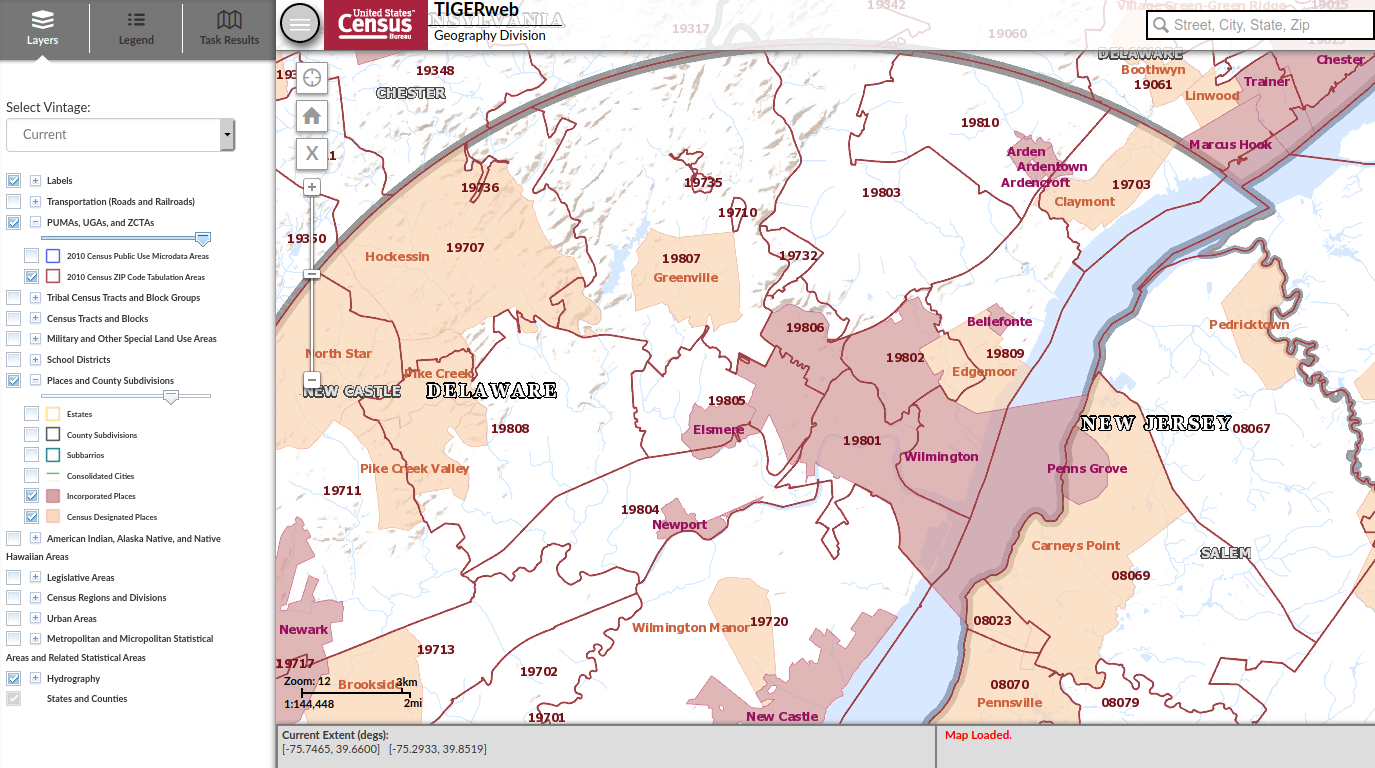
Using TIGERweb to Explore US Census Geography. I show you how to use this web map application for viewing census geography, while explaining what some of the small-area census geographies are.
I plan on adding additional videos every month or so. The pandemic lock down and uncertainty over whether classes will be back in session this fall inspired me to do this. While I prefer written tutorials, I find that I’ve been watching YouTube more often for learning how to do certain tasks with particular software, so I thought this would be useful for others. The videos average about 10 to 15 minutes in length, although the introductory one is a bit longer. The length is intentional; I wanted to explain the concepts and describe why you’re making certain choices, instead of simply pointing and clicking without any explanation.
Feel free to spread the news, share and embed the videos in research guides or web pages, and use them in classes or workshops. Of course, for a more in-depth look at US census data, check out my book: Exploring the US Census: Your Guide to America’s Datapublished by SAGE.
Since the COVID-19 pandemic began, I’ve received several questions about finding census data and boundary files for ZIP Codes (aka US postal codes), as many states are publishing ZIP Code-level data for cases and deaths. ZIP Codes are commonly used for summarizing address data, as it’s easy to do and most Americans are familiar with them. However, there are a number of challenges associated with using ZIP Codes as a unit of analysis that most people are unaware of (until they start using them). In this post I’ll summarize these challenges and provide some solutions.
The short story is: you can get boundary files and census data from the decennial census and 5-year American Community Survey (ACS) for ZIP Code Tabulation Areas (ZCTAs, pronounced zicktas) which are approximations of ZIP Codes that have delivery areas. Use any census data provider to get ZCTA data: data.census.gov, Census Reporter, Missouri Census Data Center, NHGIS, or proprietary library databases like PolicyMap or the Social Explorer. The longer story: if you’re trying to associate ZIP Code-level data with census ZCTA boundary files or demographic data, there are caveats. I’ll cover the following issues in detail:
ZIP Codes are actually not areas with defined boundaries, and there are no official USPS ZIP Code maps. Areas must be derived using address files. The Census Bureau has done this in creating ZIP Code Tabulation Areas (ZCTAs).
The Census Bureau publishes population data by ZCTA and boundary files for them. But ZCTAs are not strictly analogous with ZIP Codes; there isn’t a ZCTA for every ZIP Code, and if you try to associate ZIP data with them some of your records won’t match. You need to crosswalk your ZIP Code data to the ZCTA-level to prevent this.
ZCTAs do not nest or fit within any other census geographies, and the postal city name associated with a ZIP Code does not correlate with actual legal or municipal areas. This can make selecting and downloading ZIP Code data for a given area difficult.
ZIP Codes were designed for delivering mail, not for studying populations. They vary tremendously in size, shape, and population.
Analyzing data at either the ZIP Code or ZCTA level over time is difficult to impossible.
ZIP Code and ZCTA numbers must be saved as text in data files, and not as numbers. Otherwise codes that have leading zeros get truncated, and the code becomes incorrect.
ZIP Codes versus ZCTAs and Boundaries
Contrary to popular belief, ZIP Codes are not areas and the US Postal Service does not delineate boundaries for them. They are simply numbers assigned to ranges of addresses along street segments, and the codes are associated with a specific post office. When we see ZIP Code boundaries (on Google Maps for example), these have been derived by creating areas where most addresses share the same ZIP Code.
The US Census Bureau creates areal approximations for ZIP Codes called ZIP Code Tabulation Areas or ZCTAs. The Bureau assigns census blocks to a ZIP number based on the ZIP that’s used by a majority of the addresses within each block, and aggregates blocks that share the same ZIP to form a ZCTA. After this initial assignment, they make some modifications to aggregate or eliminate orphaned blocks that share the same ZIP number but are not contiguous. ZCTAs are delineated once every ten years in conjunction with the decennial census, and data from the decennial census and the 5-year American Community Survey (ACS) are published at the ZCTA-level. You can download ZCTA boundaries from the TIGER / Line Shapefiles page, and there is also a generalized cartographic boundary file for them.
Crosswalking ZIP Code Data to ZCTAs
There isn’t a ZCTA for every ZIP Code. Some ZIP Codes represent large clusters of Post Office boxes or are assigned to large organizations that process lots of mail. As census blocks are aggregated into ZCTAs based on the predominate ZIP Code for addresses within the block, these non-areal ZIPs fall out of the equation and we’re left with ZCTAs that approximate ZIP Codes for delivery areas.
As a result, if you’re trying to match either your own summarized address data or sources that use ZIP Codes as the summary level (such as the Census Bureau’s Business Patterns and Economic Census datasets), some ZIP Codes will not have a matching ZCTA and will fall out of your dataset.
To prevent this from happening, you can aggregate your ZIP Code data to ZCTAs prior to joining it to boundary files or other datasets. The UDS Mapper project publishes a ZIP Code to ZCTA Crosswalk file that lists every ZIP Code and the ZCTA it is associated with. For the ZIP Codes that don’t have a corresponding area (the PO Box clusters and large organizations), these essentially represent points that fall within ZCTA polygons. Join your ZIP-level data to the ZIP Code ID in the crosswalk file, and then group or summarize the data using the ZCTA number in the crosswalk. Then you can match this ZCTA-summarized data to boundaries or census demographic data at the ZCTA-level.
UDS ZIP Code to ZCTA Crosswalk. ZIP Code 99501 is an areal ZIP Code with a corresponding ZCTA number, 99501. ZIP Code 99520 is a post office or large volume customer that falls inside ZCTA 99501, and thus is assigned to that ZCTA.
Identifying ZIPs and ZCTAs within Other Areas
ZCTAs are built from census blocks and nest within the United States; they do not fit within any other geographies like cities and towns, counties, or even states. The boundaries of a ZCTA will often cross these other boundaries, so for example a ZCTA may fall within two or three different counties. This makes it challenging to select and download census data for all ZCTAs in a given area.
You can get lists of ZIP Codes for places, for example by using the MCDC’s ZIP Code Lookup. The problem is, the postal city that appears in addresses and is affiliated with a ZIP Code does not correspond with cities as actual legal entities, so you can’t count on the name to select all ZIPs within a specific place. For example, my hometown of Claymont, Delaware has its own ZIP Code, even though Claymont is not an incorporated city with formal, legal boundaries. Most of the ZIP Codes around Claymont are affiliated with Wilmington as a place, even though they largely cover suburbs outside the City of Wilmington; the four ZIP Codes that do cover the city cross the city boundary and include outside areas. In short, if you select all the ZIP Codes that have Wilmington, DE as their place name, they actually cover an area that’s much larger than the City of Wilmington. The Census Bureau does not associate ZCTAs with place names.
Lack of correspondence between postal city names and actual city boundaries. Most ZCTAs with the prefix 198 are assigned to Wilmington as a place name, even though many are partially or fully outside the city.
So how can you determine which ZIP Codes fall within a certain area? Or how they do (or don’t) intersect with other areas? You can overlay and eyeball the areas in TIGERweb to get a quick idea. For something more detailed, here are three options:
The Missouri Census Data Center’s Geocorr application lets you calculate overlap between a source geography and a target geography using either total population or land area for any census geographies. So in a given state, if you select ZCTAs as a source, and counties as the target, you’ll get a list that displays every ZCTA that falls wholly or partially within each county. An allocation factor indicates the percentage of the ZCTA (population or land) that’s inside and outside a county, and you can make decisions as to whether to include a given ZCTA in your study area or not. If a ZCTA falls wholly inside one county, there will be only one record with an allocation factor of 1. If it intersects more than one county, there will be a record with an allocation factor for each county.
The US Department of Housing and Urban Development (HUD) publishes a series of ZIP Code crosswalk files that associates ZIP Codes with census tracts, counties, CBSAs (metropolitan areas), and congressional districts. They create these files by geocoding all addresses and calculating the ratio of residential, business, and other addresses that fall within each of these areas and that share the same ZIP Code. The files are updated quarterly. You can use them to select, assign, or apportion ZIP Codes to a given area. There’s a journal article that describes this resource in detail.
Some websites allow you to select all ZCTAs that fall within a given geography when downloading data, essentially by selecting all ZCTAs that are fully or partially within the area. The Census Reporter allows you to do this: search for a profile for an area, click on a table of interest, and then subdivide the areas by smaller areas. You can even look at a map to see what’s been selected. data.census.gov currently does not provide this option; you have to select ZCTAs one by one (or if you’re using the census API, you’ll need to create a list of ZCTAs to retrieve).
Sample output from MCDC Geocorr. ZCTAs 08251 and 08260 fall completely within Cape May County, NJ. ZCTA 08270’s population is split between Cape May (92.4%) and Atlantic (7.6%) counties. The ZCTA names are actually postal place names; these ZCTAs cover areas that are larger than these places.
Do You Really Need to Use ZIP Codes?
ZIP Codes were an excellent mid-20th century solution for efficiently processing and delivering mail that continues to be useful for that purpose. They are less ideal for studying populations or other forms of human activity. They vary tremendously in size, shape, and population which makes them inconsistent as a unit of analysis. They have no legal or administrative meaning or function, other than delivering mail. While all American’s are familiar with them, they do not have any relevant social meaning. They don’t represent neighborhoods, and when you ask someone where they’re from, they won’t say “19703”.
So what are your other options?
If you don’t have to use ZIP Code or ZCTA data for your project, don’t. For the United States as a whole, consider using counties, PUMAs, or metropolitan areas. Within states: counties, PUMAs, and county subdivisions. For smaller areas: municipalities, census tracts, or aggregates of census tracts.
If you have the raw, address-based data, consider geocoding it. Once you geocode an address, you can use GIS to assign it to any type of geography that you have a boundary file for (spatial join), and then you can aggregate it to that geography. Some geocoders even provide geographies like counties or tracts in the match result. If your data is sensitive, strip all the attributes out except for the address and a serial integer to use as an ID, and after geocoding you can associate the results back to your original data using that ID. The Census Geocoder is free, requires no log in, allows you to do batches of 1,000 addresses at a time, and forces you to use these safety precautions. For bigger jobs, there’s an API.
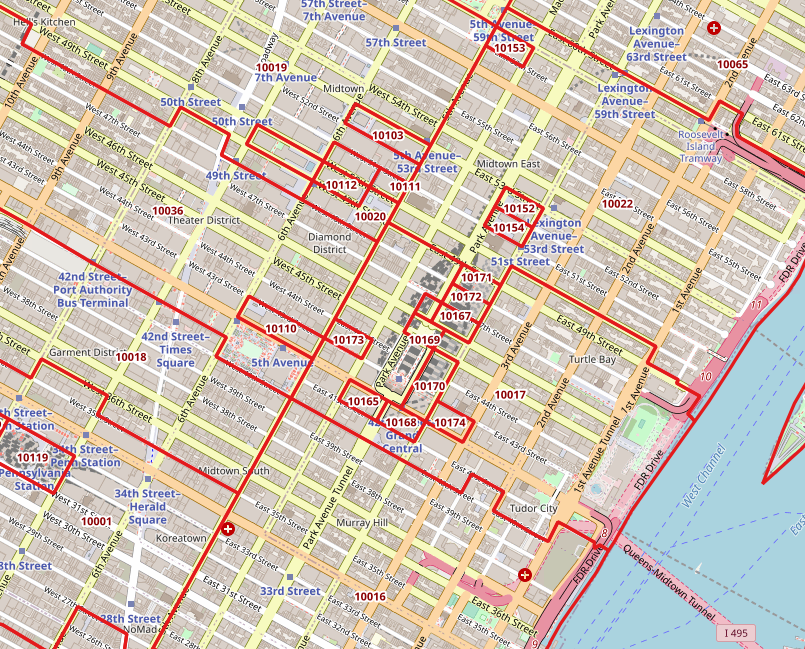
Sometimes you’ll have no choice and must use ZIP Code / ZCTA data, if what you’re interested in studying is only provided in that summary form, or if there are privacy concerns around geocoding the raw address data. You may want to modify the ZCTA geography for your area to aggregate smaller ZCTAs into larger ones surrounding them, for both visual display and statistical analysis. For example, in New York City there are several ZCTAs that cover only one city and census block, as they’re occupied by one large office building that processes a lot of mail (and thus have their own ZIP number). Also, unlike most census geographies, ZCTAs have large holes in them. Any area that does not have streets and thus no addresses isn’t included in a ZCTA. In urban areas, this means large parks and cemeteries. In rural areas, vast tracts of unpopulated forest, desert, or mountain terrain. And large bodies of water in every place.
One-block ZCTAs in Midtown Manhattan, NYC that have either low or zero population.
Analyzing ZIP Code Data Over Time…
In short – forget it. The Census Bureau introduced ZCTAs in the year 2000, and in 2010 they modified their process for creating them. For a variety of reasons, they’re not strictly compatible. ACS data for ZCTAs wasn’t published until 2013. Even the economic datasets don’t go that far back; the ZIP Code Business Patterns didn’t appear until the early 1990s. Use areas that have more longevity and are relatively stable: counties, census tracts.
Why Do my ZIP Codes Look Wrong in Excel?
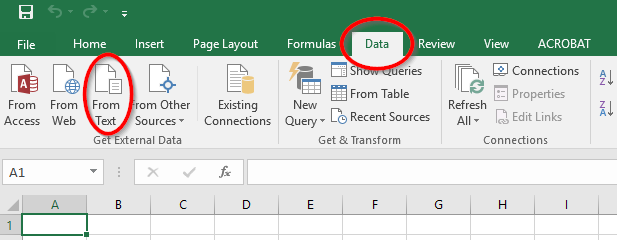
Regardless of whether you’re using a spreadsheet, database, or scripting language, always make sure to define ZIP / ZCTA columns as strings or text, and not as numeric types. ZIP Codes and ZCTAs begin with zeros in several states. Columns that contain ZIP / ZCTA codes must be saved as text to preserve the 5-digit code. If they’re saved as numbers, the leading zeros are dropped and the numbers are rendered incorrectly. This often happens if you’re working with data in a CSV file and you click on it to open it in Excel. In parsing the CSV, Excel assumes the ZIP / ZCTA field is a number and saves it as a number, which drops the zero and truncates the code. To prevent this from happening: open Excel to a blank project, go to the Data ribbon, click the button to import text data, choose delimited text on the import screen, choose the delimiter (comma or tab, etc), and when prompted you can select the ZIP / ZCTA column and designate it as text so that it imports properly.
To import CSV files in Excel, go to the Data ribbon and under Get External Data select From Text.
I just posted an updated version of my QGIS tutorial / workbook manual, Introduction to GIS Using Open Source Software. This version was written for QGIS 3.10 A Coruña, which recently superseded QGIS 3.4 Madeira as the current Long Term Release (LTR). The LTR is intended to be more stable than the current releases and is supported for at least a year.
The workbook was designed to accompany a day-long introductory workshop that I teach and is divided into five chapters. Chapter 1 is a broad and concise overview of GIS, chapters 2 to 4 are hands-on exercises that cover: the basics of using the interface and the difference between vectors and rasters (chapter 2), a site selection analysis that demonstrates geoprocessing, spatial selection, table joins, coordinate plotting, expressions, and spatial analysis (chapter 3), and a thematic mapping example that illustrates coordinate reference systems (CRS), data classification, and mapping (chapter 4). Chapter 5 summarizes data sources and resources for learning more about GIS. In chapters 2 to 4 the steps for doing the exercises are kept concise with many screenshots, while detailed commentary explaining how everything works follows.
The manual and tutorial data are freely available for personal and classroom use under a Creative Commons license. I’m providing the material for both 3.10 A Coruna and 3.4 Madeira for now, but will take down the latter at the end of the spring semester (late May 2020).
The changes between 3.4 and 3.10 are not dramatic as far as the basic tools and principles that I cover in the book go, but I thought an update was worthwhile as there are just enough changes that could trip up new users (see the 3.10 visual change log for a full list of software updates). In addition to incorporating changes to the interface, I also took the opportunity to tighten up and condense the material. In particular, I consolidated the coordinate reference system (CRS) exercises in chapter 4 from two sections to one, because in practice I found that it was overkill for a one-day session.
Here are a few noteworthy changes to the tutorial and software that impact novice users:
The default setting for the toolbar buttons is rather small, so during the setup phase in chapter 2 I inserted an optional step to make them bigger. Go to: Settings > Options > General tab, and under the Application section change the icon size from 16 to 24.
In 3.10, when new files are generated from geoprocessing operations and added to your project, the layers appear in the layers panel with the name you give them. In 3.4 they were assigned generic aliases like “Clipped” and “Buffer” based on the process you ran.
In 3.10 the “Quantiles” classification scheme has been replaced with “Equal Counts”. Same scheme, different terminology.
There’s now a dedicated north arrow button in the map layout screen. In 3.4 and earlier versions you added an arrow by selecting the add image button.
In 3.10, every time you add a layer with a CRS that doesn’t match the existing CRS of the window, you’re presented with a datum transformation screen to modify the file you’re adding. This is a helpful warning if you already have existing layers in your project that match the window and your new file doesn’t, but it’s annoying when you’re trying to add files to a blank window in a new project. You can turn this feature off under: Options > Settings > CRS tab, under Default Datum Transformations uncheck the box for Ask for datum transformation.
It’s hard to believe that this is the 10th edition I’ve published in the past ten years. QGIS has certainly come a long way during that time. For a trip down memory lane, look at the 1st edition I wrote for QGIS 1.5 Tethys in 2011! Back then I wrote the whole thing in HTML… thankfully I “discovered” LaTeX a year later, and have used it for writing tutorials ever since.
If you wanted to learn GIS in general and QGIS in particular, spend a day with the manual and work through the exercises and you’ll have a good foundation. All the basics are there, as well as best practices and the “gotchas” that tend to trip people up.
You must be logged in to post a comment.